> ## Documentation Index
> Fetch the complete documentation index at: https://thestacc.com/docs/llms.txt
> Use this file to discover all available pages before exploring further.
# Changelog
> The latest features, improvements, and fixes in theStacc.
## Connect Claude, Cursor and other AI tools in one sign-in
theStacc MCP now covers your whole project: Blog, SEO and analytics, Site audit, Keywords, Social and Google Business, in one connection with 56 tools.
 * **Sign in with theStacc:** Add `https://mcp.thestacc.com/mcp` as a custom connector in Claude, or as a remote server in Claude Code, Cursor, Codex CLI and Gemini CLI. Sign in, pick one project, choose what the tool can do, and approve. No key to copy. [Connect your AI tool](/docs/developers/mcp/overview#connecting-to-thestacc-mcp).
* **Create social posts from your AI tool:** Ask for a post on any topic and the assistant creates the caption, hashtags and images in your brand's style. It lands in review for you to approve. [social\_generate\_post](/docs/developers/mcp-tools-reference#social_generate_post).
* **Guided workflows:** Slash commands for a weekly content review, your top SEO actions, creating a social post and refreshing a declining blog. [Guided workflows](/docs/developers/mcp/overview#guided-workflows).
* **Permissions on every key:** Choose Read posts, Draft and edit, or Publish approved posts for Blog, Social and Google Business, plus SEO and keyword permissions. Presets: Read only, Draft (no publishing), and Full access. New keys start on Draft (no publishing). Older keys keep Blog and SEO access only. [Permissions](/docs/developers/agent-keys-mcp#permissions).
* **Social and Google Business tools:** Agents can edit captions and schedules, redraw and edit images, write and illustrate Google Business posts, and publish posts a person approved. [MCP Tools Reference](/docs/developers/mcp-tools-reference).
* **New blog tools:** Pick a publish date for a bonus blog, retry only the images that failed, stop a blog that is being written, and edit an image instead of making a new one.
**Approval stays with you.** Agents can't approve anything, and publishing is never pre-ticked when you connect. They can publish only what a person approved and only if it hasn't changed since. Approved social and Google Business posts are locked for agents. [Safety rules](/docs/developers/agent-keys-mcp#safety-rules).
## Blog authors and research sources
Choose who gets the byline and review the research behind your blog before publishing.
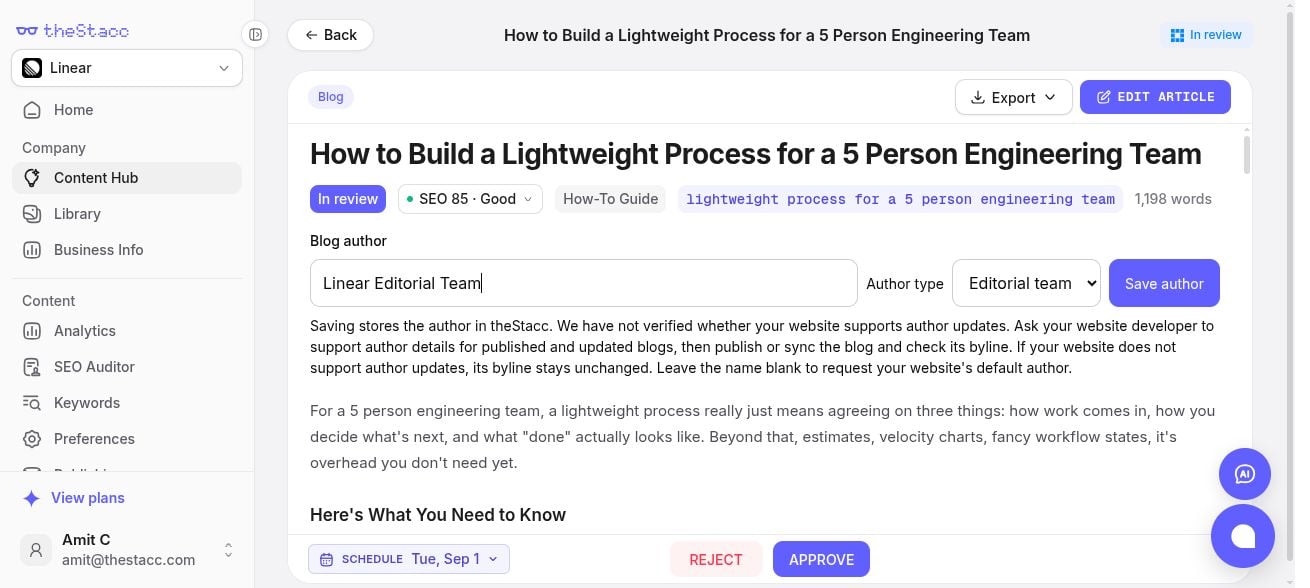
* **Blog authors:** Set a person's name or your editorial team's name for a custom website blog. Your website must support author updates to show the byline. [Set up an author](/docs/content-seo/publishing#blog-authors-for-custom-sites).
* **Sources used:** See the research links and saved highlights behind blogs with saved sources. [Review the sources](/docs/content-seo/publishing#review-the-sources-used).
**Other improvements:** Your draft stays open when a save fails or you keep typing during a save.
* **Sign in with theStacc:** Add `https://mcp.thestacc.com/mcp` as a custom connector in Claude, or as a remote server in Claude Code, Cursor, Codex CLI and Gemini CLI. Sign in, pick one project, choose what the tool can do, and approve. No key to copy. [Connect your AI tool](/docs/developers/mcp/overview#connecting-to-thestacc-mcp).
* **Create social posts from your AI tool:** Ask for a post on any topic and the assistant creates the caption, hashtags and images in your brand's style. It lands in review for you to approve. [social\_generate\_post](/docs/developers/mcp-tools-reference#social_generate_post).
* **Guided workflows:** Slash commands for a weekly content review, your top SEO actions, creating a social post and refreshing a declining blog. [Guided workflows](/docs/developers/mcp/overview#guided-workflows).
* **Permissions on every key:** Choose Read posts, Draft and edit, or Publish approved posts for Blog, Social and Google Business, plus SEO and keyword permissions. Presets: Read only, Draft (no publishing), and Full access. New keys start on Draft (no publishing). Older keys keep Blog and SEO access only. [Permissions](/docs/developers/agent-keys-mcp#permissions).
* **Social and Google Business tools:** Agents can edit captions and schedules, redraw and edit images, write and illustrate Google Business posts, and publish posts a person approved. [MCP Tools Reference](/docs/developers/mcp-tools-reference).
* **New blog tools:** Pick a publish date for a bonus blog, retry only the images that failed, stop a blog that is being written, and edit an image instead of making a new one.
**Approval stays with you.** Agents can't approve anything, and publishing is never pre-ticked when you connect. They can publish only what a person approved and only if it hasn't changed since. Approved social and Google Business posts are locked for agents. [Safety rules](/docs/developers/agent-keys-mcp#safety-rules).
## Blog authors and research sources
Choose who gets the byline and review the research behind your blog before publishing.
* **Blog authors:** Set a person's name or your editorial team's name for a custom website blog. Your website must support author updates to show the byline. [Set up an author](/docs/content-seo/publishing#blog-authors-for-custom-sites).
* **Sources used:** See the research links and saved highlights behind blogs with saved sources. [Review the sources](/docs/content-seo/publishing#review-the-sources-used).
**Other improvements:** Your draft stays open when a save fails or you keep typing during a save.
 ## Create video posts from your own clips
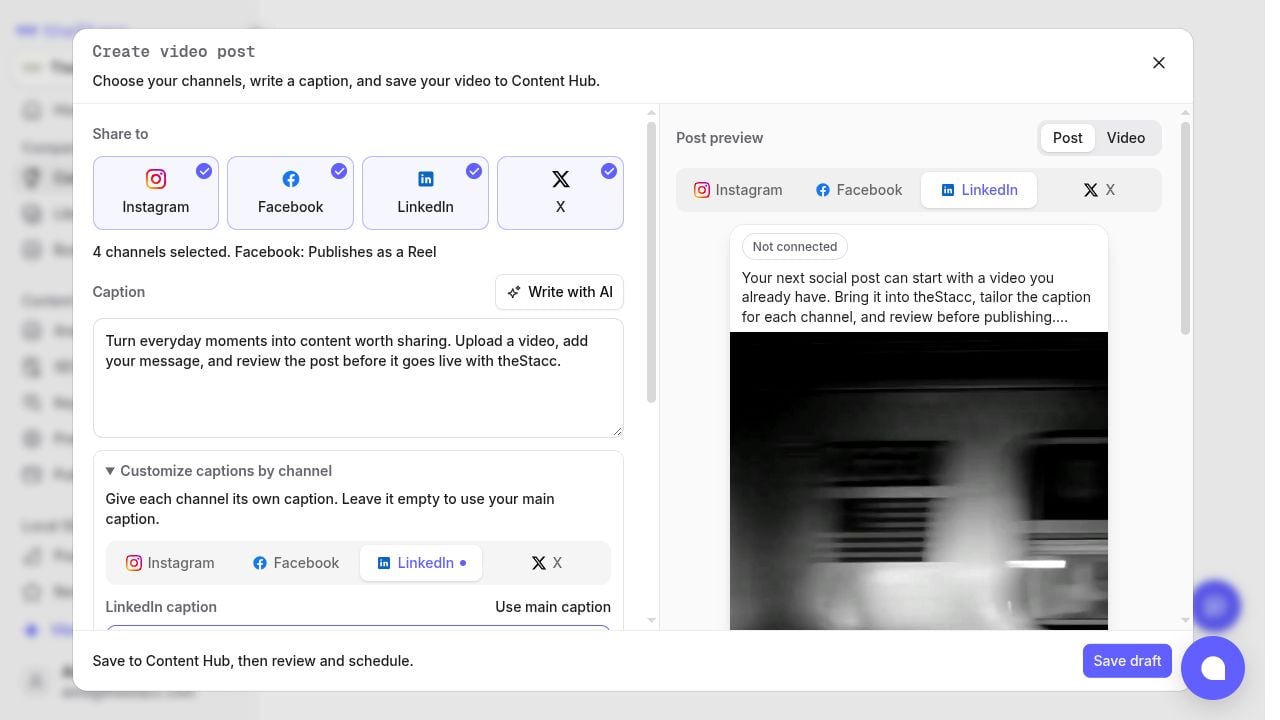
Upload a video or reuse one from **Library**. Choose your channels, add captions, hashtags, and a first comment, then save a draft in **Content Hub**. Review each channel before approving and publishing. [Create a video post](/docs/social-media/video-posts).
## Create video posts from your own clips
Upload a video or reuse one from **Library**. Choose your channels, add captions, hashtags, and a first comment, then save a draft in **Content Hub**. Review each channel before approving and publishing. [Create a video post](/docs/social-media/video-posts).
 * **Library:** Keep project photos, videos, and product visuals together. Open a video and choose **Create post** to reuse it without another upload. [Use Library](/docs/getting-started/library).
* **Caption assistance:** Use **Write with AI** to draft or improve video captions, then tailor the wording by channel.
Need to change a saved post's copy? [Use the Edit post drawer](/docs/social-media/edit-posts).
## Edit social images on a canvas
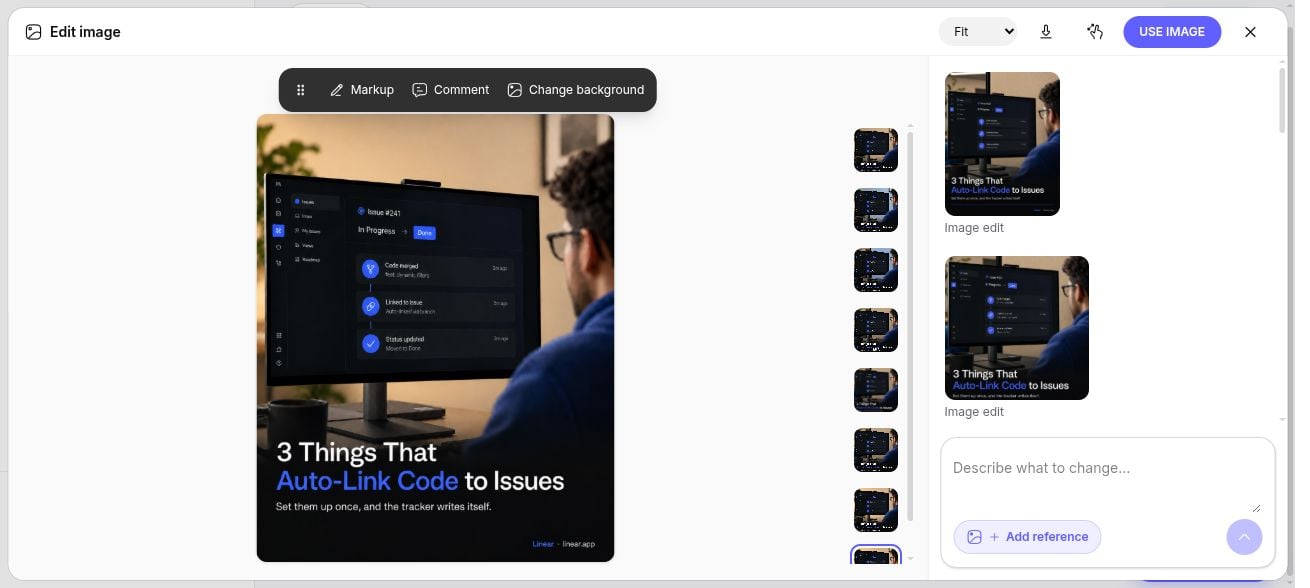
Describe a change, mark an area, or leave a comment where the change belongs. Add a reference image, compare versions, and choose the result with **Use image**. [Social image editing guide](/docs/social-media/image-editing).
* **Library:** Keep project photos, videos, and product visuals together. Open a video and choose **Create post** to reuse it without another upload. [Use Library](/docs/getting-started/library).
* **Caption assistance:** Use **Write with AI** to draft or improve video captions, then tailor the wording by channel.
Need to change a saved post's copy? [Use the Edit post drawer](/docs/social-media/edit-posts).
## Edit social images on a canvas
Describe a change, mark an area, or leave a comment where the change belongs. Add a reference image, compare versions, and choose the result with **Use image**. [Social image editing guide](/docs/social-media/image-editing).
 **Also new: account-specific schedules.** Set each social account's timezone and weekly posting times in **Social > Connections**. Changes apply to new automatic posts. [Posting times and timezones](/docs/social-media/content-scheduling).
This documentation is built and hosted on [Mintlify](https://mintlify.com), a developer documentation platform.
**Also new: account-specific schedules.** Set each social account's timezone and weekly posting times in **Social > Connections**. Changes apply to new automatic posts. [Posting times and timezones](/docs/social-media/content-scheduling).
This documentation is built and hosted on [Mintlify](https://mintlify.com), a developer documentation platform.