> ## Documentation Index
> Fetch the complete documentation index at: https://thestacc.com/docs/llms.txt
> Use this file to discover all available pages before exploring further.
# Library
> Upload and reuse business photos, videos, and product images.
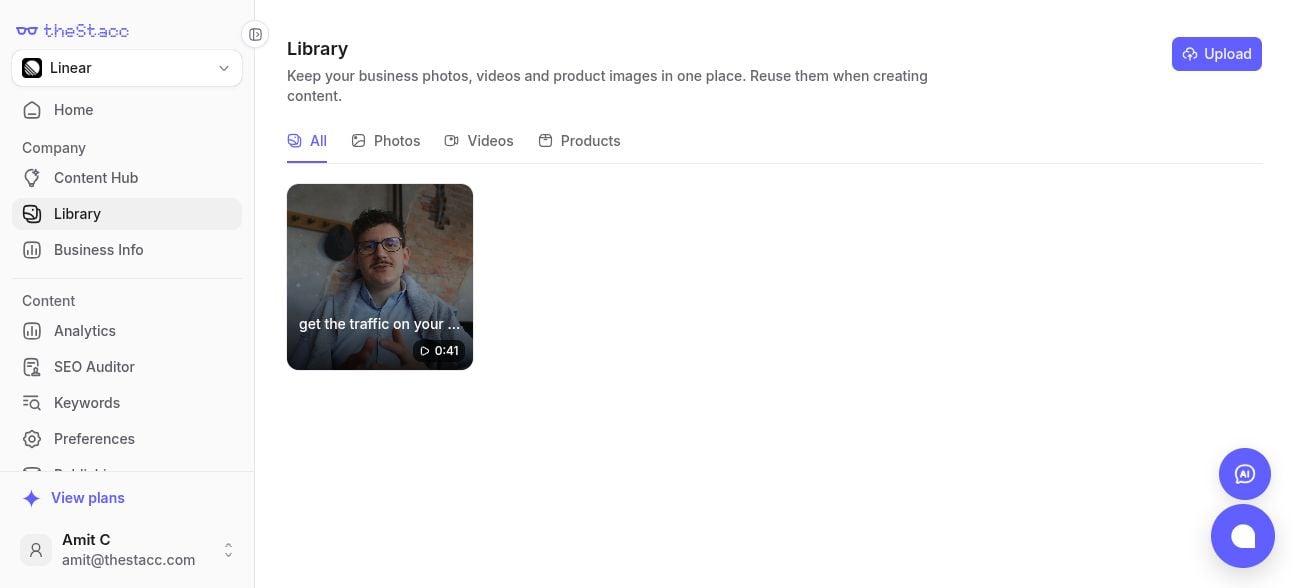
Choose your project, then open **Library** in the sidebar. Keep your own media here so you can reuse it when creating content.
 ## Add and find media
1. Click **Upload** and choose a file from your computer.
2. Wait for the upload to finish.
3. Use **All**, **Photos**, **Videos**, or **Products** to find the asset.
4. Open an asset to review its details.
Library belongs to the selected project. Switch projects before uploading material for a different business.
## Reuse it in content
Where a content editor offers **Choose from library**, select an existing asset instead of uploading it again. Review the selected media in the post before publishing.
## Turn a video into a social post
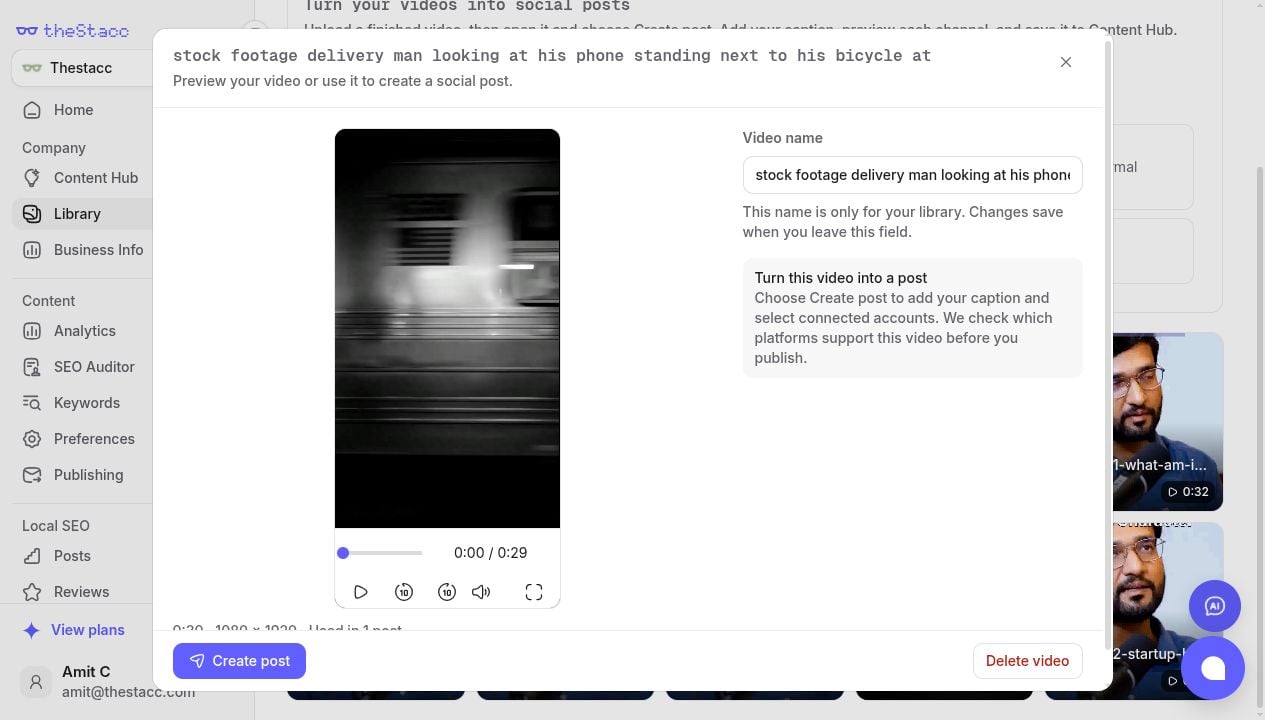
1. Open **Videos** and select a finished clip.
2. Click **Create post** in its details.
3. Choose your channels and add the caption, channel-specific wording, hashtags, and first comment.
4. Click **Save draft**, then review it in **Content Hub**.
The existing video is reused without another upload. Renaming a video in Library only changes its Library name; it does not rewrite a post's caption.
## Add and find media
1. Click **Upload** and choose a file from your computer.
2. Wait for the upload to finish.
3. Use **All**, **Photos**, **Videos**, or **Products** to find the asset.
4. Open an asset to review its details.
Library belongs to the selected project. Switch projects before uploading material for a different business.
## Reuse it in content
Where a content editor offers **Choose from library**, select an existing asset instead of uploading it again. Review the selected media in the post before publishing.
## Turn a video into a social post
1. Open **Videos** and select a finished clip.
2. Click **Create post** in its details.
3. Choose your channels and add the caption, channel-specific wording, hashtags, and first comment.
4. Click **Save draft**, then review it in **Content Hub**.
The existing video is reused without another upload. Renaming a video in Library only changes its Library name; it does not rewrite a post's caption.
 Follow [Create Video Posts](/docs/social-media/video-posts) for upload requirements, covers, channel previews, and publishing. New video uploads and AI caption assistance require an active Social plan. You can prepare a draft from an existing Library video, but publishing requires an active Social plan and connected accounts.
Use [Business Info > Sources](/docs/content-seo/sources-brand-voice) for documents, links, and factual notes you want the AI to read. Use Library for your photos, videos, and product visuals.
This documentation is built and hosted on [Mintlify](https://mintlify.com), a developer documentation platform.
Follow [Create Video Posts](/docs/social-media/video-posts) for upload requirements, covers, channel previews, and publishing. New video uploads and AI caption assistance require an active Social plan. You can prepare a draft from an existing Library video, but publishing requires an active Social plan and connected accounts.
Use [Business Info > Sources](/docs/content-seo/sources-brand-voice) for documents, links, and factual notes you want the AI to read. Use Library for your photos, videos, and product visuals.
This documentation is built and hosted on [Mintlify](https://mintlify.com), a developer documentation platform.