> ## Documentation Index
> Fetch the complete documentation index at: https://thestacc.com/docs/llms.txt
> Use this file to discover all available pages before exploring further.
# Edit Social Posts
> Use the Edit post drawer to update captions, hashtags, and first comments before publishing.
Open a social post in **Content Hub**, choose **Review**, and select the channel tab you want to change. Click **Edit post** to open the editing drawer.
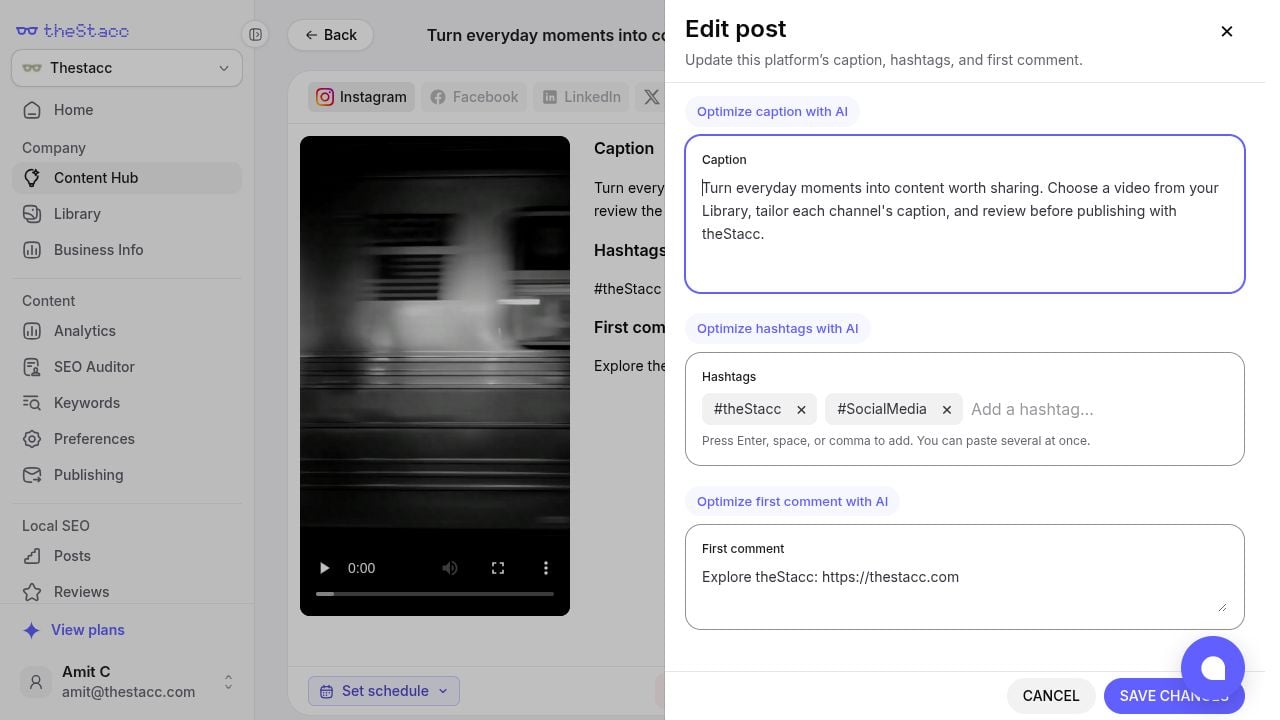 ## What each field changes
| Field | Applies to | How to edit |
| - | - | - |
| Caption | The selected channel | Enter the text you want this channel to publish. |
| Hashtags | The whole post | Type a tag and press Enter, space, or comma. Remove a tag with its × button. |
| First comment | The selected channel | Add the optional comment you want to accompany this channel's post. |
Use the **Optimize ... with AI** buttons for help with individual fields, then review the result. AI assistance requires an active Social plan.
## Save and check
1. Click **Save changes**. The button becomes available when something has changed.
2. Check the updated copy in the review view.
3. Switch to the next channel and repeat if it needs different wording.
4. Review the final post and its schedule before approving or publishing.
**Cancel** closes the drawer without saving your edits. If a save fails, the drawer stays open with your edits and an error message. Resolve the reported problem and try again.
## Media and scheduling
* **Images:** Use [Edit Social Images](/docs/social-media/image-editing) for canvas tools, markup, and image versions.
* **Videos:** Play the clip in the preview. The drawer edits its caption, tags, and comment; it does not trim or replace the footage. See [Create Video Posts](/docs/social-media/video-posts).
* **Timing:** Use **Set schedule** in the review view and check its displayed timezone. See [Publishing & Scheduling](/docs/social-media/publishing-scheduling).
Editing controls can be unavailable while content is being generated or after it has been published. Review the post's status before making changes.
This documentation is built and hosted on [Mintlify](https://mintlify.com), a developer documentation platform.
## What each field changes
| Field | Applies to | How to edit |
| - | - | - |
| Caption | The selected channel | Enter the text you want this channel to publish. |
| Hashtags | The whole post | Type a tag and press Enter, space, or comma. Remove a tag with its × button. |
| First comment | The selected channel | Add the optional comment you want to accompany this channel's post. |
Use the **Optimize ... with AI** buttons for help with individual fields, then review the result. AI assistance requires an active Social plan.
## Save and check
1. Click **Save changes**. The button becomes available when something has changed.
2. Check the updated copy in the review view.
3. Switch to the next channel and repeat if it needs different wording.
4. Review the final post and its schedule before approving or publishing.
**Cancel** closes the drawer without saving your edits. If a save fails, the drawer stays open with your edits and an error message. Resolve the reported problem and try again.
## Media and scheduling
* **Images:** Use [Edit Social Images](/docs/social-media/image-editing) for canvas tools, markup, and image versions.
* **Videos:** Play the clip in the preview. The drawer edits its caption, tags, and comment; it does not trim or replace the footage. See [Create Video Posts](/docs/social-media/video-posts).
* **Timing:** Use **Set schedule** in the review view and check its displayed timezone. See [Publishing & Scheduling](/docs/social-media/publishing-scheduling).
Editing controls can be unavailable while content is being generated or after it has been published. Review the post's status before making changes.
This documentation is built and hosted on [Mintlify](https://mintlify.com), a developer documentation platform.