> ## Documentation Index
> Fetch the complete documentation index at: https://thestacc.com/docs/llms.txt
> Use this file to discover all available pages before exploring further.
# Edit Social Images
> Change a social post image with instructions, markup, point comments, and references.
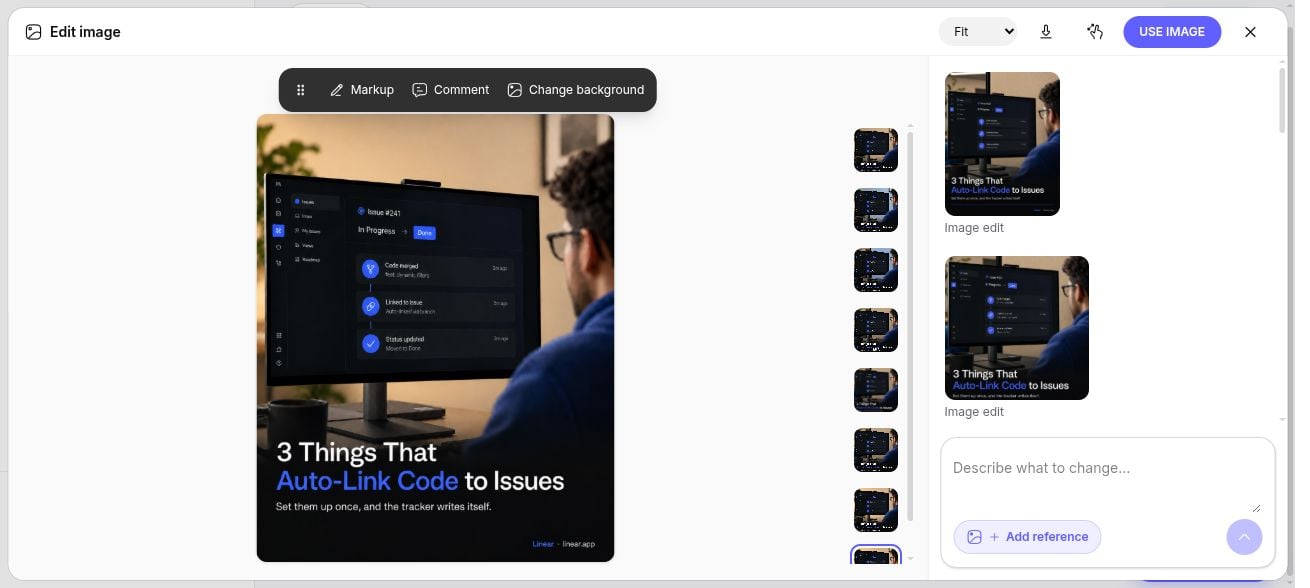
Open your social post in **Content Hub**, then click **Edit image** beside its image. For a carousel, select the slide you want to change first.
 ## Make a change
1. In **Your instructions**, describe the result you want. Include anything that should stay unchanged: for example, “Make the wall cool blue. Keep the person, monitor, logo, and all text.”
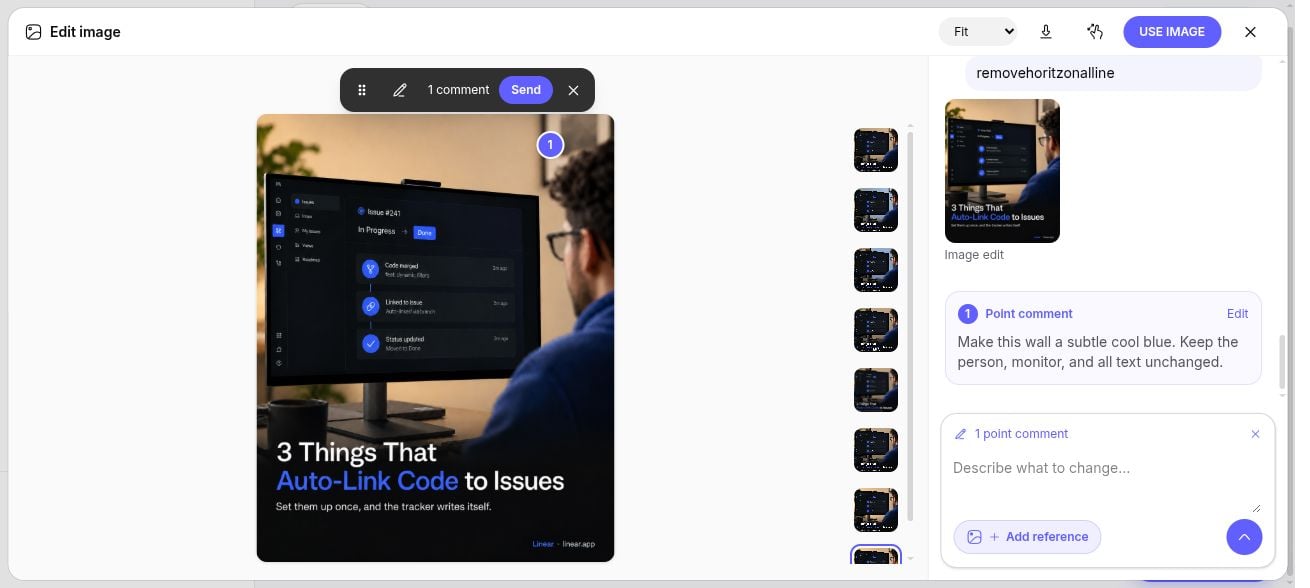
2. For a specific area, choose **Markup** to mark it or **Comment** to place an instruction on the image. Enter the comment and click **Done**. Complete every point comment before generating.
3. Use **Change background** for a background edit, or **Add reference** to guide the result with another image.
4. Click **Generate edit**. With point comments, you can also use **Send** in the image toolbar.
5. Select a thumbnail to compare versions. Click **Use image** when you have the result you want.
## Make a change
1. In **Your instructions**, describe the result you want. Include anything that should stay unchanged: for example, “Make the wall cool blue. Keep the person, monitor, logo, and all text.”
2. For a specific area, choose **Markup** to mark it or **Comment** to place an instruction on the image. Enter the comment and click **Done**. Complete every point comment before generating.
3. Use **Change background** for a background edit, or **Add reference** to guide the result with another image.
4. Click **Generate edit**. With point comments, you can also use **Send** in the image toolbar.
5. Select a thumbnail to compare versions. Click **Use image** when you have the result you want.
 ## Review before publishing
Generating a version and choosing it are separate steps. Check the wording, logo, and composition before using the image. **Use image** selects the result for the post; review the caption and publishing settings before approving or publishing it.
Use the zoom menu or **Fit image to view** when working on details. **Download image** saves the displayed image. Close the editor to return to the post.
This documentation is built and hosted on [Mintlify](https://mintlify.com), a developer documentation platform.
## Review before publishing
Generating a version and choosing it are separate steps. Check the wording, logo, and composition before using the image. **Use image** selects the result for the post; review the caption and publishing settings before approving or publishing it.
Use the zoom menu or **Fit image to view** when working on details. **Download image** saves the displayed image. Close the editor to return to the post.
This documentation is built and hosted on [Mintlify](https://mintlify.com), a developer documentation platform.