> ## Documentation Index
> Fetch the complete documentation index at: https://thestacc.com/docs/llms.txt
> Use this file to discover all available pages before exploring further.
# Create Video Posts
> Upload a video or reuse one from Library, add channel captions, and review before publishing.
Use your own videos to create posts for Instagram, Facebook, LinkedIn, and X. Start with a finished clip; this flow adds the post's copy and publishing details.
## Start a video post
Choose your project, then use either path:
* **Content Hub:** Click **Add your own idea**, open **Attach context**, and choose **Upload video**.
* **Library:** Open **Videos**, select a video, and click **Create post**. Or choose **From library** inside the video composer.
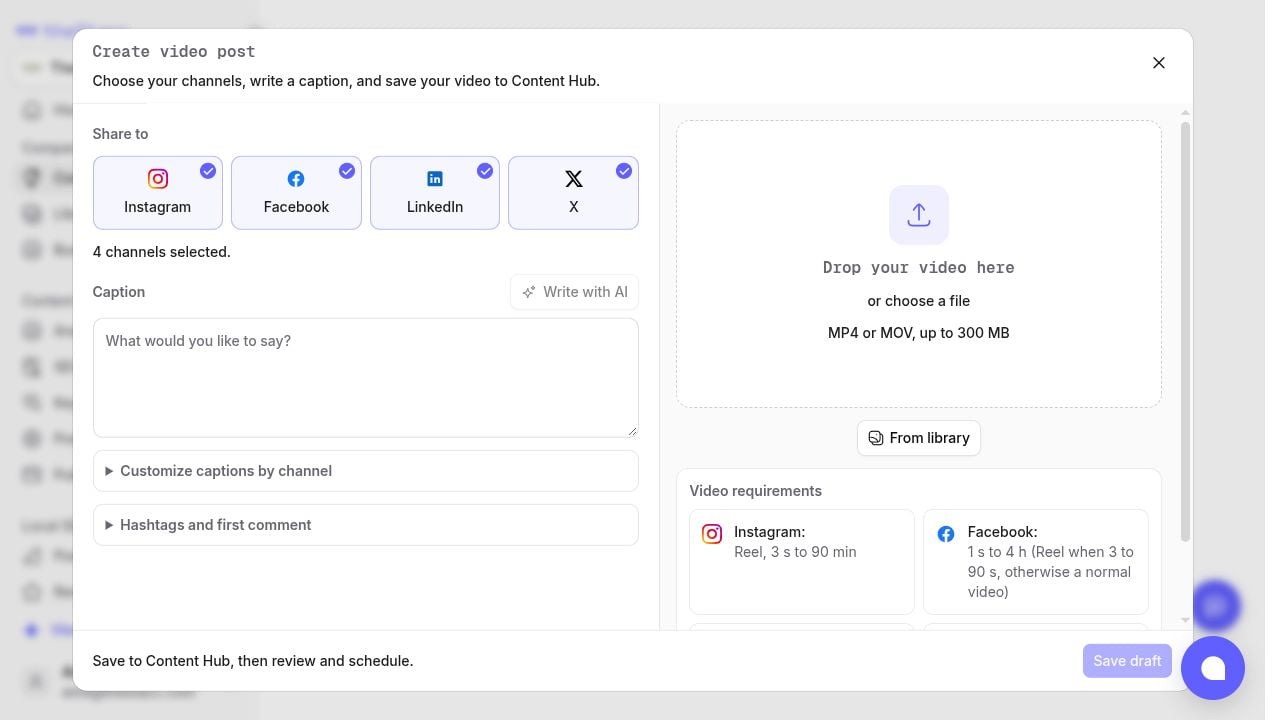
For a new file, choose an **MP4 or MOV up to 300 MB**. Check the displayed **Video requirements** for your selected channels: a clip accepted by one channel may be too long or too short for another. Reusing a Library video avoids uploading it again.
 New video uploads and AI caption assistance require an active Social plan. Publishing also requires an active Social plan and a connected account for each channel you select. [Connect your accounts](/docs/social-media/connecting-platforms).
## Add the post's details
1. Under **Share to**, select the channels you want to use.
2. Write your **Caption**. **Write with AI** can draft or improve it; review the suggested wording before saving.
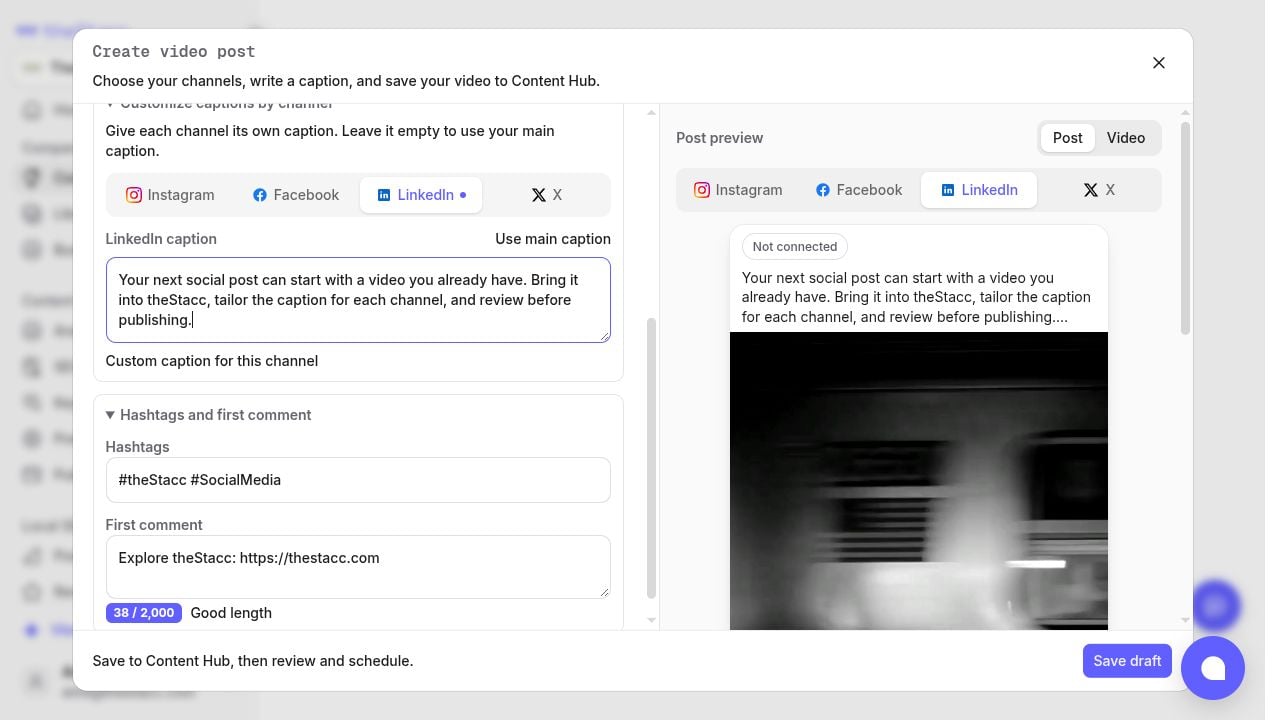
3. Open **Customize captions by channel** for different wording on each channel. A blank channel caption uses your main caption.
4. Open **Hashtags and first comment** to add tags and an optional first comment.
5. Switch between the channel previews to check your text and video. The final layout can vary by platform.
New video uploads and AI caption assistance require an active Social plan. Publishing also requires an active Social plan and a connected account for each channel you select. [Connect your accounts](/docs/social-media/connecting-platforms).
## Add the post's details
1. Under **Share to**, select the channels you want to use.
2. Write your **Caption**. **Write with AI** can draft or improve it; review the suggested wording before saving.
3. Open **Customize captions by channel** for different wording on each channel. A blank channel caption uses your main caption.
4. Open **Hashtags and first comment** to add tags and an optional first comment.
5. Switch between the channel previews to check your text and video. The final layout can vary by platform.
 ### Choose a cover for a new upload
In the video preview panel, scroll to **Cover image**, move **Choose a frame**, and click **Use this frame**. This selects the cover; it does not trim or change the video. A video selected from Library keeps its saved cover.
## Save and review
Click **Save draft** and wait for it to finish. New uploads show their upload progress. The saved post appears in **Content Hub** for review; saving a draft does not publish it.
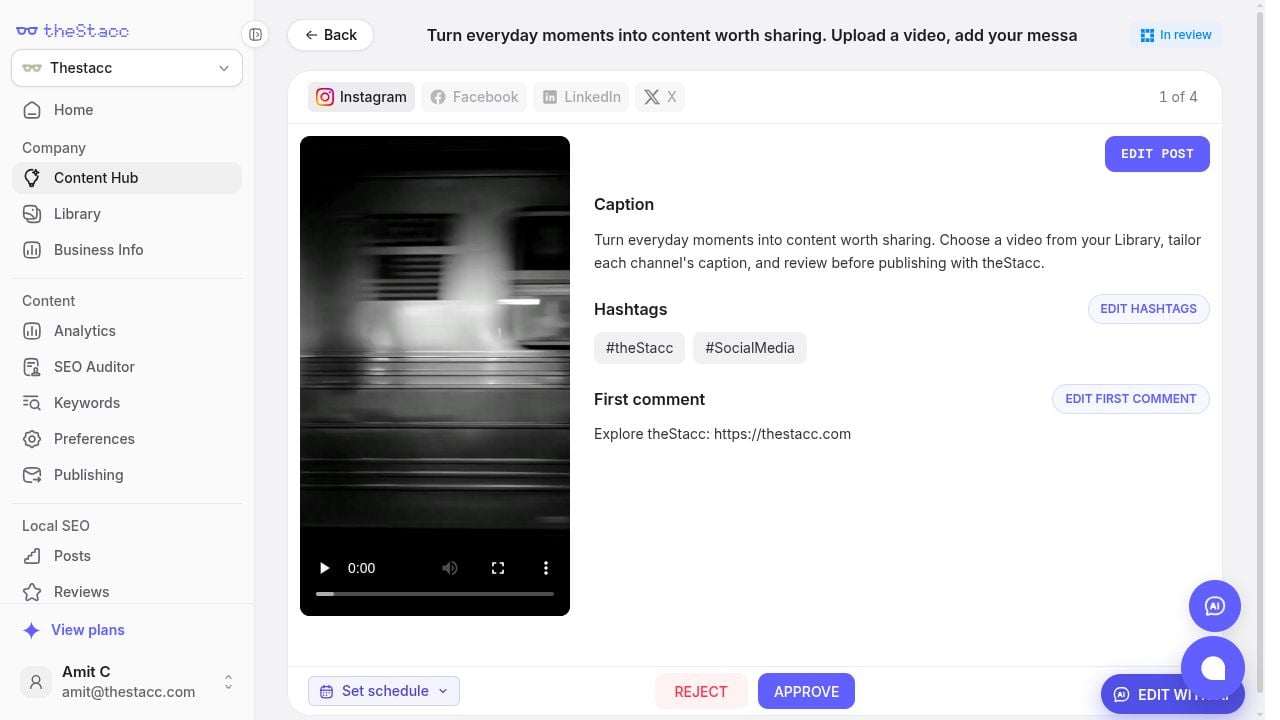
Open the post's **Review** view. Play the video and check each channel tab. Use **Edit post** to change the selected channel's caption and first comment, or the post's shared hashtags. See [Edit Social Posts](/docs/social-media/edit-posts) for the drawer controls.
### Choose a cover for a new upload
In the video preview panel, scroll to **Cover image**, move **Choose a frame**, and click **Use this frame**. This selects the cover; it does not trim or change the video. A video selected from Library keeps its saved cover.
## Save and review
Click **Save draft** and wait for it to finish. New uploads show their upload progress. The saved post appears in **Content Hub** for review; saving a draft does not publish it.
Open the post's **Review** view. Play the video and check each channel tab. Use **Edit post** to change the selected channel's caption and first comment, or the post's shared hashtags. See [Edit Social Posts](/docs/social-media/edit-posts) for the drawer controls.
 ## Schedule and publish
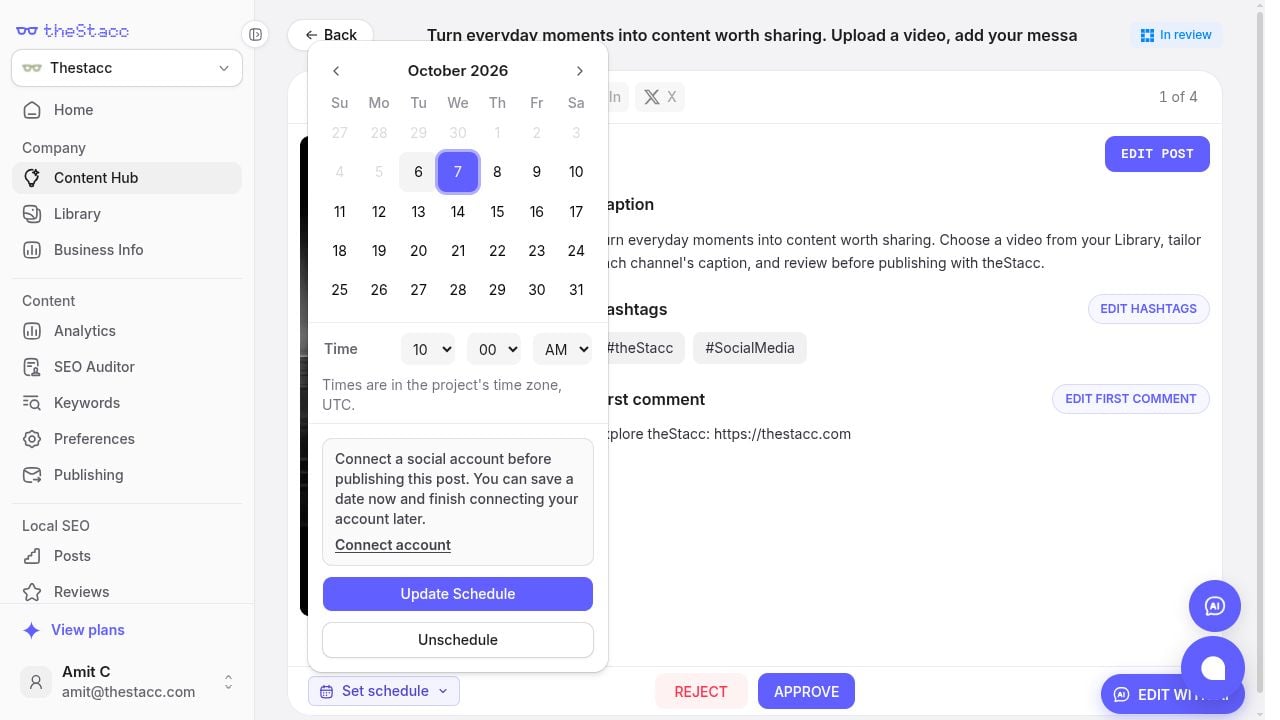
Open **Set schedule**, choose a date and time, check the timezone shown in the popover, and click **Update Schedule**. Saving a date is separate from approving or publishing the post.
## Schedule and publish
Open **Set schedule**, choose a date and time, check the timezone shown in the popover, and click **Update Schedule**. Saving a date is separate from approving or publishing the post.
 Approve the post when the copy and video are ready. Use the publishing controls to send it now or schedule delivery to connected channels. Check each channel's result and live link after publishing. If only one channel fails, retry that channel. Follow [Publishing & Scheduling](/docs/social-media/publishing-scheduling) for those controls.
For the regular posting times of new automatic posts, use [Posting schedules & timezones](/docs/social-media/content-scheduling).
## If something needs attention
* **The file is rejected:** Use MP4 or MOV within 300 MB, and check the duration requirements for the selected channels. Export a compatible clip before trying again.
* **The upload fails:** Read the error, then use the retry control. Check your connection and active Social plan before retrying.
* **Some channels could not be added:** If the composer says **Draft saved**, use **Open draft** and review the warning before creating another post.
* **The saved video will not play:** Use **Refresh preview** when offered to renew the preview link.
* **The preview says Not connected:** Connect the account before publishing. The preview itself does not connect or publish to an account.
To change the actual footage, edit your clip before uploading. The Edit post drawer changes the post's text; [the image canvas](/docs/social-media/image-editing) is for image posts.
This documentation is built and hosted on [Mintlify](https://mintlify.com), a developer documentation platform.
Approve the post when the copy and video are ready. Use the publishing controls to send it now or schedule delivery to connected channels. Check each channel's result and live link after publishing. If only one channel fails, retry that channel. Follow [Publishing & Scheduling](/docs/social-media/publishing-scheduling) for those controls.
For the regular posting times of new automatic posts, use [Posting schedules & timezones](/docs/social-media/content-scheduling).
## If something needs attention
* **The file is rejected:** Use MP4 or MOV within 300 MB, and check the duration requirements for the selected channels. Export a compatible clip before trying again.
* **The upload fails:** Read the error, then use the retry control. Check your connection and active Social plan before retrying.
* **Some channels could not be added:** If the composer says **Draft saved**, use **Open draft** and review the warning before creating another post.
* **The saved video will not play:** Use **Refresh preview** when offered to renew the preview link.
* **The preview says Not connected:** Connect the account before publishing. The preview itself does not connect or publish to an account.
To change the actual footage, edit your clip before uploading. The Edit post drawer changes the post's text; [the image canvas](/docs/social-media/image-editing) is for image posts.
This documentation is built and hosted on [Mintlify](https://mintlify.com), a developer documentation platform.