
What you need
- A login to the Duda account that manages the website. If an agency built your site, they have it.
- A Duda Agency or Custom plan. Not sure which plan? Ask whoever built your website.
- A blog on the site. If there is none, add a Blog page in the Duda editor first.
Connect
- In theStacc, open Content SEO > Settings > Publishing.
- On the Duda card, click Connect, then Sign in with Duda.
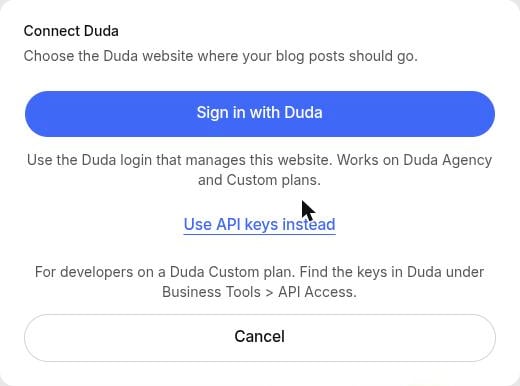
Sign in with the Duda login that manages this website.
- Sign in to Duda and allow theStacc. You come back to theStacc automatically.
- Pick your website, then choose what happens when a post is ready: Publish it live or Save it as a draft in Duda. Click Save changes.
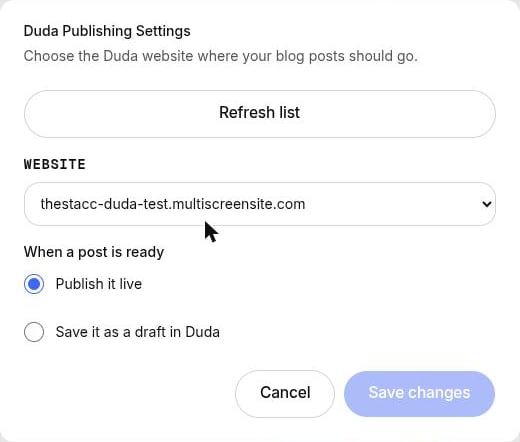
Pick the website and choose live or draft.
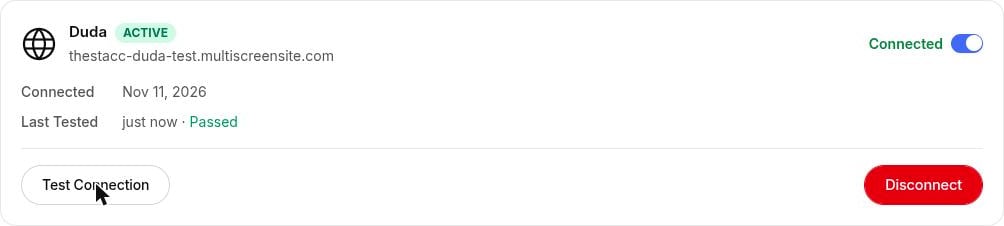
Duda connected and tested.
Using API keys instead
Agencies on a Duda Custom plan can connect with API keys instead of signing in. In the connect window click Use API keys instead, then enter the API username and API password from Duda under Business Tools > API Access, choose the account region (US for most accounts), click Find my websites and pick the site.What theStacc publishes
Title, article text, images, tables, the featured image, SEO title, meta description, URL and author. Your posts appear on your Duda blog atyoursite.com/post-url.
Good to know
- Editing a published article: Duda does not let apps change the text of a post that already exists. If you edit an article in theStacc after it is published, Sync changes updates the title, SEO fields, URL and tags, and tells you to update the text in Duda.
- Signed out: if you see “Your Duda sign-in expired. Click Reconnect.”, click Reconnect on the Duda card and sign in again. Nothing is lost.
- Only project admins can connect, change or remove Duda.