
What you need
- Your blog address, for example
https://www.yoursite.com/blog. Open your blog in a browser and copy the address from the address bar. - A login to your website editor that can create blog posts.
Step 1: connect your website in theStacc (once)
- In theStacc, open Content SEO > Settings > Publishing.
- On the Other website card, click Connect, then Enter blog address.
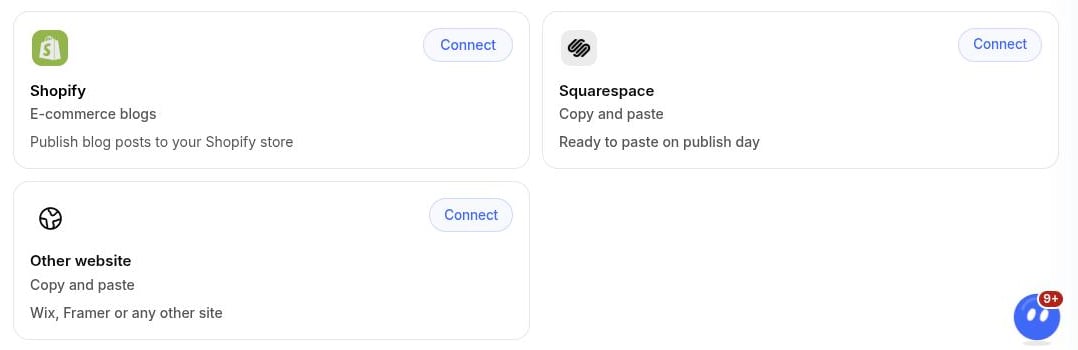
Other website is the copy and paste option for any site.
- Paste your blog address and click Connect.
- “We found your blog feed”: posts are marked live automatically when they appear on your blog.
- “We could not find a feed for your blog”: after you post an article, you confirm it by pasting its live address.
Step 2: on publish day, post the article
On publish day theStacc emails you and the article turns Ready to post. Open it in theStacc and click Post to your website. The dialog has four steps, each with copy buttons: Copy the article, Add the featured image, Fill in the SEO settings, and Publish it and confirm. Keep it open next to your website editor. The example below is Wix. Other editors use similar names.Copy the article
In the Wix dashboard, open Blog > Posts and click Create New Post.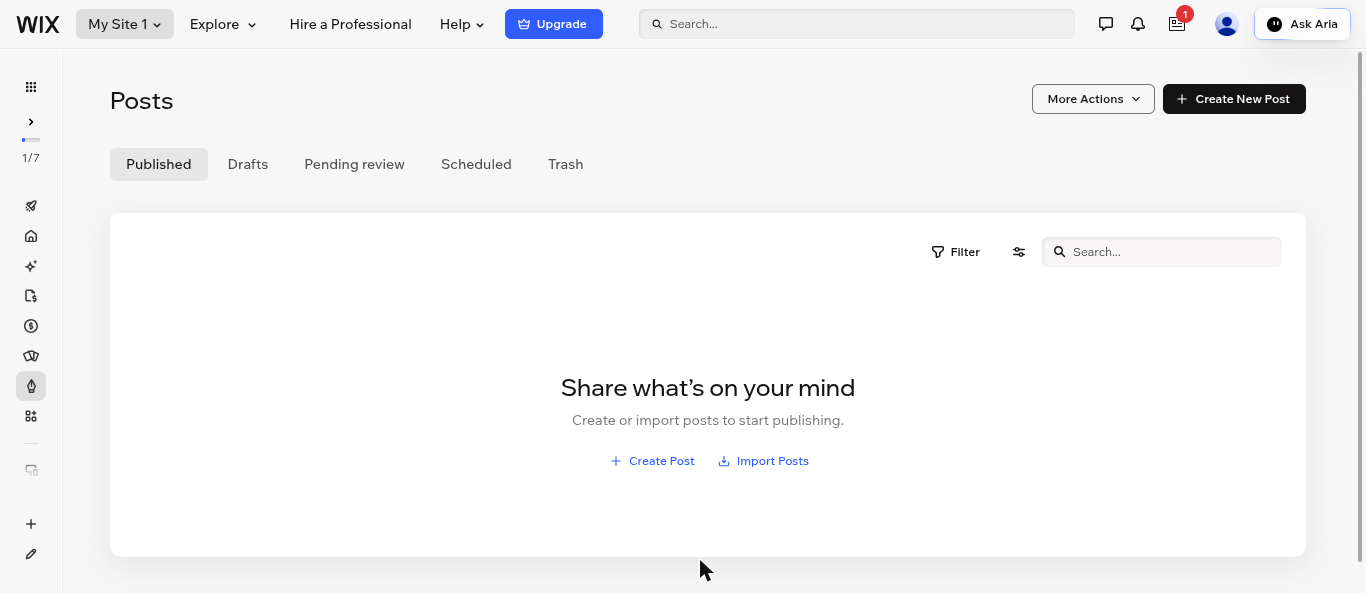
Wix: Blog > Posts > Create New Post.
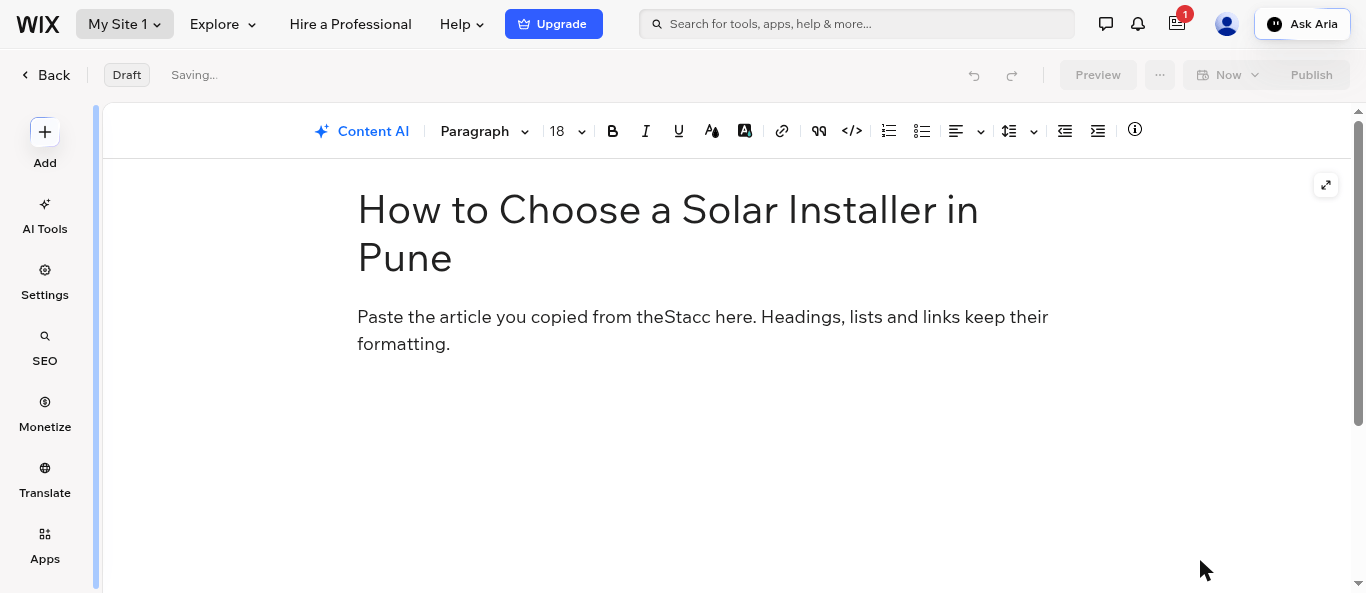
Paste the title, then the article into the post body.
Add the featured image
In theStacc, click Download image. In Wix, click Settings on the left and upload it under Featured image. You can also paste the Image alt text from theStacc.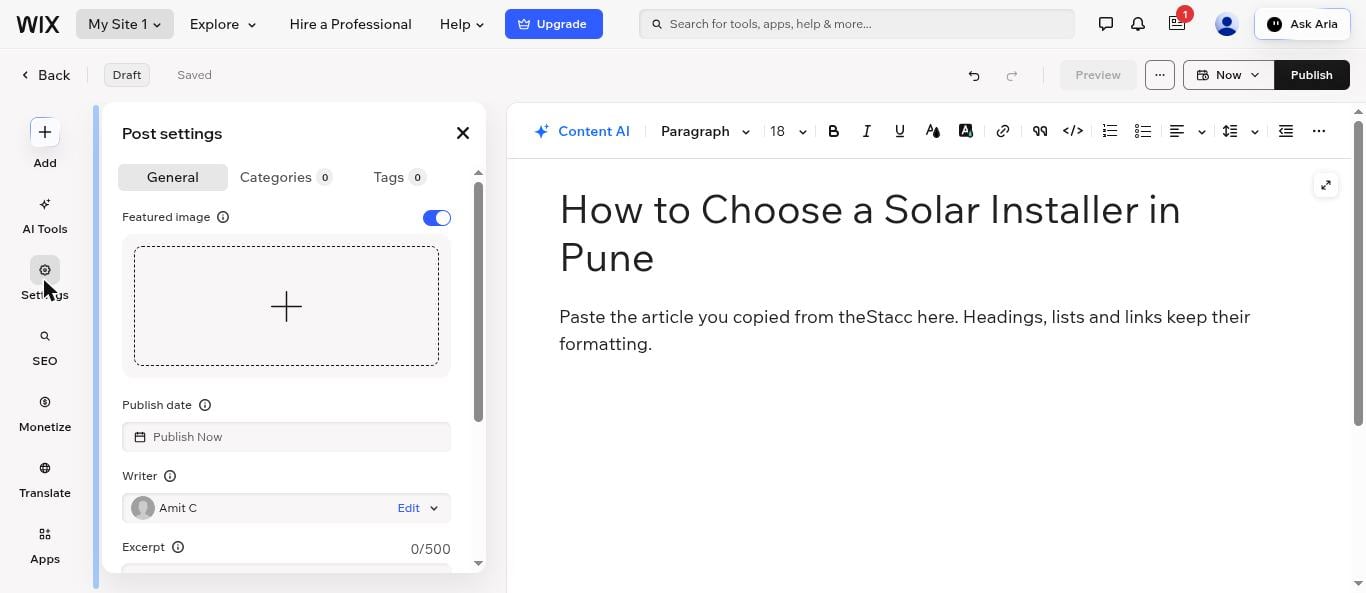
Wix: Settings > Featured image.
Fill in the SEO settings
In Wix, click SEO on the left, then the Basics tab. Paste the SEO title into Title tag, the SEO description into Meta description, and the URL slug into URL slug.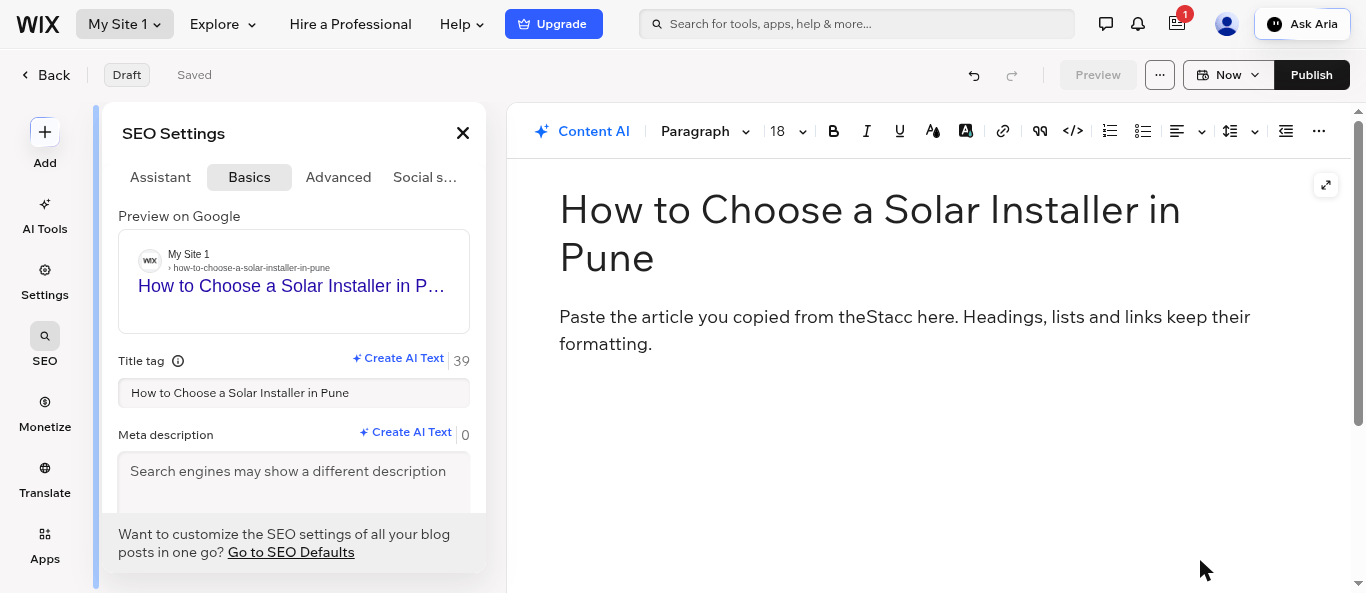
Wix: SEO > Basics > Title tag and Meta description.
Framer
Framer blog posts live in a CMS collection (usually called Blog). Switch the editor from Canvas to CMS, open your blog collection and click + to add an item. Paste the Post title into Title, the URL slug into Slug, and the article into Content.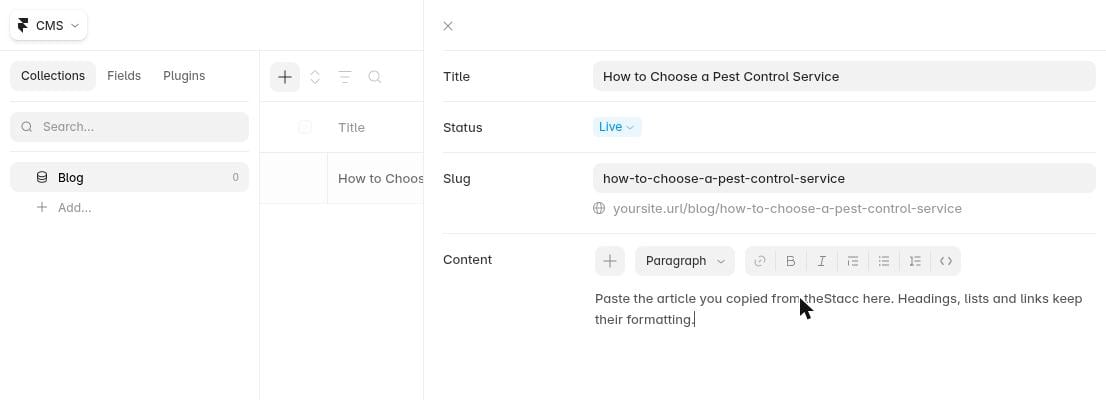
Framer: CMS > your Blog collection > + new item.
Other editors
In other editors (Hostinger, GoDaddy and so on) the same fields usually sit in the post’s settings, often under a section called SEO. If you cannot find one, search your editor’s help for “blog post SEO”.Publish it and confirm
Publish the post in your editor. Back in theStacc:- If theStacc found your blog feed, you are done: the article is marked live when it appears. You can also click I’ve posted it straight away.
- If not, paste the address of the live post into Live post address and click I’ve posted it.