
Connect Claude, Cursor and other AI tools in one sign-in
theStacc MCP now covers your whole project: Blog, SEO and analytics, Site audit, Keywords, Social and Google Business, in one connection with 56 tools.
- Sign in with theStacc: Add
https://mcp.thestacc.com/mcpas a custom connector in Claude, or as a remote server in Claude Code, Cursor, Codex CLI and Gemini CLI. Sign in, pick one project, choose what the tool can do, and approve. No key to copy. Connect your AI tool. - Create social posts from your AI tool: Ask for a post on any topic and the assistant creates the caption, hashtags and images in your brand’s style. It lands in review for you to approve. social_generate_post.
- Guided workflows: Slash commands for a weekly content review, your top SEO actions, creating a social post and refreshing a declining blog. Guided workflows.
- Permissions on every key: Choose Read posts, Draft and edit, or Publish approved posts for Blog, Social and Google Business, plus SEO and keyword permissions. Presets: Read only, Draft (no publishing), and Full access. New keys start on Draft (no publishing). Older keys keep Blog and SEO access only. Permissions.
- Social and Google Business tools: Agents can edit captions and schedules, redraw and edit images, write and illustrate Google Business posts, and publish posts a person approved. MCP Tools Reference.
- New blog tools: Pick a publish date for a bonus blog, retry only the images that failed, stop a blog that is being written, and edit an image instead of making a new one.
Blog authors and research sources
Choose who gets the byline and review the research behind your blog before publishing.- Blog authors: Set a person’s name or your editorial team’s name for a custom website blog. Your website must support author updates to show the byline. Set up an author.
- Sources used: See the research links and saved highlights behind blogs with saved sources. Review the sources.
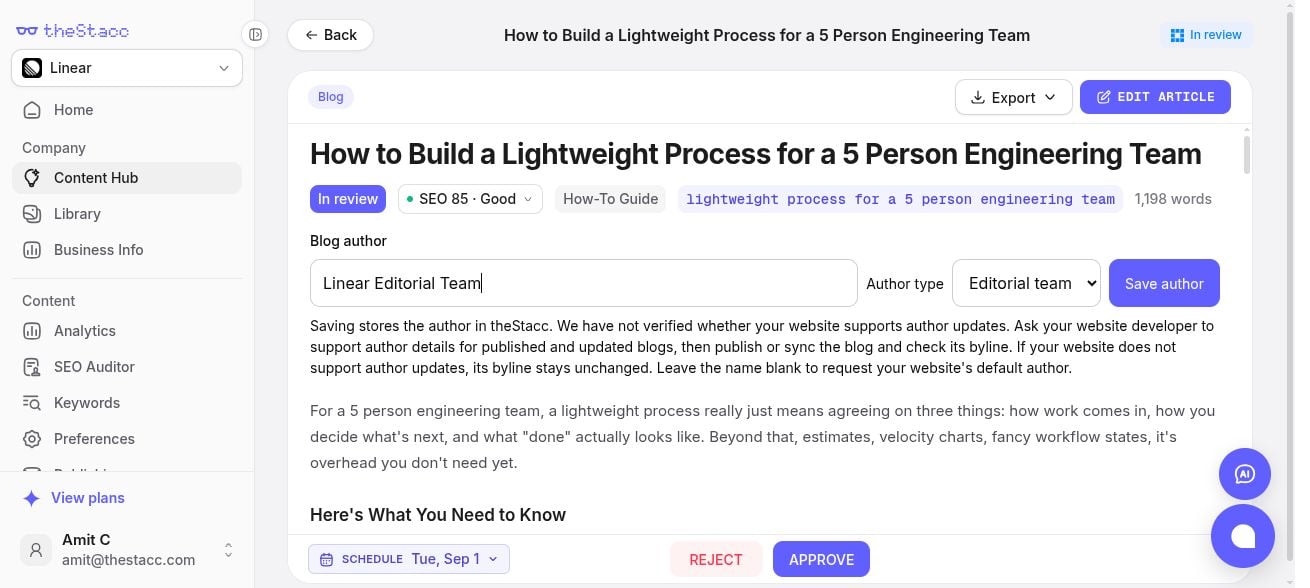
Choose a person or editorial team for a custom website blog.
Create video posts from your own clips
Upload a video or reuse one from Library. Choose your channels, add captions, hashtags, and a first comment, then save a draft in Content Hub. Review each channel before approving and publishing. Create a video post.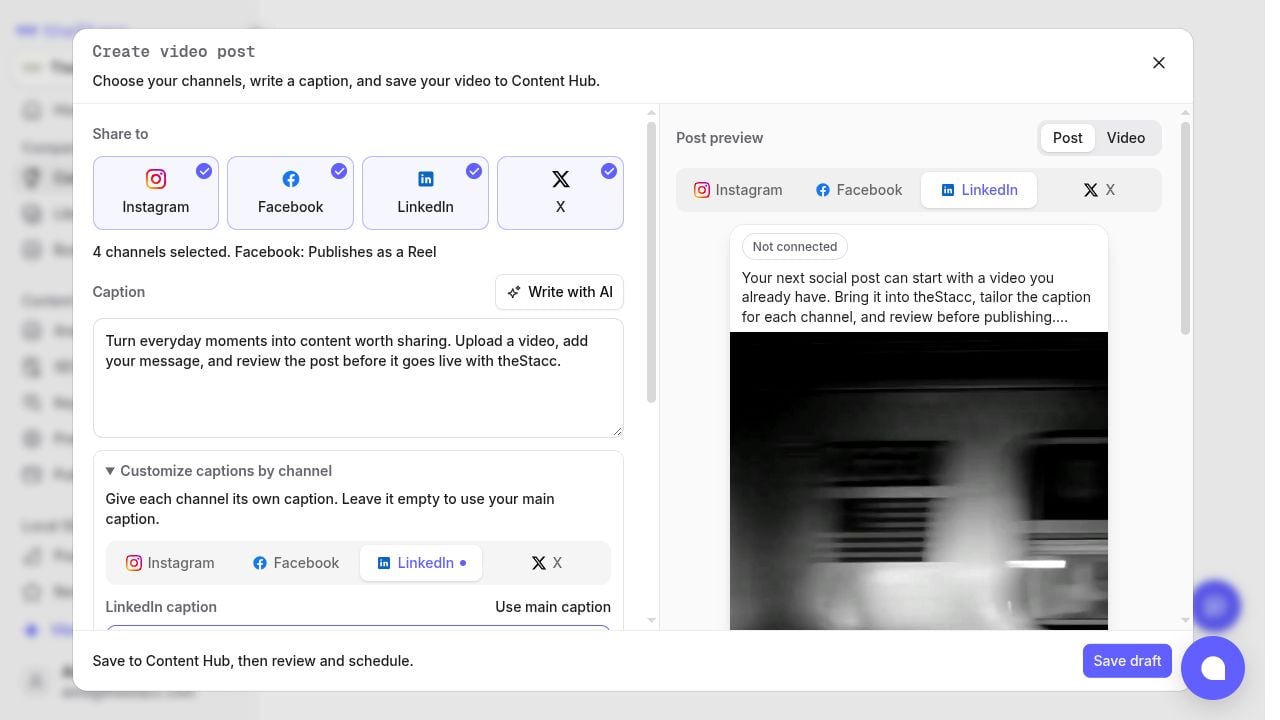
Create a video post and preview the selected channel before saving.
- Library: Keep project photos, videos, and product visuals together. Open a video and choose Create post to reuse it without another upload. Use Library.
- Caption assistance: Use Write with AI to draft or improve video captions, then tailor the wording by channel.
Edit social images on a canvas
Describe a change, mark an area, or leave a comment where the change belongs. Add a reference image, compare versions, and choose the result with Use image. Social image editing guide.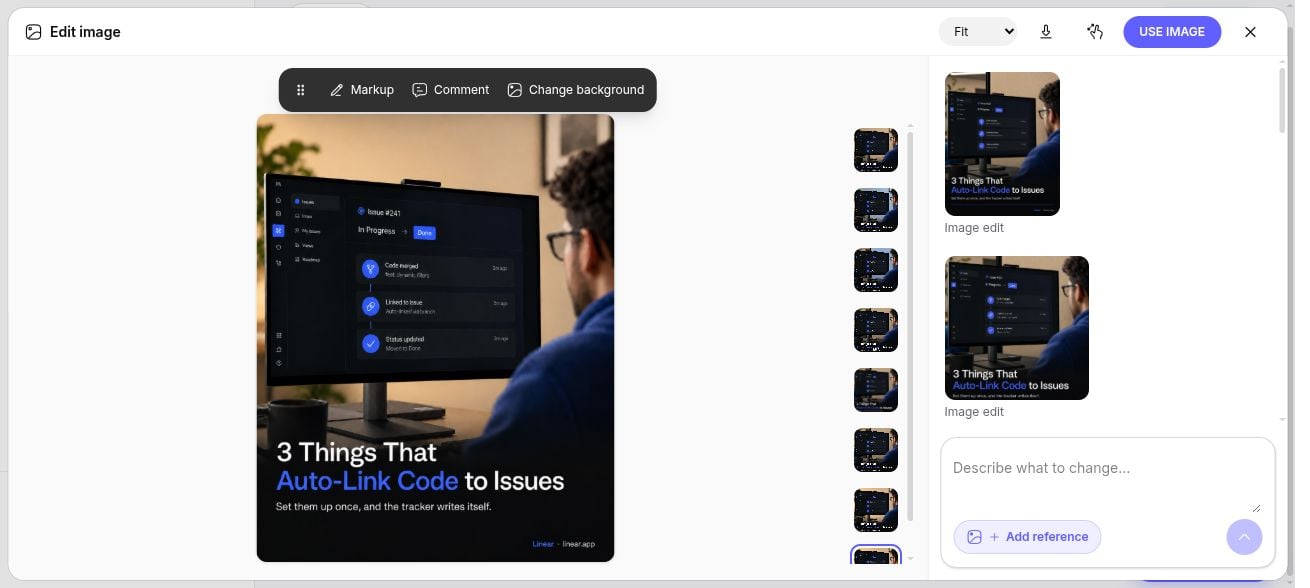
Edit your social post's image with canvas tools and version previews.