
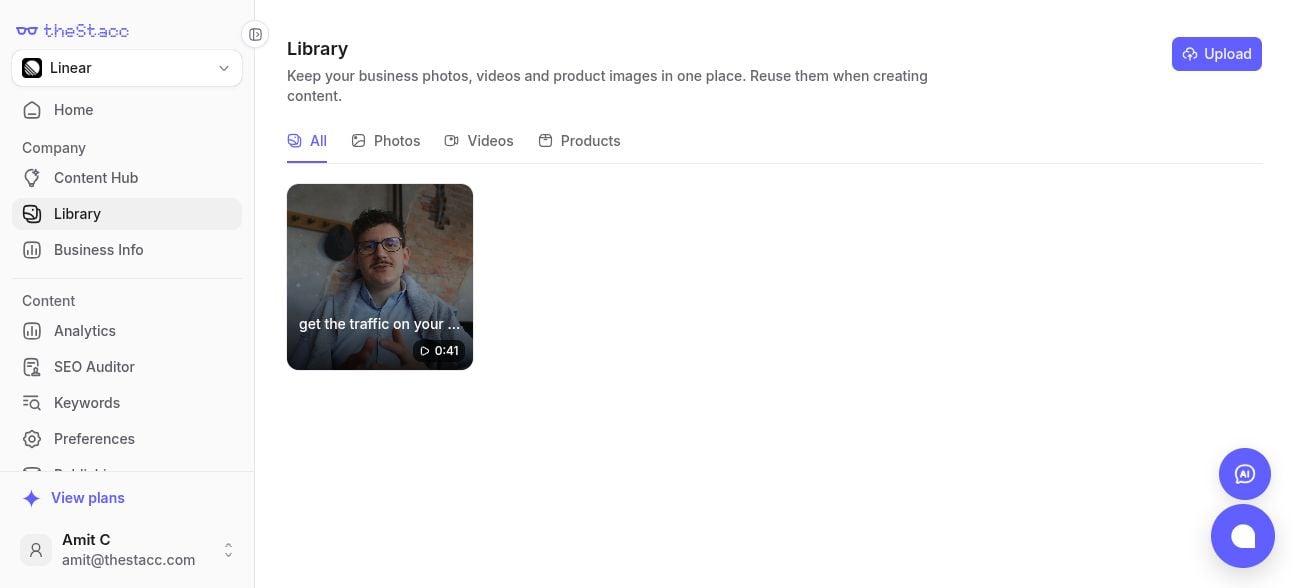
Choose your project, then open Library in the sidebar. Keep your own media here so you can reuse it when creating content.
Library page with Upload and All, Photos, Videos, and Products tabs

Library keeps your project's media in one place.

Add and find media

  1. Click Upload and choose a file from your computer.
  2. Wait for the upload to finish.
  3. Use All, Photos, Videos, or Products to find the asset.
  4. Open an asset to review its details.
Library belongs to the selected project. Switch projects before uploading material for a different business.

Reuse it in content

Where a content editor offers Choose from library, select an existing asset instead of uploading it again. Review the selected media in the post before publishing.

Turn a video into a social post

  1. Open Videos and select a finished clip.
  2. Click Create post in its details.
  3. Choose your channels and add the caption, channel-specific wording, hashtags, and first comment.
  4. Click Save draft, then review it in Content Hub.
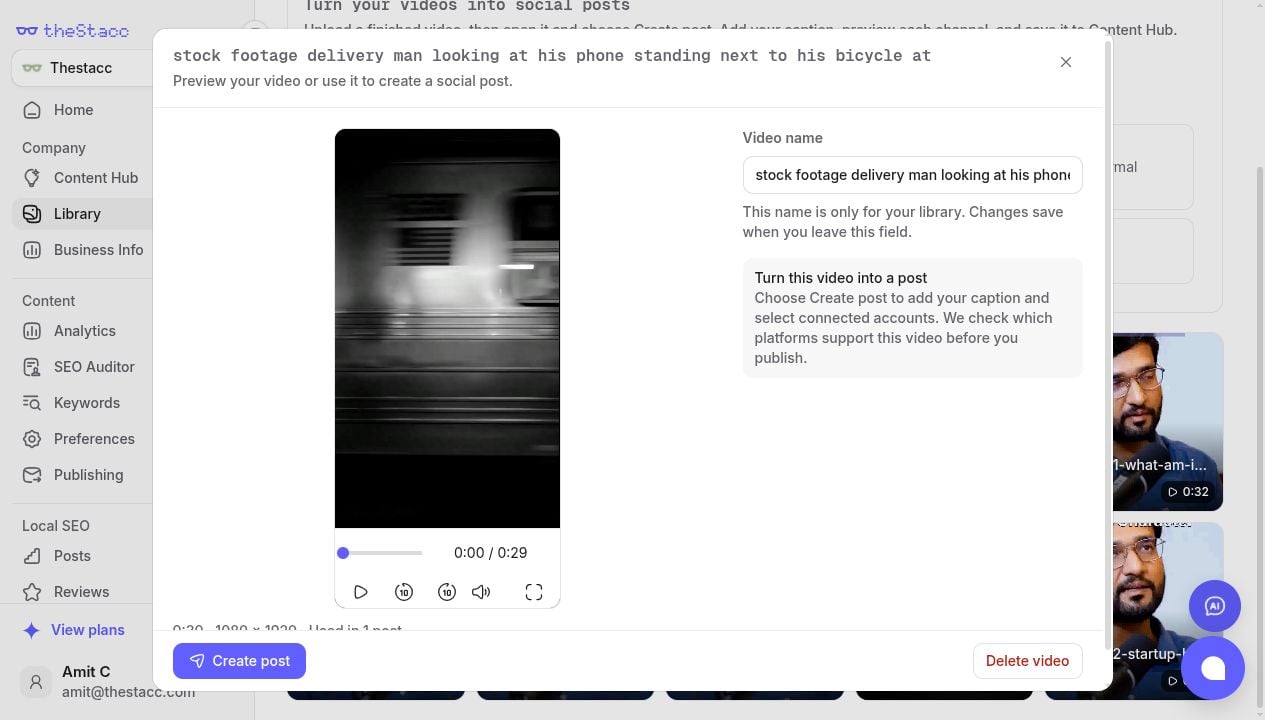
The existing video is reused without another upload. Renaming a video in Library only changes its Library name; it does not rewrite a post’s caption.
Library video details with Video name and Create post controls

Open a Library video and choose Create post to reuse it.

Follow Create Video Posts for upload requirements, covers, channel previews, and publishing. New video uploads and AI caption assistance require an active Social plan. You can prepare a draft from an existing Library video, but publishing requires an active Social plan and connected accounts. Use Business Info > Sources for documents, links, and factual notes you want the AI to read. Use Library for your photos, videos, and product visuals.