
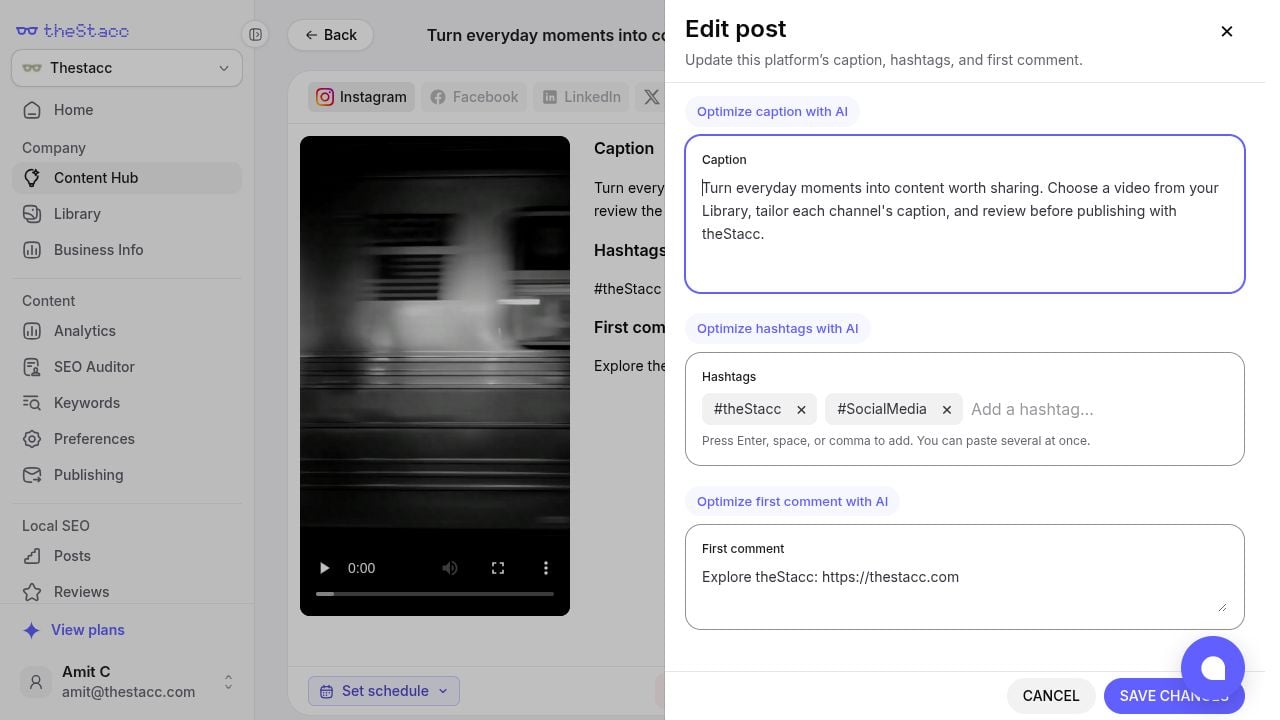
Edit the selected channel's copy, then save your changes.
What each field changes
Use the Optimize … with AI buttons for help with individual fields, then review the result. AI assistance requires an active Social plan.
Save and check
- Click Save changes. The button becomes available when something has changed.
- Check the updated copy in the review view.
- Switch to the next channel and repeat if it needs different wording.
- Review the final post and its schedule before approving or publishing.
Media and scheduling
- Images: Use Edit Social Images for canvas tools, markup, and image versions.
- Videos: Play the clip in the preview. The drawer edits its caption, tags, and comment; it does not trim or replace the footage. See Create Video Posts.
- Timing: Use Set schedule in the review view and check its displayed timezone. See Publishing & Scheduling.