
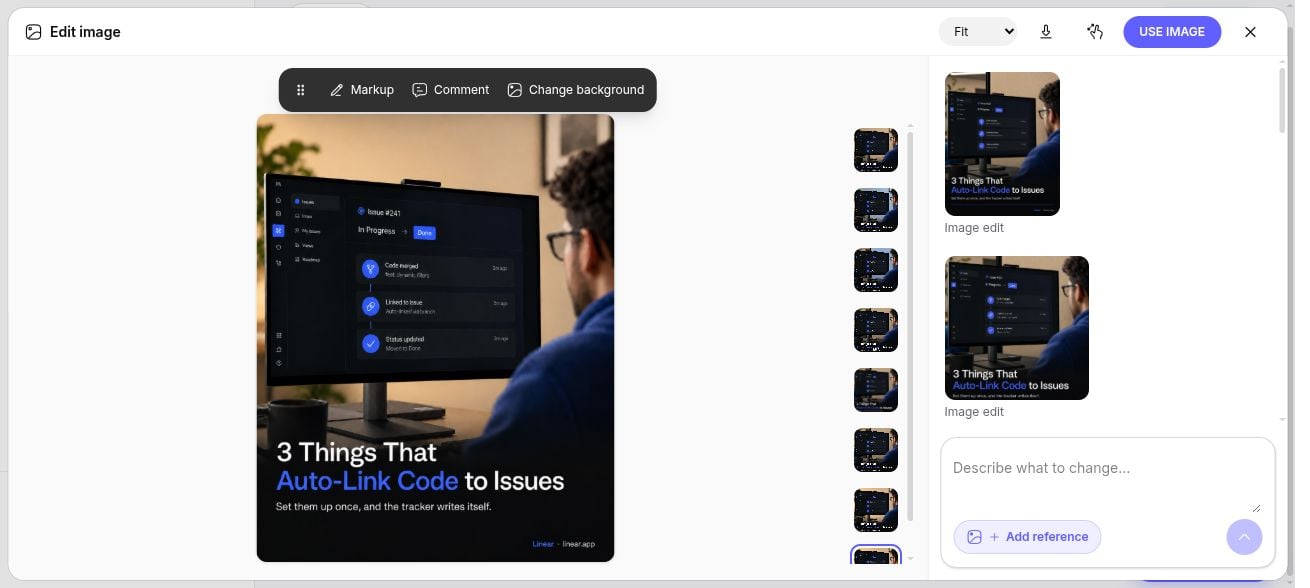
Edit a social image without leaving the post review.
Make a change
- In Your instructions, describe the result you want. Include anything that should stay unchanged: for example, “Make the wall cool blue. Keep the person, monitor, logo, and all text.”
- For a specific area, choose Markup to mark it or Comment to place an instruction on the image. Enter the comment and click Done. Complete every point comment before generating.
- Use Change background for a background edit, or Add reference to guide the result with another image.
- Click Generate edit. With point comments, you can also use Send in the image toolbar.
- Select a thumbnail to compare versions. Click Use image when you have the result you want.
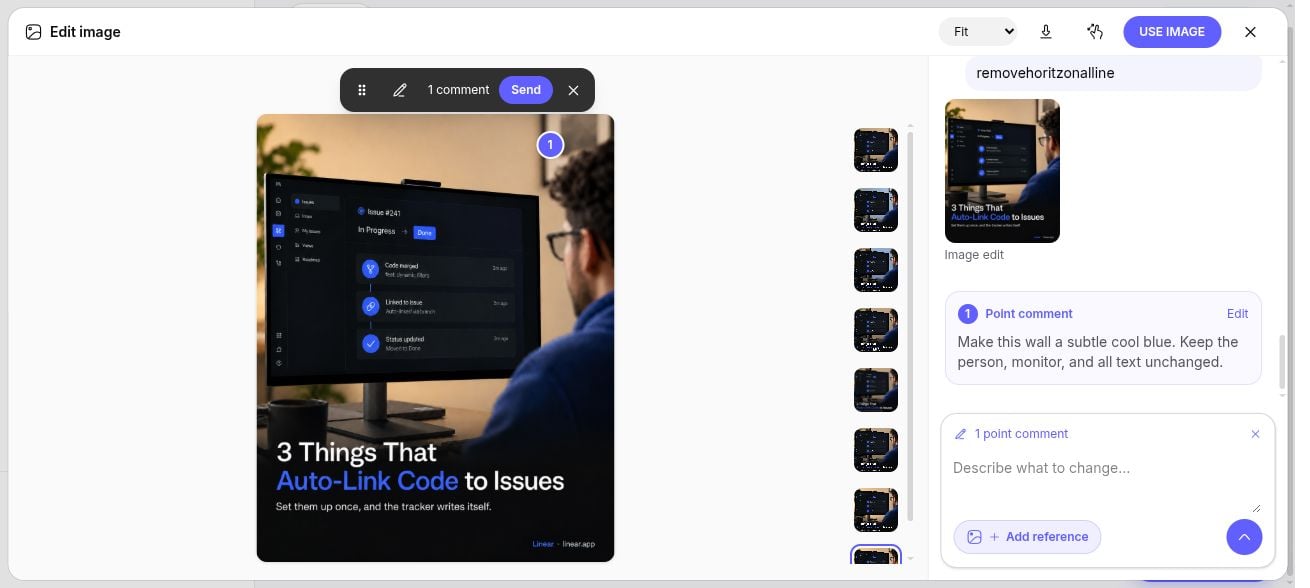
A point comment tells the editor exactly where a change belongs.