
What you need
- Your blog address, for example
https://www.yoursite.com/blog. Open your blog in a browser and copy the address from the address bar. - A Squarespace login that can edit the site’s pages.
- A Blog page on your Squarespace site. If you do not have one: Website > Pages > + (next to Main Navigation) > Blog.
Step 1: connect Squarespace in theStacc (once)
- In theStacc, open Content SEO > Settings > Publishing.
- On the Squarespace card, click Connect, then Enter blog address.
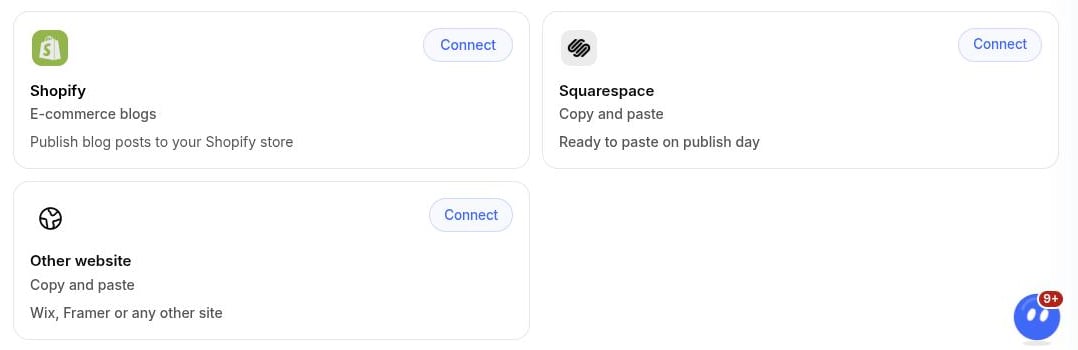
The Squarespace and Other website cards are the copy and paste options.
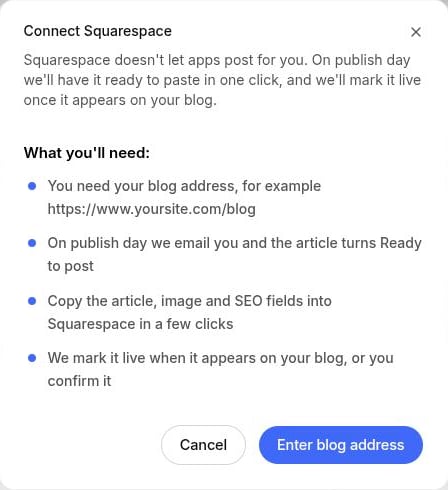
Connect Squarespace: what happens on publish day.
- Paste your blog address and click Connect.
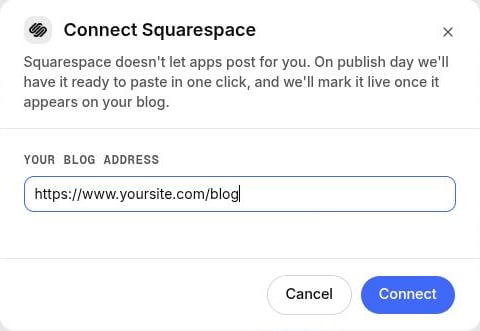
Enter the address of your blog page, then click Connect.
- “We found your blog feed”: posts are marked live automatically when they appear on your blog.
- “We could not find a feed for your blog”: after you post an article, you confirm it by pasting its live address.
Step 2: on publish day, post the article
On publish day theStacc emails you and the article turns Ready to post. Open it in theStacc and click Post to Squarespace. The dialog has four steps, each with copy buttons. Keep it open next to Squarespace.Copy the article
In Squarespace, open Website > Pages, click your Blog page, then click + next to Blog Content.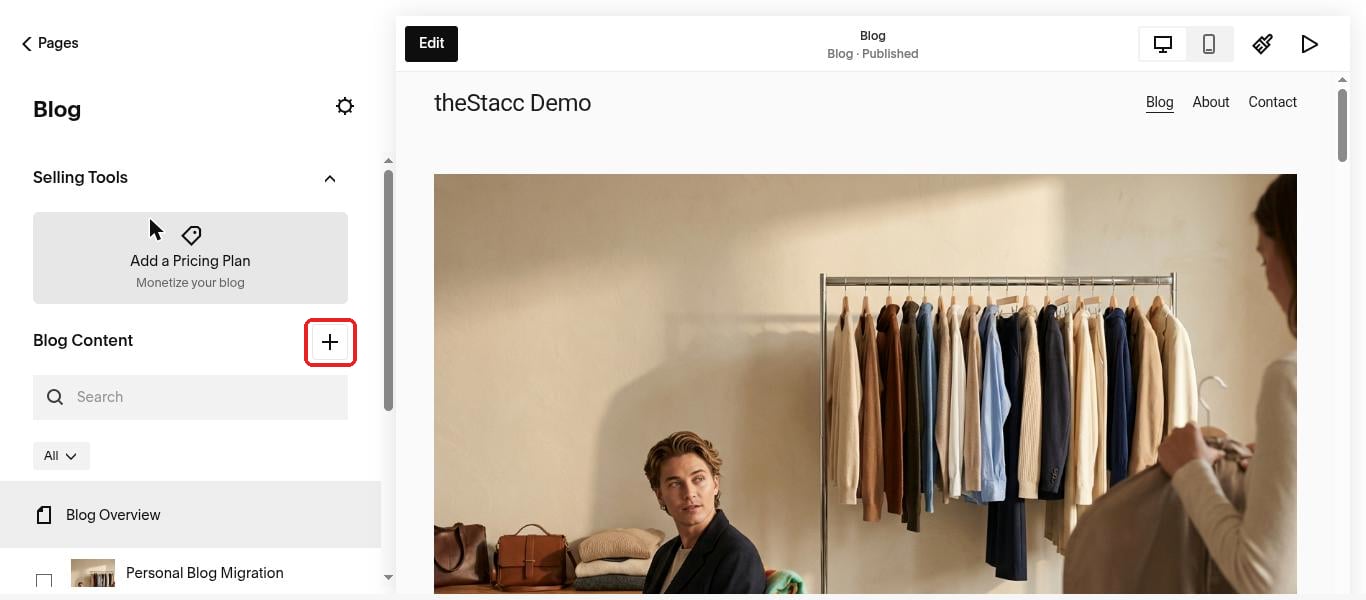
Open your Blog page and click + to start a new post.
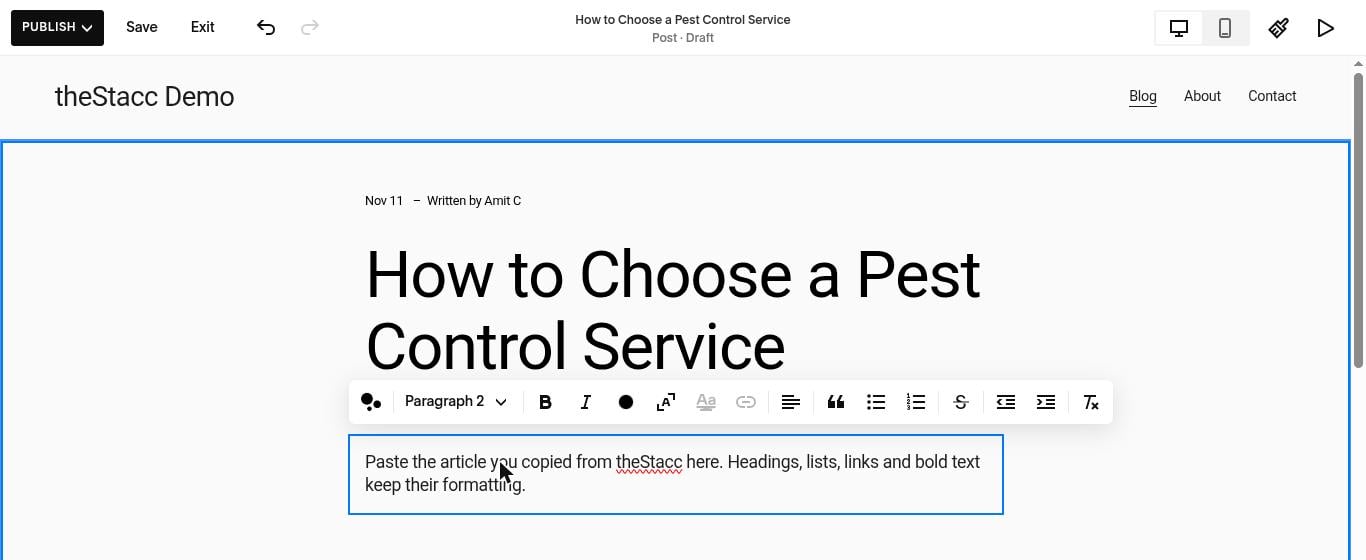
Paste the title, then the article into the post body.
Add the featured image
In theStacc, click Download image. In Squarespace, hover the post in the Blog list, click … then Settings. On the Content tab, click Add Image under Featured Image and upload it.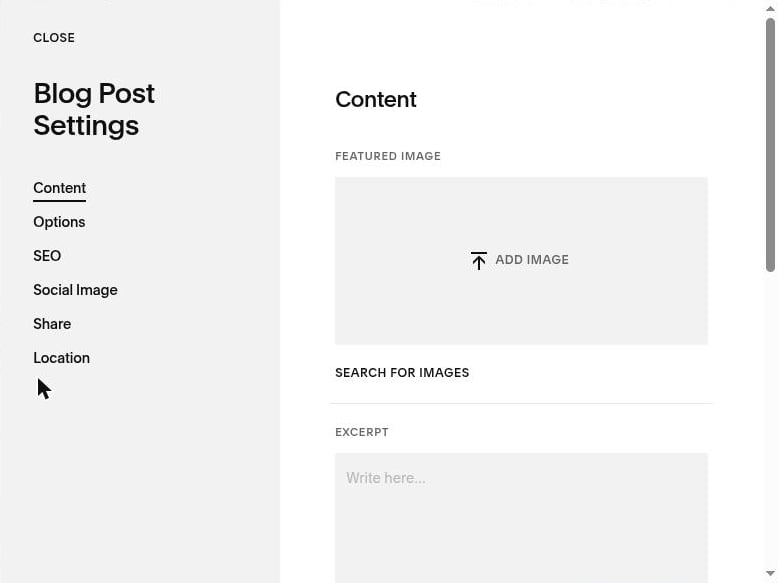
Blog Post Settings > Content > Featured Image.
Fill in the SEO settings
Still in Blog Post Settings:- Content tab, Post URL: paste the URL slug from theStacc after your blog path, for example
/blog/how-to-choose-a-pest-control-service.
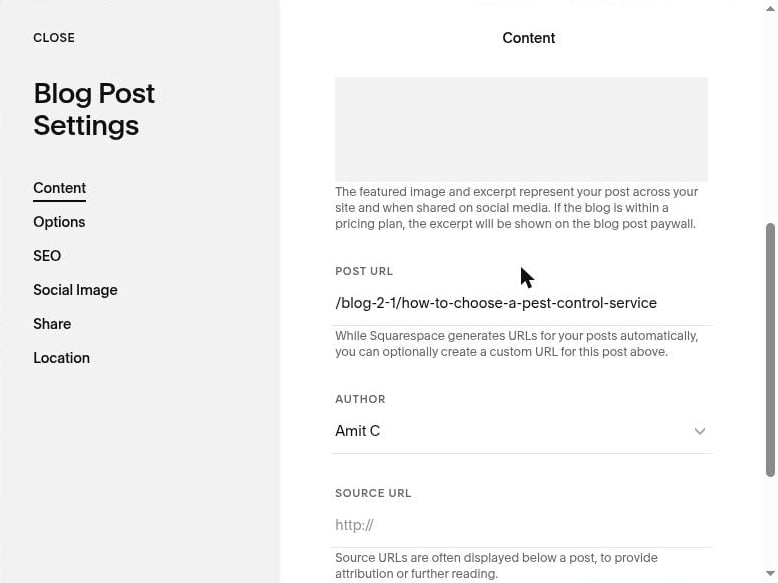
Content tab > Post URL.
- SEO tab: paste the SEO title into SEO Title and the SEO description into SEO Description.
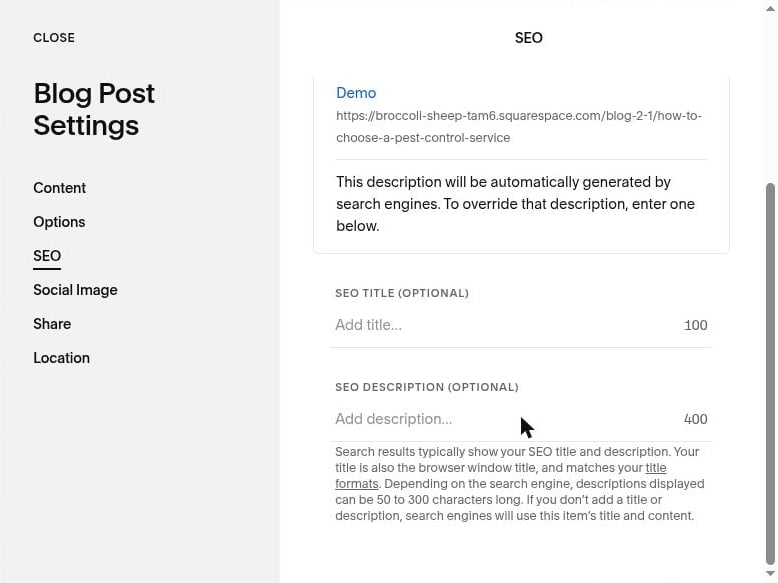
SEO tab > SEO Title and SEO Description.
Publish it and confirm
In Squarespace, open the post and click Publish. Back in theStacc:- If theStacc found your blog feed, you are done: the article is marked live when it appears. You can also click I’ve posted it straight away.
- If not, paste the address of the live post into Live post address and click I’ve posted it.
For sales and agencies
Ask the client for their blog address (for examplehttps://www.theirsite.com/blog) and connect Squarespace for them. The client never shares a Squarespace password with theStacc. Whoever posts the articles needs a Squarespace login that can edit pages, so either the client posts them or they add you as a Website Editor contributor in Squarespace.