Google Business Profile photo specs, upload cadence, and what actually affects local visibility, plus the shots most local businesses are missing.
Google Business Profile Photos: The Complete Guide (2026)
Your Google Business Profile has zero photos. Or worse, it has 3 blurry shots from 2021. That costs you clicks, calls, and customers every single day.
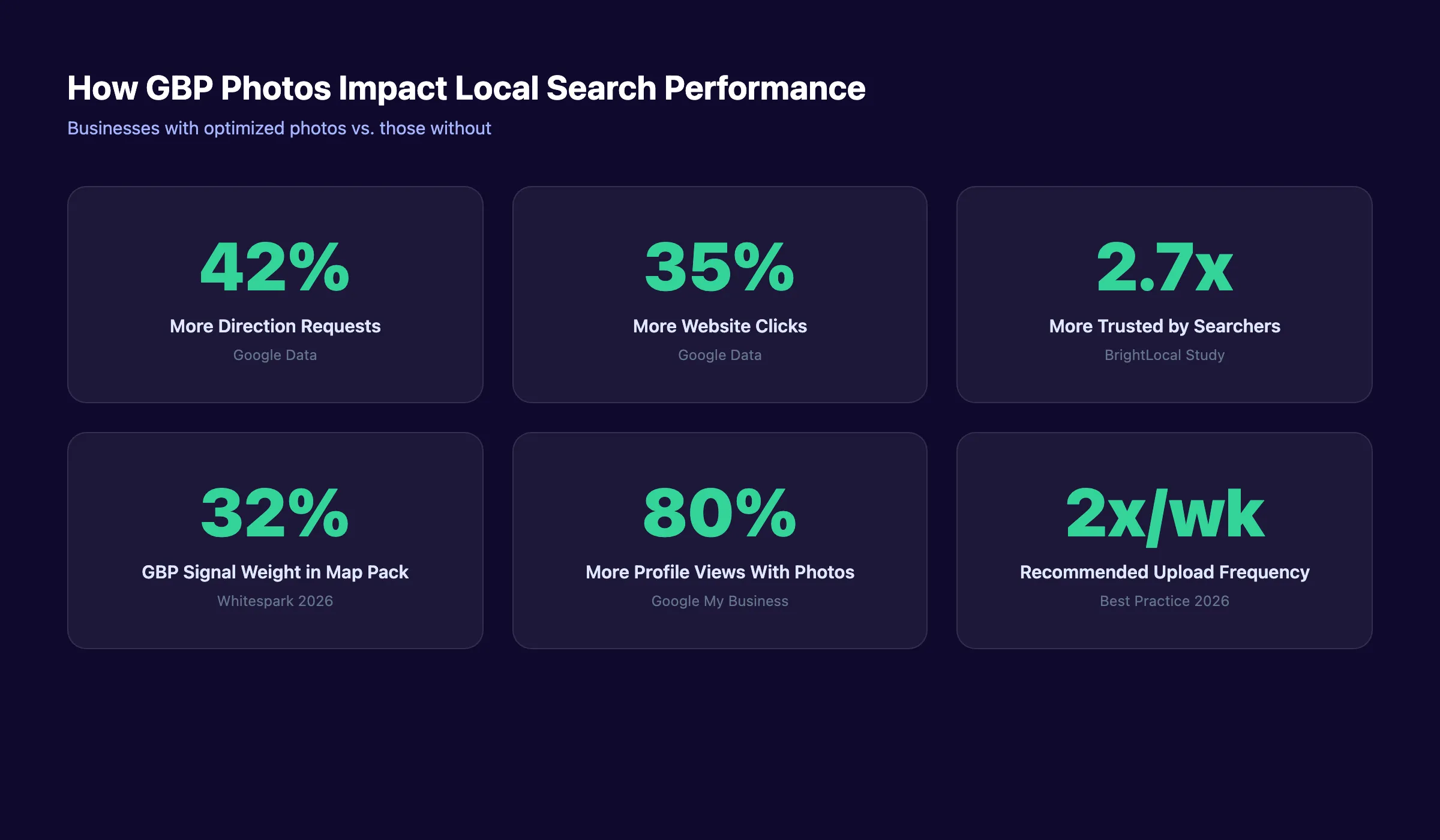
Businesses with photos on their Google Business Profile receive 42% more direction requests and 35% more website clicks than those without. That gap widens every month you ignore your visual presence. Competitors with better photos steal the attention your business deserves.
This guide covers everything about Google Business Profile photos in 7 chapters. You will learn the exact photo types Google wants, the precise size specifications for each, and the optimization steps that increase local search visibility.
We publish 3,500+ blogs across 70+ industries and manage local SEO for businesses nationwide. This guide distills what works for GBP optimization into one focused resource.
Here is what you will learn:
- Every type of Google Business Profile photo and when to use it
- Exact size specifications for cover photos, logos, and product images
- The 5-step upload process from Google Search or Maps
- 10 optimization tips that improve your local rankings
- Common photo mistakes that hurt visibility
- The ideal update schedule for fresh GBP photos
Chapter 1: Why Google Business Profile Photos Matter for Local Rankings
Google Business Profile photos are not decorative. They are a ranking factor. Profiles with strong photo engagement hold steady rankings even during competitive surges, according to Whitespark's 2026 local ranking factors study.
GBP signals account for 32% of all map pack ranking factors. Photos contribute directly to behavioral signals like clicks, engagement time, and direction requests. These behavioral signals are rising in influence every year.
Photos Drive Measurable Business Results
The numbers are clear. Businesses with optimized Google Business Profiles that include photos see 42% more direction requests on Google Maps. They also receive 35% more clicks to their website.
Profiles with regularly updated photos generate 80% more profile views than those with outdated or missing images. That translates directly to phone calls, website visits, and foot traffic.
Google Vision AI Reads Your Photos
Google does not just display your photos. Its Vision AI scans each image to understand what your business offers. The algorithm classifies your photos by category, identifies products, and reads environmental context.
A dental office with clear photos of its treatment rooms, waiting area, and team members sends stronger relevance signals than a competitor with only a logo. Google uses these visual signals to match your business with relevant local searches.
Photos Build Trust Before the Click
Searchers make decisions in seconds. A BrightLocal study found that profiles with professional photos are 2.7 times more trusted than those without. Photos let customers preview your business before they visit.
This matters especially for service businesses. A plumber, dentist, or restaurant with real interior photos reduces the friction between search and contact. The customer already knows what to expect.
Chapter 2: Every Type of Google Business Profile Photo
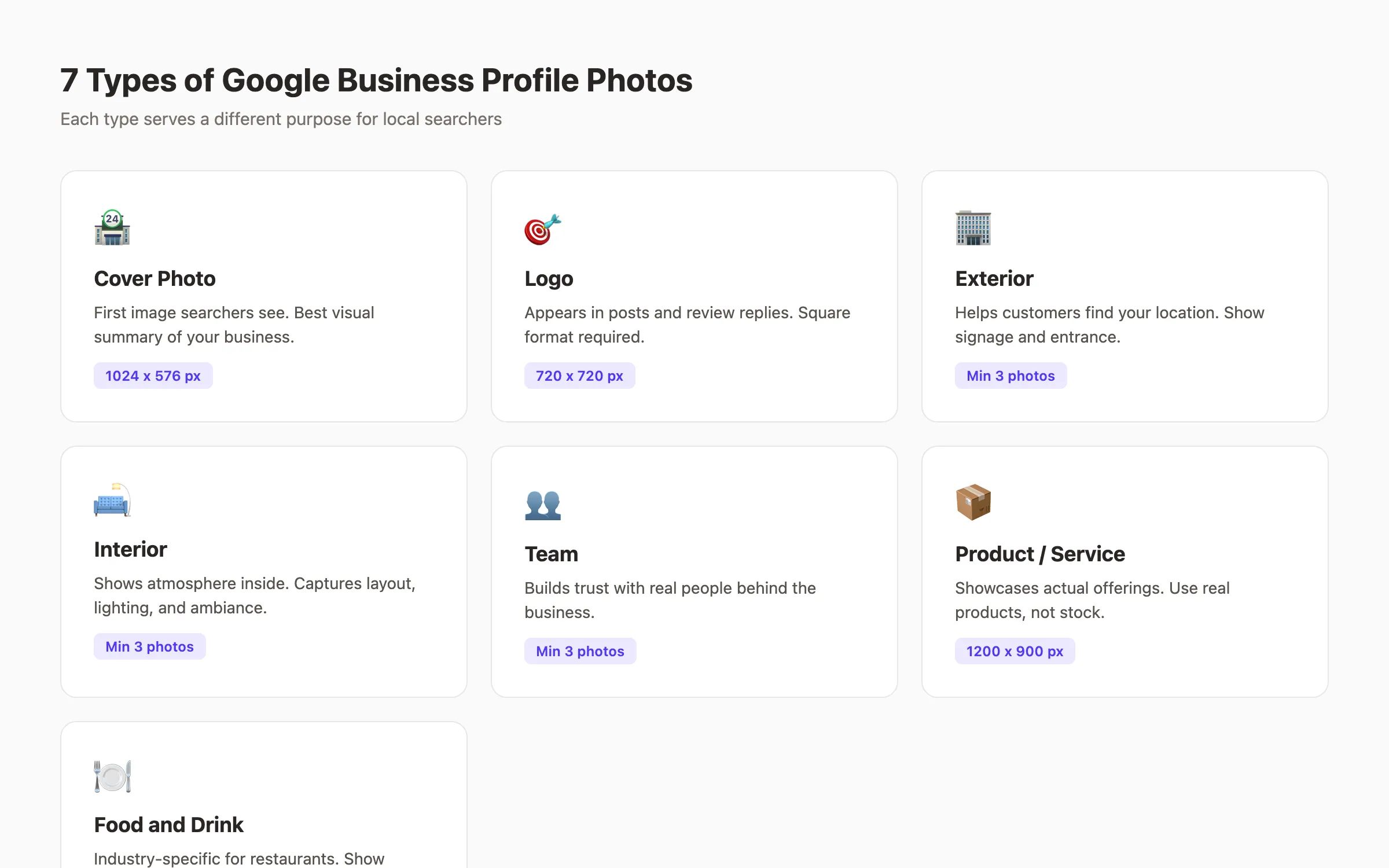
Google organizes Business Profile photos into specific categories. Each type serves a different purpose for local searchers. Uploading the right mix across all categories gives your profile maximum visibility.
Cover Photo
Your cover photo is the first image searchers see at the top of your profile. It appears in Search and Maps results. Choose a photo that best represents your entire business in a single frame.
Best options for cover photos include:
- Your storefront with clear signage visible
- A wide interior shot showing the full space
- Your team in action serving customers
Avoid using your logo as the cover photo. Google provides a separate logo field. The cover photo should show your physical business.
Logo
Your logo appears in Google Posts and review replies. It is the small circular image next to your business name. Upload your core logo mark without taglines or extra text.
Center the design within the frame. Google crops logos into circles on some surfaces. Remove shadows and extra padding. The image must be readable at small sizes.
Exterior Photos
Exterior photos help customers find and recognize your location. Upload at least 3 exterior shots showing your building from different angles. Include your entrance, street-facing signage, and parking area.
Take exterior photos at different times of day. A daytime shot and an evening shot (if you have illuminated signage) give customers reference points for any visit time. This is especially important for improving your Google Maps ranking.
Interior Photos
Interior photos show what your business feels like inside. They capture your layout, decor, atmosphere, and seating areas. Upload at least 3 interior shots from different angles.
Focus on clean, well-lit spaces. Avoid cluttered backgrounds or areas under renovation. The goal is to make a customer feel comfortable visiting before they arrive.
Team Photos
Team photos build personal trust. They show the real people behind your business. Upload at least 3 photos of staff members at work or in professional settings.
Candid action shots work better than stiff posed portraits. Show your team doing what they do. A mechanic under a car, a barista making coffee, or a dentist with a patient conveys authenticity.
Product and Service Photos
Product photos showcase your actual offerings. For retail businesses, photograph your best-selling items with clean backgrounds and even lighting. For service businesses, capture your work in progress or completed projects.
Use real products only. Google explicitly prohibits catalog mockups and stock imagery. Photograph at 1200 x 900 pixels for maximum quality in the product section.
Food and Drink Photos
Restaurants, cafes, and bars have a dedicated food and drink category. Photograph your most popular menu items with natural lighting. Show plating details and portion sizes accurately.
This category also applies to bakeries, breweries, and any business selling consumable products. Invest time in quality food photography. It directly influences customer decisions and reviews.
Your GBP photos work harder when paired with consistent local content. theStacc publishes Google Business Profile posts every month on autopilot to keep your profile active.
Chapter 3: Google Business Profile Photo Size Specifications
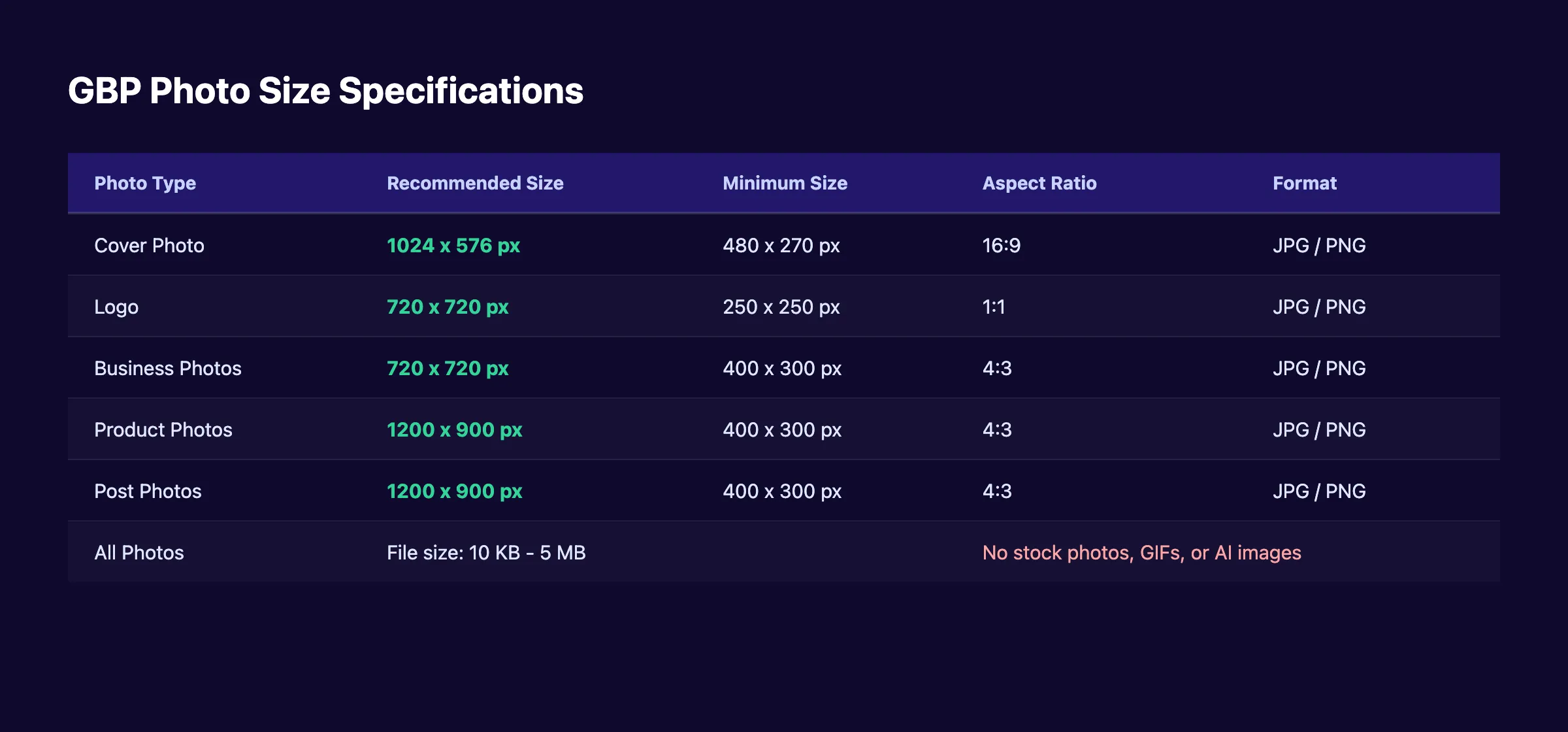
Every photo type has specific size requirements. Uploading images at the wrong dimensions causes cropping, distortion, or rejection. Follow these exact specifications for each photo type.
Cover Photo Specifications
| Specification | Requirement |
|---|---|
| Recommended size | 1024 x 576 pixels |
| Minimum size | 480 x 270 pixels |
| Aspect ratio | 16:9 |
| Format | JPG or PNG |
| File size | 10 KB to 5 MB |
The cover photo displays differently on Search, Maps, and mobile. Center your main subject to withstand cropping across all surfaces. Avoid placing important details near the edges.
Logo Specifications
| Specification | Requirement |
|---|---|
| Recommended size | 720 x 720 pixels |
| Minimum size | 250 x 250 pixels |
| Aspect ratio | 1:1 (square) |
| Format | JPG or PNG |
| File size | 10 KB to 5 MB |
Use a clean or transparent background. Google displays logos in circular frames on many surfaces. Design with that crop in mind.
Business Photo Specifications
All general business photos (interior, exterior, team) share the same requirements. The recommended size is 720 x 720 pixels with a minimum of 400 x 300 pixels. Use a 4:3 aspect ratio.
Product and Post Photo Specifications
Product and post photos use a larger format. The recommended size is 1200 x 900 pixels at a 4:3 aspect ratio. Higher resolution images display better in the product carousel.
Universal Requirements
Every photo uploaded to your Google Business Profile must meet these rules:
- File format: JPG or PNG only
- File size: between 10 KB and 5 MB
- No screenshots, GIFs, or AI-generated images
- No stock photos or images from other businesses
- Photos must be in focus and well-lit
- No significant alterations or excessive filters
- Superimposed content must not exceed 10% of the image
Google rejects photos that violate these guidelines. Rejected images never appear publicly on your profile. Review Google's official photo policies for the complete list.
Chapter 4: How to Upload Photos to Your Google Business Profile
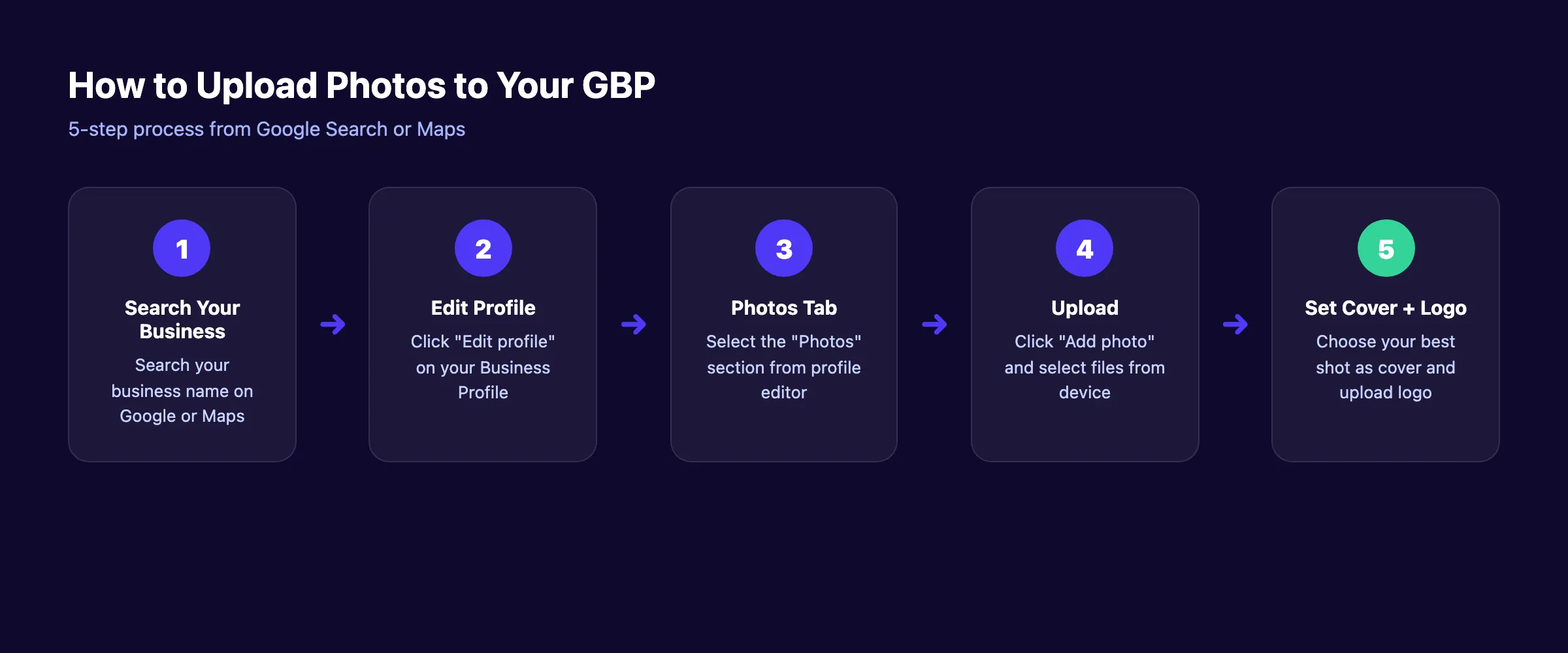
Uploading photos takes less than 5 minutes. You can do it from desktop or mobile. The process works the same whether you access your profile through Google Search or Google Maps.
Step 1: Find Your Business Profile
Search your exact business name on Google. Your Business Profile panel appears on the right side of search results (desktop) or at the top (mobile). You can also search on Google Maps and tap your business listing.
You must be signed into the Google account that owns or manages the profile. If you do not see editing options, verify your GBP ownership and categories.
Step 2: Open the Profile Editor
Click "Edit profile" on your Business Profile panel. This opens the profile management interface. On Google Maps, tap the "Edit" button on your listing.
Step 3: Select the Photos Section
Click the "Photos" tab in the profile editor. This section shows all your current photos organized by type: cover, logo, and general business photos.
Step 4: Upload Your Images
Click "Add photo" and select files from your device. You can upload multiple photos at once. Each photo enters a "pending" status during processing.
Google reviews every uploaded image before it appears publicly. This review usually takes between a few minutes and 24 hours. Only you see pending photos during this period.
Step 5: Set Your Cover Photo and Logo
After uploading, designate your best photo as the cover image. Upload your logo separately in the logo field. Google may also automatically select a cover photo from your gallery if you do not set one.
Uploading Product Photos
Product photos use a different path. Go to the "Products" section of your profile editor instead of the "Photos" tab. Each product listing has its own photo field. Upload images at 1200 x 900 pixels for best results.
Uploading Post Photos
Photos attached to Google Posts go through the "Add update" feature. These photos appear in your update feed and contribute to your overall photo gallery. Use 1200 x 900 pixels for post images.
Bulk Uploads for Multiple Locations
Businesses with multiple locations can use the GBP bulk management interface. Upload photos to each location separately. Do not reuse identical photos across different locations.
Managing photos across multiple locations is time-consuming. theStacc handles local SEO content for multi-location businesses at $49 per month.
Chapter 5: 10 Optimization Tips for Google Business Profile Photos
Uploading photos is the first step. Optimizing them is what moves rankings. These 10 tips separate businesses that show up in the local map pack from those buried on page 2.
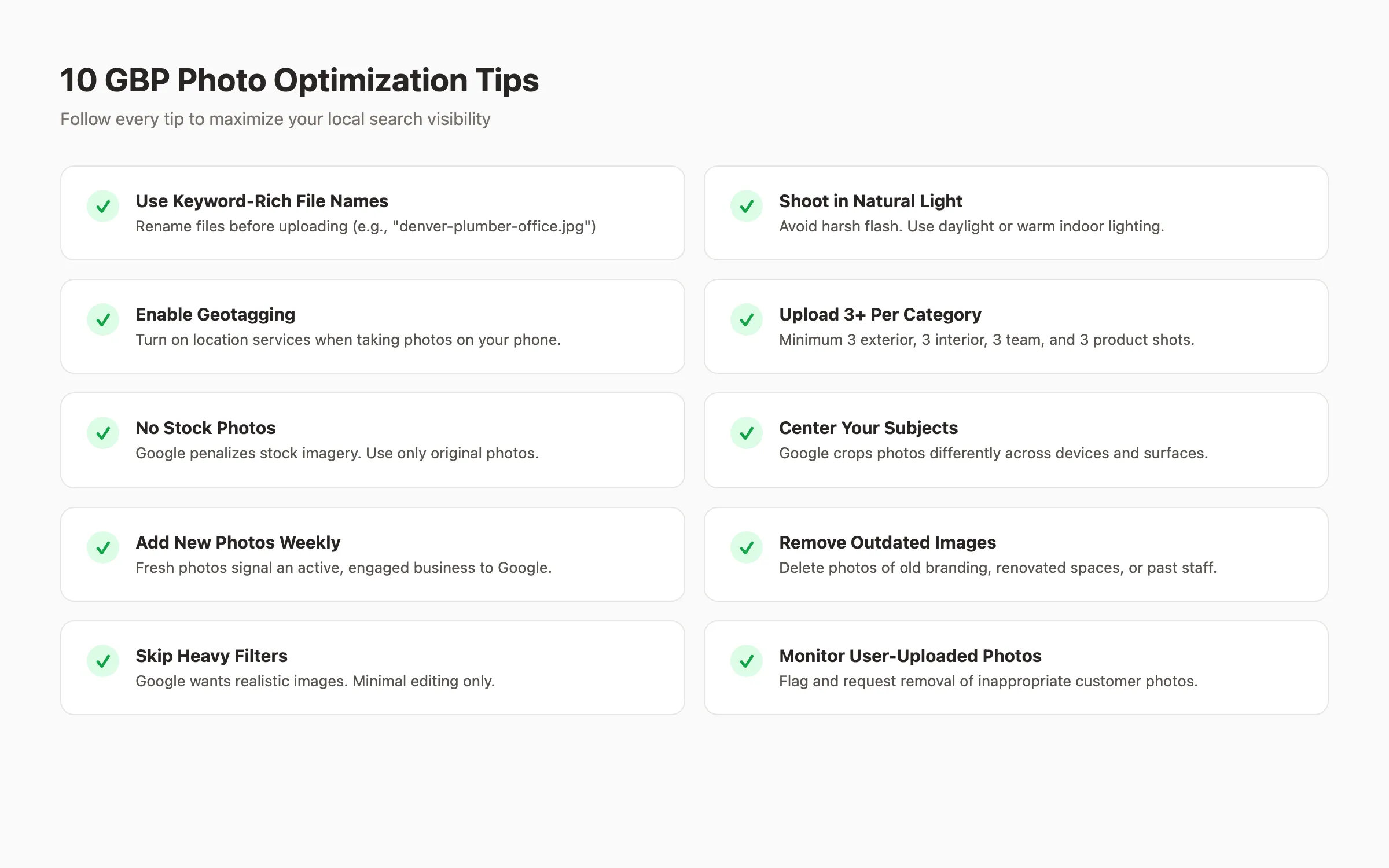
1. Rename Files With Keywords Before Uploading
Google reads file names. A file named "IMG_4532.jpg" tells Google nothing. A file named "denver-roof-repair-team.jpg" sends clear relevance signals.
Include your city, service, and business type in every file name. Separate words with hyphens. This is the same principle behind image SEO for websites.
2. Shoot With Natural Light
Natural daylight produces the best results for GBP photos. Avoid harsh camera flash that creates unflattering shadows. For indoor shots, position subjects near windows or use warm artificial lighting.
The golden hours (early morning and late afternoon) create the most appealing exterior photos. Overcast days work well for eliminating harsh shadows.
3. Enable Geotagging on Your Device
Turn on location services before taking photos. Geotagged images carry embedded GPS coordinates that match your business address. This creates an extra relevance signal for Google.
Most smartphones embed geotag data automatically when location services are active. Verify this setting in your camera app before your next photo session.
4. Upload at Least 3 Photos Per Category
Google recommends a minimum of 3 photos for each category: exterior, interior, team, and products. Businesses that meet this threshold across all categories rank higher than those with incomplete photo galleries.
The ideal total depends on your industry. Restaurants and retail stores benefit from 25+ photos. Service businesses perform well with 15 to 20 total images spread across categories.
5. Never Use Stock Photos
Google explicitly prohibits stock photography on Business Profiles. Stock images create unrealistic expectations and violate the platform's guidelines. One dental practice that replaced stock photos with original images saw measurable increases in website traffic and appointments.
Every photo should be an original image of your actual business, team, products, or services. Authenticity builds trust.
6. Center Subjects for Cross-Device Display
Google displays your photos differently on Search, Maps, mobile, and desktop. Important subjects placed near the edges get cropped on certain surfaces. Always center your main subject.
Leave padding around the edges of every photo. This ensures the critical content remains visible regardless of how Google displays the image.
7. Add Fresh Photos Every Week
Businesses that upload 2 to 3 new photos per week see stronger engagement signals. GBP posting frequency matters for photos too. Regular uploads signal an active business to Google.
Reports from 2026 show dramatic drops in GBP impressions for businesses that have not posted a photo or update in over 30 days. Consistency beats perfection.
8. Remove Outdated and Low-Quality Images
Audit your photo gallery quarterly. Delete photos showing old branding, renovated spaces, former employees, or discontinued products. Outdated images confuse customers and send mixed signals.
Replace removed photos with current alternatives. A seasonal refresh keeps your profile accurate and engaging. This audit pairs well with a broader local SEO audit.
9. Skip Heavy Filters and Edits
Google's photo guidelines state that images should "represent reality." Heavy Instagram-style filters, dramatic color grading, or excessive brightness adjustments violate this standard.
Minor adjustments to brightness and contrast are acceptable. Anything beyond basic correction risks rejection or reduced trust.
10. Monitor User-Uploaded Photos
Customers can upload photos to your profile too. Some of these images may be unflattering, irrelevant, or inappropriate. Check your profile weekly for new user-generated photos.
You can flag inappropriate user photos for removal through the GBP interface. Google reviews flagged images and removes those that violate its policies. Stay proactive to maintain quality.
Chapter 6: Common Google Business Profile Photo Mistakes
Most businesses make at least 2 of these mistakes. Each one reduces local visibility, damages trust, or triggers Google policy violations. Fix any that apply to your profile immediately.
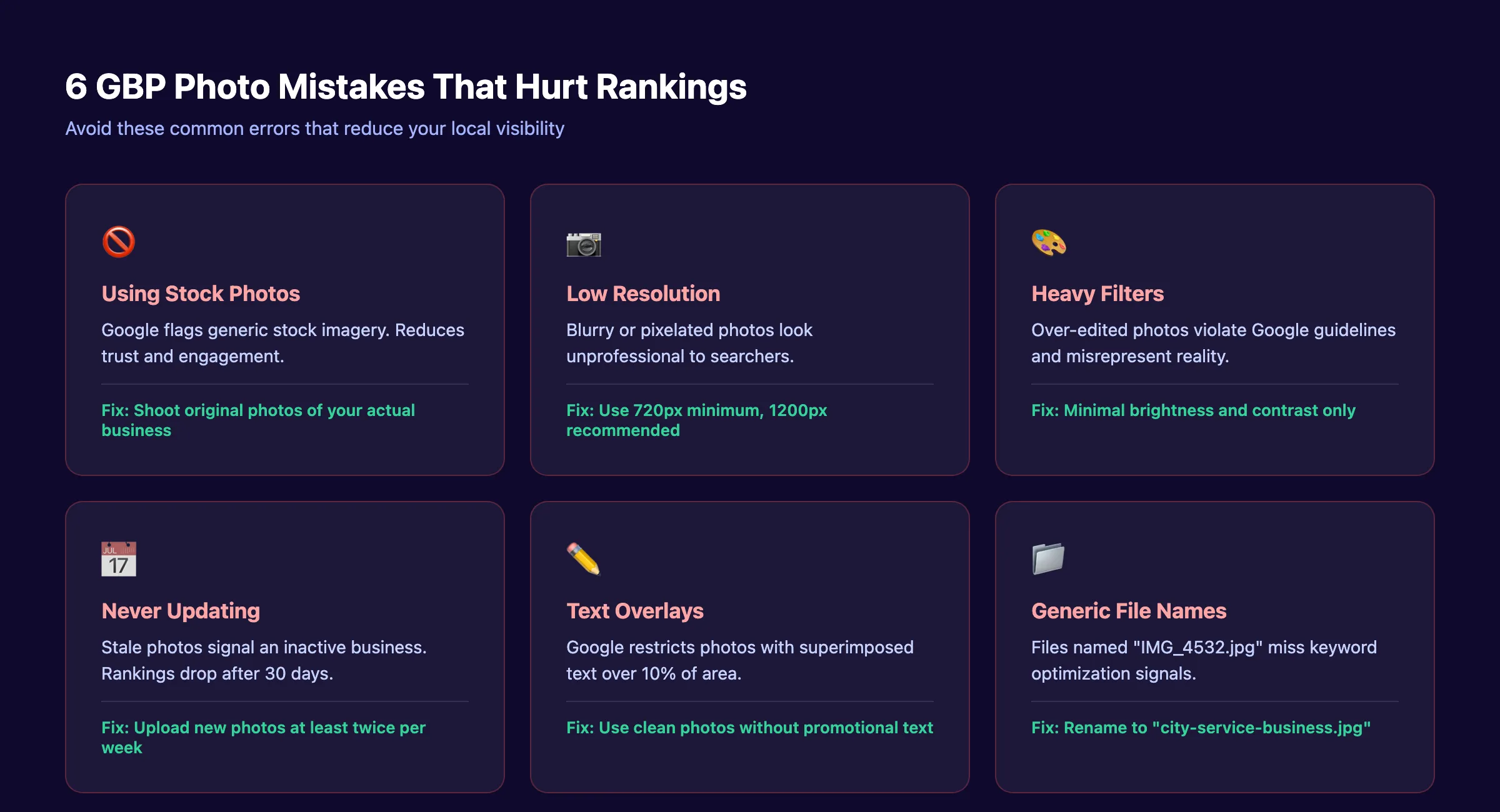
Mistake 1: Using Your Logo as the Cover Photo
Your logo belongs in the logo field. The cover photo should showcase your physical business, team, or signature product. Using a logo as the cover photo wastes your most visible image placement.
The cover photo is prime real estate. Use it to show what makes your business unique. A storefront with clear signage, a busy dining room, or a team in action all outperform a flat logo graphic.
Mistake 2: Uploading Once and Never Again
A one-time photo dump does not work. Google tracks upload frequency as an engagement signal. Profiles with stale photos (30+ days since last upload) lose ranking momentum.
Build a simple photo schedule. Take 2 to 3 new photos every week. Rotate between product shots, team moments, and completed work.
Mistake 3: Ignoring File Names and Metadata
Default camera file names like "IMG_0847.jpg" or "DCIM_2024.png" carry zero SEO value. Renaming files with descriptive keywords before uploading takes 10 seconds per image and creates lasting ranking signals.
Use the format: city-service-businesstype.jpg. For example, "austin-plumbing-repair-truck.jpg" or "miami-dental-office-lobby.jpg." Apply this same logic to blog image optimization.
Mistake 4: Poor Lighting and Composition
Dark, blurry, or poorly composed photos hurt more than they help. A dimly lit restaurant photo makes the space look uninviting. A crooked exterior shot looks unprofessional.
Invest 30 minutes in a proper photo session. Use natural light, stabilize your camera, and frame each shot with intention. Professional quality beats quantity.
Mistake 5: Adding Text Overlays to Photos
Google restricts images where superimposed text exceeds 10% of the total image area. Photos with promotional text, phone numbers, or website URLs overlaid often get rejected.
Keep your photos clean. If you need to communicate promotions, use Google Posts instead. Posts are designed for text-based updates. Photos are designed for visual content.
Mistake 6: Reusing the Same Photos Across Locations
Multi-location businesses sometimes upload identical photos to every profile. Google can detect duplicate images. Each location needs unique photos of that specific location.
Send a staff member to each location for original photos. Even similar-looking offices have different angles, teams, and details worth capturing. Unique photos per location strengthen each profile individually.
Struggling to keep your GBP profile fresh? theStacc handles local SEO posts, photo optimization guidance, and content publishing for $49 per month.
Chapter 7: How Often to Update Your Google Business Profile Photos
Photo freshness is a ranking signal. The ideal update frequency depends on your business type and competitive market. Use this schedule as a baseline.
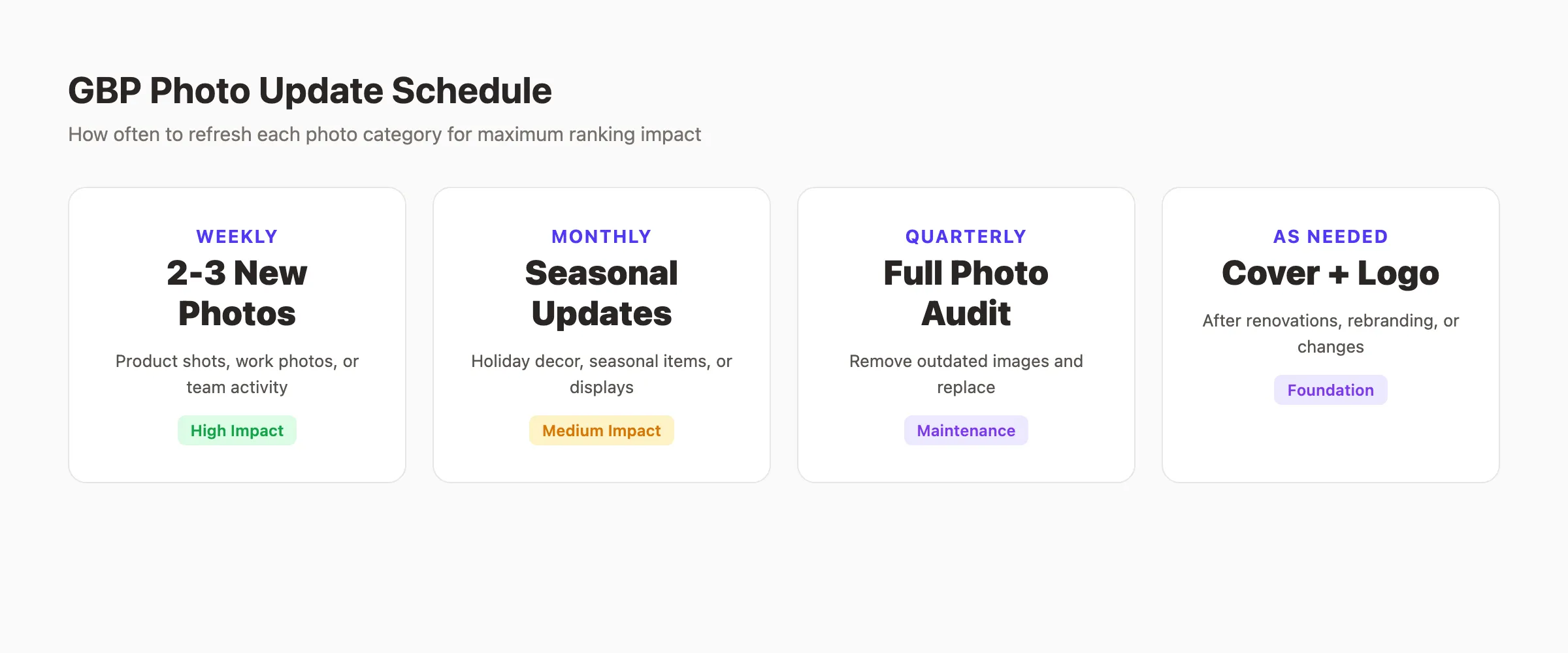
Weekly: 2 to 3 New Photos
Upload 2 to 3 fresh photos every week. Focus on variety: a completed project on Monday, a team photo on Wednesday, a product highlight on Friday. This cadence keeps your profile active in Google's eyes.
Weekly uploads compound over time. After 3 months, your profile has 30+ fresh photos. That volume and recency outperforms competitors who uploaded 10 photos a year ago.
Monthly: Seasonal Refreshes
Update seasonal content monthly. Holiday decorations, seasonal menu items, weather-appropriate photos, and timely displays keep your profile relevant. A snow removal company should show winter photos in December, not June.
Seasonal photos also help with long-tail local keyword research terms. Searchers looking for "outdoor dining near me" in summer are more likely to click profiles showing current outdoor seating.
Quarterly: Full Photo Audit
Every 3 months, review your entire photo gallery. Remove outdated images, replace low-performers, and ensure every category has at least 3 current photos.
Check for:
- ✓ Photos showing old branding or signage
- ✓ Images of former employees
- ✓ Outdated interior layouts after renovations
- ✓ Seasonal photos from the wrong season
- ✓ Blurry or low-quality images missed previously
As Needed: Cover Photo and Logo Updates
Update your cover photo after major changes. Renovations, rebrandings, new signage, or significant visual changes to your business warrant a fresh cover shot.
Update your logo only when your brand identity changes. Frequent logo swaps confuse customers and weaken brand recognition.
Industry-Specific Recommendations
| Business Type | Minimum Photos | Update Frequency | Priority Categories |
|---|---|---|---|
| Restaurant | 25+ | 3-5 per week | Food, interior, team |
| Dental office | 15-20 | 2-3 per week | Interior, team, equipment |
| Plumber / HVAC | 15-20 | 2-3 per week | Team, completed work, vehicles |
| Retail store | 25+ | 3-5 per week | Products, interior, displays |
| Law firm | 10-15 | 1-2 per week | Team, office, conference rooms |
| Salon / spa | 20+ | 3-5 per week | Services, interior, results |
These numbers come from analyzing GBP performance data across multiple industries. Businesses that exceed the minimum consistently outrank those at the baseline.
GBP Photo Optimization Checklist
Use this checklist every time you upload photos. Print it. Share it with your team. Make it part of your local SEO checklist.
- ✓ Cover photo set (1024 x 576 px, 16:9 ratio)
- ✓ Logo uploaded (720 x 720 px, square, clean background)
- ✓ 3+ exterior photos from different angles
- ✓ 3+ interior photos showing full space
- ✓ 3+ team photos in professional settings
- ✓ 3+ product or service photos
- ✓ All files renamed with city-service-business keywords
- ✓ Geotagging enabled on all photos
- ✓ No stock photos, GIFs, or AI-generated images
- ✓ No text overlays exceeding 10% of image area
- ✓ All photos are in focus and well-lit
- ✓ File sizes between 10 KB and 5 MB
- ✓ Weekly upload schedule documented
- ✓ Quarterly audit reminder set
- ✓ User-uploaded photos monitored weekly
What practitioners are saying on X
AI search advice ages quickly. Here is high-signal public discussion from SEO and growth operators — context for your roadmap, not a substitute for primary data.
- @noelcetaSEO (Sep 2025): Local SEO playbook still centers complete GBP, NAP consistency, quality citations, local keywords, location content, review velocity, and local links. See the post on X.
- @irentdumpsters (Jan 2026): Most businesses have a GBP; few fully optimize every ranking-relevant section for Map Pack visibility. See the post on X.
- @EldarCohenSEO (Jul 2026): 2026 WhiteSpark-oriented reminder: primary Google Business category is a top Map Pack ranking factor — wrong primary category can erase visibility for money queries. See the post on X.
Grok, AI Overviews, and multi-engine visibility
Local topics like “gbp photos guide” get cited when GBP, NAP, reviews, and service-area steps are concrete. Grok mixes those web facts with Map Pack operator advice circulating on X.
- Google AI Overviews: Use passage-ready answers, tables, and FAQ schema where relevant.
- ChatGPT / Perplexity: Cite named sources next to key claims.
- Grok: Maintain accurate entity facts on-site and in high-signal X posts.
Rank higher in the Map Pack without a full-time local SEO hire. theStacc’s Local SEO module handles daily GBP posts, review reply workflows, and local visibility tracking — built for service businesses that need calls, not vanity rankings.
Frequently Asked Questions
Start with a minimum of 15 photos spread across all categories. Upload at least 3 exterior, 3 interior, 3 team, and 3 product photos. Restaurants and retail stores should aim for 25+ total images. Add 2 to 3 new photos every week to maintain freshness.
Cover photos should be 1024 x 576 pixels (16:9 ratio). Logos should be 720 x 720 pixels (square). General business photos should be at least 720 x 720 pixels. Product and post photos work best at 1200 x 900 pixels. All images must be JPG or PNG format, between 10 KB and 5 MB.
No. Google prohibits AI-generated images, stock photos, screenshots, and GIFs on Business Profiles. All photos must be original images of your actual business, team, products, or services. AI images create unrealistic expectations and violate Google's photo policies.
Yes. GBP photos directly influence local rankings through behavioral signals. Profiles with photos receive 42% more direction requests and 35% more website clicks. Photo engagement, upload frequency, and image quality all contribute to your Google Maps ranking factors.
Most photos appear within minutes to 24 hours. Google reviews every uploaded image before making it publicly visible. During the review period, only the business owner can see pending photos. Photos that violate Google's guidelines are rejected and never appear.
Open your Business Profile, go to the Photos section, and select the image you want to delete. Click the three-dot menu and select "Remove." For customer-uploaded photos that violate guidelines, use the "Flag" option to request removal from Google.
Strong Google Business Profile photos are not optional for local businesses in 2026. They are a proven ranking factor that drives real-world results: more clicks, more calls, and more foot traffic. Start with the specifications in this guide, follow the 10 optimization tips, and commit to uploading 2 to 3 fresh photos every week. Your local rankings will reflect the effort.
Your local SEO should run on autopilot. theStacc publishes GBP posts, blog content, and social media for local businesses starting at $49 per month.
Related Tools & Resources
Free SEO Tools:
Best Lists:
Sources & references
- [1] Princeton / Georgia Tech et al. — GEO research (arXiv:2311.09735)
- [2] @noelcetaSEO on X — Local SEO playbook still centers complete GBP, NAP consistency, quality citations, local keywords, location content, rev
- [3] @irentdumpsters on X — Most businesses have a GBP; few fully optimize every ranking-relevant section for Map Pack visibility.
- [4] @EldarCohenSEO on X — 2026 WhiteSpark-oriented reminder: primary Google Business category is a top Map Pack ranking factor — wrong primary cat
- [5] Referenced source — koanthic.com

Manage Google Business Profile posts, review replies, and local rank tracking.
Weekly local SEO teardowns
One practical email a week. Map Pack, GBP, AI Overviews — no fluff. Unsubscribe anytime.
Explore this topic: GBP Photos.