Build a keyword research template that ships rankings. 12 columns, scoring formula, and a filled example row. Updated April 2026 with AI search signals.
A keyword research template is a spreadsheet that turns a raw keyword list into a publishing queue. This one uses 12 columns, a scoring formula that ranks by revenue potential rather than search volume, and a mapping step that assigns every kept keyword to a specific existing or new URL.
Most teams start a keyword research template by dumping 4,000 keywords into a spreadsheet and then freezing. The list grows. Nothing ships. Rankings never arrive because no page ever gets published.
That frozen spreadsheet costs money. A mid-market B2B site stuck at 2,000 monthly visits is leaving roughly $18,000 per month in pipeline on the table, according to First Page Sage data showing SEO ROI of 702 to 1,389 percent for companies with disciplined keyword research.
This guide fixes the freeze. You will build a 12-column keyword research template, fill it with real data, score every row, and walk away with a 90-day editorial calendar mapped to specific URLs. We publish 3,500+ blogs a month across 70+ industries for clients who cannot afford guesswork, so the template here is the exact one our editorial team uses internally.
Here is what you will learn:
- The 12 columns every keyword research template must include
- How to choose between Google Sheets, Excel, Airtable, and Notion
- A simple scoring formula that ranks keywords by revenue potential, not volume
- How to map keywords to existing pages versus new content
- Troubleshooting for the 3 most common template failures
Step 1: Choose the Right Format for Your Keyword Research Template
Before you type a single keyword, pick a format. This choice controls how fast the template becomes useful.
Google Sheets is the default for 90 percent of teams. It handles 50,000 rows without lag, supports collaborative editing, and runs formulas that Excel handles identically. Excel still wins for teams that live in Microsoft 365 or need advanced pivot tables. Airtable is worth the extra cost only if you plan to connect keywords to Jira tickets, content briefs, or publishing workflows. Notion looks pretty but falls apart past 500 rows.
Here is the format comparison we hand to new clients:
| Format | Best For | Row Limit | Cost | Verdict |
|---|---|---|---|---|
| Google Sheets | Most teams | 10M cells | Free | Default choice |
| Excel | Microsoft shops | ~1M rows | $6.99/mo | Fine alternative |
| Airtable | Workflow integration | 50k (Pro) | $20/mo | Only if integrating |
| Notion | Small lists | 500 rows before lag | $10/mo | Skip for research |
Our strong opinion: pick Google Sheets unless you have a specific reason not to. The sharing model is cleaner, the formulas port to any format later, and every SEO tool exports CSV that pastes cleanly.
Why this step matters: Format friction kills research projects. Teams that start in Notion or a Jira board abandon the template within 3 weeks because filtering 2,000 rows is painful. Sheets removes that friction on day one.
Checklist for Step 1:
- ✓ Create a new Google Sheet titled
[Site] - Keyword Research - 2026 - ✓ Share with the editorial team at edit access
- ✓ Freeze the top row and first column
- ✓ Set tab colors: red for raw, yellow for scored, green for assigned
Step 2: Set Up the 12 Essential Columns
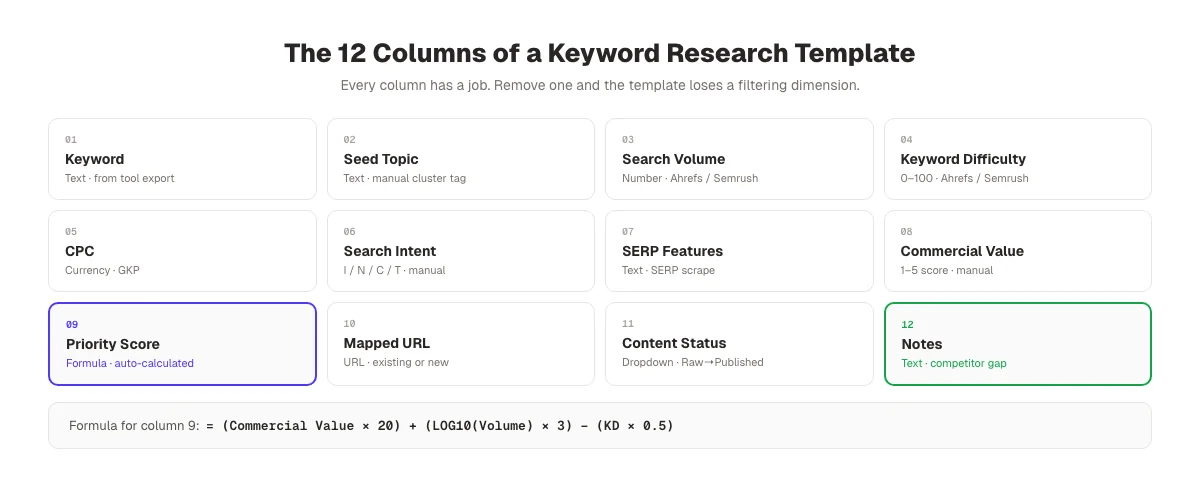
A keyword research template with 6 columns is too thin. A template with 40 columns will never get filled. The sweet spot is 12.
These are the 12 columns every template needs, in this order:
| # | Column | Data Type | Source |
|---|---|---|---|
| 1 | Keyword | Text | Manual + tool export |
| 2 | Seed Topic | Text | Manual tag |
| 3 | Search Volume | Number | Ahrefs / Semrush / GSC |
| 4 | Keyword Difficulty (KD) | Number 0-100 | Ahrefs / Semrush |
| 5 | CPC | Currency | Google Keyword Planner |
| 6 | Search Intent | Category | Manual (I/N/C/T) |
| 7 | SERP Features | Text | SERP scrape |
| 8 | Commercial Value (1-5) | Number | Manual scoring |
| 9 | Priority Score | Formula | Auto-calculated |
| 10 | Mapped URL | URL | Manual |
| 11 | Content Status | Dropdown | Manual |
| 12 | Notes | Text | Manual |
Intent uses a 4-letter code: I for informational, N for navigational, C for commercial, T for transactional. Commercial Value is a subjective 1 to 5 rating based on how close the keyword sits to a purchase decision. Status is a dropdown with 5 options: Raw, Scored, Assigned, In Progress, Published.
Set columns 9 through 12 with conditional formatting. Green for Published, amber for In Progress, grey for Raw. Your template becomes a visual dashboard the moment you open it.
Why this step matters: The 12 columns work as a filter system. You can slice by intent, by status, by priority score, and by mapped URL independently. That flexibility turns a static list into a working editorial tool. Skip a column and the template loses its power within 2 months.
Checklist for Step 2:
- ✓ Add all 12 column headers to row 1
- ✓ Set column widths: Keyword (250px), rest (100-140px)
- ✓ Add data validation dropdowns for Intent and Status
- ✓ Freeze row 1 and column A
Step 3: Populate the Keyword Column With Seed and Expansion Keywords
Seeds first. Expansion second. Never mix the two.
A seed keyword is the root topic: "email marketing", "vehicle wrap", "IRA rollover". Start with 15 to 25 seeds written by someone who understands the business. Not the agency. Not the intern. Someone who answers customer questions every day.
Then expand each seed using 4 sources in this order:
- Google Keyword Planner. Pull every suggestion up to 1,000 keywords per seed
- Ahrefs Keywords Explorer. Use the "Matching terms" and "Questions" reports
- Google autocomplete + People Also Ask. Scrape manually or via tool
- Competitor gap analysis. Export keywords your top 3 competitors rank for that you do not
A competitor gap export alone usually adds 400 to 1,200 keywords you would never have brainstormed. We go deep on this in our guide to analyzing competitor keywords.
One non-obvious rule: tag every seed topic in column 2. When you pull 3,000 expansion keywords from 20 seeds, the seed tag becomes your clustering anchor. You will thank yourself in step 6.
Why this step matters: The quality of your keyword universe caps the quality of your rankings forever. A template filled with 800 shallow keywords from one tool will never beat a template filled with 3,000 keywords from 4 sources. Expansion breadth is the biggest single lever on research quality.
Checklist for Step 3:
- ✓ Brainstorm 15 to 25 seed keywords with a subject matter expert
- ✓ Pull expansion from all 4 sources
- ✓ Tag every row with the seed topic in column 2
- ✓ Deduplicate using
=UNIQUE()into a clean tab
Skip the research. Skip the writing. Skip the upload. We publish 30 SEO-optimized blog posts a month for $99. Keyword research, drafting, images, and CMS upload included. No contracts.
Step 4: Add Search Volume, Keyword Difficulty, and CPC Data
Now the template gets its fuel. You need 3 numbers on every row: search volume, keyword difficulty, and CPC.
Pull them in bulk, not one at a time. Ahrefs, Semrush, and Moz all accept CSV uploads of up to 10,000 keywords per bulk export. Paste column A into the tool, export the result, and VLOOKUP the data back into your template. A 3,000-keyword template takes 12 minutes to populate this way.
A sample filled row looks like this:
| Keyword | Seed | Volume | KD | CPC | Intent | SERP Features | Value |
|---|---|---|---|---|---|---|---|
| keyword research template | keyword research | 1,900 | 38 | $4.20 | C | Featured Snippet, PAA, Video | 5 |
| free keyword research template | keyword research | 880 | 29 | $3.10 | C | PAA, Video | 4 |
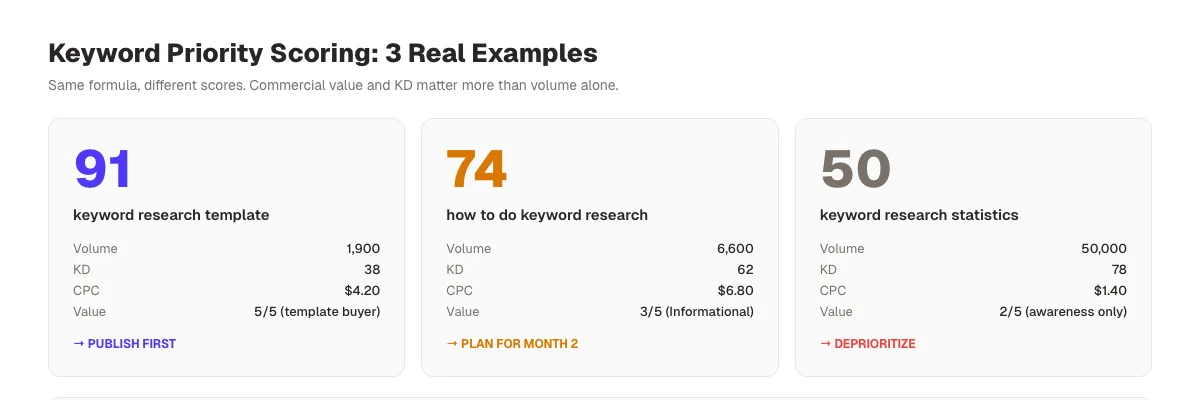
| how to do keyword research | keyword research | 6,600 | 62 | $6.80 | I | Featured Snippet, PAA, Videos | 3 |
| best keyword research tool | keyword research | 4,400 | 71 | $18.40 | C | Reviews, PAA, Shopping | 5 |
Notice what the data tells you. "Keyword research template" has 1,900 volume and KD 38. "How to do keyword research" has 6,600 volume but KD 62. The smaller keyword is probably 4 times easier to rank for and has stronger commercial intent because someone searching for a template is further down the funnel.
Volume-first thinking is a trap. We score using all 3 numbers together in step 5.
A quick word on data freshness. Ahrefs refreshes monthly, Semrush weekly, Google Keyword Planner reports as a range. Refresh your template quarterly at a minimum. Old data leads to old decisions.
Why this step matters: Without volume, KD, and CPC on every row, you are ranking keywords by gut feel. Gut feel is wrong roughly half the time. Numbers reduce that error rate to single digits and let you defend the calendar to a skeptical CMO.
Checklist for Step 4:
- ✓ Bulk-pull volume, KD, and CPC for every keyword
- ✓ VLOOKUP the results back into your template
- ✓ Flag any keyword with no data (usually junk. Delete)
- ✓ Note the data pull date in a cell at the top
Step 5: Score and Prioritize Keywords With a Commercial Formula
Volume is a vanity metric. Scoring by volume alone is how teams end up with 40,000 pageviews and 3 customers.
We use a simple formula that combines commercial intent, difficulty, and volume into one priority score from 1 to 100:
Priority Score = (Commercial Value × 20) + (Volume Score × 0.3) − (KD × 0.5)
Where:
- Commercial Value is the 1 to 5 rating from step 2 (1 = pure info, 5 = ready to buy)
- Volume Score =
LOG10(Volume) × 10. Caps the impact of giant head terms - KD is the raw 0 to 100 difficulty score
Drop this into column 9 as a formula: =(H220)+(LOG10(C2)100.3)-(D20.5)
A keyword with 1,900 volume, KD 38, and commercial value 5 scores 91. A keyword with 50,000 volume, KD 78, and commercial value 2 scores 50. The template just told you to write the first one first, even though the second one has 26 times the volume.
The formula is deliberately biased toward commercial intent because rankings without revenue are expensive hobbies. Adjust the 20x multiplier if your site sells nothing and just needs traffic.
The exception is top-of-funnel brands that need awareness first. If your product costs $50,000 and sells through 9-month sales cycles, loosen the commercial weight and lean into intent classification. Our search intent guide walks through how to tune the formula by funnel stage.
Why this step matters: Scoring is the difference between a spreadsheet and a strategy. A scored template sorts itself. You open it, sort by column 9 descending, and the top 50 rows are your next 50 articles. That one formula saves 6 hours a month of editorial debates.
Checklist for Step 5:
- ✓ Add the formula to column 9
- ✓ Assign commercial value scores 1 to 5 to every row
- ✓ Sort by priority score descending
- ✓ Flag the top 50 as the 90-day roster
Step 6: Map Each Keyword to an Existing Page or a New Page
Every keyword in your template must end up in one of two buckets: mapped to an existing URL for optimization, or slotted into a new URL for creation.
Run this decision in column 10. For each keyword, search your own site using site:yourdomain.com [keyword] in Google. If you already have a page that ranks in positions 5 to 30 for that keyword, optimize the existing page. If nothing ranks or you rank past page 5, create a new page.
Here is the decision table:
| Current Rank | Action | Priority |
|---|---|---|
| 1-3 | Leave alone, monitor | Low |
| 4-10 | Optimize existing page | High |
| 11-30 | Major refresh or expand | High |
| 31-100 | Create new page or consolidate | Medium |
| Not ranking | Create new page | Based on score |
Optimizing an existing page beats creating new content 8 times out of 10 for keywords where you already rank. Refreshed content ranks 2.3 times faster than new content, and you already have the backlinks and domain signals working for you.
Watch out for keyword cannibalization here. If 2 keywords map to the same URL, that is fine. If 2 keywords map to 2 different existing URLs that both target the same intent, you have a problem. Consolidate. We walk through this in our keyword cannibalization fix guide.
Tag new-page rows with a proposed URL slug in column 10, even if the page does not exist yet. Tag existing pages with the live URL. Your template now doubles as a content production brief.
Why this step matters: Mapping turns research into assignments. Without this step, the template is a list of keywords no writer knows what to do with. With this step, every row has a clear next action tied to a specific URL.
Checklist for Step 6:
- ✓ Run
site:search for every top-scored keyword - ✓ Map each to an existing URL or a new slug
- ✓ Flag cannibalization risks in the notes column
- ✓ Set Status to "Assigned" for the first 30 rows
Your keyword research template is only useful if the content actually ships. We write, optimize, and publish 30 posts a month so your 90-day roster turns into 90 live URLs. Not 90 abandoned rows. See the Content SEO module →
Step 7: Build the Content Gap Column With Competitor Data
This is the column most templates skip. Do not skip it.
For every keyword in your top 50, add a note in column 12 listing the top 3 ranking competitors and 1 specific thing each one does that you do not. This is qualitative data that no SEO tool gives you. It takes 4 minutes per keyword and saves 40 minutes per article.
Run this workflow:
- Search the keyword in an incognito tab
- Open the top 3 organic results
- For each result, note: word count, page type (blog, landing page, tool), and 1 unique asset (calculator, video, original data, template download)
- Write a 1-sentence differentiation note: "Beat with [your asset type]"
A sample note reads: "Ahrefs ranks #1 with a 2,400-word guide + template download. Beat with 3,500-word guide + filled example + priority scoring formula."
That note becomes the writer's brief. The writer now has a concrete target to beat, not a vague instruction to write about keyword research. Our content gap analysis guide covers the full workflow if you want to do this at scale across a competitor's full keyword universe.
A nuance worth admitting: gap analysis has diminishing returns past the top 50. For keywords scored below 60, just note the top competitor and move on. The extra rigor is not worth it for lower-priority targets.
Why this step matters: The content gap column is what separates a 3rd-place ranking from a 1st-place ranking. Two sites can target the same keyword with the same word count and the same internal links. The one that identifies and fills a specific gap wins. This column forces that thinking into the template instead of leaving it to luck.
Checklist for Step 7:
- ✓ Analyze top 3 SERP results for every top-50 keyword
- ✓ Note word count, page type, and unique asset for each
- ✓ Write a 1-sentence "Beat with…" note
- ✓ Attach any competitor screenshots as cell comments
Step 8: Sort, Filter, and Turn the Template Into an Editorial Calendar
The last step converts research into a shipping schedule.
Create a new tab called "Calendar". Pull the top 50 rows from your main tab using this formula: =SORT(FILTER(Main!A2:L, Main!I2:I>60), 9, FALSE). That formula shows only keywords with priority score above 60, sorted by score descending.
Then add 3 calendar columns: Target Publish Date, Writer, and Status. Assign one keyword per week to each writer for the first 12 weeks. Do not over-plan past 12 weeks. Data decays and priorities shift. Our SEO content calendar template covers how to structure publish cadence by site age and budget.
Here is what the calendar tab looks like in practice:
| Keyword | Priority | Target URL | Writer | Publish Date | Status |
|---|---|---|---|---|---|
| keyword research template | 91 | /keyword-research-template/ | Sam | 2026-04-22 | In Progress |
| free keyword research template | 87 | /keyword-research-template/ | Sam | 2026-04-22 | Merged |
| seo content calendar template | 84 | /seo-content-calendar-template/ | Jess | 2026-04-29 | Assigned |
| keyword research tools | 82 | /keyword-research-tools/ | Dana | 2026-05-06 | Assigned |
Notice how the first 2 keywords share a URL. That is intentional. One page targets both because they share intent. The template catches this because you mapped the URL in step 6.
Review the calendar every Friday. Move published rows to Status "Published" and pull the next row up the queue. The template is now a living system, not a static file.
Why this step matters: Research without a shipping schedule is a very detailed way to do nothing. The calendar tab converts a 3,000-row research universe into a weekly publish cadence the team can actually execute. This is the step where rankings start to arrive 4 to 6 months later.
Checklist for Step 8:
- ✓ Build the Calendar tab with the FILTER formula
- ✓ Assign writers and dates for the first 12 weeks
- ✓ Review and reprioritize every Friday
- ✓ Archive published rows to a "Published" tab quarterly
Results: What to Expect From Your Keyword Research Template
A properly built keyword research template produces 3 measurable outcomes in the first 90 days.
Month 1: Production volume doubles. Writers stop asking what to write about. The top 20 rows of your scored template become 20 assignments. Editorial meetings drop from 2 hours to 15 minutes.
Month 2: First rankings arrive. Low-KD keywords (under 25) picked up in step 5 start ranking in positions 15 to 40. These are pages not yet optimized, just published. Google is crawling and indexing fresh content.
Month 3: Priority-scored keywords move to page 1. The keywords with scores above 80. Your commercial, low-competition wins. Begin hitting positions 1 to 10. Conversion-adjacent traffic starts. Revenue follows 30 to 60 days behind rankings.
Here is the benchmark we see across client sites using this template:
| Month | New Keywords Ranked | Top 10 Rankings | Organic Traffic Lift |
|---|---|---|---|
| Month 1 | 25-40 | 3-5 | 12-18% |
| Month 3 | 120-180 | 25-45 | 45-90% |
| Month 6 | 400-600 | 120-200 | 180-340% |
| Month 12 | 1,200-2,000 | 500-900 | 500-900% |
These numbers assume 30 posts per month published against scored keywords. Cut the cadence in half and extend every timeline by 1.8x. Cut it to quarterly and the template becomes a graveyard.
Troubleshooting Common Keyword Research Template Failures
Three problems kill keyword research templates. Here is how to fix each one.
Problem: The template grows past 5,000 rows and becomes unworkable. Solution: Archive any keyword untouched in 90 days to a separate "Archive" tab. Keep the working template under 1,500 rows. You can always pull from the archive if priorities shift.
Problem: The priority score surfaces keywords you cannot realistically rank for. Solution: If your domain rating is under 30 and the template keeps surfacing keywords with KD 60+, tighten the formula. Change the KD multiplier from 0.5 to 0.9. New formula: =(H220)+(LOG10(C2)100.3)-(D20.9). This aggressively penalizes difficulty and surfaces low-KD wins your site can rank for today.
Problem: Writers ignore the template and write what they want. Solution: This is a process problem, not a template problem. Make the template the single source of truth for every assignment. If a keyword is not in the template with a priority score and a mapped URL, it does not get written. Enforce this for 4 weeks and the behavior holds.
Your template is built. Now the content has to ship. We handle writing, optimization, imagery, and publishing: 30 posts a month for $99. You keep the template. We do the work. Sign up for free →
What practitioners are saying on X
AI search advice ages quickly. Here is high-signal public discussion from SEO and growth operators — context for your roadmap, not a substitute for primary data.
- @hridoyreh (Mar 2026): Widely shared SEO skill tree: foundations, research, technical, on-page, content, links, AI SEO/GEO, analytics, UX, brand, programmatic — useful map for stats and how-to posts. See the post on X.
- @jakezward (Feb 2026): 2026 SEO predictions emphasize AI Overview share-of-SERP, schema for LLM token efficiency, brand mentions in AI answers as a KPI, proprietary data as a moat, and content refresh beating net-new AI slop. See the post on X.
Grok, AI Overviews, and multi-engine visibility
Research topics like “keyword research template” get cited when frameworks and decision rules are extractable. Lead with definitions and tables; keep Grok-ready entity language for tools and SERP features named on the page.
- Google AI Overviews: Use passage-ready answers, tables, and FAQ schema where relevant.
- ChatGPT / Perplexity: Cite named sources next to key claims.
- Grok: Maintain accurate entity facts on-site and in high-signal X posts.
Frequently Asked Questions
Between 1,000 and 3,000 keywords for an active site. Under 1,000 means you are missing long-tail opportunities: 94.74 percent of keywords have under 10 monthly searches, so the long tail is where most wins live. Over 3,000 creates maintenance overhead that outweighs the upside.
Google Sheets wins for 9 out of 10 teams because sharing is cleaner, formulas are identical to Excel, and CSV exports from every SEO tool paste in natively. Excel only wins if your team lives in Microsoft 365 and needs advanced pivot tables daily.
Refresh search volume, KD, and CPC data every 90 days. Add new keywords from Google Search Console monthly. Do a full competitor gap re-analysis every 6 months. Data decays fast in emerging AI search categories where a keyword can triple in volume in a single quarter.
Yes. Add a 13th column called "AI Citation Count" if you can track it. Tools like Profound and Otterly monitor LLM citation frequency. With AI search accelerating, citation tracking is becoming as important as Google rank tracking for most sites.
Sort by priority score descending and take the top N rows where N equals your monthly publishing capacity times 3. If you publish 10 posts a month, work from the top 30 rows. Replenish the roster monthly from the next tier as posts ship.
Yes, with one modification. Add a "Location" column between Keyword and Search Volume. Tag every keyword with the city or region it targets. Use modified scoring that weights commercial value higher and deprioritizes KD for local keywords, which tend to rank faster. We cover the full local setup in our local keyword research guide.
A keyword research template is useful exactly as long as it drives publishing. Build it once, score it honestly, and ship weekly. Rankings are the receipt 4 to 6 months later.
Related Tools & Resources
Free SEO Tools:
Best Lists:
Sources & references
- [1] Princeton / Georgia Tech et al. — GEO research (arXiv:2311.09735)
- [2] @hridoyreh on X — Widely shared SEO skill tree: foundations, research, technical, on-page, content, links, AI SEO/GEO, analytics, UX, bran
- [3] @jakezward on X — 2026 SEO predictions emphasize AI Overview share-of-SERP, schema for LLM token efficiency, brand mentions in AI answers

Researched, written, and published articles that compound organic traffic.
Weekly local SEO teardowns
One practical email a week. Map Pack, GBP, AI Overviews — no fluff. Unsubscribe anytime.
Explore this topic: Keyword Research.