
Lazy Loading SEO (2026): Core Web Vitals + Crawlability Guide
Lazy loading SEO guide: how it affects Core Web Vitals, Googlebot crawling, image indexing, and common implementation mistakes that hurt rankings.
Every image on your website is a decision. Load them all at once and your page crawls. Lazy load the wrong ones and Google never sees them.
16% of websites still lazy load their LCP image. That single mistake adds 600+ milliseconds to load time and tanks rankings.
This guide covers every angle of lazy loading for SEO. You will learn which elements to lazy load, which to leave alone, and how to audit your setup before it costs you traffic.
We have published 3,500+ blogs across 70+ industries. Performance issues like botched lazy loading are one of the most common technical SEO problems we see.
Here is what you will learn:
- What lazy loading actually does to your crawl and render pipeline
- Why lazy loading the wrong image dropped one site’s traffic by 20%
- The exact implementation method Google recommends in 2026
- Platform-specific fixes for WordPress, Shopify, Next.js, and more
- A step-by-step audit checklist to find and fix lazy loading problems
- How to handle video embeds, CSS backgrounds, and infinite scroll
What Is Lazy Loading and Why It Matters for SEO
Lazy loading defers the loading of off-screen resources until a user scrolls near them. Instead of downloading every image, video, and iframe on page load, the browser fetches them on demand.
The concept is simple. The SEO implications are not.
How Lazy Loading Works
A standard <img> tag tells the browser to download the image immediately. With native lazy loading, you add one attribute:
<img src="photo.jpg" loading="lazy" width="800" height="600" alt="Description">The browser skips that image until it enters or approaches the viewport. This reduces initial page weight, speeds up first paint, and cuts bandwidth for users who never scroll down.
The Three Implementation Methods
Native HTML lazy loading uses the loading="lazy" attribute. Every major browser supports it. No JavaScript required. This is the method Google recommends.
IntersectionObserver API is a JavaScript approach that watches when elements enter the viewport. It gives more control over thresholds and timing. Googlebot supports IntersectionObserver, but scroll-event listeners do not fire during Google’s render pass.
Third-party libraries (lazysizes, lozad.js, vanilla-lazyload) swap data-src attributes for real src values. These carry SEO risk. If the library fails to fire during Googlebot’s render, the image never gets a src attribute and Google never indexes it.
Why SEO Teams Cannot Ignore This
29% of websites now use native image lazy loading. 84% of that adoption comes from WordPress, which added loading="lazy" to all images by default in version 5.5.
That means millions of sites run lazy loading without anyone making a deliberate choice. Many of those sites lazy load their hero image, their product photos, and their schema-referenced images. All of which should load eagerly.
The difference between lazy loading done right and lazy loading done wrong is the difference between a faster site and an invisible one.
How Lazy Loading Affects Core Web Vitals and Rankings
Google uses Core Web Vitals as a ranking signal. Lazy loading directly impacts 2 of the 3 metrics.
Largest Contentful Paint (LCP)
LCP measures how long it takes the largest visible element to render. That element is usually an image.
When you lazy load the LCP image, you tell the browser to wait. The browser first loads other resources, then notices the image is approaching the viewport, then starts the download. That delay compounds.
The data is clear. Pages that lazy load their LCP image have a median LCP of 3,546 milliseconds. Pages that do not: 2,922 milliseconds. That is a 624-millisecond gap, according to web.dev analysis of the HTTP Archive.
Google considers LCP under 2.5 seconds “good” and above 4 seconds “poor.” Lazy loading your hero image can push you from good to poor with one attribute.
Cumulative Layout Shift (CLS)
CLS measures unexpected visual movement during page load. Lazy-loaded images without explicit width and height attributes cause layout shifts.
When the browser does not know an image’s dimensions in advance, it reserves zero space. The image loads, pushes content down, and the user loses their place. Adding width and height attributes to every lazy-loaded image eliminates this problem entirely.
Interaction to Next Paint (INP)
INP measures responsiveness to user input. Lazy loading generally helps INP by reducing main-thread work during initial load. Fewer resources to process means the browser responds faster to clicks and taps.
The Real-World Impact
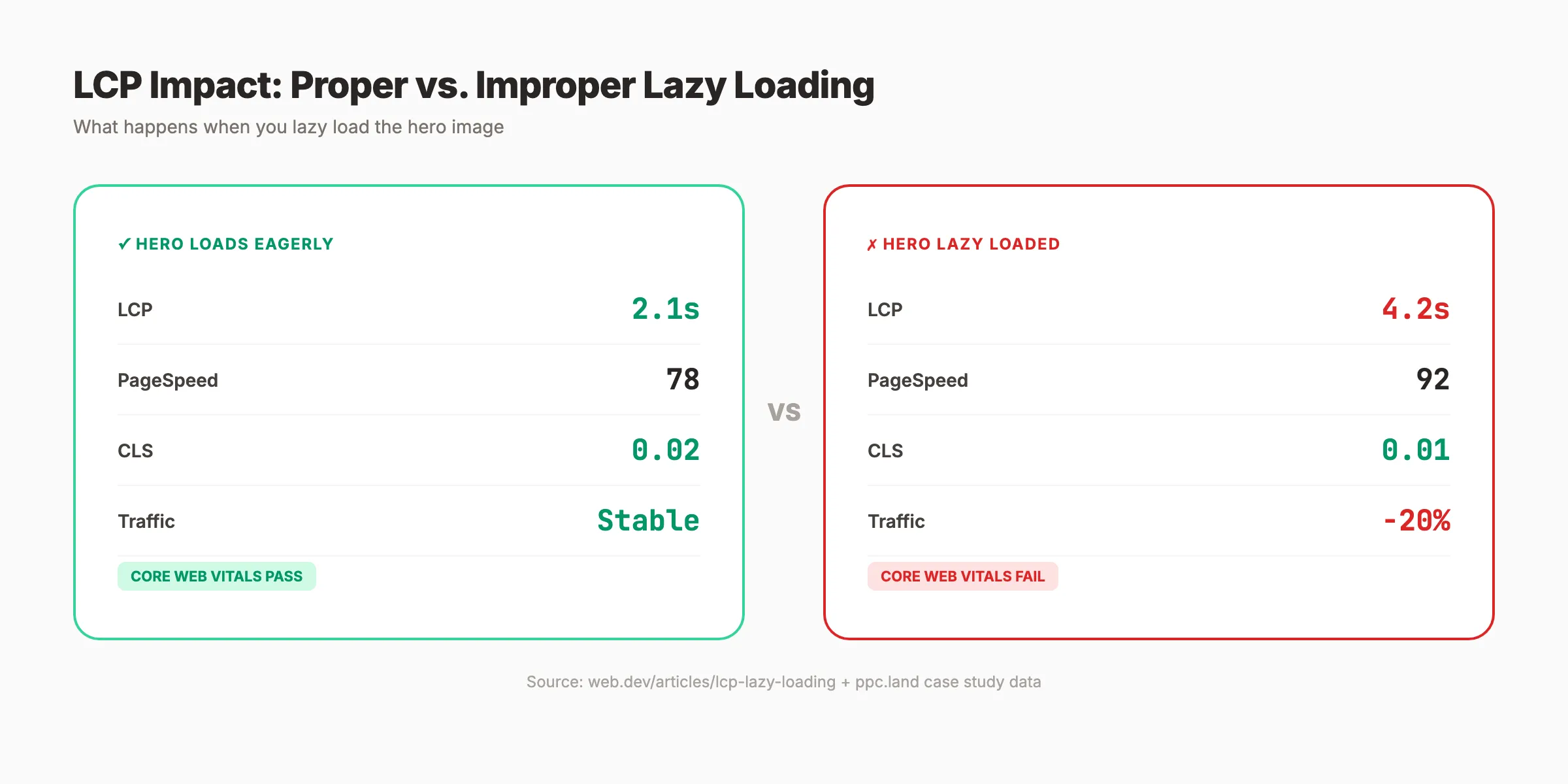
One documented case study shows what happens when lazy loading goes wrong. A site implemented lazy loading across all images, including the hero. Their PageSpeed score jumped from 65 to 92. But their field LCP went from 1.8 seconds to 4.2 seconds.
The result: a 20% drop in organic traffic within 8 weeks.
The PageSpeed score improved because lab testing measured total page weight reduction. But real users and Googlebot experienced a slower above-the-fold render. The score was a false positive.
Your SEO should not depend on guessing what to optimize. Stacc publishes 30 optimized articles per month. Each one built to rank. Start for $1 →
The Right Way to Implement Lazy Loading for SEO
The principle is straightforward. Lazy load everything below the fold. Eagerly load everything above it.
Rule 1: Never Lazy Load the LCP Element
Your hero image, banner graphic, or first visible product photo must load immediately. Use the fetchpriority attribute to signal importance:
<img src="hero.jpg" fetchpriority="high" width="1200" height="630" alt="Description">Do not add loading="lazy" to this image. Do not add loading="eager" either. Eager is the default, so it is redundant.
Rule 2: Use Native Lazy Loading Over JavaScript
Native loading="lazy" is the safest choice. The browser handles all viewport detection internally. There is no dependency on a JavaScript library that might fail, load late, or conflict with other scripts.
<img src="photo.jpg" loading="lazy" width="800" height="600" alt="Description">If you need IntersectionObserver for custom behavior, ensure your implementation populates a real src attribute. Googlebot will not index images that only exist in data-src.
Rule 3: Always Declare Width and Height
Every lazy-loaded image needs explicit dimensions. This prevents CLS and lets the browser allocate space before the image arrives.
<img src="photo.jpg" loading="lazy" width="800" height="600" alt="Photo description">For responsive images, use CSS aspect-ratio instead of fixed pixel values:
img { aspect-ratio: 4 / 3; width: 100%; height: auto; }Rule 4: Keep Real src Attributes
Some JavaScript libraries use data-src to prevent the browser from loading images. They then swap data-src into src when the user scrolls.
This breaks image SEO. Google renders JavaScript but does not scroll. If the library requires a scroll event to trigger, those images remain invisible to Googlebot.
Martin Splitt from Google’s Search Relations team confirmed this in August 2025: custom JavaScript libraries that use data-src instead of src are an indexing risk. Google will not index images without a proper src attribute.
Rule 5: Add Noscript Fallbacks
For JavaScript-based lazy loading, include a <noscript> fallback with the real image tag. Some crawlers and users disable JavaScript. The fallback ensures they still see the content:
<noscript>
  <img src="photo.jpg" width="800" height="600" alt="Description">
</noscript>
Native loading="lazy" does not need a fallback because it works without JavaScript.
Rule 6: Preload Critical Images
For LCP images that live in CSS or are dynamically inserted, use <link rel="preload"> in the document <head>:
<link rel="preload" as="image" href="hero.jpg" fetchpriority="high">This tells the browser to start fetching the image before it encounters it in the DOM. Pair this with fetchpriority="high" on the <img> tag for maximum impact.
Platform-Specific Lazy Loading Fixes
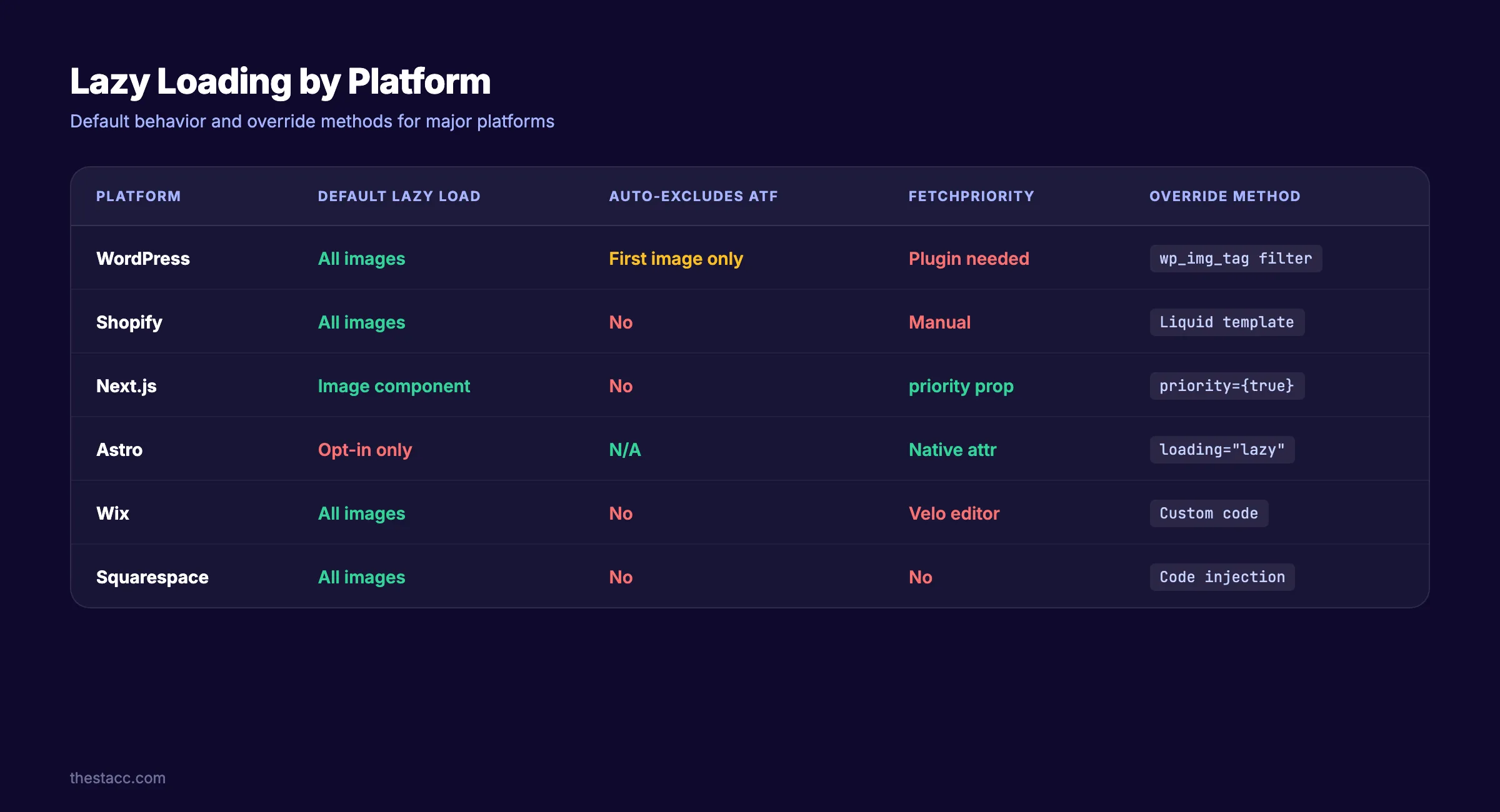
Every platform handles lazy loading differently. Here is what to check on each.
WordPress
WordPress 5.5+ adds loading="lazy" to every image by default. Since WordPress 5.9, the first content image is excluded. But “first content image” does not always mean “LCP image.”
Fix: Use the wp_img_tag_add_loading_optimization_attr filter to remove lazy loading from specific images. Or install a performance plugin (Perfmatters, FlyingPress) that automatically excludes above-the-fold images.
| Plugin | Auto-Excludes ATF Images | Adds fetchpriority | Handles CSS Backgrounds |
|---|---|---|---|
| Perfmatters | Yes | Yes | No |
| FlyingPress | Yes | Yes | Yes (via JS) |
| WP Rocket | Yes | Yes | No |
| LiteSpeed Cache | Yes | Yes | No |
Shopify
Shopify themes use the image_tag Liquid filter, which adds loading="lazy" by default. Hero sections and featured product images need manual overrides.
Fix: Edit your theme’s section files. Replace loading: 'lazy' with loading: 'eager' for hero and featured images. Add fetchpriority: 'high' to the primary product image on PDP pages.
Next.js
The Next.js <Image> component lazy loads by default. The priority prop overrides this:
<Image src="/hero.webp" priority alt="Hero image" width={1200} height={630} />The priority prop adds fetchpriority="high" and removes lazy loading. Use it on above-the-fold images only.
Astro
Astro’s <Image> component does not add loading="lazy" by default. You must explicitly opt in:
<Image src={photo} loading="lazy" alt="Description" />This is safer than WordPress and Next.js defaults. You choose which images get lazy loading.
React (Vite / CRA)
React does not handle lazy loading natively. Use the loading attribute directly on <img> tags or an IntersectionObserver wrapper component. Avoid scroll-event based libraries.
Wix and Squarespace
Both platforms apply lazy loading automatically. Neither gives direct control over individual images.
Fix for Wix: Add custom code in the Velo editor to override loading attributes on hero sections.
Fix for Squarespace: Inject custom JavaScript via Code Injection to remove loading="lazy" from the first image in each page section.
Technical SEO eats your time. Stacc handles the optimization so you can focus on running your business. 30 articles per month, published automatically. Start for $1 →
Common Lazy Loading Mistakes That Kill Rankings
These are the patterns we see most often on sites with unexplained traffic drops.
Mistake 1: Lazy Loading Every Image Site-Wide
The “set it and forget it” approach. A developer adds lazy loading to the global image component. Every image on every page loads lazily. Including heroes, product thumbnails, and header logos.
The fix: Audit your image components. Exclude all above-the-fold images from lazy loading. In most designs, that means the first 1-3 images on any page template.
Mistake 2: Using data-src Without a Real src Fallback
JavaScript libraries like lazysizes use data-src to hold the real image URL. The actual src either contains a tiny placeholder or nothing at all.
If the JavaScript fails to execute during Googlebot’s render, those images have no source. They disappear from Google Images. Product photos, infographics, and blog post images all vanish.
The fix: Switch to native loading="lazy" with real src attributes. If you must use a library, verify it populates src before DOMContentLoaded completes.
Mistake 3: Infinite Scroll Without Unique URLs
Lazy loading content via infinite scroll means Google only sees the first batch. Without paginated URLs, all subsequent items are invisible to crawlers.
Google’s official documentation specifies three requirements for lazy-loaded pagination:
- Each content batch needs a unique, persistent URL (use
?page=2, not?date=yesterday) - Pages must link sequentially so crawlers discover them
- The displayed URL must update via the History API
Mistake 4: Lazy Loading Schema-Referenced Images
Your schema markup references image URLs. If those images only exist in data-src attributes during Googlebot’s render, the schema points to images that do not resolve.
This breaks rich results. Product schema, article schema, and review schema all reference images. Those images must be immediately available in the rendered HTML.
The fix: Ensure every image referenced in structured data has a real src attribute and loads eagerly.
Mistake 5: Ignoring CSS Background Images
The loading="lazy" attribute only works on <img> and <iframe> elements. CSS background images (background-image: url(...)) load based on CSS processing rules, not HTML attributes.
For below-the-fold sections with large CSS background images, use IntersectionObserver to toggle a CSS class that triggers the background image load:
const observer = new IntersectionObserver((entries) => {
  entries.forEach(entry => {
    if (entry.isIntersecting) {
      entry.target.classList.add('bg-loaded');
      observer.unobserve(entry.target);
    }
  });
});
document.querySelectorAll('.lazy-bg').forEach(el => observer.observe(el));
Mistake 6: Forgetting Alt Text on Lazy-Loaded Images
Lazy loading does not exempt you from alt text requirements. Every image still needs descriptive alt text for accessibility and image search visibility. The loading attribute changes when an image loads, not whether Google indexes it.
How to Audit Your Lazy Loading Implementation
Use this checklist to find problems before they affect rankings.
Step 1: Identify Your LCP Element
Open Chrome DevTools. Go to the Performance tab. Run a performance recording with throttling set to “Fast 3G.” The LCP element is flagged in the timeline.
Alternatively, run a Lighthouse audit. The LCP element is listed under the “Largest Contentful Paint element” diagnostic.
If your LCP element is an image, check whether it has loading="lazy". If it does, remove it.
Step 2: Check Rendered HTML in Search Console
Use the URL Inspection Tool in Google Search Console. Enter a URL from your site. Click “Test Live URL.” Then click “View Tested Page” and check the rendered HTML.
Search for your important images. If their src attributes are empty or contain placeholder values, Googlebot is not seeing them.
Step 3: Scan for data-src Patterns
Search your site’s source code for data-src attributes. Every data-src should have a corresponding src that contains the real image URL after JavaScript execution.
site:yourdomain.com inurl:data-srcOr check the rendered source in Chrome DevTools → Elements tab after the page fully loads.
Step 4: Test Above-the-Fold Images
Load each major page template. Before scrolling, right-click the first visible image and inspect it. Verify:
- The
srcattribute contains the real image URL - There is no
loading="lazy"attribute -
fetchpriority="high"is present on the LCP image -
widthandheightattributes are set
Step 5: Validate Core Web Vitals Impact
Compare your Core Web Vitals before and after any lazy loading changes:
- PageSpeed Insights: Run both mobile and desktop tests
- CrUX Dashboard: Check 28-day field data trends
- Search Console Core Web Vitals report: Monitor for regressions
A good lazy loading implementation should improve or maintain LCP while reducing total page weight.
Step 6: Check Google Images Indexation
Run a site:yourdomain.com search in Google Images. Filter to recent results. If product images or key visuals are missing that existed before a lazy loading change, your implementation has an indexing problem.
3,500+ blogs published. 92% average SEO score. See what Stacc can do for your site. Start for $1 →
Lazy Loading Beyond Images: Video, Iframes, and CSS Backgrounds
Images get most of the attention, but other resource types benefit from lazy loading too.
YouTube and Video Embeds
YouTube iframes are heavy. A single embed loads 500KB+ of JavaScript. Native lazy loading works on iframes:
<iframe src="https://www.youtube.com/embed/VIDEO_ID" loading="lazy" width="560" height="315" title="Video title"></iframe>For even better performance, use a facade pattern. Show a static thumbnail image. Replace it with the real iframe only when the user clicks play. This saves 500KB+ per embed for users who never press play.
Third-Party Iframes
Chat widgets, social media embeds, and analytics iframes all benefit from lazy loading. Move them below the fold when possible and add loading="lazy".
If a third-party script must load above the fold (like a booking widget), use <link rel="preconnect"> to the third-party domain instead:
<link rel="preconnect" href="https://widget.example.com">CSS Background Images
As covered in the mistakes section, loading="lazy" does not work on CSS backgrounds. Use IntersectionObserver to defer large background images on below-the-fold sections.
For hero sections with CSS background images, preload the image instead of lazy loading it:
<link rel="preload" as="image" href="hero-bg.jpg">Lazy Loading and Accessibility
Screen readers announce images as they encounter them in the DOM, regardless of whether the image has loaded visually. Lazy loading does not change how assistive technology interacts with your content.
However, if your JavaScript-based lazy loading removes images from the DOM until they are needed (rather than just deferring their src), screen readers will not find them. Always keep the <img> element in the DOM with proper alt text. Only defer the source URL.
Lazy Loading and Crawl Budget
For large sites with thousands of pages, lazy loading intersects with crawl budget optimization.
How Googlebot Handles Lazy Loading
Googlebot renders JavaScript. It uses a headless Chromium instance to process pages. But it does not scroll. It does not click. It does not interact with the page.
This means:
- IntersectionObserver works. Googlebot’s viewport triggers intersection callbacks
- Scroll events do not fire. Any lazy loading dependent on scroll position fails
- Click-to-load never triggers , “load more” buttons remain unclicked
Google allocates a render budget per page. Complex JavaScript lazy loading burns more of that budget. Native loading="lazy" costs almost nothing because the browser handles it outside JavaScript execution.
Large Ecommerce Sites
Product listing pages with hundreds of images should lazy load below-the-fold product thumbnails. But ensure:
- Every product has a crawlable link (not behind JavaScript-only navigation)
- The first 10-20 visible products load eagerly
- Pagination uses real URLs, not infinite scroll
Image-Heavy Blogs and Portfolios
Blog posts with 20+ images should lazy load everything below the first visible image. This keeps page speed fast without sacrificing image SEO.
For portfolio sites, use loading="lazy" on gallery grids. Add fetchpriority="high" to the first 2-3 images in the grid so they appear instantly.
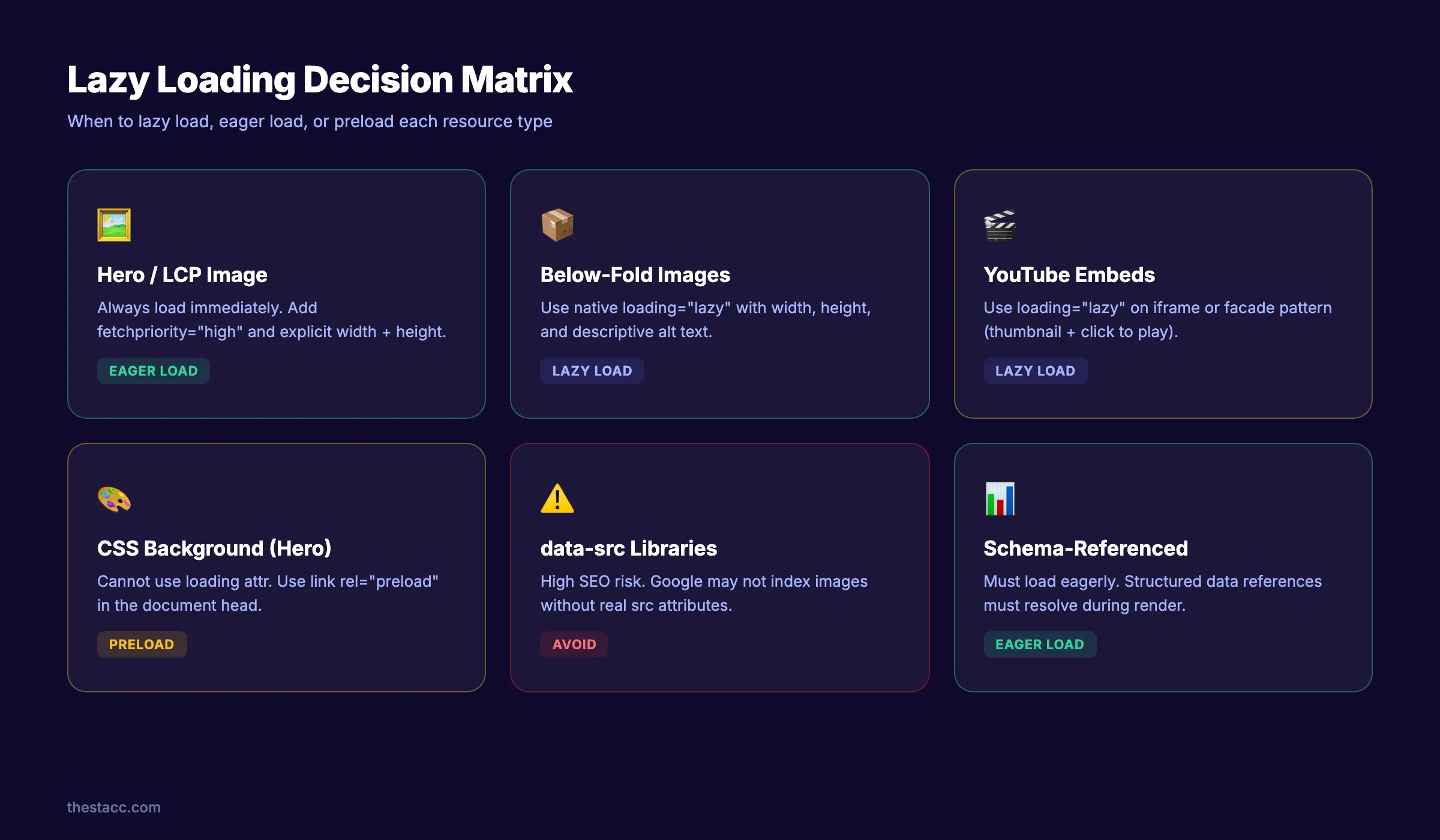
Lazy Loading Decision Matrix
Use this table to decide the right loading strategy for every resource on your page.
| Element | Location | Loading Strategy | Attributes |
|---|---|---|---|
| Hero image | Above fold | Eager (default) | fetchpriority="high" + width + height |
| Header logo | Above fold | Eager (default) | width + height |
| Product image (first) | Above fold | Eager (default) | fetchpriority="high" |
| Body images | Below fold | loading="lazy" | width + height + alt |
| Product thumbnails | Below fold | loading="lazy" | width + height + alt |
| YouTube embeds | Below fold | loading="lazy" or facade | width + height + title |
| Chat widget iframe | Below fold | loading="lazy" | Defer script loading too |
| CSS background (hero) | Above fold | <link rel="preload"> | Preconnect to CDN |
| CSS background (section) | Below fold | IntersectionObserver | Toggle CSS class |
| Schema-referenced image | Any | Eager (default) | Real src always present |
FAQ
Does lazy loading hurt SEO?
Not when implemented correctly. Lazy loading below-the-fold images improves page speed, which helps rankings. Lazy loading above-the-fold images or using JavaScript libraries that hide src attributes from Googlebot can harm rankings and image indexation.
Does Google crawl lazy-loaded images?
Yes. Googlebot renders JavaScript and supports IntersectionObserver. Images with real src attributes and native loading="lazy" are crawled and indexed normally. Images stored only in data-src without a proper src may not be indexed.
Should I lazy load above-the-fold images?
No. Above-the-fold images should load eagerly. Add fetchpriority="high" to your LCP image. Lazy loading it adds 600+ milliseconds to LCP on average.
What is the best lazy loading method for SEO?
Native HTML lazy loading with the loading="lazy" attribute. It requires no JavaScript, works in all major browsers, and is the method Google officially recommends. Avoid scroll-event based JavaScript libraries.
Does lazy loading affect Core Web Vitals?
Yes. Proper lazy loading improves LCP by reducing initial page weight. Improper lazy loading (especially on the LCP image) worsens LCP. Missing width and height attributes on lazy-loaded images cause CLS problems. Lazy loading generally helps INP by freeing main-thread resources.
How do I know if my LCP image is lazy loaded?
Run a Lighthouse audit in Chrome DevTools. It flags the LCP element and warns if it has loading="lazy". You can also check the Performance tab recording to identify the LCP element and inspect its attributes.
Lazy loading is not optional in 2026. The question is not whether to use it but how to use it without breaking your SEO.
Start with the LCP image. Make sure it loads eagerly with fetchpriority="high". Then apply loading="lazy" to everything below the fold. Test with Search Console’s URL Inspection Tool. Monitor your Core Web Vitals for regressions.
Get these details right and lazy loading becomes a ranking advantage. Get them wrong and you join the 16% of sites silently sabotaging their own performance.
Skip the agency. Keep the results. Stacc starts at $99/mo with a $1 trial. Start for $1 →
Related Tools & Resources
Free SEO Tools:
Best Lists:

Written by
Siddharth GangalSiddharth is the founder of theStacc and Arka360, and a graduate of IIT Mandi. He spent years watching great businesses lose organic traffic to competitors who simply published more. So he built a system to fix that. He writes about SEO, content at scale, and the tactics that actually move rankings.
30 SEO blog articles published every month
Keyword-optimized, scheduled, and live on your site. Automatically.
30-day trial · Cancel anytime
theStacc
Stop writing SEO content manually
30 blog articles, 30 GBP posts, and social media content. Published every month. Automatically.
Try for free$1 for 3 days · Cancel anytime