
How to Optimize Your Robots.txt File in 8 Steps
Step-by-step guide to optimize your robots.txt file. Covers directives, crawl budget, AI bots, testing, and common mistakes. Updated March 2026.
A misconfigured robots.txt file can silently block Google from crawling your most important pages. Research shows that robots.txt errors reduce search visibility by up to 30% on affected sites.
Most website owners either use a default robots.txt they never touch or make changes without understanding the consequences. Both paths lead to the same outcome: wasted crawl budget, blocked resources, and pages that never appear in search results.
The fix is not complicated. A properly optimized robots.txt file takes 15 minutes to set up and saves months of lost rankings.
We publish 3,500+ blogs across 70+ industries. Every site we work with gets a robots.txt audit before any content goes live. The result: cleaner crawling, faster indexing, and zero wasted bot visits on pages that do not matter.
Here is what you will learn:
- What a robots.txt file does and why it affects your rankings
- How to write directives that protect crawl budget
- Which pages to block and which to keep open
- How to handle AI crawlers like GPTBot and ClaudeBot
- How to test and monitor your file for errors
What Is a Robots.txt File and Why It Matters
A robots.txt file is a plain text file that lives at the root of your domain. It tells search engine crawlers which pages they can and cannot access.
Every time Googlebot visits your site, it checks yoursite.com/robots.txt first. The directives in that file determine where the crawler goes next. Block the wrong page and it disappears from search results.
Leave the file empty and bots waste time on admin pages, duplicate content, and staging URLs.
Google allocates a specific crawl budget to every website. That budget defines how many pages Googlebot will crawl per visit. For sites with fewer than 1,000 pages, crawl budget is rarely a problem. For sites with 10,000+ pages, it becomes critical.
Here is what a robots.txt file controls:
| Function | What It Does | SEO Impact |
|---|---|---|
| Disallow directories | Blocks bots from specific paths | Saves crawl budget |
| Allow specific files | Overrides broader disallow rules | Ensures critical pages get crawled |
| Sitemap reference | Points bots to your XML sitemap | Speeds up page discovery |
| User-agent targeting | Applies rules to specific bots | Controls AI crawler access |
One important distinction: robots.txt controls crawling, not indexing. A disallowed page can still appear in search results if other pages link to it. To prevent indexing, use a noindex meta tag instead.
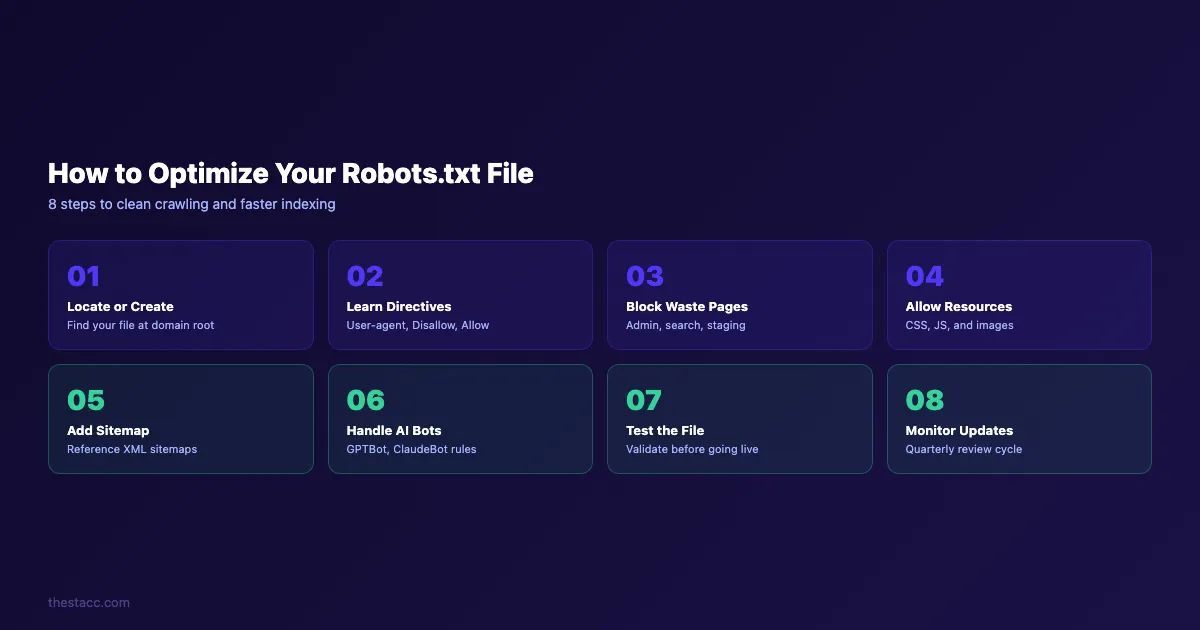
Step 1: Locate or Create Your Robots.txt File
The first step is confirming whether your site already has a robots.txt file. Open a browser and type yoursite.com/robots.txt. If the file exists, you will see its contents displayed as plain text.
If the file exists:
Download or copy the current contents. Review every directive before making changes. A common mistake is editing the file without understanding what the existing rules already do.
If the file does not exist:
Create a new plain text file named robots.txt using a code editor like VS Code or Notepad. Do not use a word processor like Google Docs or Microsoft Word. Word processors add invisible formatting characters that break the file.
Where to place the file:
Upload the file to the root directory of your domain. It must be accessible at https://yoursite.com/robots.txt. Placing it in a subdirectory will not work. Search engines only look at the root URL.
For different platforms, the process varies:
- WordPress: Use a plugin like Yoast SEO or Rank Math to edit robots.txt from the dashboard
- Shopify: Shopify auto-generates a robots.txt file but allows customization through the theme
robots.txt.liquidfile - Custom sites: Upload the file directly to your web server public HTML folder via FTP or your hosting file manager
Why this step matters: 22% of websites have misconfigured or missing robots.txt files. Without this file, crawlers make their own decisions about what to crawl. That means wasted visits on login pages, thank-you pages, and internal search results that add zero SEO value.
Step 2: Understand the Core Directives
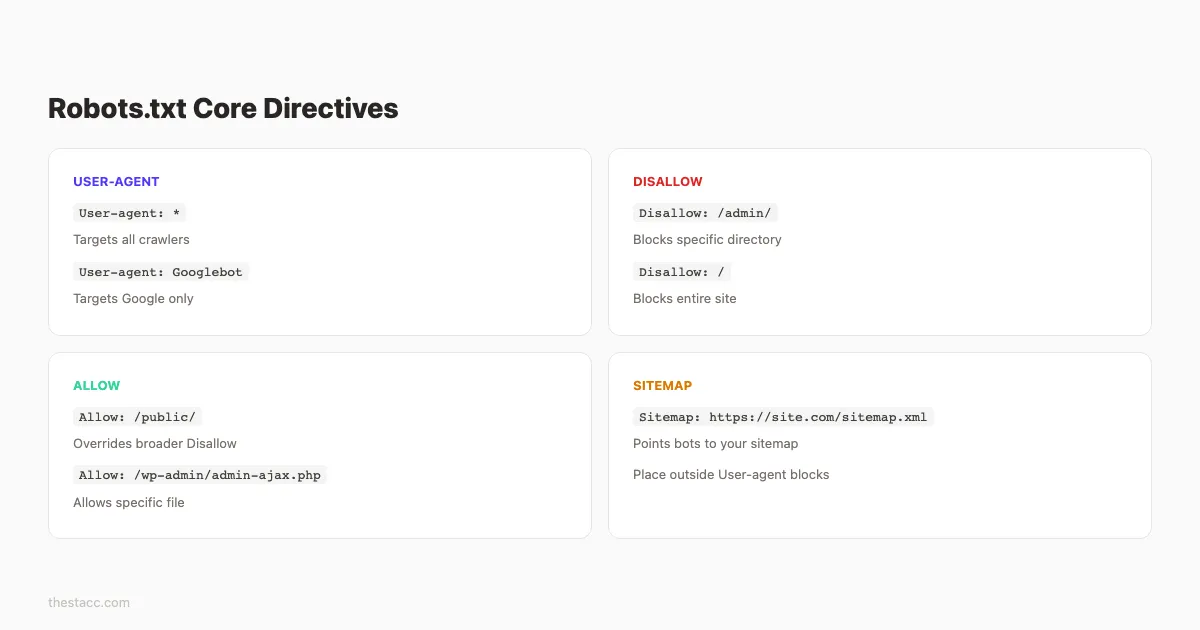
A robots.txt file uses 4 primary directives. Every optimization you make depends on understanding these commands.
User-agent
This line specifies which crawler the rules apply to. The wildcard * targets all crawlers.
User-agent: *To target a specific crawler:
User-agent: GooglebotEach user-agent block contains its own set of rules. You can create multiple blocks for different bots.
Disallow
This directive tells a crawler to stay away from a specific path.
Disallow: /admin/
Disallow: /cart/
An empty Disallow: line means “allow everything.” A single forward slash Disallow: / blocks the entire site.
Allow
The Allow directive overrides a Disallow rule for a specific path. Google supports this directive. Not all crawlers do.
Disallow: /images/
Allow: /images/public/
This blocks the entire /images/ directory except the /images/public/ subfolder.
Sitemap
This tells crawlers where to find your XML sitemap. Place it at the bottom of the file.
Sitemap: https://yoursite.com/sitemap.xmlHere is a quick reference for directive syntax:
| Directive | Example | Effect |
|---|---|---|
User-agent: * | Targets all bots | Rules apply universally |
Disallow: /admin/ | Blocks /admin/ path | Bots skip this directory |
Allow: /admin/public/ | Overrides disallow | Bots can access this subfolder |
Disallow: (empty) | No restrictions | Bots crawl everything |
Disallow: / | Blocks root | Bots crawl nothing |
Sitemap: | Points to sitemap | Bots find all URLs faster |
Why this step matters: Syntax errors in robots.txt are silent failures. Googlebot does not send you an error notification. It simply ignores the malformed rule and moves on. One misplaced character can block your entire site without warning.
Pro tip: Directives are case-sensitive for URL paths. /Admin/ and /admin/ are different rules. Match your actual URL structure exactly.
Step 3: Block Pages That Waste Crawl Budget
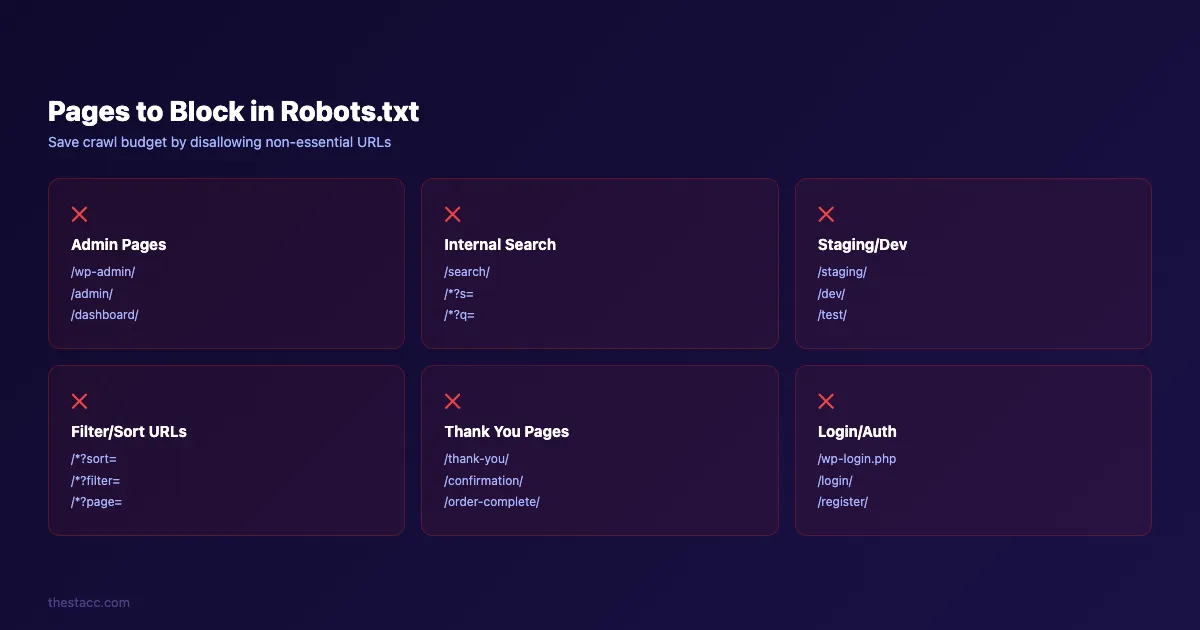
The highest-impact optimization is blocking pages that search engines should never crawl. These pages consume crawl budget without contributing to rankings.
Here are the pages you should disallow:
Admin and backend pages
Disallow: /wp-admin/
Disallow: /admin/
Disallow: /dashboard/
These pages are behind authentication anyway. Letting bots attempt to crawl them wastes requests.
Internal search results
Disallow: /search/
Disallow: /*?s=
Internal search pages create infinite URL combinations. Google treats them as low-quality thin content. Block them.
Staging and development pages
Disallow: /staging/
Disallow: /dev/
Disallow: /test/
Staging content should never appear in search results. If you use a separate staging subdomain, add a robots.txt to that subdomain too.
Filter and sort parameters
Disallow: /*?sort=
Disallow: /*?filter=
Disallow: /*?page=
E-commerce sites generate thousands of duplicate URLs through sorting and filtering. Block the parameter-based versions and keep the canonical pages accessible.
Thank you and confirmation pages
Disallow: /thank-you/
Disallow: /order-confirmation/
These pages serve no search purpose. Block them.
A practical robots.txt for a WordPress site looks like this:
User-agent: *
Disallow: /wp-admin/
Allow: /wp-admin/admin-ajax.php
Disallow: /wp-login.php
Disallow: /cart/
Disallow: /checkout/
Disallow: /thank-you/
Disallow: /*?s=
Disallow: /tag/
Notice the Allow rule for admin-ajax.php. WordPress themes and plugins need this file for front-end functionality. Blocking it can break how Google renders your pages.
Why this step matters: Sites with 10,000+ pages often see Googlebot spend 40-60% of its crawl budget on non-essential pages. Blocking these directories redirects that budget toward pages that actually drive traffic.
Stop wasting crawl budget on pages that do not rank. Stacc audits your technical SEO and publishes optimized content every week. Start for $1 →
Step 4: Allow Access to Critical Resources
Blocking too much is worse than blocking too little. One of the most common robots.txt mistakes is accidentally blocking CSS, JavaScript, or image files that Google needs to render your pages.
Google renders pages like a browser. It needs access to:
- CSS files. For understanding page layout and design
- JavaScript files. For rendering dynamic content
- Images. For image search and visual understanding
If Googlebot cannot access these resources, it sees a broken page. That directly harms your rankings.
Check for accidental blocks:
## BAD. Blocks all theme files including CSS/JS
Disallow: /wp-content/themes/

## GOOD. Only blocks specific directories
Disallow: /wp-content/plugins/private-plugin/
What to always keep accessible
- Your homepage and all main navigation pages
- All pages listed in your XML sitemap
- CSS and JavaScript files used on public pages
- Image directories referenced in content
- Canonical versions of product and service pages
How to verify access
Use Google Search Console to check for blocked resources. Go to Settings > Crawling > robots.txt to see which URLs are blocked. The URL Inspection tool shows exactly how Google renders any page, including warnings about blocked resources.
Why this step matters: Blocking CSS and JavaScript was common practice 10 years ago when bots only read HTML. Google has explicitly stated since 2014 that it needs access to all rendering resources. Sites that block these files see lower Core Web Vitals scores in Google’s assessment because the rendered version does not match what users see.
Step 5: Add Your XML Sitemap Reference
Every robots.txt file should include a Sitemap directive. This is the fastest way to point crawlers to your complete list of URLs.
Add this line at the bottom of your file:
Sitemap: https://yoursite.com/sitemap.xmlIf you have multiple sitemaps, list each one:
Sitemap: https://yoursite.com/sitemap-posts.xml
Sitemap: https://yoursite.com/sitemap-pages.xml
Sitemap: https://yoursite.com/sitemap-products.xml
23% of websites have pages that do not link to their XML sitemap in the robots.txt file. That is a missed opportunity for faster discovery.
Sitemap best practices for robots.txt
- Use the full absolute URL with
https:// - Place Sitemap directives outside any User-agent block (they apply globally)
- Verify each sitemap URL returns a 200 status code
- Remove references to sitemaps that no longer exist
Your XML sitemap and robots.txt work together. The robots.txt file tells bots where not to go. The sitemap tells bots exactly where to go. Using both ensures complete coverage.
If you have not created a sitemap yet, follow our step-by-step guide to creating an XML sitemap. For sites with fewer than 500 pages, a single sitemap file works fine. Larger sites should split into multiple sitemaps with a sitemap index.
Why this step matters: Google has confirmed that sitemaps referenced in robots.txt are discovered faster than sitemaps only submitted through Search Console. The robots.txt Sitemap directive is checked on every crawl visit, making it the most reliable discovery method.
Step 6: Handle AI Crawlers and Bots
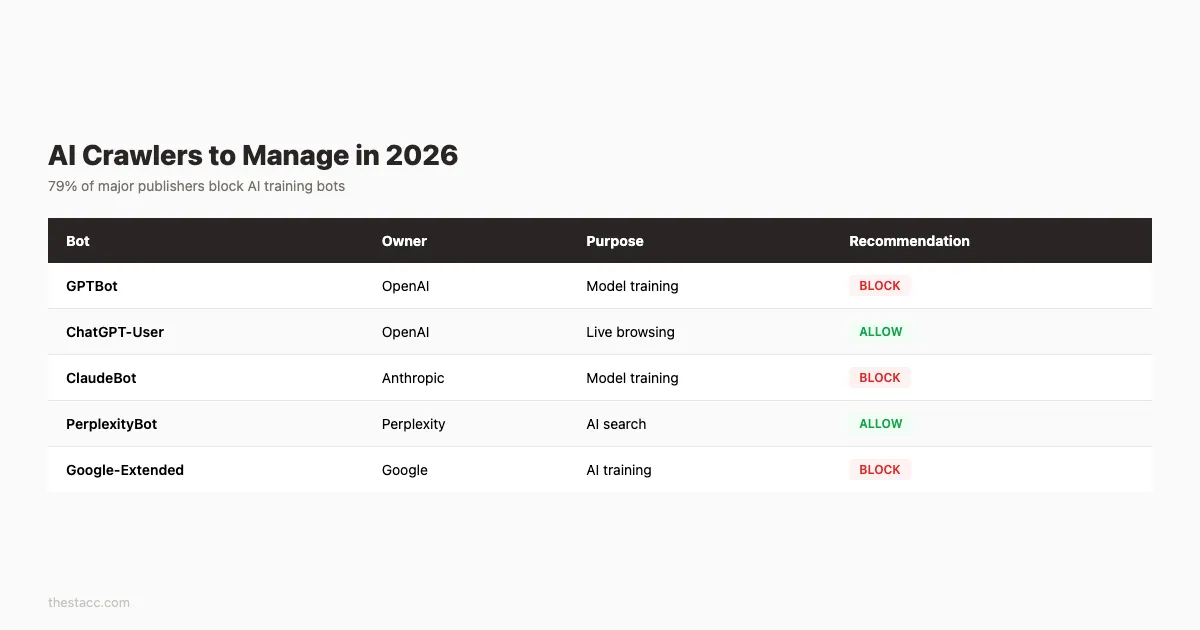
In 2026, robots.txt is no longer just about Google and Bing. AI crawlers now account for a significant portion of bot traffic. 79% of major publishers already block AI training bots through robots.txt.
Here are the key AI bots you need to address:
| Bot | Owner | Purpose | User-Agent |
|---|---|---|---|
| GPTBot | OpenAI | Training data | GPTBot |
| ChatGPT-User | OpenAI | Real-time browsing | ChatGPT-User |
| ClaudeBot | Anthropic | Training data | ClaudeBot |
| PerplexityBot | Perplexity | Search and answers | PerplexityBot |
| Google-Extended | AI training (not search) | Google-Extended |
Option A: Block all AI training bots
User-agent: GPTBot
Disallow: /

User-agent: ClaudeBot
Disallow: /

User-agent: Google-Extended
Disallow: /
This prevents your content from being used for AI model training. It does not affect regular Google search indexing.
Option B: Allow AI search bots, block training bots
User-agent: ChatGPT-User
Allow: /

User-agent: PerplexityBot
Allow: /

User-agent: GPTBot
Disallow: /
This approach lets AI search engines cite your content while blocking training crawlers from scraping it. Many publishers use this strategy to maintain visibility in AI search results without giving away training data.
Option C: Allow everything
User-agent: *
Allow: /
If you want maximum visibility across all platforms including AI search, generative engines, and traditional search, allow all bots. This is the simplest approach for sites focused on reach over content protection.
Why this step matters: AI crawlers are voluntary compliance only. Unlike Googlebot, some AI bots may ignore your robots.txt rules. But major providers like OpenAI and Anthropic do respect them. Setting clear rules now protects your content as AI search grows.
Your content should work for you across every search platform. Stacc publishes SEO-optimized content that ranks in Google and gets cited in AI search. Start for $1 →
Step 7: Test Your Robots.txt File
Never push a robots.txt file live without testing it first. One syntax error can block your entire site from Google.
Use Google Search Console
The robots.txt Tester in Google Search Console lets you paste your file and check specific URLs. Enter any URL from your site and the tool shows whether it is blocked or allowed.
Steps to test:
- Open Google Search Console
- Go to Settings > Crawling > robots.txt
- Review the current file Google has cached
- Use the URL Inspection tool to test specific pages
Use command-line validation
For technical teams, Google provides a robots.txt parser library you can run locally. This validates your file against the same rules Googlebot uses.
Manual checks to run
Test these URLs against your robots.txt to make sure they are not blocked:
- Your homepage:
https://yoursite.com/ - A blog post:
https://yoursite.com/blog/example-post - Your sitemap:
https://yoursite.com/sitemap.xml - A CSS file:
https://yoursite.com/styles/main.css - A JavaScript file:
https://yoursite.com/scripts/app.js
Then test these URLs to confirm they are blocked:
- Admin page:
https://yoursite.com/admin/ - Internal search:
https://yoursite.com/search?q=test - Login page:
https://yoursite.com/wp-login.php
Check for rule conflicts
Robots.txt rules are evaluated by specificity, not by order. A more specific Allow rule overrides a broader Disallow rule. This catches many people off guard.
## These rules work together ,  /public/ is still accessible
Disallow: /private/
Allow: /private/public/
Google uses the longest matching path. If two rules match, the longer one wins. Test edge cases where Allow and Disallow paths overlap.
Why this step matters: Google caches your robots.txt for up to 24 hours. An error that goes live cannot be instantly fixed. Even after you correct the file, Google may use the cached version for the rest of the day.
Step 8: Monitor and Update Your Robots.txt Regularly
A robots.txt file is not a set-and-forget asset. Your site changes over time. New directories appear. Old ones get restructured. Without regular reviews, your robots.txt rules drift out of sync with your actual site architecture.
When to update your robots.txt
- After a site redesign or URL structure change
- When launching new sections (e.g., a blog, store, or knowledge base)
- After a 301 redirect migration
- When new AI crawlers emerge (check quarterly)
- After finding crawl anomalies in Search Console
What to monitor in Google Search Console
Go to Settings > Crawl Stats to review:
- Pages crawled per day
- Crawl response codes (watch for spikes in 404 or 5xx errors)
- File types crawled (are bots still hitting blocked directories?)
If blocked directories still show crawl requests, your Disallow rules may have syntax errors. Cross-reference with the robots.txt report.
Quarterly review checklist
- Verify all Disallow paths still exist and are correct
- Check that no new important pages are accidentally blocked
- Update AI crawler rules based on new bots
- Confirm all Sitemap URLs return 200 status codes
- Remove rules for directories that no longer exist
- Run a full SEO audit to catch crawl issues
Why this step matters: Sites that audit their robots.txt quarterly catch configuration drift before it affects rankings. A single accidental Disallow rule can remove hundreds of pages from Google within days.
Common Robots.txt Mistakes to Avoid
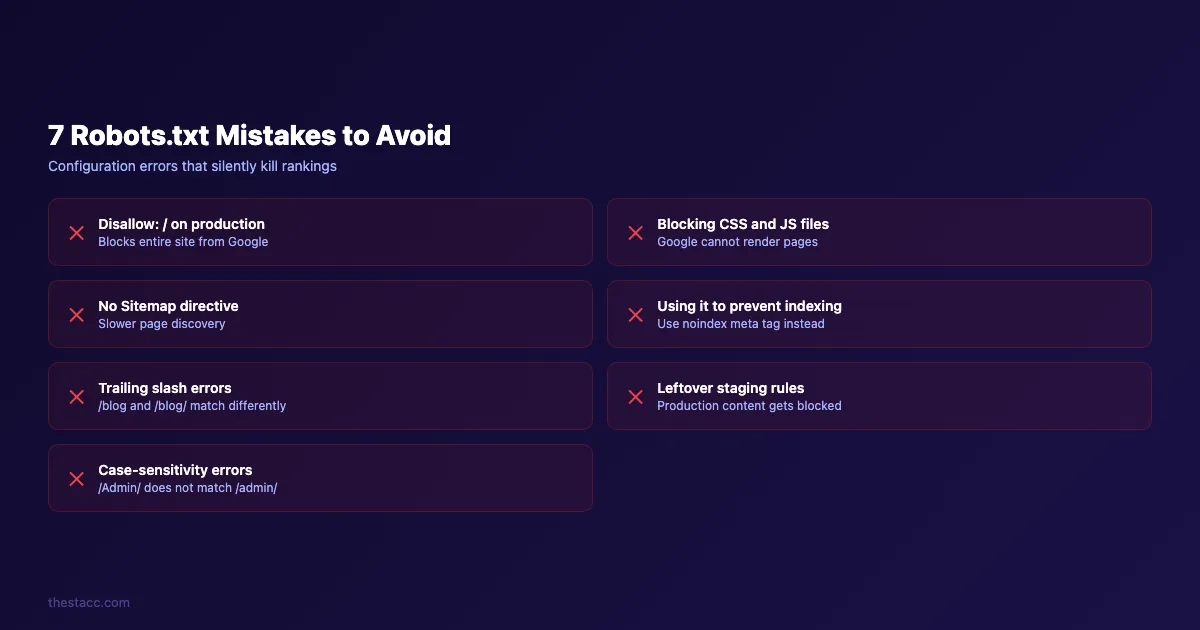
Even experienced developers make robots.txt errors. Here are the 7 most damaging mistakes and how to fix them.
| Mistake | Impact | Fix |
|---|---|---|
Using Disallow: / on production | Blocks entire site | Remove or replace with specific paths |
| Blocking CSS/JS files | Google cannot render pages | Add Allow rules for static assets |
| No Sitemap directive | Slower page discovery | Add Sitemap: URL at the bottom |
| Using robots.txt to hide pages from index | Pages still appear in search | Use noindex meta tag instead |
| Forgetting trailing slashes | /blog and /blog/ match differently | Match your exact URL structure |
| Left-over staging rules | Production rules block real content | Audit after every deployment |
| Case-sensitivity errors | /Admin/ does not match /admin/ | Verify paths match actual URLs |
The most dangerous mistake
Using robots.txt as a security measure. The file is publicly accessible. Anyone can read it at yoursite.com/robots.txt. Never use it to hide sensitive directories. Malicious bots often check robots.txt specifically to find directories worth attacking.
For actual security, use server-side authentication, .htaccess rules, or firewall configurations. Robots.txt is for search engine guidance only.
The indexing confusion
32% of SEO professionals in surveys report using robots.txt to prevent indexing. This does not work. A disallowed page can still appear in Google search results with a “No information is available for this page” message. The correct approach is using noindex meta tags or HTTP response headers.
If you need to remove a page from search results:
- Add a
noindexmeta tag to the page - Use the Google Search Console URL Removal Tool for immediate action
- Verify the page is no longer indexed after 2-4 weeks
Results: What to Expect
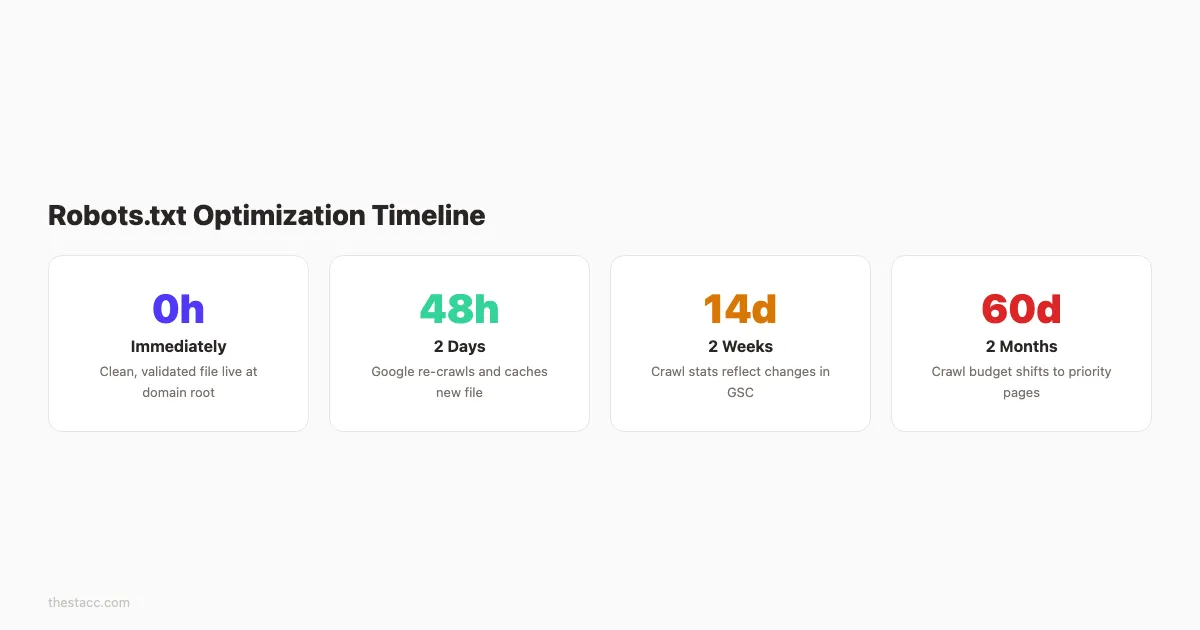
After completing these 8 steps, here is what you should see:
- Immediately: A clean, validated robots.txt file at your domain root
- Within 24-48 hours: Google re-crawls and caches the new file
- Within 1-2 weeks: Crawl stats in Search Console reflect the changes
- Within 30-60 days: Crawl budget shifts toward your important pages
The effects are most noticeable on larger sites. A 50,000-page e-commerce site that blocks 30,000 non-essential URLs frees up 60% of its crawl budget for product and category pages.
For smaller sites under 1,000 pages, the main benefit is preventing mistakes. Clean robots.txt rules ensure Google never accidentally skips your best content.
Track your progress in Google Search Console under Crawl Stats and Page Indexing. Look for an increase in “Crawled - currently indexed” pages and a decrease in “Discovered - currently not indexed” pages.
Frequently Asked Questions
Does every website need a robots.txt file?
Not technically. Google will crawl all accessible pages by default. But every site benefits from having one. It gives you control over crawl behavior, references your sitemap, and lets you manage AI bot access. Sites without a robots.txt file leave these decisions entirely to the crawlers.
Can robots.txt hurt my SEO?
Yes. A misconfigured file can block Googlebot from your most important pages. The most common SEO damage comes from leftover staging rules that block the entire site or rules that accidentally prevent CSS and JavaScript access. Always test changes before publishing.
How do I block a specific bot without affecting Google?
Create a separate User-agent block for that bot. Rules under User-agent: Googlebot only affect Google. Rules under User-agent: * affect all bots that do not have their own specific block.
User-agent: Googlebot
Allow: /

User-agent: BadBot
Disallow: /
How often should I update my robots.txt file?
Review it quarterly at minimum. Update it immediately after site migrations, redesigns, or URL structure changes. Also check it when auditing your SEO performance each quarter.
What is the maximum file size for robots.txt?
Google supports robots.txt files up to 500 kibibytes (512 KB). Files larger than this limit are partially ignored. Keep your file concise. Most sites need fewer than 20 rules.
Should I block AI bots from crawling my site?
It depends on your goals. If you want your content cited in AI search results from tools like Perplexity or ChatGPT, allow their search bots. If you want to prevent your content from training AI models, block the training bots like GPTBot and Google-Extended. Most publishers take a hybrid approach: allow search bots, block training bots.
A clean robots.txt file is one of the simplest technical SEO wins. It takes 15 minutes to set up and protects your crawl budget for years.
Start with Step 1 today. Locate your existing file, audit every rule, and apply the optimizations from this guide. Your next SEO audit will show cleaner crawl stats and fewer wasted bot visits.
Technical SEO should not eat your calendar. Stacc handles content publishing, on-page optimization, and technical best practices on autopilot. Start for $1 →

Written by
Siddharth GangalSiddharth is the founder of theStacc and Arka360, and a graduate of IIT Mandi. He spent years watching great businesses lose organic traffic to competitors who simply published more. So he built a system to fix that. He writes about SEO, content at scale, and the tactics that actually move rankings.
30 SEO blog articles published every month
Keyword-optimized, scheduled, and live on your site. Automatically.
30-day trial · Cancel anytime
theStacc
Stop writing SEO content manually
30 blog articles, 30 GBP posts, and social media content. Published every month. Automatically.
Start Your $1 Trial$1 for 3 days · Cancel anytime