
Google Search Console for SEO (2026): Guide
Step-by-step google search console guide guide for 2026: proven tactics, real examples, common mistakes to avoid, and implementation tips.
Most website owners never open Google Search Console. They pay for third-party SEO tools while ignoring the one free platform that shows exactly how Google sees their site.
That mistake costs them rankings, traffic, and revenue every month.
Google Search Console for SEO is the single most valuable free tool you will ever use. It gives you first-party data straight from Google. No estimates. No guesses. Real clicks, real impressions, real position data for every query your site ranks for.
We publish 3,500+ blogs across 70+ industries. Every one of those publishing decisions starts with Search Console data. The Performance report alone has shaped more content strategies than any paid tool we have tested.
Here is what you will learn in this guide:
- How to set up and verify your Search Console property in under 10 minutes
- How to read the Performance report and extract keyword opportunities
- How to fix index coverage errors that silently kill your traffic
- How to monitor Core Web Vitals without third-party tools
- How to submit sitemaps and manage crawl behavior
- How to spot manual actions before they destroy your rankings
- How to connect GSC with Google Analytics 4 for full-funnel visibility
- 5 advanced techniques that separate beginners from SEO operators
Table of Contents
- Chapter 1: What Google Search Console Is and Why It Matters
- Chapter 2: How to Set Up and Verify Your Site
- Chapter 3: Understanding the Performance Report
- Chapter 4: How to Use Search Console for Keyword Research
- Chapter 5: Index Coverage and the Pages Report
- Chapter 6: Core Web Vitals and Page Experience
- Chapter 7: Submitting and Managing Sitemaps
- Chapter 8: Fixing Manual Actions and Security Issues
- Chapter 9: Using Search Console with Google Analytics 4
- Chapter 10: Advanced GSC Techniques for SEO
Chapter 1: What Google Search Console Is and Why It Matters {#chapter-1}
Google Search Console is a free platform from Google that shows you how your website performs in organic search. It replaced the older Google Webmaster Tools in 2015 and has expanded significantly since then. No other tool gives you this level of direct, unfiltered search data from Google itself.
What GSC Actually Does
Search Console tracks 4 core data points for every query your site appears for: clicks, impressions, click-through rate (CTR), and average position. It also monitors your indexing status, Core Web Vitals, security issues, and backlink profile.
Third-party tools like Ahrefs and Semrush estimate this data. GSC reports it directly from Google. The difference matters. Estimated keyword positions can be off by 5-10 spots. GSC data reflects what users actually see.
Why Every SEO Strategy Starts Here
Google processes 13.7 billion searches per day as of 2026. Your share of that traffic depends on how well Google understands your content.
GSC tells you 3 things no other tool can:
- Which exact queries trigger your pages in search results
- Which pages Google has indexed (and which it has not)
- Which technical issues block your site from ranking
Without this data, you are optimizing blind. That is why GSC should be the first tool you open every Monday morning.
What Changed in 2026
Google added several major features this year. Custom annotations let you tag Performance charts with notes about content changes or algorithm updates. The branded vs non-branded query filter now works automatically. And the Performance report includes data from AI Overviews and AI Mode alongside traditional search results.
One critical change: GSC only stores 16 months of historical data. Pre-AI baseline data from late 2023 is already gone. Export your data regularly or lose it forever.
Chapter 2: How to Set Up and Verify Your Site {#chapter-2}
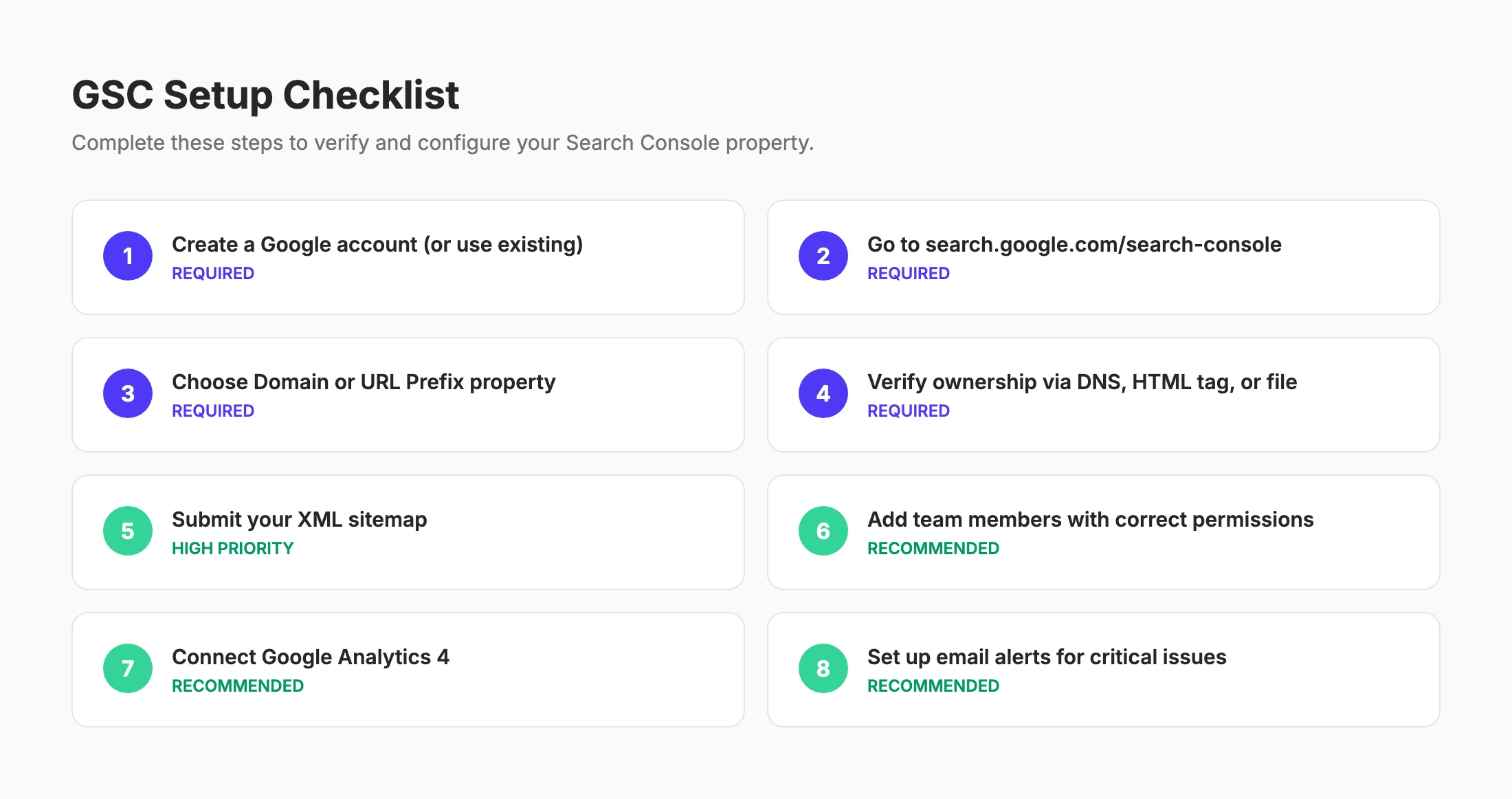
Setting up Google Search Console takes under 10 minutes. But choosing the wrong property type or skipping verification can waste hours. This chapter walks through the exact steps to get it right the first time.
Domain vs URL Prefix: Which to Choose
GSC offers 2 property types. Domain properties cover every URL under your domain, including all subdomains, protocols, and paths. URL Prefix properties only cover URLs under a specific prefix (like https://www.example.com/).
Choose Domain property for most sites. It captures all traffic variations in one view. The only tradeoff: Domain properties require DNS verification, which means you need access to your domain registrar.
| Property Type | Coverage | Verification | Best For |
|---|---|---|---|
| Domain | All subdomains + protocols | DNS record only | Most websites |
| URL Prefix | Single protocol + subdomain | Multiple methods | Subdomains, testing |
Step-by-Step Verification
Follow these steps to verify your Domain property:
- Go to search.google.com/search-console
- Click “Add Property” in the top-left dropdown
- Enter your domain (example.com) in the Domain field
- Copy the TXT record Google provides
- Add the TXT record to your DNS configuration
- Wait 5-60 minutes for DNS propagation
- Click “Verify” in Search Console
For URL Prefix properties, you have 5 verification options: HTML file upload, HTML meta tag, Google Analytics, Google Tag Manager, or DNS record. The HTML tag method works fastest for most users.
Setting Up User Permissions
Do not share your Owner credentials with contractors or team members. GSC has 3 permission levels that control access without risking your property.
- Owner. Full access, can add and remove users
- Full User. Can view all data and submit actions
- Restricted User. Can only view most data, cannot submit
Add team members under Settings > Users and Permissions. Assign the minimum access level each person needs.
Get 30 SEO-optimized articles published every month. We handle keyword research, writing, and publishing while you focus on your business. Start for $1 →
Chapter 3: Understanding the Performance Report {#chapter-3}
The Performance report is the most valuable screen in Google Search Console for SEO. It shows exactly which queries drive traffic to your site, which pages receive the most clicks, and where your rankings are improving or declining.
The 4 Core Metrics Explained
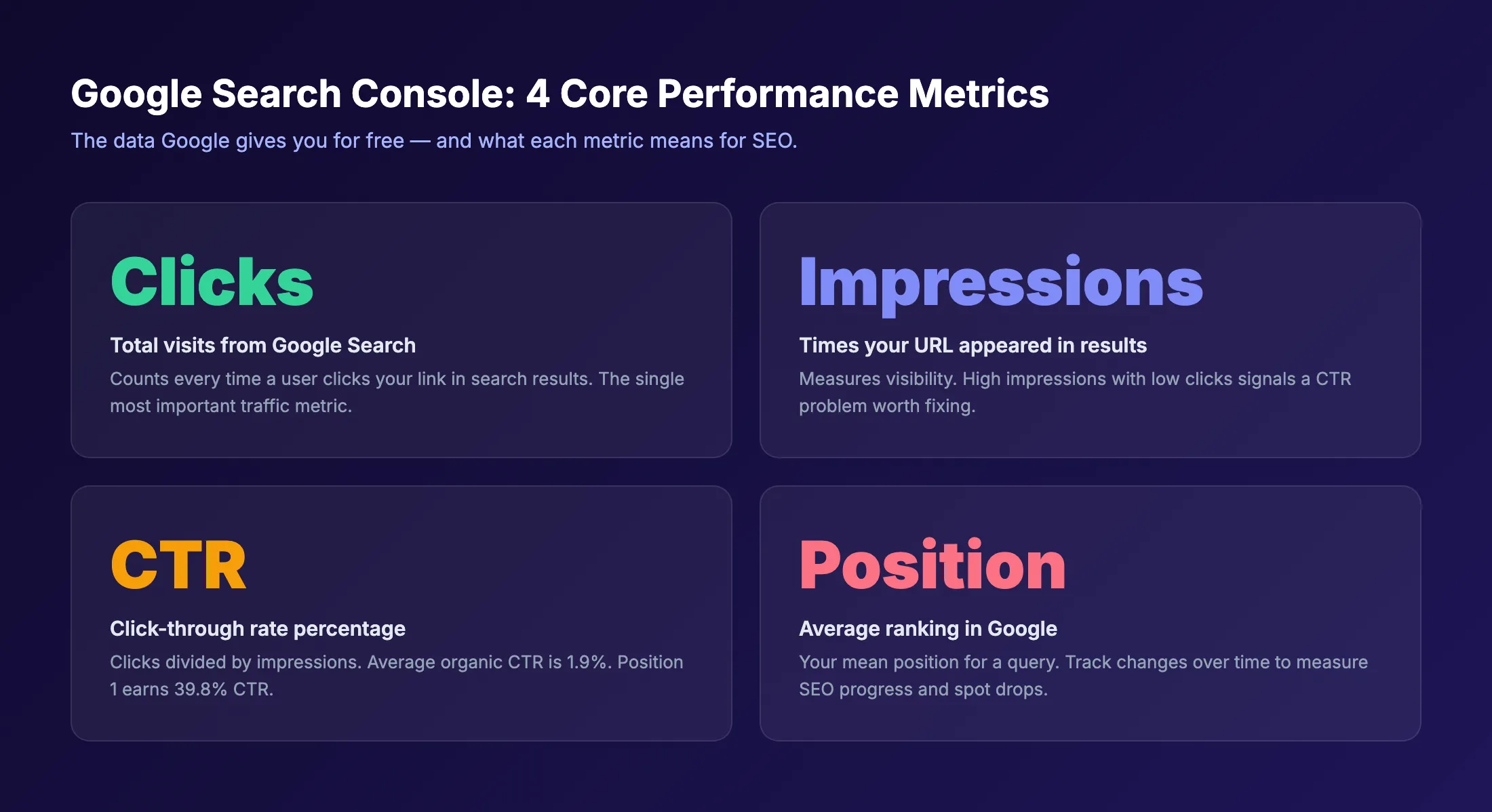
Every Performance report displays 4 metrics. Understanding what each one measures changes how you prioritize SEO work.
Clicks count the number of times users clicked through to your site from search results. This is your organic traffic from Google.
Impressions count how many times your URL appeared in search results, whether or not anyone clicked. High impressions with low clicks means your listing is visible but not compelling.
CTR (click-through rate) divides clicks by impressions. The average organic CTR across all positions is roughly 1.9%. Position 1 earns about 39.8% CTR on average.
Average Position shows where your page ranks on average for a given query. Position 1.0 means you rank first. Position 10.0 means you sit at the bottom of page 1.
How to Filter and Segment Data
The raw Performance report shows aggregated data across your entire site. That view hides the insights you need. Use filters to break it down.
Filter by Query to see which specific search terms drive traffic. Filter by Page to see which URLs perform best. Filter by Country to understand geographic performance. Filter by Device to compare mobile vs desktop rankings.
The most useful filter combination: select a specific page, then view all queries for that page. You will often discover queries you did not target but rank for accidentally. Those queries become your next content optimization opportunities.
Reading Trends Over Time
Set the date range to “Last 16 months” to see the longest available history. Look for 3 patterns:
- Steady climb. Your SEO efforts are working. Keep publishing.
- Sudden drop. Check for algorithm updates, indexing errors, or manual actions.
- Flat line. Your content has plateaued. Time to update old blog posts or build more internal links.
Compare 2 date ranges side by side to measure the impact of specific changes. Click the “Compare” tab and select custom periods.
Chapter 4: How to Use Search Console for Keyword Research {#chapter-4}
Most people think of Search Console as a monitoring tool. It is that. But it is also the best free keyword research tool available because it shows you real queries from real users who already found your content.
Finding Low-Hanging Keyword Wins
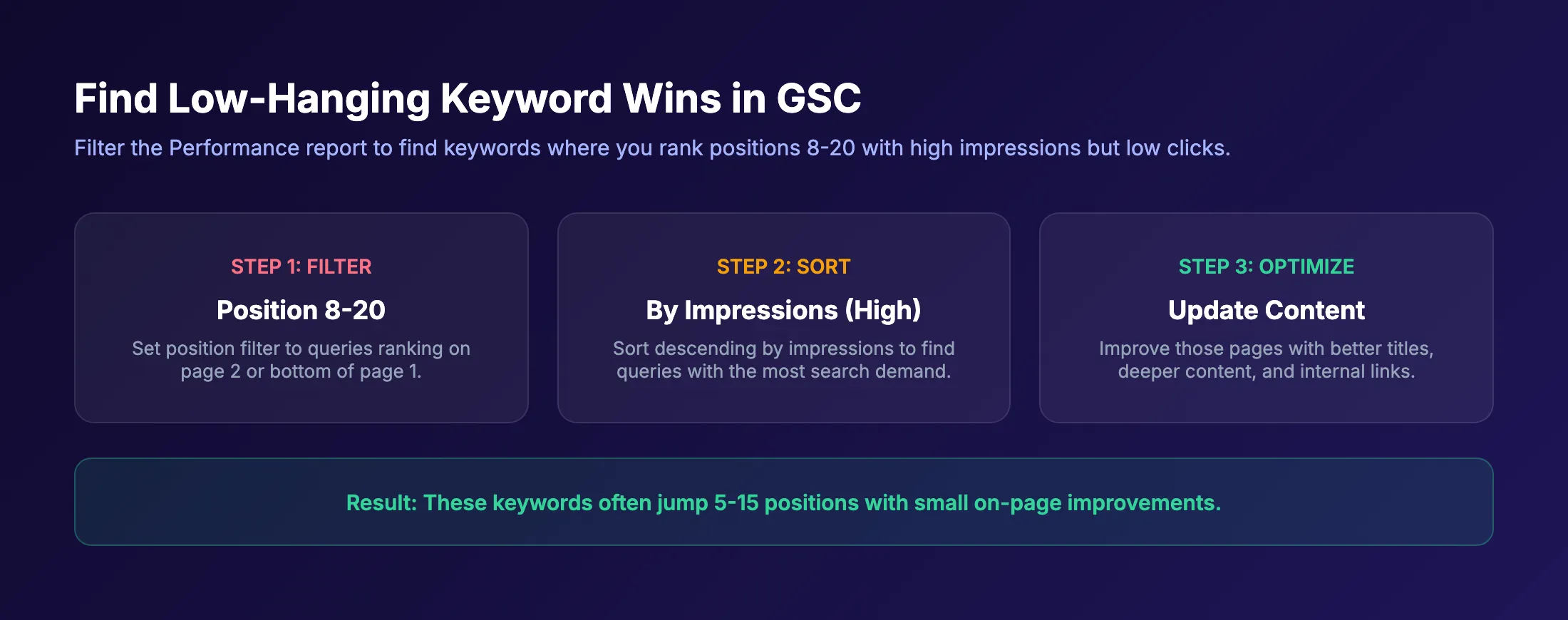
Open the Performance report and enable all 4 metrics. Sort by impressions in descending order. Then add a position filter for queries between 8 and 20.
These are your low-hanging wins. You already rank on page 2 or the bottom of page 1 for these queries. Users are searching for them. You just need a small push to reach the top 5.
For each opportunity:
- Check if the query matches the intent of your existing page
- Add the query to your page title, H2, or body content naturally
- Build 2-3 internal links from other pages using the query as anchor text
We have seen single keyword improvements of 5-15 positions using this method alone.
Discovering New Content Ideas
Filter the Performance report by queries with high impressions but no dedicated page on your site. These queries reveal what your audience searches for that you have not addressed yet.
Export the full query list to a spreadsheet. Group similar queries together. Each group becomes a potential blog post or landing page topic. Cross-reference these groups against your existing content calendar to avoid duplicates.
Identifying Keyword Cannibalization
Filter by a specific query and switch to the Pages tab. If multiple URLs appear for the same query, you have keyword cannibalization.
Cannibalization splits your ranking signals across multiple pages. Google does not know which page to rank, so it often ranks neither one well.
The fix: consolidate competing pages into 1 stronger piece, or differentiate each page to target distinct intent variations. GSC is the fastest way to find these conflicts because it shows you exactly which pages Google associates with each query.
Publish 30 SEO articles monthly without writing a word. We handle keyword research, content creation, and publishing on autopilot. Start for $1 →
Chapter 5: Index Coverage and the Pages Report {#chapter-5}
Google cannot rank pages it has not indexed. The Pages report (formerly Index Coverage report) shows which of your URLs Google has indexed, which it has excluded, and which have errors preventing indexation. Checking this report monthly prevents silent traffic losses.
Understanding Index Status Categories
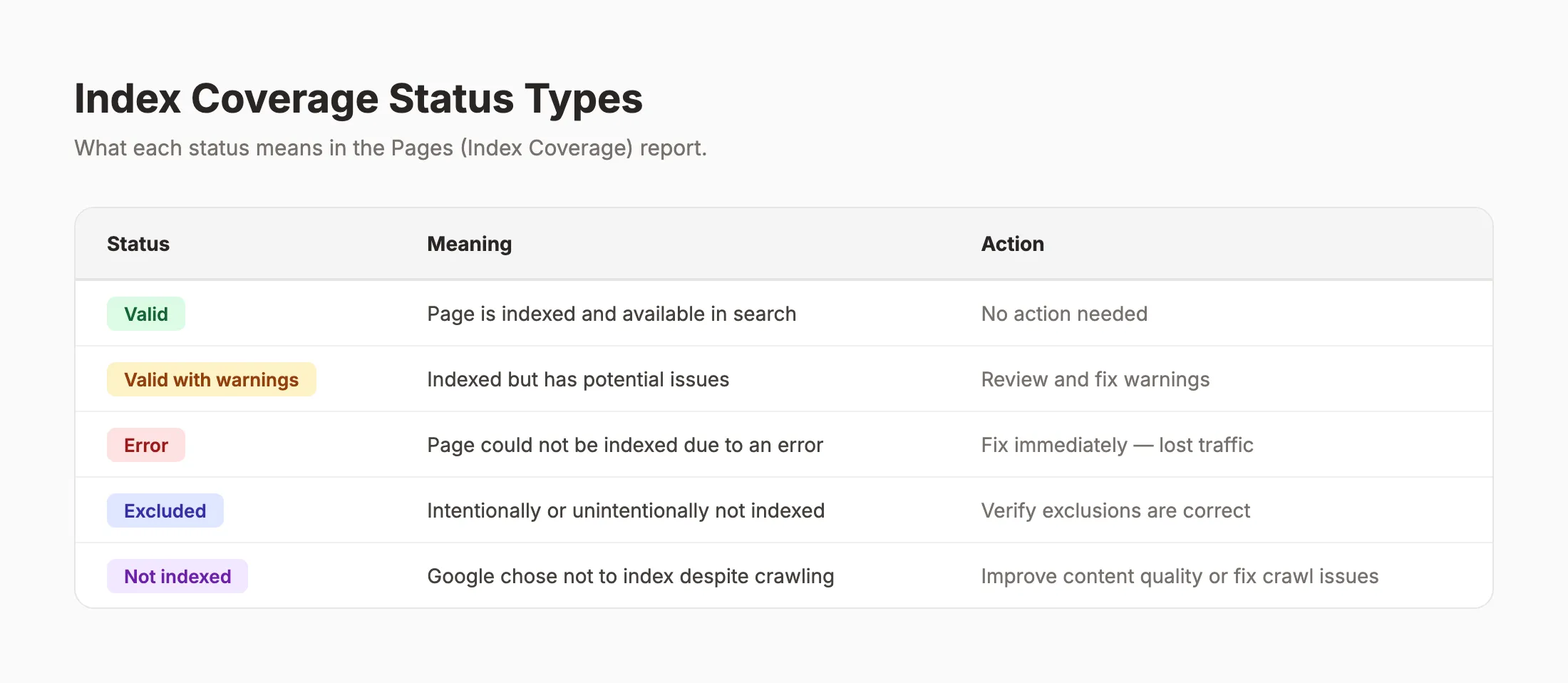
The Pages report groups your URLs into 4 categories. Each category tells you something different about how Google processes your content.
Indexed pages are in Google and eligible to appear in search results. These are your healthy pages.
Not Indexed pages were crawled but Google chose not to include them. Common reasons include thin content, duplicate content, or noindex tags.
Error pages have technical problems that prevent indexing. Server errors (5xx), redirect issues, and blocked resources fall here. Fix these first because they represent lost traffic.
Excluded pages were intentionally or unintentionally left out of the index. Some exclusions are correct (like paginated pages or parameter URLs). Others need attention.
Common Indexing Errors and Fixes
The most frequent indexing issues in GSC:
| Error | Cause | Fix |
|---|---|---|
| Crawled - not indexed | Content too thin or duplicate | Improve content quality, add unique value |
| Discovered - not indexed | Google has not crawled it yet | Submit URL via URL Inspection tool |
| Blocked by robots.txt | Your robots.txt blocks the URL | Update robots.txt to allow crawling |
| Redirect error | Broken redirect chain or loop | Fix the redirect to a single 301 hop |
| Soft 404 | Page exists but looks empty to Google | Add real content or return a proper 404 |
| Server error (5xx) | Your server failed during the crawl | Check server logs, fix hosting issues |
Using the URL Inspection Tool
The URL Inspection tool is your direct line to Google about any specific URL. Enter a URL and GSC tells you:
- Whether the page is indexed
- When Google last crawled it
- Whether the page has mobile usability issues
- What schema markup Google detected
- Whether the page is eligible for rich results
Use “Test Live URL” to see the current state. If you have made recent changes, click “Request Indexing” to ask Google to recrawl. You can request indexing for up to 2,000 URLs per day using the URL Inspection API.
Chapter 6: Core Web Vitals and Page Experience {#chapter-6}
Google uses Core Web Vitals as a ranking signal. The Core Web Vitals report in Search Console shows how your pages perform against Google’s thresholds using real user data. Sites that pass all 3 metrics earn a ranking advantage over sites that do not.
The 3 Core Web Vitals Metrics
Google measures 3 specific performance indicators:
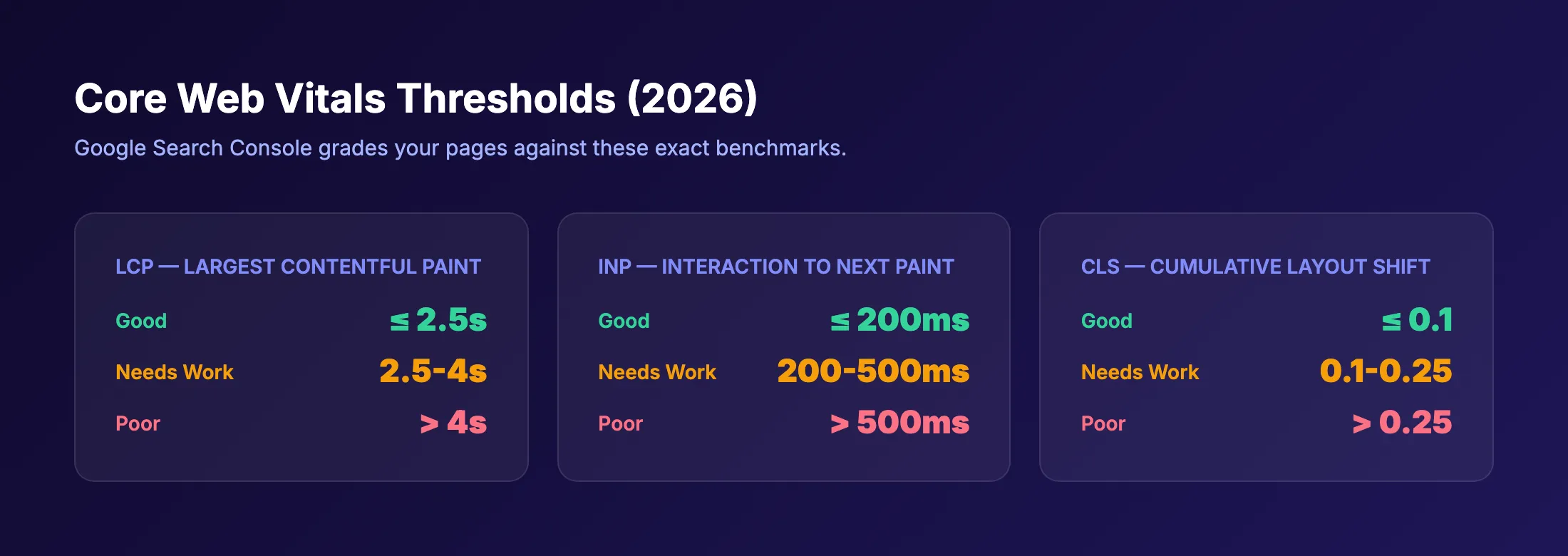
LCP (Largest Contentful Paint) measures how fast your main content loads. Google wants this under 2.5 seconds. Slow LCP usually means unoptimized images, slow server response, or render-blocking resources.
INP (Interaction to Next Paint) replaced FID in 2024. It measures how quickly your page responds to user interactions. Google wants this under 200 milliseconds. Heavy JavaScript and unoptimized event handlers cause poor INP scores.
CLS (Cumulative Layout Shift) measures visual stability. It tracks how much your page elements move during loading. Google wants a CLS score under 0.1. Ads, images without dimensions, and late-loading fonts cause high CLS.
How to Read the CWV Report
The report splits your URLs into 3 buckets: Good, Needs Improvement, and Poor. It groups URLs by similar issue patterns, so fixing 1 page often fixes dozens.
Click on a specific issue to see which URLs are affected. GSC shows the exact metric that failed and the threshold it missed. This saves you from running PageSpeed Insights on every individual page.
The report uses field data from real Chrome users who visited your site. Lab data from tools like Lighthouse can differ. Trust the GSC report because Google uses field data for ranking decisions.
For detailed fixes, check our guide on how to improve Core Web Vitals with step-by-step instructions for each metric.
Page Experience Beyond CWV
Core Web Vitals are 1 part of the Page Experience signals. Google also evaluates:
- HTTPS. Your site must serve pages over a secure connection
- No intrusive interstitials. Avoid popups that block content on mobile
- Mobile usability. Pages must work correctly on mobile devices
The HTTPS report in GSC flags any pages still served over HTTP. The Mobile Usability report identifies pages with text too small, clickable elements too close together, or content wider than the screen.
Let us handle the technical SEO while you grow your business. 30 articles published monthly, fully optimized for search. Start for $1 →
Chapter 7: Submitting and Managing Sitemaps {#chapter-7}
An XML sitemap tells Google which pages on your site matter. Submitting your sitemap through Search Console speeds up discovery and gives you a clear view of how many pages Google has indexed from your submitted list. Every site with more than a handful of pages should submit one.
How to Submit Your Sitemap
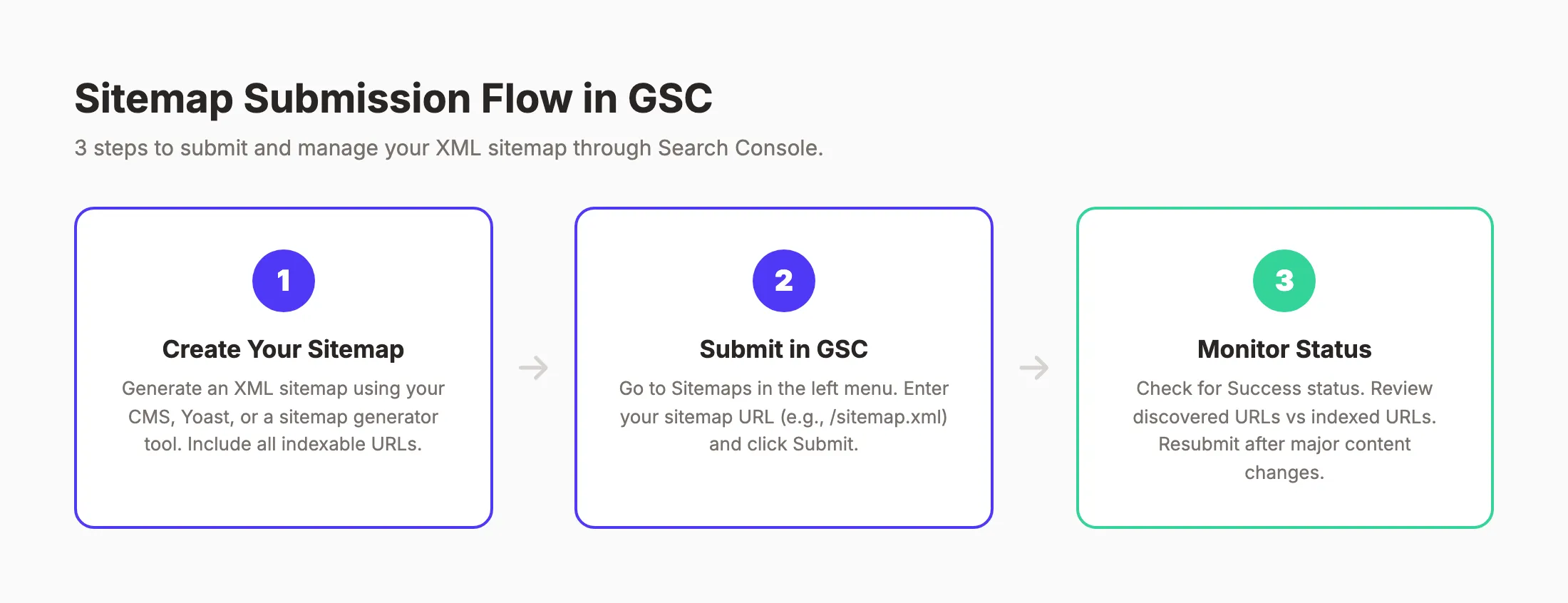
Go to Sitemaps in the left menu of Search Console. Enter your sitemap URL in the “Add a new sitemap” field. Most sites use /sitemap.xml as the default location.
Click Submit. GSC will process your sitemap and report back with a status. “Success” means Google accepted and read your sitemap. “Has errors” means something in the file needs fixing.
You can submit multiple sitemaps. Large sites often split sitemaps by content type: one for blog posts, one for product pages, one for category pages. Each sitemap can contain up to 50,000 URLs.
Monitoring Sitemap Health
After submission, GSC shows 2 important numbers: discovered URLs and indexed URLs. A large gap between these numbers signals a problem.
If you submitted 500 URLs but only 200 are indexed, Google is skipping 60% of your content. Possible reasons include:
- Thin or duplicate content on the skipped pages
- Crawl budget limits on larger sites
- Pages blocked by robots.txt or noindex tags
- Server errors during crawl attempts
Check the Pages report for specific reasons why individual URLs were not indexed.
When to Resubmit Your Sitemap
You do not need to resubmit your sitemap every time you publish a new page. Google recrawls known sitemaps on its own schedule.
Resubmit when you:
- Restructure your site URLs
- Add a large batch of new content (50+ pages)
- Fix major indexing issues and want Google to recheck
- Change your sitemap structure or add new sitemap files
For routine blog publishing, your CMS should update the sitemap automatically. Google will pick up changes during its regular crawls. Our guide on how to create an XML sitemap covers the technical setup in detail.
Chapter 8: Fixing Manual Actions and Security Issues {#chapter-8}
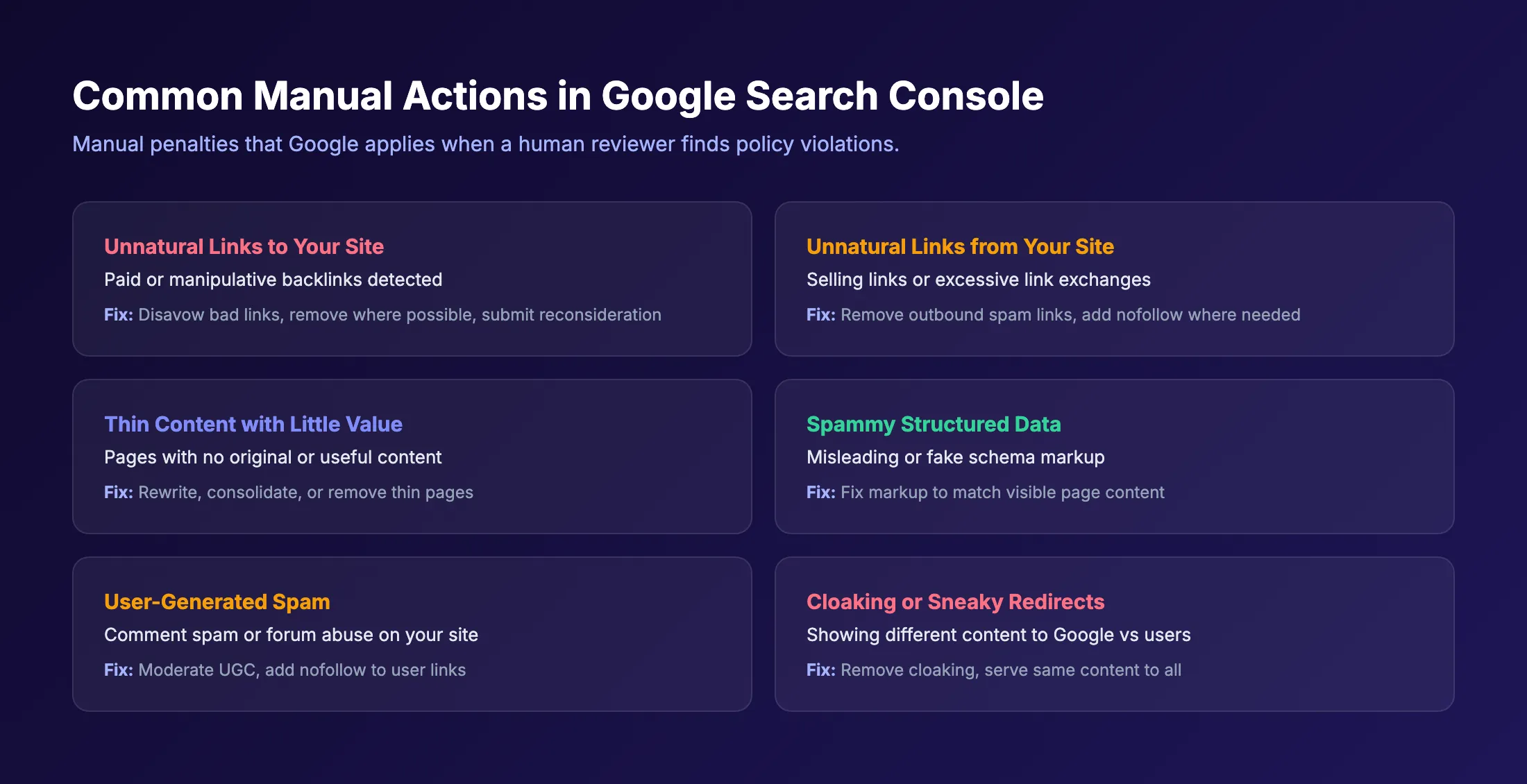
Manual actions are Google penalties applied by a human reviewer. They are rare, but devastating when they happen. A single manual action can remove your entire site from search results. The Manual Actions report in GSC is the only place you will find out if one has been applied.
What Manual Actions Look Like
Open Search Console and go to Security and Manual Actions > Manual Actions. If you see “No issues detected,” your site is clean. If you see a listed issue, Google has penalized your site for a specific policy violation.
The penalty applies either site-wide or to specific pages. Google tells you which type in the report. Site-wide manual actions affect your entire domain. Page-level actions only affect the flagged URLs.
How to Fix and Recover
The recovery process follows 3 steps:
- Identify the violation. Read the manual action description carefully. Google tells you the exact issue.
- Fix every instance. Remove bad backlinks, rewrite thin content, or fix whatever Google flagged. Do not fix just 1 example. Fix every page or link that violates the policy.
- Submit a reconsideration request. In the Manual Actions report, click “Request Review.” Explain what you fixed and how you prevent the issue from recurring.
Google typically reviews reconsideration requests within 2-4 weeks. If they reject your request, they tell you why. Fix the remaining issues and resubmit.
Security Issues
The Security Issues report flags problems like malware, hacked content, or phishing. These issues are different from manual actions because they typically result from your site being compromised, not from intentional policy violations.
Common security issues include:
- Hacked content. Spam pages injected into your site
- Malware. Your site distributes malicious software
- Social engineering. Deceptive content that tricks users
Fix security issues immediately. Google will display warnings to users in Chrome and search results, which destroys trust and traffic. After fixing, request a security review through the report.
Running a regular SEO audit helps catch these issues before Google flags them.
Chapter 9: Using Search Console with Google Analytics 4 {#chapter-9}
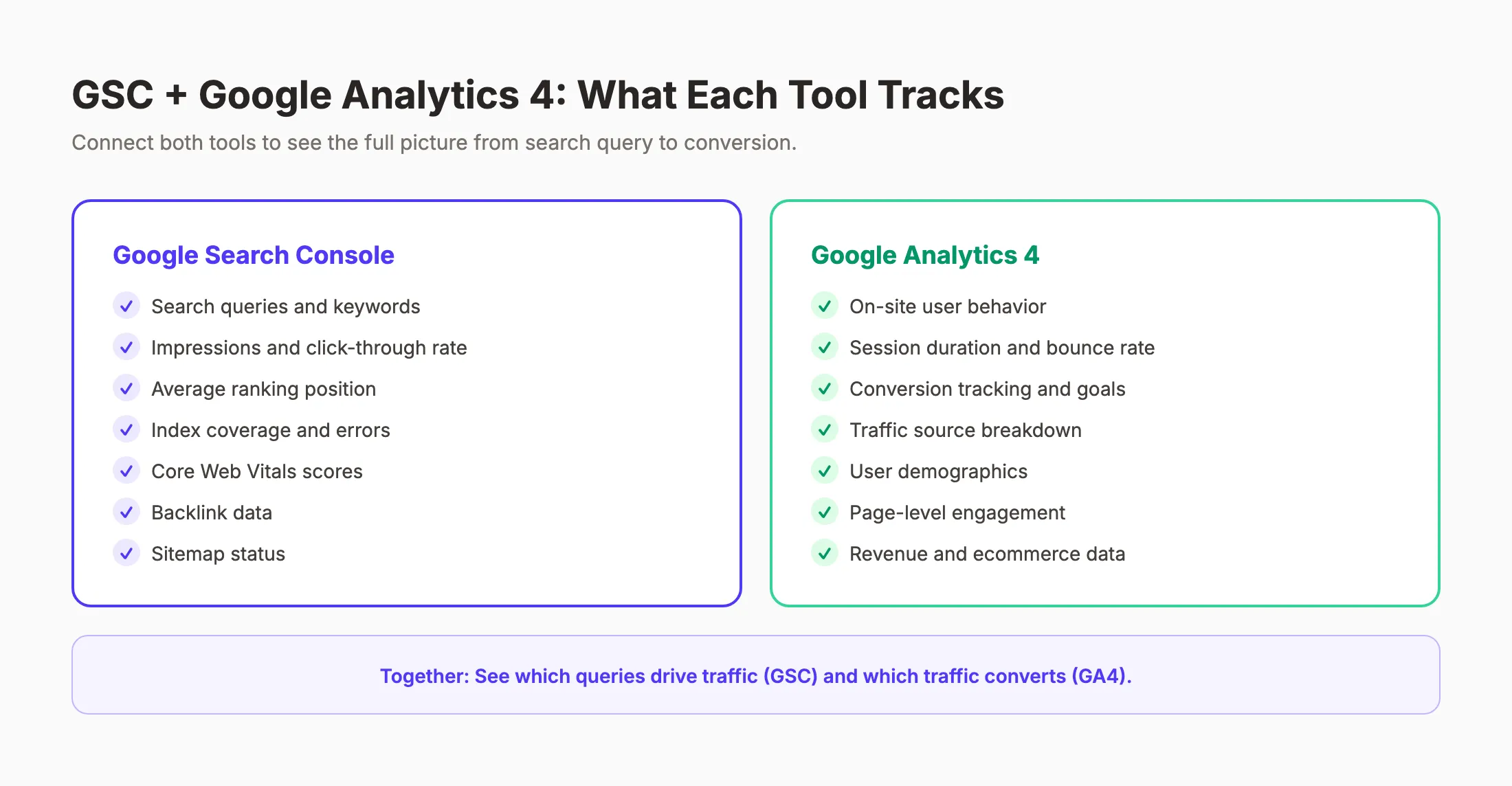
Google Search Console and Google Analytics 4 answer different questions. GSC shows how users find your site through search. GA4 shows what users do after they arrive. Connecting both gives you full visibility from search query to conversion.
How to Link GSC and GA4
Open Google Analytics 4. Go to Admin > Product Links > Search Console Links. Click “Link” and select your Search Console property. Confirm the connection.
After linking, GA4 gains 2 new reports under Acquisition > Search Console:
- Queries. Shows GSC query data alongside GA4 engagement metrics
- Google Organic Search Traffic. Shows landing page performance with both search and on-site data
The link takes up to 48 hours to populate data. Both properties must be verified under the same Google account, or you need admin access to both.
What the Combined Data Reveals
The real power appears when you connect search performance to business outcomes.
Example: A page gets 5,000 impressions and 200 clicks from a query in GSC. In GA4, you see those 200 visitors have a 0.5% conversion rate, generating 1 lead. That is the full funnel: query to impression to click to conversion.
Now you can make smart decisions. If that query has 50,000 monthly search volume, improving your position from 8 to 3 could mean 10x more clicks and 10 leads instead of 1. That is the kind of insight neither tool provides alone.
Use this data to prioritize which keywords deserve more content investment. Focus on queries where small ranking improvements drive meaningful business results.
GSC Data in Looker Studio
For teams that need automated reporting, connect GSC to Looker Studio (formerly Google Data Studio). Looker Studio pulls GSC data directly and lets you build custom dashboards.
Build reports that track:
- Weekly click and impression trends
- Top 20 queries by clicks with position changes
- Pages with declining traffic (early warning system)
- Mobile vs desktop performance splits
Automated reports save hours of manual data pulling. Set them to email your team weekly so everyone stays aligned on search performance.
Your SEO team for $99 a month. 30 articles, keyword research, and publishing handled automatically. Start for $1 →
Chapter 10: Advanced GSC Techniques for SEO {#chapter-10}
The techniques above cover 80% of what you need from Search Console. This chapter covers the remaining 20% that separates casual users from SEO operators who extract maximum value from every report.
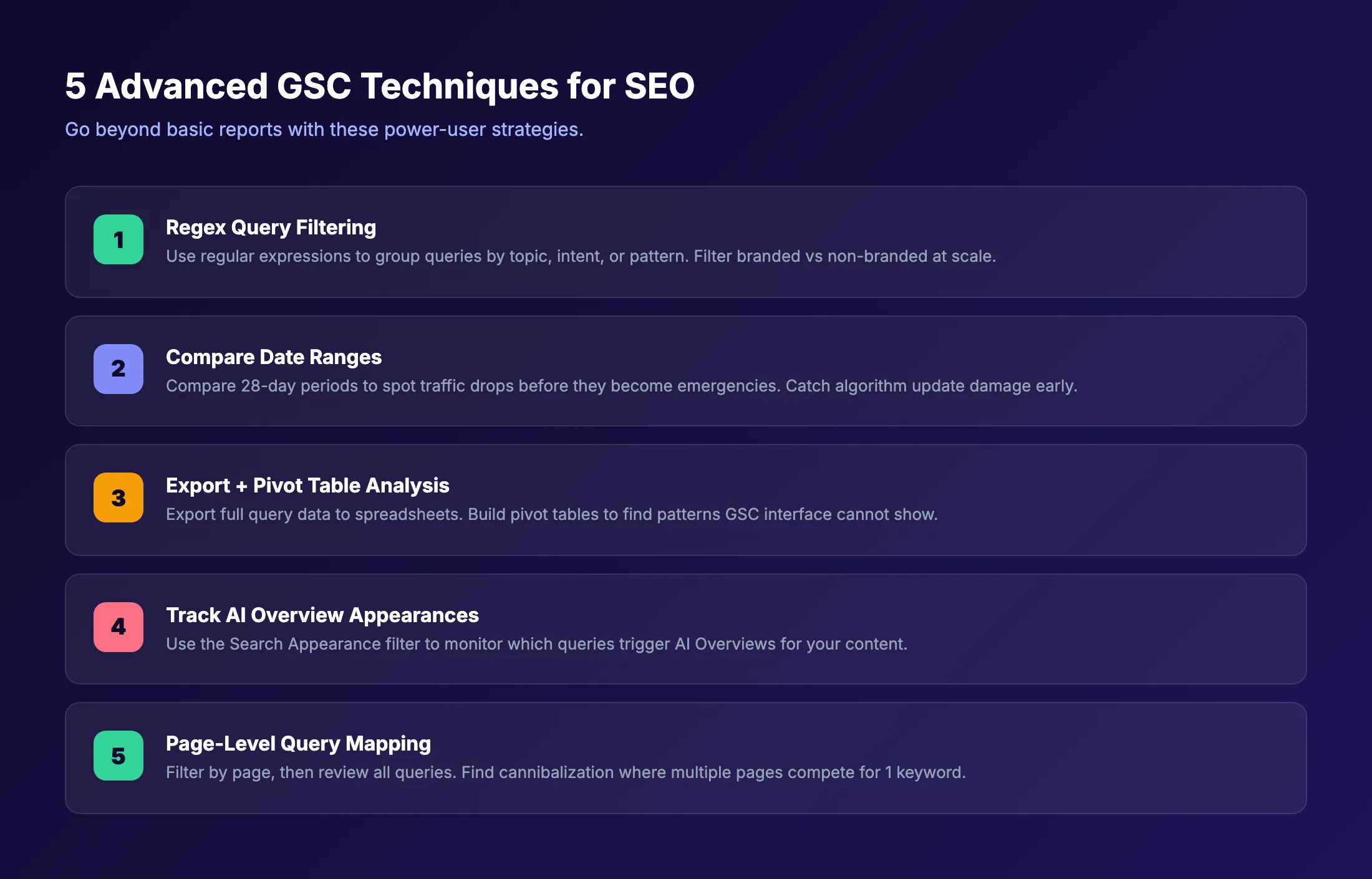
Regex Filtering for Query Analysis
GSC supports regular expression (regex) filtering in the Performance report. This feature unlocks query analysis at scale.
Filter queries that contain a specific word pattern:
.*how to.*. Find all question-based queries.*near me.*. Isolate local intent queries^(?!.*brand).*$. Exclude branded queries
Regex filtering helps you segment queries by intent, topic, or format without exporting to a spreadsheet. The 2026 addition of automatic branded query filtering makes this even more powerful.
Comparing Date Ranges to Catch Drops Early
Use the Compare feature to check 28-day period performance against the previous 28 days. Look for queries where impressions stayed stable but clicks dropped. That pattern signals a ranking decline before it shows in average position data.
Also compare year-over-year to account for seasonality. A traffic dip in January might look alarming compared to December but could be normal for your industry.
Export, Pivot, and Analyze
The GSC interface limits you to 1,000 rows of data. Your site likely has far more queries and pages than that. Export the full dataset and analyze it in spreadsheets.
Build a pivot table that groups queries by:
- Landing page URL
- Average position range (1-3, 4-10, 11-20, 21+)
- CTR vs expected CTR for that position
This analysis reveals which pages underperform on CTR compared to their ranking position. A page ranking position 3 with 2% CTR should earn closer to 10%. The gap means your title tag or meta description needs work. Improving those elements through better meta descriptions directly increases traffic without changing your ranking.
Monitoring AI Overview Impact
The Search Appearance filter now includes AI Overviews. Monitor which of your queries trigger AI-generated answers above your organic listing.
Pages affected by AI Overviews often show stable impressions but declining CTR. The zero-click rate has exceeded 60% in 2026 partly due to AI features answering queries directly in search results.
Track this trend for your most valuable queries. If AI Overviews absorb your clicks, adjust your strategy. Target longer queries with specific intent that AI cannot fully answer. Or optimize to be cited within the AI Overview itself using our generative engine optimization guide.
Page-Level Query Mapping
Select a single page in the Performance report. Review every query that page ranks for. This technique reveals:
- Query clusters your page actually serves (vs what you intended)
- Cannibalization where this page competes with another
- Expansion opportunities where a query deserves its own dedicated page
Run this analysis on your top 20 pages by traffic. You will find at least 5 actionable insights every time.
Frequently Asked Questions
Is Google Search Console free?
Yes. Google Search Console is 100% free for any website owner. There are no paid tiers or premium features. You get the same data whether you run a 5-page local business site or a 500,000-page enterprise domain. Create a Google account, verify your site, and access every report immediately.
How often should I check Google Search Console?
Check GSC at least once per week for active SEO campaigns. Review the Performance report for traffic trends, the Pages report for new indexing errors, and the Core Web Vitals report for page speed regressions. Monthly deep-dive audits catch issues that weekly checks miss. Set up email alerts for critical problems like manual actions or security issues.
How long does Google Search Console keep data?
GSC stores 16 months of Performance report data. Older data disappears permanently. The Pages report and other reports show current status rather than historical trends. Export your Performance data quarterly to preserve your search history beyond the 16-month window.
What is the difference between Google Search Console and Google Analytics?
Search Console shows how users find your site through Google Search: queries, impressions, clicks, and rankings. Google Analytics shows what users do on your site after they arrive: pages viewed, time on site, conversions, and bounce rate. Connecting both gives you the complete picture from search query to business outcome. Learn more about how to increase organic traffic using both tools together.
Can Google Search Console hurt my SEO?
No. Search Console is a monitoring and reporting tool. Nothing you do inside GSC changes how Google ranks your pages. Requesting indexing, submitting sitemaps, and disavowing links are the only actions that influence Google’s behavior, and these are helpful when used correctly. GSC cannot penalize your site.
How do I fix “Crawled - currently not indexed” in Search Console?
The “Crawled - currently not indexed” status means Google visited your page but chose not to index it. The most common cause is thin content that does not provide enough unique value. Improve the page by adding original information, data, or analysis. Strengthen internal links pointing to the page. Then use the URL Inspection tool to request re-indexing. Consistent content quality is the best long-term fix. Our guide on fixing thin content walks through the complete process.
Google Search Console gives you something no paid tool can match: the truth about how Google sees your site. Every metric, every error, every opportunity comes straight from the source.
Start with the Performance report. Find your low-hanging keyword wins. Fix your indexing errors. Monitor your Core Web Vitals. Then build a weekly habit around these reports.
The sites that rank are the sites that pay attention to their data and act on it consistently.
Rank everywhere. Do nothing. Stacc publishes 30 SEO articles monthly, fully optimized and on autopilot. Start for $1 →

Written by
Siddharth GangalSiddharth is the founder of theStacc and Arka360, and a graduate of IIT Mandi. He spent years watching great businesses lose organic traffic to competitors who simply published more. So he built a system to fix that. He writes about SEO, content at scale, and the tactics that actually move rankings.
30 SEO blog articles published every month
Keyword-optimized, scheduled, and live on your site. Automatically.
30-day trial · Cancel anytime
theStacc
Stop writing SEO content manually
30 blog articles, 30 GBP posts, and social media content. Published every month. Automatically.
Start Your $1 Trial$1 for 3 days · Cancel anytime