
Canonical Tags: The Complete SEO Guide (2026)
Learn how canonical tags work, when to use them, and common mistakes to avoid. With code examples and a decision framework. Updated 2026.
Canonical tags tell Google which version of a page to index when multiple URLs serve similar or identical content. Get them wrong and Google splits your ranking signals across duplicate pages. Get them right and every link, every share, and every ranking signal points to the URL you choose.
The problem is real. 29% to 67% of websites have some form of duplicate content. E-commerce sites are the worst offenders. Filter pages, sorting options, tracking parameters, and pagination create dozens of duplicate URLs without the site owner knowing. A single canonical tag fix on one site increased ranking keywords by 320% (from 154 to 724).
This guide covers what canonical tags are, how to implement them, when to use them instead of redirects, and the mistakes that cause Google to ignore them.
We have published 3,500+ SEO articles across 70+ industries. We manage canonical tag implementation as part of every technical SEO engagement. This guide reflects what we see working in 2026.
Here is what you will learn:
- What canonical tags do and how Google processes them
- The exact HTML syntax and where to place it
- When to use canonicals vs 301 redirects vs noindex
- The 8 most common canonical tag mistakes
- How to audit your site for canonical issues
- Platform-specific guidance for WordPress, Shopify, and Wix
What Canonical Tags Are and How They Work
A canonical tag is an HTML element placed in the <head> section of a page. It tells Google: “This URL is the preferred version. If you find similar content elsewhere, credit this URL.”
The syntax looks like this:
<link rel="canonical" href="https://www.example.com/page/" />How Google Processes Canonical Tags
- Google crawls a page and finds the canonical tag in the
<head> - Google compares the canonical URL to the page URL
- If they match (self-referencing), Google confirms this is the preferred version
- If they differ, Google evaluates whether the content is similar enough to honor the canonical
- Google consolidates ranking signals (links, authority) to the canonical URL
The critical detail: canonical tags are hints, not directives. Google can and does ignore canonical tags when other signals contradict them. If your canonical says “index page A” but your sitemap, internal links, and redirects all point to page B, Google will likely choose page B.
For a broader look at technical SEO fundamentals, see our guide on how to do an SEO audit.
When to Use Canonical Tags
Canonical tags solve specific problems. Using them in the wrong situation creates new ones.
Use Canonical Tags For
| Scenario | Example | Canonical Points To |
|---|---|---|
| URL parameters | /products?color=red and /products?color=blue show similar content | /products |
| Tracking parameters | /page?utm_source=facebook | /page |
| Session IDs in URLs | /page?sessionid=abc123 | /page |
| WWW vs non-WWW | www.example.com/page and example.com/page | Pick one consistently |
| HTTP vs HTTPS | Both protocol versions accessible | HTTPS version |
| Trailing slash variations | /page and /page/ | Pick one consistently |
| Syndicated content | Your article republished on another site | Your original URL (cross-domain canonical) |
| Print or mobile versions | /page/print or m.example.com/page | The primary version |
Do NOT Use Canonical Tags For
- Completely different pages. Canonicalizing unrelated content confuses Google. The tag gets ignored.
- Pagination. Do not point page 2, 3, and 4 back to page 1. Each paginated page has unique content. Use self-referencing canonicals on each page instead.
- Pages you want removed from the index. Use
noindexfor that. A canonical tag says “index this version.” Anoindextag says “do not index at all.” Using both on the same page sends contradictory signals.
For redirect-specific guidance, see our 301 redirects guide.
Your SEO team. $99 per month. 30 optimized articles published automatically. Technical SEO handled. Start for $1 →
Canonical Tags vs 301 Redirects vs Noindex
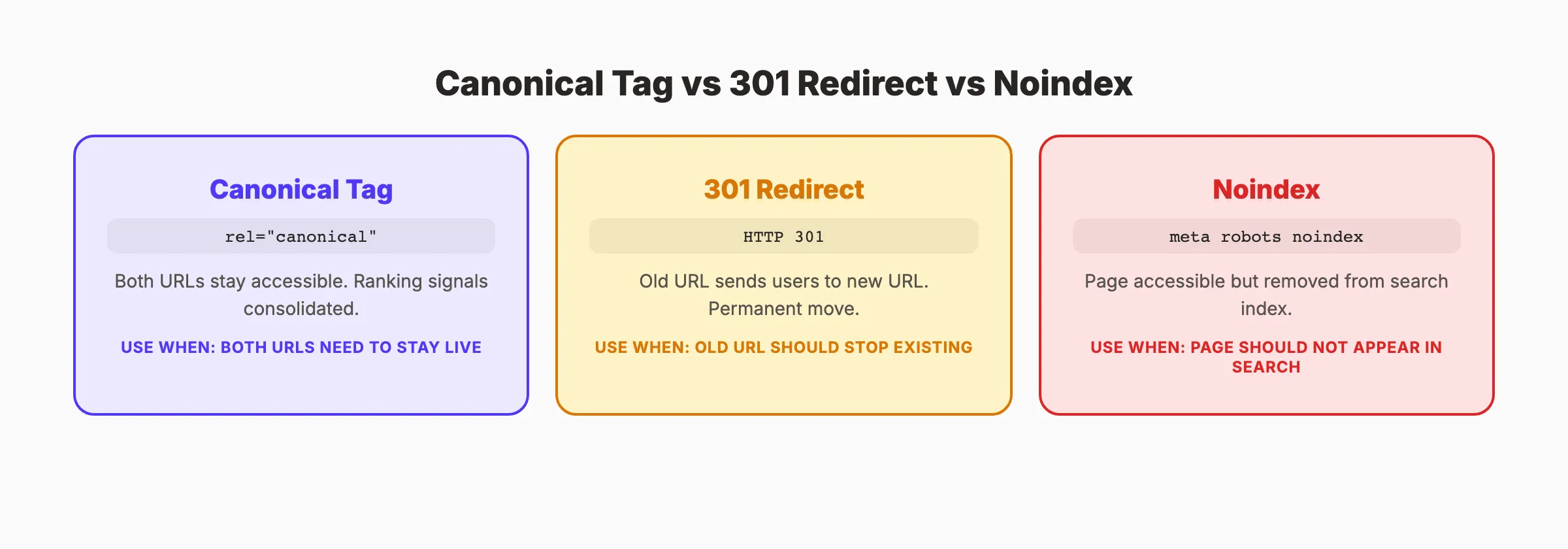
Three tools solve different duplicate content problems. Using the wrong one wastes crawl budget or hides pages you want indexed.
The Decision Framework
| Question | Answer | Use This |
|---|---|---|
| Should both URLs stay accessible to users? | Yes | Canonical tag |
| Should users be sent to the other URL automatically? | Yes | 301 redirect |
| Should Google ignore this page entirely? | Yes | Noindex |
| Is the content permanently moved? | Yes | 301 redirect |
| Is this a temporary duplicate (e.g., A/B test)? | Yes | Canonical tag |
| Is this thin or low-value content? | Yes | Noindex (or improve the content) |
Head-to-Head Comparison
| Factor | Canonical Tag | 301 Redirect | Noindex |
|---|---|---|---|
| User access | Both URLs work | User redirected | Page accessible but not indexed |
| Signal strength | Hint (Google can override) | Strong directive | Directive |
| Link equity | Consolidated to canonical | Passes ~95-99% | Lost over time |
| Crawl budget | Both pages still crawled | Only destination crawled | Page still crawled initially |
| Best for | Parameter variations, syndication | URL changes, migrations | Low-value pages, staging |
The simple rule: Use a 301 when the old URL should stop existing for users. Use a canonical when both URLs need to remain accessible. Use noindex when a page should exist for users but not appear in search results.
For more on managing URL changes, see our 301 redirects guide. For fixing broken links after redirects, see our broken links guide.
How to Implement Canonical Tags
Implementation depends on your platform. The syntax is the same everywhere. The method of adding it changes.
HTML Implementation
Add this tag inside the <head> section of every page:
<link rel="canonical" href="https://www.example.com/your-page/" />Rules:
- Use the full absolute URL (with protocol and domain)
- Place it inside
<head>, not<body>(Google ignores canonicals in the body) - One canonical tag per page. Multiple tags cause Google to ignore all of them.
HTTP Header Implementation
For non-HTML files (PDFs, images), use an HTTP header instead:
Link: <https://www.example.com/document.pdf>; rel="canonical"WordPress
If you use Yoast SEO: the plugin adds self-referencing canonical tags automatically. To set a custom canonical, edit the post or page, scroll to the Yoast section, click “Advanced,” and enter the canonical URL.
If you use Rank Math: the canonical field appears in the “Advanced” tab of the post editor.
Watch for plugin conflicts. Multiple SEO plugins (Yoast + All in One SEO, for example) can inject competing canonical tags. Use only one SEO plugin.
Shopify
Shopify adds canonical tags automatically to product, collection, and page templates. For custom canonical overrides, edit the theme.liquid file or use a canonical tag app. Shopify collection filter URLs (/collections/shoes?filter=color-red) automatically canonical to the base collection URL.
Wix
Wix adds self-referencing canonical tags automatically. Custom canonical URLs can be set in the page SEO settings panel under “Advanced SEO.”
Verifying Your Implementation
After adding canonical tags, verify they work:
- Open the page in your browser
- Right-click and select “View Page Source”
- Press Ctrl+F (or Cmd+F) and search for
rel="canonical" - Verify exactly 1 canonical tag exists in the
<head>section - Confirm the URL is absolute, uses HTTPS, and matches your preferred format (www or non-www, trailing slash or not)
For JavaScript-rendered sites (React, Next.js, Angular), check the rendered HTML instead of the source. Use Google’s URL Inspection tool or the “Inspect” feature in Chrome DevTools to see what Google sees after JavaScript execution.
If your canonical tag only appears after JavaScript runs, Google may still find it. But server-side rendered canonicals are more reliable. If possible, include the canonical tag in the initial HTML response before any JavaScript executes.
For robots.txt configuration that supports proper crawling alongside canonicals, see our guide. For the complete new website SEO setup including canonicals, see our step-by-step walkthrough.
Self-Referencing Canonical Tags: Why Every Page Needs One
A self-referencing canonical is a canonical tag that points to the current page’s own URL. Every page on your site should have one. Even pages without duplicates.
Why Self-Referencing Canonicals Matter
Without a canonical tag, Google decides the canonical URL on its own. Google might pick a version with tracking parameters, the wrong protocol, or a URL variation you did not intend.
A self-referencing canonical removes ambiguity. It tells Google: “This exact URL is the one I want indexed.” No guessing.
Example
On the page https://www.example.com/blog/canonical-tags/, add:
<link rel="canonical" href="https://www.example.com/blog/canonical-tags/" />This is the single most important canonical tag implementation. It costs nothing. It prevents problems. Every page should have one.
Cross-Domain Canonical Tags
Cross-domain canonicals tell Google that content on one domain is a copy of content on another domain. The original source keeps the ranking credit.
When to Use Cross-Domain Canonicals
Syndicated content. If you write an article and a partner site republishes it, the partner site should add a canonical tag pointing to your original URL. This prevents Google from treating the republished version as the original.
Multiple country domains. If example.com and example.co.uk serve the same English content, one should canonical to the other (or use hreflang for proper international targeting).
Content licensing. News agencies and content publishers that license articles to other sites should require cross-domain canonicals in their licensing agreements.
Important Caveats
Cross-domain canonicals are weaker signals than same-domain canonicals. Google is more likely to override them, especially if the republishing site has higher authority than the original. The tag is still worth implementing because it gives Google a clear signal about your preferred URL.
For content that appears on other sites, cross-domain canonicals are better than no signal at all. But they do not guarantee Google will choose your version. The strongest defense against content scraping is publishing first and building links to your original.
For managing redirects across domains, see our 301 redirects guide.
3,500+ blogs published. 92% average SEO score. Every article passes a 40-point quality audit before it goes live. Start for $1 →
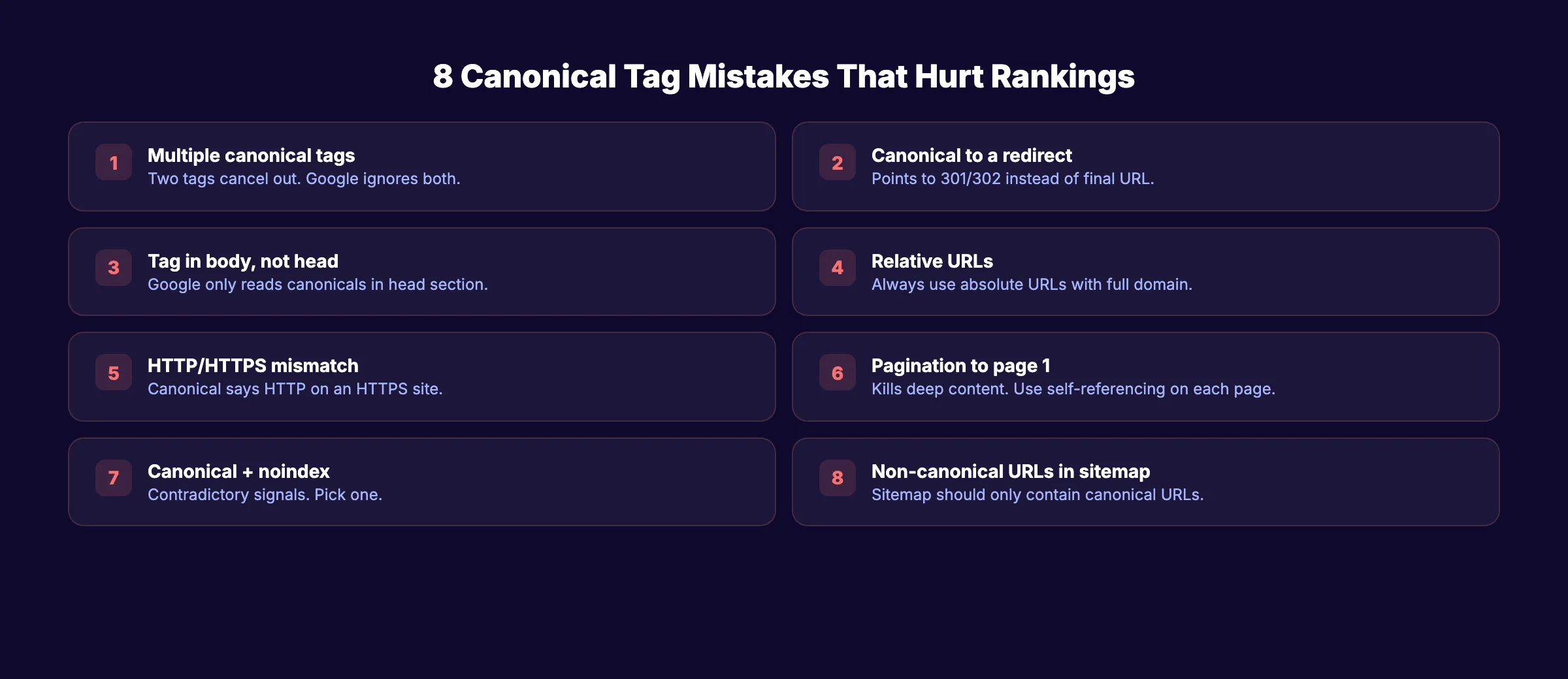
The 8 Most Common Canonical Tag Mistakes
These mistakes cause Google to ignore your canonical tags or misindex your pages. Avoid all of them.
Mistake 1: Multiple Canonical Tags on One Page
Two canonical tags pointing to different URLs cancel each other out. Google ignores both. Common cause: multiple SEO plugins on WordPress each injecting their own tag.
Fix: Inspect your page source. Search for rel="canonical". If you find more than one, disable or remove the duplicate source.
Mistake 2: Canonical Pointing to a Redirect
If your canonical URL returns a 301 or 302 redirect, Google has to follow the redirect to find the final page. Chained signals weaken the canonical.
Fix: Canonical tags should point directly to the final, 200-status URL. Never to a redirect.
Mistake 3: Canonical in the Body Instead of the Head
Google only recognizes canonical tags inside <head>. JavaScript that injects the tag into <body> gets ignored.
Fix: Verify the canonical tag appears in your page source within <head>.
Mistake 4: Using Relative URLs
<link rel="canonical" href="/page/" /> is ambiguous. Different servers may interpret the relative path differently.
Fix: Always use absolute URLs: https://www.example.com/page/
Mistake 5: HTTP/HTTPS Protocol Mismatch
Your site runs on HTTPS but your canonical tags reference HTTP. Google may index the HTTP version or ignore the canonical.
Fix: Ensure every canonical URL uses https://.
Mistake 6: Canonicalizing Pagination to Page 1
Pointing page 2, 3, and 4 canonical tags to page 1 tells Google those pages are duplicates of page 1. Google stops indexing the deeper pages and misses the content on them.
Fix: Use self-referencing canonicals on every paginated page. Page 2 canonicals to page 2.
Mistake 7: Canonical Plus Noindex on the Same Page
A canonical says “index this URL.” A noindex says “do not index this URL.” Together, they send contradictory signals. Google typically ignores the canonical.
Fix: Pick one. If you want the page indexed, use a canonical. If you do not want it indexed, use noindex.
Mistake 8: Non-Canonical URLs in Your Sitemap
Your XML sitemap should only contain canonical URLs. Including non-canonical URLs sends mixed signals about which version Google should index.
Fix: Audit your sitemap. Remove any URL that has a canonical tag pointing to a different URL.
How to Audit Your Canonical Tags
Regular audits catch canonical issues before they hurt rankings. Use these tools.
Google Search Console
- Go to the URL Inspection tool
- Enter the URL you want to check
- Look for “Google-selected canonical” in the results
- Compare it to “User-declared canonical”
- If they differ, Google is overriding your canonical tag. Investigate why.
Common GSC statuses:
- “Alternate page with proper canonical tag”. Google found a duplicate and is using the canonical you specified. This is correct behavior.
- “Google-selected canonical differs from user-declared canonical”. Google disagrees with your canonical. Check for conflicting signals.
Site Crawl Tools
Use Screaming Frog, Ahrefs Site Audit, or our SEO audit tool to crawl your entire site and flag:
- Pages with no canonical tag
- Pages with multiple canonical tags
- Canonical URLs returning non-200 status codes
- HTTP canonicals on HTTPS pages
- Canonical URLs not matching sitemap URLs
- Canonical URLs with redirect chains
Run this audit quarterly. For large or complex sites, run it monthly.
The Impact of Fixing Canonical Issues
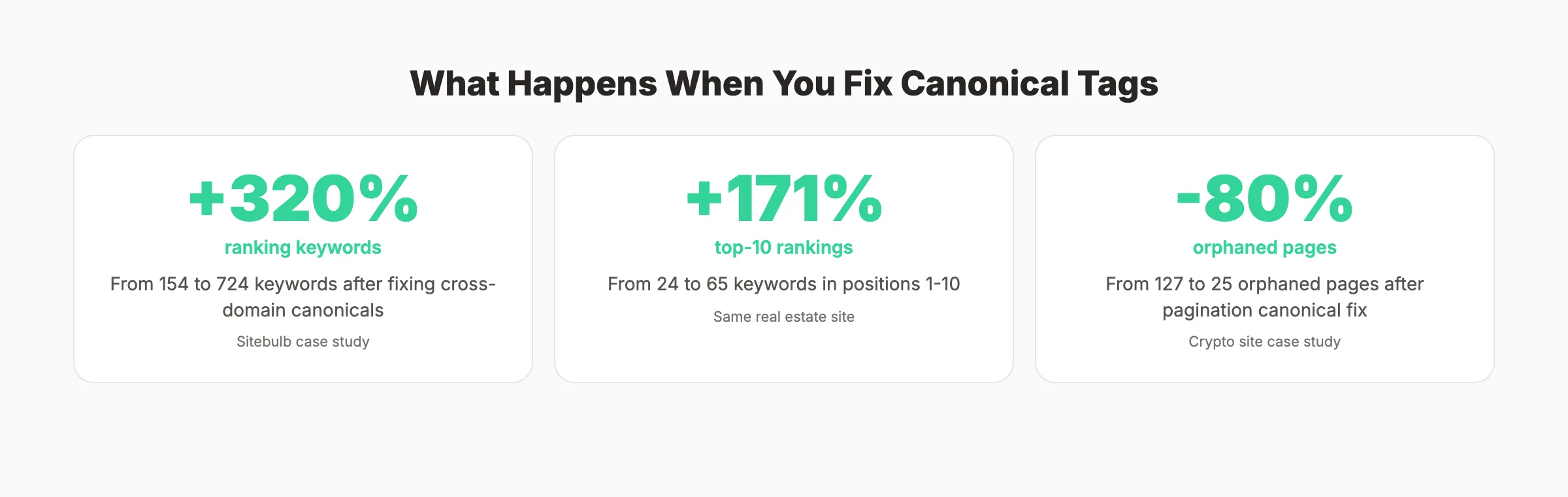
The data shows canonical fixes produce measurable ranking improvements:
| Case Study | Before Fix | After Fix | Improvement |
|---|---|---|---|
| Real estate site (incorrect cross-domain canonicals) | 154 ranking keywords | 724 ranking keywords | +320% |
| Same site (top-10 positions) | 24 keywords in top 10 | 65 keywords in top 10 | +171% |
| Crypto site (paginated canonical errors) | 127 orphaned pages | 25 orphaned pages | -80% orphaned pages |
These results came from fixing canonical tag implementation alone. No new content. No link building. Just correcting the technical signals that told Google which pages to index.
For sites with keyword cannibalization issues, canonical tags are often part of the fix. Multiple pages targeting the same keyword can be consolidated using canonicals or redirects.
For identifying and fixing thin content that creates duplicate page problems, see our detailed guide.
For a complete site audit process, see our SEO audit guide. For on-page SEO fundamentals that support proper canonicalization, see our detailed guide.
Rank everywhere. Do nothing. Blog SEO, Local SEO, and Social on autopilot. Stacc starts at $99 per month with a $1 trial. Start for $1 →
FAQ
What is a canonical tag?
A canonical tag is an HTML element that tells search engines which URL is the preferred version of a page. It uses the syntax <link rel="canonical" href="URL" /> and goes in the <head> section. When multiple URLs serve similar content, the canonical tag consolidates ranking signals to the preferred URL.
Do I need canonical tags if I do not have duplicate content?
Yes. Every page should have a self-referencing canonical tag. Without one, Google chooses the canonical URL on its own. Tracking parameters, session IDs, and protocol variations can create unintentional duplicates. Self-referencing canonicals prevent Google from indexing the wrong URL version.
Can Google ignore my canonical tag?
Yes. Google treats canonical tags as hints, not directives. If your canonical tag conflicts with other signals (sitemap, internal links, redirects), Google may override it. The fix is aligning all signals. Your canonical URL, sitemap entries, internal links, and redirects should all point to the same preferred URL.
What is the difference between a canonical tag and a 301 redirect?
A canonical tag keeps both URLs accessible to users while consolidating ranking signals to the preferred URL. A 301 redirect sends users and search engines from the old URL to the new URL permanently. Use canonicals when both URLs need to stay live. Use 301s when the old URL should permanently redirect.
Should paginated pages have canonical tags?
Yes. Each paginated page should have a self-referencing canonical. Page 2 should canonical to page 2. Do not point paginated pages back to page 1. That tells Google pages 2+ are duplicates of page 1, and Google stops indexing the content on those deeper pages.
How do I check canonical tags in Google Search Console?
Use the URL Inspection tool. Enter your URL and look at the “Google-selected canonical” field. Compare it to your declared canonical. If they match, your canonical is working. If they differ, Google is overriding your tag. Check for conflicting signals like non-canonical URLs in your sitemap or internal links pointing to the wrong URL version.
Canonical tags are one of the most misunderstood elements in technical SEO. Implement them correctly and they consolidate your ranking power to the pages that matter. Implement them incorrectly and they split your authority across URLs that compete with each other.
Skip the agency. Keep the results. Stacc starts at $99 per month with a $1 trial. 30 articles. Published automatically. Start for $1 →

Written by
Siddharth GangalSiddharth is the founder of theStacc and Arka360, and a graduate of IIT Mandi. He spent years watching great businesses lose organic traffic to competitors who simply published more. So he built a system to fix that. He writes about SEO, content at scale, and the tactics that actually move rankings.
30 SEO blog articles published every month
Keyword-optimized, scheduled, and live on your site. Automatically.
30-day trial · Cancel anytime
theStacc
Stop writing SEO content manually
30 blog articles, 30 GBP posts, and social media content. Published every month. Automatically.
Start Your $1 Trial$1 for 3 days · Cancel anytime