Every Framer SEO setting that matters, the platform limits you cannot configure away, and the workarounds that keep a Framer site ranking.
Framer is the fastest-growing design-led website platform on the market, and most Framer sites still rank below sites built on WordPress themes from 2017. The platform is not the problem. The problem is that designers ship stunning Framer sites with empty meta fields, missing schema, broken redirects, and three blog posts that have not been touched since launch month.
This Framer SEO guide closes that gap. We will walk through every setting in the Framer interface that affects search rankings, every CMS field that scales SEO across collections, and every content move that compounds organic traffic over the next 12 months.
We publish 3,500+ blog posts each month across 70+ industries through the Stacc platform. We have audited hundreds of Framer sites for clients who hired a Framer expert on Twitter, paid a boutique studio $30,000 for a redesign, or built the site themselves over a weekend. The same SEO patterns repeat. So do the same fixes.
Here is what you will learn:
- Why Framer is a strong SEO foundation when configured intentionally
- The Framer site settings checklist every project needs before launch
- On-page SEO tactics that turn Framer pages into ranking assets
- How to wire SEO fields into your CMS Collections so every entry inherits the basics
- Schema markup, Core Web Vitals, and technical SEO inside Framer
- The content strategy that actually moves Framer sites up the SERP
- Common Framer SEO mistakes and how to fix each one
- How to scale content production without burning out your design team
Chapter 1: Is Framer Good for SEO?
Yes, Framer is good for SEO. The platform produces clean semantic HTML, ships with a global CDN, generates a sitemap.xml file automatically, and gives you direct control over title tags, meta descriptions, redirects, indexing rules, and Open Graph fields. Most ranking issues on Framer sites are configuration problems, not platform limitations.
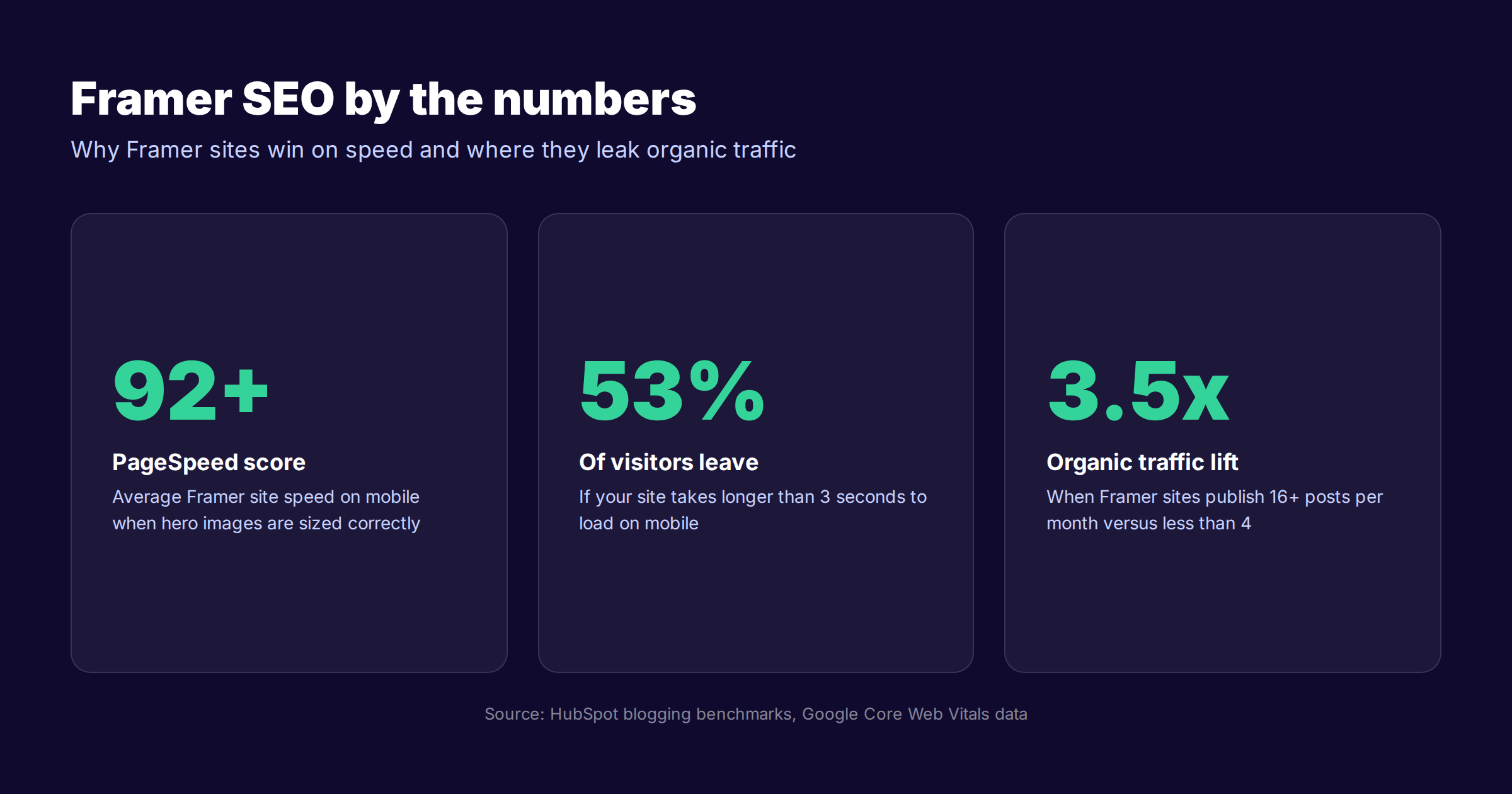
The case for Framer as an SEO platform rests on four pillars. Speed is the first pillar. Framer serves pages through a global edge network with HTTP/3, image optimization, and aggressive caching. Most Framer sites score above 90 on mobile PageSpeed Insights when designers size hero images correctly. Speed is a confirmed Google ranking factor, and 53% of mobile visitors abandon pages that take longer than 3 seconds to load.
Clean code is the second pillar. Framer renders semantic HTML5 by default. Headings, lists, navigation, and main content all output with proper tags when designers assign them correctly. The platform avoids the div-soup pattern that plagues older drag-and-drop builders.
The third pillar is control. Every page exposes the SEO fields you need: title, description, Open Graph image, canonical URL, indexing toggle, and redirect mapping. You do not need a third-party plugin to manage any of this.
The fourth pillar is the CMS. Framer Collections let you create dynamic page templates that inherit SEO settings from collection fields. Configure the template once, and every blog post, case study, or service page you publish ships with the right structure.
Where Framer Falls Short for SEO
Honest pros need honest cons. Framer has real limitations that affect SEO at scale.
Schema markup is not built into the UI. You add structured data through custom code embeds on each page or template, then bind dynamic CMS fields manually. Robots.txt customization happens through a single project setting rather than direct file access. Programmatic SEO at massive scale (50,000+ pages) is harder on Framer than WordPress because the CMS is designed for design-led marketing sites, not large catalogs. Framer also does not auto-generate breadcrumb schema or article schema for blog posts; you wire those in yourself.
If your strategy depends on publishing 50,000 programmatic landing pages or running a 200,000-post publication, Framer is the wrong tool. For everyone else, the platform is a strong foundation that needs configuration, not replacement.
Framer vs Webflow vs WordPress for SEO
The three platforms each handle SEO differently. The right pick depends on your business model and team.
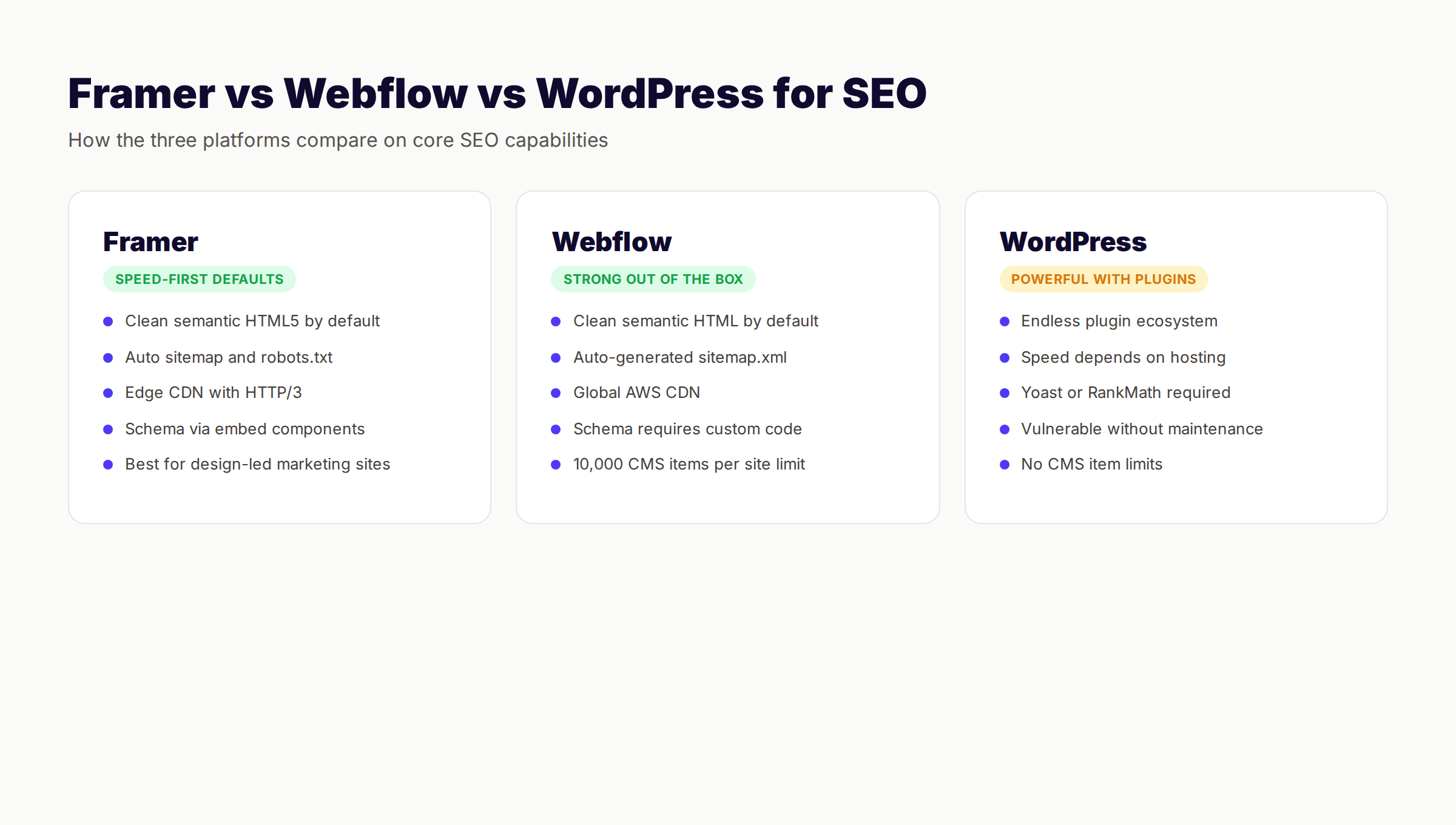
| Capability | Framer | Webflow | WordPress |
|---|---|---|---|
| Default semantic HTML | Strong | Strong | Theme dependent |
| Auto-generated sitemap | Yes | Yes | Plugin required |
| Auto-generated robots.txt | Yes | Yes | Plugin required |
| Schema markup | Custom code | Custom code | Plugin (Yoast/RankMath) |
| Page speed | Very fast (edge CDN) | Fast (global CDN) | Hosting dependent |
| URL structure control | Full | Full | Full |
| Plugin ecosystem | Growing (SEO plugins) | Limited | Massive |
| CMS scalability | ~10K items per collection | 10K items per site | Unlimited |
| Ideal for | Design-led marketing sites | Marketing sites, agencies | Blogs, large publishers |
If you run a design-led marketing site, agency, SaaS landing experience, or a B2B startup that prioritizes design quality, Framer is the strongest pick. For larger marketing operations with complex CMS needs, Webflow wins on flexibility. If you publish 1,000+ blog posts a month or run a complex publication, WordPress wins on raw scale.
Chapter 2: Framer Site Settings for SEO
Before you optimize a single page, configure the project-level settings. These apply site-wide and form the SEO foundation everything else builds on.
Open your Framer project. Click the project name at the top to open Site Settings. The settings that matter for SEO live across four areas: General, SEO, Domains, and Custom Code.
General Tab Configuration
Set your site name, time zone, and locale here. Time zone matters because Framer timestamps publish dates with this setting, and date markup feeds into rich snippets and AI Overview citation signals.
Confirm your site title. Framer uses this as the suffix on pages without a custom title set. Keep it short. "Acme Studio" beats "Acme Studio — Award-Winning Branding Agency in Brooklyn, NY" for SERP truncation reasons.
SEO Tab: The Most Important Screen in Framer
This single screen controls more SEO outcomes than any other Framer setting. Open SEO under Site Settings.
Configure these fields:
- Default page title. The fallback title used on pages without a custom title. Format as "Brand Name — Tagline" or just the brand name.
- Default description. The fallback meta description for pages missing a custom description. Write a compelling 150-character pitch.
- Default Open Graph image. Upload a 1200×630 branded image. This appears in social shares for any page without a custom OG image set.
- Robots.txt. Framer auto-generates robots.txt. Verify it allows Googlebot, Bingbot, and the AI crawlers your strategy targets.
- Sitemap.xml. Framer auto-generates a sitemap at yoursite.com/sitemap.xml. Submit this URL to Google Search Console.
- Indexing toggle. Each page has an indexing toggle. Disable indexing only on utility pages (thank-you pages, internal tools, legal duplicates).
The indexing toggle and sitemap auto-generation together solve 80% of Framer SEO problems out of the box. The other 20% lives in on-page configuration and CMS bindings.
Domains Tab: SSL, WWW, and Canonical
Connect your custom domain under Domains in Site Settings. Framer issues SSL automatically through Let's Encrypt. Verify HTTPS is active.
Pick either WWW or non-WWW as your canonical domain. Google treats them as separate sites otherwise, which splits link equity. Most modern sites pick non-WWW (cleaner URLs), but the choice matters less than consistency. Force the non-canonical variant to 301 redirect to the canonical.
Framer ships sites on a yoursite.framer.website subdomain by default. Connect your custom domain before public launch. The Framer subdomain accumulates ranking signals that do not transfer cleanly to your custom domain, and Google indexes both unless you add the right canonical tags.
Custom Code Tab: Site-Wide Injections
This is where global tracking scripts and global schema markup live. Use the Head section for Search Console verification tags, GA4 tracking, Hotjar, and Organization schema. Use the Body End section for chat widgets and analytics endpoints.
Be careful here. Bloated head code slows every page on the site. Audit this section quarterly and remove tags from tools you no longer use. We see Framer projects with 800ms of third-party JavaScript loading on every page because a Crazy Egg trial from 2023 is still firing.
Site Settings Checklist
Before you move on, verify each of these:
- ✓ Custom domain connected and SSL active
- ✓ WWW or non-WWW set as canonical
- ✓ Default page title set (brand name)
- ✓ Default meta description set (150 chars)
- ✓ Default Open Graph image uploaded (1200×630)
- ✓ Sitemap.xml accessible and submitted to Search Console
- ✓ Robots.txt configured to allow main content
- ✓ Framer subdomain blocked from indexing
- ✓ Organization schema added to site-wide head code
- ✓ GA4 and Search Console verification tags installed
Chapter 3: On-Page SEO for Framer Pages
Site settings handle the foundation. On-page SEO handles each individual URL. Framer gives you per-page control through the Page Settings panel.
To access page settings, click the page in the left sidebar, then look at the right-hand inspector panel. The SEO section lives there alongside Indexing, Open Graph, and Custom Code controls.
Title Tags That Rank
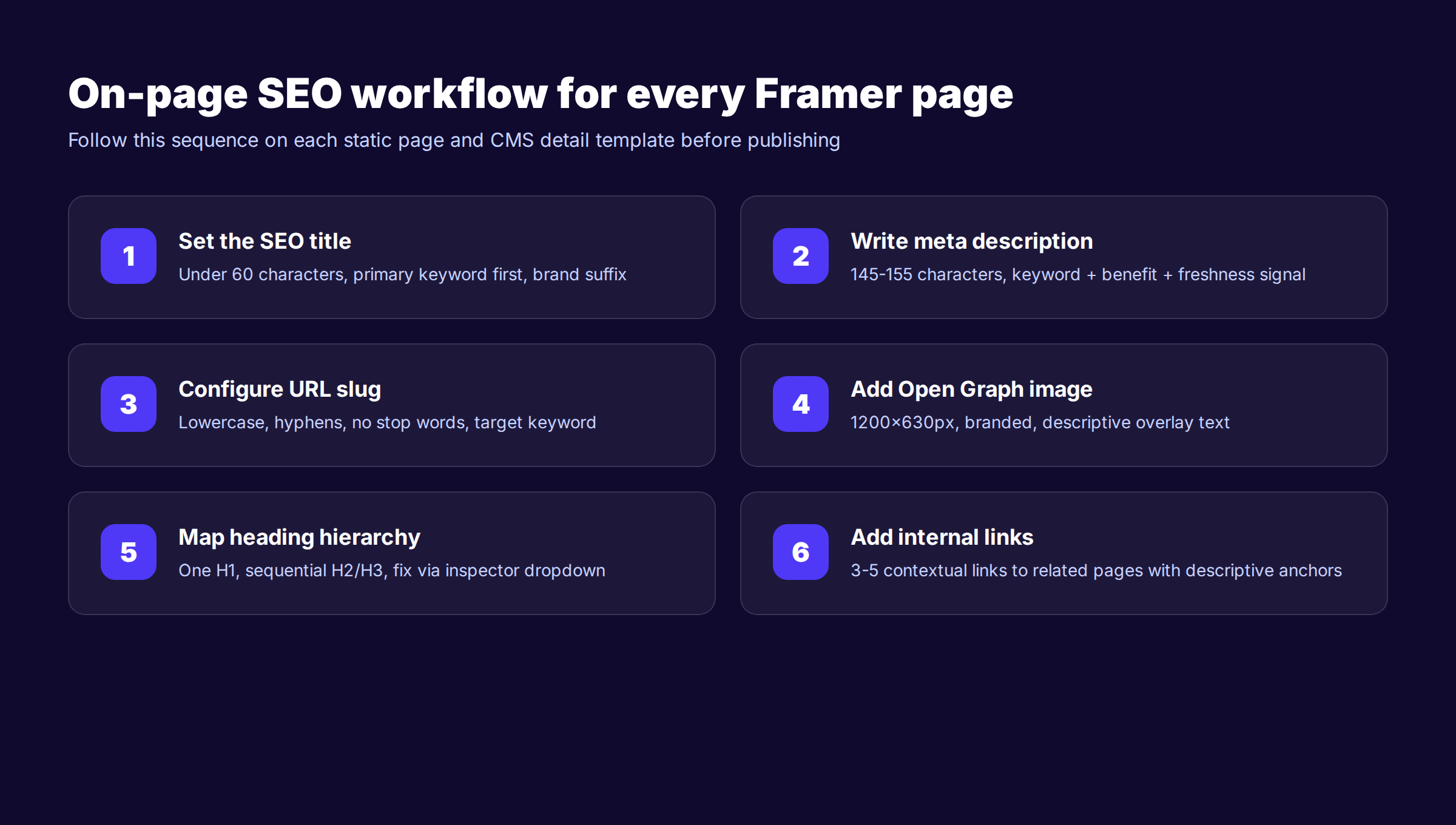
The title tag is the single strongest on-page ranking signal Google still uses. Framer lets you set a custom title per page through the SEO section in Page Settings.
Title tag rules for Framer:
- Keep titles under 60 characters to prevent truncation in the SERP
- Lead with the primary keyword for the page
- Add a brand suffix separated by a pipe character
- Use unique titles on every page (Google deduplicates identical titles)
- Match search intent, not internal product naming
Bad: "Welcome to Acme — Home" Good: "Branding Agency for Healthcare Startups | Acme Studio"
For CMS pages, bind the SEO Title field to a collection field. Most teams use the collection name field as the default, then override on high-value entries with custom titles.
Meta Descriptions That Earn Clicks
Meta descriptions do not directly rank pages. They do drive click-through rate, and click-through rate is a measured behavior signal in Google's ranking systems.
Write meta descriptions that read like a promise. State the value, the differentiator, and a freshness signal where appropriate. Keep length between 145 and 155 characters. Google truncates anything longer in most SERPs.
Bad: "We are a full-service branding agency offering design solutions for startups in many industries." Good: "Healthcare branding agency that has launched 47 medical startups since 2019. Logos, websites, and brand systems built for FDA-regulated markets."
Read our deep dive on how to write meta descriptions that drive clicks for the full framework with 30+ examples.
URL Slug Structure
Framer lets you customize the slug for every static page and every CMS item. Slug rules apply universally across the platform.
Use lowercase letters. Use hyphens to separate words, not underscores. Drop stop words like "the," "and," and "of" where possible. Keep slugs short and descriptive. Avoid dates or year numbers in the slug since those age content fast and force redirects later.
Bad: /our_blog_post_about_framer_seo_in_2025/ Good: /framer-seo-guide/
For CMS templates, the slug field auto-generates from the name field. You can override per item, and you should for any post targeting a specific keyword. We covered the broader strategy in our on-page SEO guide.
Heading Hierarchy
Every Framer page needs exactly one H1 tag. The H1 should contain the primary keyword and match search intent. H2s organize the main sections. H3s organize subsections within those.
Framer does not enforce heading hierarchy. You can stack three H1s on a page if you want. Do not. Crawlers use heading structure to understand topical relationships, and AI search systems extract H2s to populate AI Overview answers.
The audit move in Framer: select any text element, open the right-hand inspector, and confirm the HTML tag matches the visual hierarchy. Use the "tag" dropdown to switch between H1, H2, H3, P, and other semantic elements. The hero headline is often misconfigured as a Paragraph styled to look like an H1, which costs ranking signal.
Image Alt Text in Framer
Framer makes alt text simple but easy to skip. Select any image, look at the right-hand inspector, and find the Alt Text field. Write a descriptive sentence that includes the relevant keyword where natural.
Bad: "image1.png" Good: "Framer SEO page settings panel showing meta title and description fields"
For CMS images, bind the alt text field to a collection field. Add an "Image Alt" plain text field to every collection that holds images. Bind the alt attribute on the dynamic image element to that field. Every entry now ships with proper alt text on the hero image. Image search compounds for sites that handle this correctly.
ARIA Labels for Icons and Buttons
Framer supports ARIA labels through the accessibility section in the inspector. Add descriptive labels to icons, icon buttons, and elements without visible text. ARIA labels help screen readers and indirectly help SEO because Google reads them as additional context.
Common ARIA label targets:
- Hamburger menu buttons ("Open navigation menu")
- Social icon links ("Visit our Twitter profile")
- Search icons ("Open search dialog")
- Carousel arrows ("Next slide", "Previous slide")
Internal Linking Inside Framer
Internal links spread ranking signals across your site and help crawlers discover new content. Framer makes internal linking easy through the link tool, which supports linking to pages, CMS items, sections, and external URLs.
Internal linking targets per Framer page:
- 3-5 contextual links per 1,000 words of body content
- Descriptive anchor text containing the target page's main topic
- Links to both related content and conversion pages
- Hub-and-spoke structure where pillar pages link out to subtopic posts and back
We cover this strategy in our guide to building topical authority through content clusters.
Chapter 4: CMS Collections That Scale SEO
The Framer CMS is where on-page SEO becomes scalable. A correctly configured collection template means every new entry inherits the right SEO structure automatically.
This is the difference between manually optimizing 30 pages and shipping 30 new ranked pages a month. The CMS does the work. The designer sets it up once.
Required Collection Fields for SEO
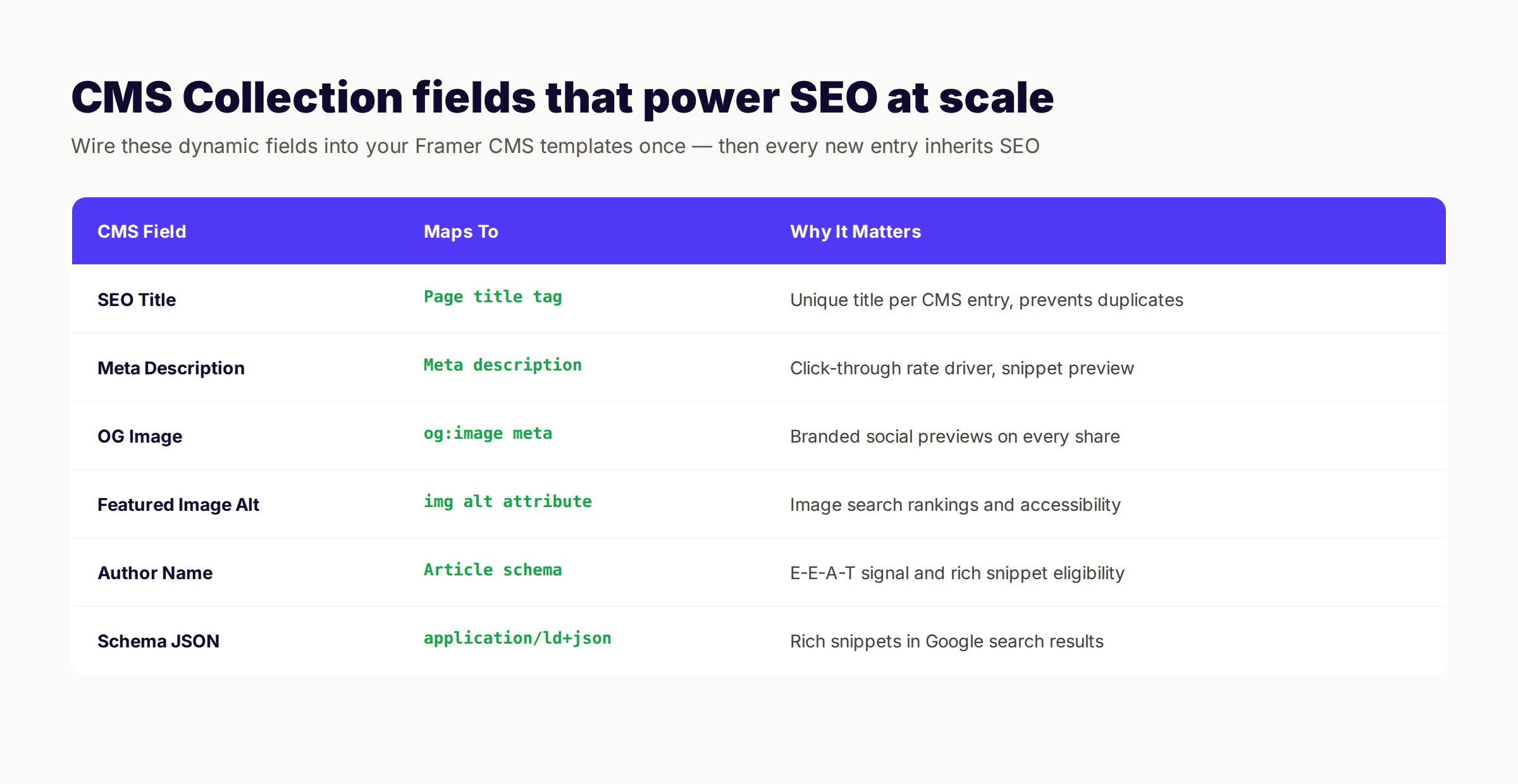
Every blog, case study, or resource collection needs these fields at minimum. Add them in the Collection settings panel before you build the template.
| Collection Field | Field Type | Purpose |
|---|---|---|
| Title | Plain text | Maps to H1 and default page title |
| Slug | Slug | Maps to URL path |
| SEO Title | Plain text | Custom page title override |
| Meta Description | Plain text | Custom meta description |
| Featured Image | Image | Hero image displayed on detail page |
| Featured Image Alt | Plain text | Image alt attribute for accessibility and SEO |
| Open Graph Image | Image | Social preview image (1200×630) |
| Excerpt | Rich text | Used in card previews and OG description |
| Author Name | Plain text | For schema author field |
| Published Date | Date | Date schema and freshness signal |
| Modified Date | Date | Schema dateModified field |
| Category | Reference | Internal linking and breadcrumbs |
| Schema JSON | Plain text | Optional custom JSON-LD override |
Add these fields to the collection before you create your template. Adding fields after the fact still works, but you will need to backfill existing entries one by one.
Binding SEO Fields to the Template
In the CMS detail page template, open Page Settings on the right-hand panel. Bind each SEO control to the matching collection field.
- SEO Title → SEO Title field (with fallback to Title)
- Meta Description → Meta Description field (with fallback to Excerpt)
- Open Graph Title → Title field
- Open Graph Description → Meta Description field
- Open Graph Image → OG Image field (with fallback to Featured Image)
- Canonical URL → Auto (let Framer use the page URL)
Framer supports dynamic field binding through the variable picker in the SEO panel. Click the lightning-bolt icon next to each field, choose the collection field, and Framer wires the binding automatically. The fallback ensures every entry has SEO data even if the author forgot to fill the override field.
Image Alt Text on Dynamic CMS Images
Framer lets you bind alt text from a collection field to any dynamic image. This is the single most-forgotten CMS SEO move on the platform.
In the CMS template, select the dynamic image element. In the right inspector, find the Alt Text field under Accessibility. Click the lightning-bolt icon. Bind it to your Featured Image Alt field on the collection.
Every entry now ships with alt text on the hero image. Image search traffic compounds for sites that handle this correctly. We dive deeper in our blog image optimization guide.
Schema Markup in CMS Templates
Schema markup goes into a custom code embed component on the CMS template. Drop an Embed element into the template, paste in your JSON-LD, and bind the dynamic CMS fields where Framer's data should populate.
Article schema template for a Framer blog post:
<script type="application/ld+json">
{
  "@context": "https://schema.org",
  "@type": "Article",
  "headline": "{{title}}",
  "image": "{{featuredImage}}",
  "datePublished": "{{publishedDate}}",
  "dateModified": "{{modifiedDate}}",
  "author": {
    "@type": "Person",
    "name": "{{authorName}}"
  },
  "publisher": {
    "@type": "Organization",
    "name": "Your Brand"
  }
}
</script>
Framer's variable picker replaces the curly-brace tokens with collection field bindings. Build the script through the picker interface, not by hand, so the output renders the right syntax.
For deeper coverage, read our schema markup SEO guide and our breakdown on schema markup for blog posts specifically.
Stop hand-coding SEO into every Framer page. We build, optimize, and publish SEO articles every month into your Framer CMS — auto-tuned for your industry, your keywords, your brand voice.
Chapter 5: Technical SEO in Framer
Technical SEO is the layer that makes everything else work. A perfect title tag on a page Google cannot crawl ranks for nothing.
Framer handles most technical SEO automatically. The areas that need your attention: redirects, canonical URLs, robots configuration, Core Web Vitals, and AI crawler access.
Managing 301 Redirects
Framer's redirect tool lives inside Site Settings → SEO → Redirects. The interface accepts an old URL path and a new URL path. Framer handles the rest as a permanent 301.
Use 301 redirects whenever:
- You change a page slug
- You delete a page that had organic traffic
- You merge two pages into one
- You migrate from a previous CMS (WordPress, Webflow, Squarespace) to Framer
A 301 redirect transfers most ranking signals from the old URL to the new one. A 404 transfers nothing. The difference is real, and the cost of forgetting redirects compounds over years of content changes.
Bulk redirect import on Framer happens through the Redirects panel. For large migrations, export your old URL list, map each row to a new URL, and paste the list into Framer's bulk redirect input. The full migration process is covered in our 301 redirects guide.
Canonical URLs and Duplicate Content
Duplicate content confuses search engines. Framer handles canonicals at the page level through the SEO section in Page Settings.
Most pages can use the default canonical (the page's own URL). You only need custom canonicals when:
- Multiple URLs serve the same content (UTM parameters, A/B test variants, language variants)
- Content is syndicated from another domain
- You want one URL in the index when several variants exist
Set the canonical to the URL you want Google to rank. Framer then adds a <link rel="canonical"> tag to the page head. For deeper coverage, read our canonical tags guide.
Robots.txt Configuration
Framer auto-generates a robots.txt file. The default allows all crawlers on the public site and blocks the preview subdomain. You can customize the file under Site Settings → SEO → Robots.txt with directives that override the defaults.
Common additions:
- Block utility folders like /thank-you/ or /preview/
- Allow image crawlers explicitly
- Reference your sitemap URL
- Block AI crawlers if your strategy requires it
A note on AI crawlers: blocking GPTBot, ClaudeBot, or PerplexityBot removes your content from those AI systems entirely. For most businesses, allowing AI crawlers is the better move because AI search citations now drive measurable referral traffic. Decide intentionally, not by default.
Core Web Vitals on Framer
Framer sites perform well on Core Web Vitals when configured correctly. The three metrics Google measures:
- Largest Contentful Paint (LCP) — Should load within 2.5 seconds
- Interaction to Next Paint (INP) — Should respond within 200ms
- Cumulative Layout Shift (CLS) — Should score below 0.1
Framer ships with image lazy loading, responsive image variants, automatic WebP conversion, and a global edge CDN. The CWV problems we see in Framer audits trace back to a handful of repeatable patterns.
Oversized hero images come first. A 4MB JPEG behind a hero slows LCP by seconds even after Framer's compression kicks in. Resize hero images to the maximum display dimension before upload. Most hero images should ship under 200KB after compression.
Heavy animations and Lottie files come second. Framer makes complex animations easy, and designers love them. Each animation adds JavaScript to the main thread. Each Lottie file adds parse time. Audit animation density on hero sections and remove anything that does not earn its CWV cost.
Custom fonts come third. Loading four font weights from Google Fonts blocks rendering. Limit font weights to two per family. Use Framer's font preload setting on critical weights and font-display: swap so text renders before fonts arrive.
For the full breakdown, read our Core Web Vitals guide and the deeper dive on page speed optimization.
XML Sitemaps in Framer
The auto-generated sitemap lives at /sitemap.xml. Framer refreshes it on every publish. You can exclude individual pages by toggling the indexing setting in Page Settings off.
Submit the sitemap to Google Search Console once. Search Console crawls it regularly thereafter. Monitor the Coverage report monthly for crawl errors, indexing issues, and excluded pages.
For sites with thousands of CMS items across multiple collections, Framer generates one combined sitemap. If you prefer separate sitemaps per content type, build a custom sitemap through the Framer API and host it at a custom URL. Most sites do not need this. Read our XML sitemap guide for the full setup.
Fixing Broken Links
Internal links rot when target pages move or get deleted. External links rot when third-party sites disappear. Search engines penalize broken link patterns at scale, and broken internal links are a leading cause of crawl budget waste.
Run a quarterly broken link audit. Use Search Console's Coverage report, or run an external crawl with Screaming Frog. Read our guide on how to fix broken links for the full process.
Chapter 6: Schema Markup for Framer Sites
Schema markup is structured data that helps search engines understand your content. Framer does not ship schema by default. You add it through custom code embeds on individual pages or templates.
Schema matters more in 2026 than it ever has. AI Overviews cite schema-rich pages at higher rates than unstructured pages. Rich snippets boost click-through rates by 20-40% on commercial intent queries. Voice assistants pull from schema-structured FAQ blocks.
Schema Types Every Framer Site Needs
Start with these four schema types. Most Framer sites can stop here and capture the bulk of the rich-result lift.
Organization schema. Add to the site-wide head code under Site Settings → Custom Code. Includes business name, logo, social profiles, and contact info. Renders the knowledge panel and brand snippets in SERPs for branded searches.
Article schema. Add to the blog post CMS template through an Embed component. Includes headline, image, author, publish date, and modified date. Required for Google Discover eligibility on news and editorial content.
FAQ schema. Add to pages with question-and-answer content. Pulls FAQ accordions into the SERP as rich results that expand directly in search.
BreadcrumbList schema. Add to category and subpage templates. Renders breadcrumb trails in the SERP instead of full URLs, which improves click-through rate.
Implementing Schema in Framer
The cleanest implementation pattern uses an Embed component dropped into the template. The component renders the <script> tag as inline HTML at the position you drop it.
Best practice: place the schema embed at the bottom of the body, not the head. Framer renders body embeds reliably. Head custom code requires a project publish for changes to take effect on staging, which slows iteration.
Schema validation matters. Run every template through the Google Rich Results Test before publishing. Schema errors invalidate the entire markup block, which is worse than no schema at all because Google may stop trusting your data.
Schema for AI Search Citations
AI Overviews, ChatGPT search, and Perplexity all parse schema markup when ranking sources. Sites with clean Article schema get cited at higher rates than sites without.
The pattern that performs best in AI search:
- Article schema on every blog post with author, publish date, and modified date
- Organization schema with sameAs links to social profiles
- FAQPage schema on guides and how-to content
- Speakable schema on the answer paragraph for voice search
We covered the full AI citation playbook in how to get cited in AI search and the deeper context on tracking AI search visibility.
Chapter 7: Content Strategy for Framer Sites
Technical SEO opens the door. Content walks through it. Framer sites that rank publish consistent, useful content that targets real search demand. The platform is the easy part.
The Framer content gap we see most often: beautiful site, three blog posts from launch month, dead silence ever since. Design teams ship the redesign and forget that content velocity is what drives organic growth.
Setting Content Cadence
Sites that publish 16 or more posts per month generate 3.5x more traffic than sites publishing 0-4 posts. The relationship is consistent across industries and verticals.
For most Framer sites, the right minimum cadence is two posts per week. That is 8-10 posts per month, enough to build topical authority over 6-12 months. The right maximum depends on your team size and quality bar. Most teams cap at 20-30 posts per month before quality drops.
We cover the data behind publishing frequency in our blog frequency study and break down content velocity for SEO in a separate guide.
Keyword Strategy for Framer Sites
Framer sites are often built for specific service businesses, design agencies, SaaS products, or B2B startups. Keyword strategy should map to the buyer journey for that ideal customer profile.
Three tiers of keywords work well:
- Bottom-funnel commercial: "best [tool] for [use case]", "[competitor] alternatives", "[service] near me"
- Mid-funnel informational: "how to [solve problem]", "[topic] guide", "[topic] checklist"
- Top-funnel educational: "what is [topic]", "[topic] explained", "[topic] examples"
Pick a primary intent for each page. Map secondary keywords to subsections. Use free keyword research tools to find search volume and difficulty before committing to a topic.
Framer CMS Templates That Drive Conversions
The structure of a Framer blog template matters as much as the content inside it. High-converting Framer blog templates share these elements:
- Sticky table of contents on desktop
- Reading progress bar at the top of the viewport
- Author bio with photo and bylines link
- Related posts grid at the bottom
- Inline CTA blocks every 800-1,000 words
- Newsletter capture in the sidebar or before the FAQ
- Sharing buttons that do not require JavaScript bloat
- Comment system that integrates without iframe loading
Build the template once. Every post inherits the structure. Conversion rate, time on page, and pages per session all lift when the template handles these elements consistently. We covered the data in our breakdown of how to write SEO blog posts.
Topical Authority Through Content Clusters
Search engines reward sites with deep coverage of a topic. The pattern is called topical authority, and it is the strongest content strategy for Framer marketing sites.
Build content clusters around pillar topics. A pillar page targets the broad topic (e.g., "Framer SEO Guide"). Subtopic pages target longer-tail queries (e.g., "Framer schema markup," "Framer page speed," "Framer 301 redirects"). All cluster pages link back to the pillar and to each other.
The CMS Collections feature is built for this pattern. Create a category field on your blog collection. Tag every post by category. Display related posts on each detail template dynamically. Cluster structure forms automatically from the data model.
We walk through the full method in our guide to building topical authority.
Writing for AI Overviews
Framer sites compete for AI Overview citations alongside traditional rankings. The content patterns that earn AI citations:
- Clear, definitional opening paragraphs that answer the query directly
- Q&A formatted sections with specific question H2s and H3s
- Numbered lists and step-by-step formats
- Tables that compare options or summarize data
- Named expert author with bio and credentials
- Citations to authoritative sources (Google, Ahrefs, HubSpot, industry data)
Read our breakdown of how to optimize for Google AI Overviews for the deeper framework.
Chapter 8: Common Framer SEO Mistakes
After auditing hundreds of Framer sites, the same mistakes appear over and over. Fix these and you will outrank 70% of the Framer sites in your space.
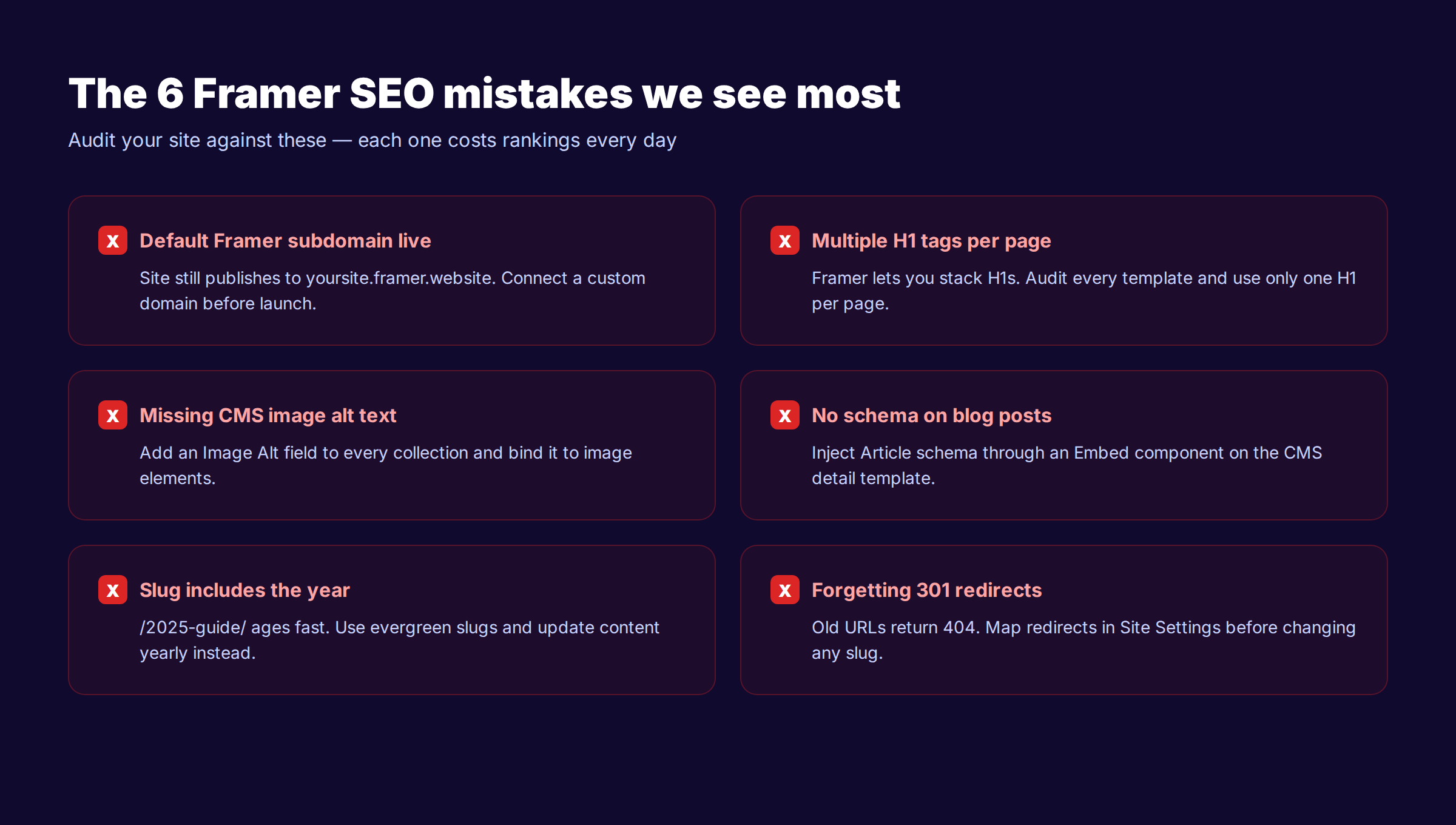
Mistake 1: Launching on the Framer Subdomain
Default Framer projects publish to yoursite.framer.website. This subdomain accumulates ranking signals that do not transfer cleanly to your custom domain when you finally connect one.
Fix: connect your custom domain before public launch. Add the custom domain in Site Settings → Domains. Update DNS records at your registrar. Force HTTPS. Set the canonical to the custom domain.
If you have already launched on the framer.website subdomain, do this immediately:
- Connect the custom domain
- Set it as the primary domain
- Add 301 redirects from framer.website URLs to the new domain (Framer handles this automatically once a custom domain is primary)
- Update the canonical on every page to the custom domain
- Resubmit your sitemap to Search Console
Mistake 2: Multiple H1 Tags Per Page
Framer does not prevent you from using multiple H1 tags. Designers often style the hero headline and the page section headline both as H1 because they look similar visually.
Fix: audit every template. Each page should have exactly one H1. Convert secondary headlines to H2. Visual styling stays the same; only the semantic tag changes through the inspector dropdown.
Mistake 3: Missing Alt Text on CMS Images
Static images often get alt text inline because designers see the field while placing the image. CMS images need an alt text field bound to the image element. Most Framer projects we audit have alt text on static images and nothing on dynamic CMS images.
Fix: add an Image Alt field to every CMS Collection that contains images. Bind it to the alt attribute on the image element in the template. Backfill existing entries with descriptive alt text containing the relevant keyword.
Mistake 4: No Schema on Templates
Blog posts without Article schema lose AI Overview citations and Google Discover eligibility. Service pages without Service schema lose rich snippet opportunities. Both translate to fewer clicks at the same ranking position.
Fix: add schema embeds to every CMS template. Test in Rich Results Test before publishing. Monitor schema performance in Search Console's Enhancements report monthly.
Mistake 5: Slug Includes the Year
URLs like /framer-seo-guide-2025/ feel current at launch and feel outdated by January. Year-dated slugs force annual redirects, which leak some link equity each time.
Fix: write evergreen slugs. Drop the year. Update the post content yearly with refreshed data, but keep the URL stable. The title tag is the right place for the year, since title tags update without breaking link equity.
Mistake 6: Forgotten 301 Redirects
Page renames, slug changes, and content consolidations are inevitable on growing sites. Every one of them should ship with a redirect.
Fix: build a redirect step into every content change workflow. Before deleting or renaming any URL, add the redirect in Site Settings → SEO → Redirects.
Mistake 7: Overlay Content That Crawlers Cannot Read
Framer makes hover overlays, modal popups, and animated reveals trivial to build. The content inside those overlays often does not render in the initial HTML that Google crawls, which makes that content invisible for SEO.
Fix: keep ranking-critical content in the main page DOM, not inside hover or click-triggered overlays. Use the Framer accessibility settings to ensure overlay content is reachable through keyboard navigation and visible to crawlers in the initial render.
Mistake 8: No Image Optimization Before Upload
Framer compresses images on upload but does not resize them. A 4000×3000 image uploaded for a 600px display still loads with a much larger source than needed. Framer generates responsive variants but the source matters for both file size and processing time.
Fix: resize images to the maximum display size before upload. Compress through TinyPNG or Squoosh. Aim for hero images under 200KB and inline images under 100KB after compression.
The honest truth about Framer content. Most agencies bill $250-500 per blog post and ship 4 per month. We publish articles, automatically, for $99.
Chapter 9: The Framer SEO Launch Checklist
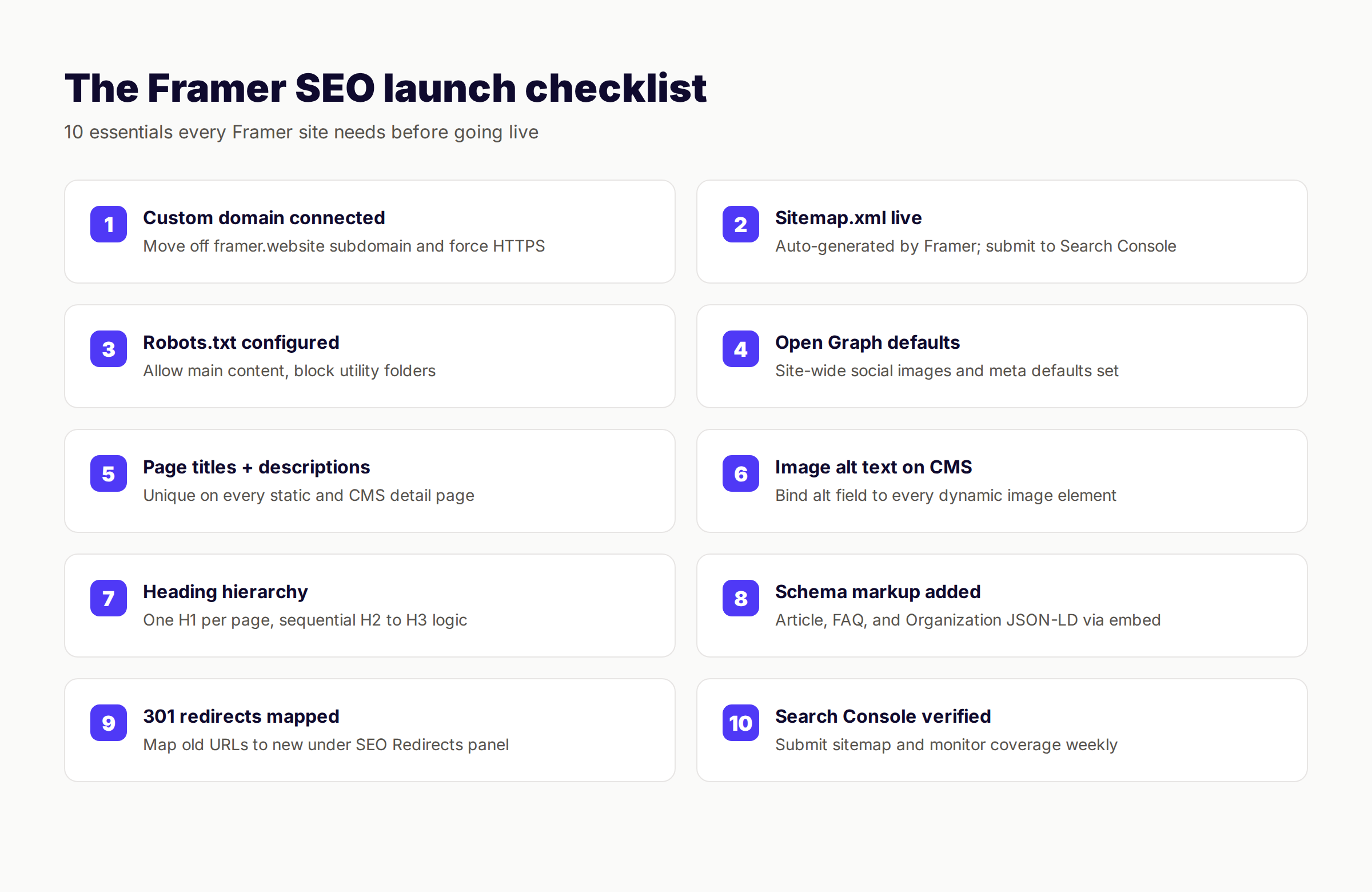
Use this checklist before every Framer site goes live, every major redesign, and every quarterly audit.
Pre-Launch Technical SEO
- ✓ Custom domain connected with SSL active
- ✓ WWW or non-WWW canonical decision enforced
- ✓ Sitemap.xml accessible at /sitemap.xml
- ✓ Sitemap submitted to Google Search Console
- ✓ Robots.txt configured with sitemap reference
- ✓ Framer preview subdomain blocked from indexing
- ✓ 301 redirect map populated for prior URL changes
- ✓ Search Console verification tag installed
- ✓ GA4 tracking installed
- ✓ Default Open Graph image uploaded (1200×630)
Pre-Launch On-Page SEO
- ✓ Every static page has a unique title tag (under 60 chars)
- ✓ Every static page has a unique meta description (145-155 chars)
- ✓ Single H1 per page, with primary keyword
- ✓ Heading hierarchy logical (H1 → H2 → H3, no skipped levels)
- ✓ All images have descriptive alt text
- ✓ ARIA labels on icons and icon-only buttons
- ✓ Internal links connect related pages
- ✓ CTA placement reviewed on every page
Pre-Launch CMS Configuration
- ✓ SEO Title field added to every collection
- ✓ Meta Description field added to every collection
- ✓ Featured Image Alt field added and bound in templates
- ✓ OG Image field added and bound in templates
- ✓ Schema embed added to every CMS detail template
- ✓ URL slug structure logical and short
- ✓ Indexing toggle enabled on indexable pages
Pre-Launch Content
- ✓ Minimum 10 high-quality pages live at launch
- ✓ Each page targets a real keyword with search volume
- ✓ Internal links form a logical site graph
- ✓ No thin content (under 300 words on indexable pages)
- ✓ No duplicate content across templates
- ✓ FAQ schema on relevant pages
- ✓ Article schema validated in Rich Results Test
Post-Launch Monitoring (Weekly)
- ✓ Search Console Coverage report reviewed
- ✓ Search Console Performance trends reviewed
- ✓ Core Web Vitals report checked
- ✓ Broken links scanned through Screaming Frog or Search Console
- ✓ New content shipped per cadence plan
- ✓ AI search citations tracked through brand mention monitoring
Chapter 10: Scaling Framer SEO Without Burning Out
Most Framer sites stall at the same point: launch is clean, the first month brings curiosity traffic, then content velocity drops and rankings plateau. The cause is almost always production capacity.
Designers build the site. Marketing owns the content. Marketing teams hire freelance writers at $150-500 per post. Output runs at 4-8 posts per month. The math does not pencil out for sustained organic growth, especially in competitive verticals.
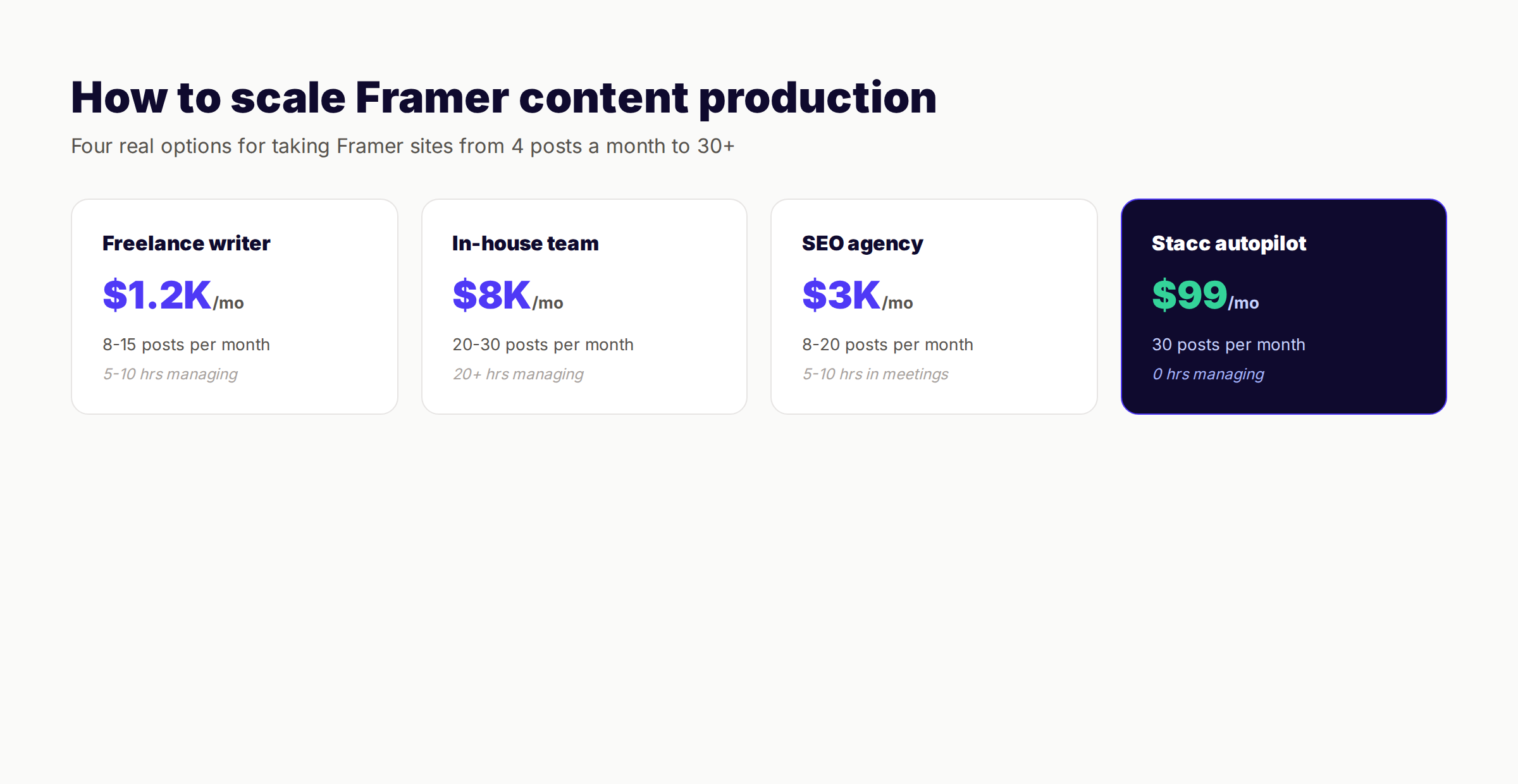
The honest options for scaling Framer content:
| Approach | Monthly Cost | Output | Time Investment |
|---|---|---|---|
| Hire a freelance writer | $1,200-4,000 | 8-15 posts | 5-10 hrs managing |
| Build an in-house content team | $8,000-15,000 | 20-30 posts | 20+ hrs managing |
| Use an SEO agency | $3,000-10,000 | 8-20 posts | 5-10 hrs in meetings |
| Use theStacc | $99-199 | Published for you | 0 hrs |
theStacc publishes SEO content into your Framer CMS through scheduled exports and direct CMS sync. We handle keyword research, brief creation, drafting, optimization, internal linking, schema injection, and publishing. The articles inherit your CMS template structure automatically, which means the design and SEO bindings you built once apply to every new post.
For most Framer marketing sites, the math wins on the autopilot model. The cheapest freelance writer charges $150 per article. The cost difference funds 12 months of content for the price of a single agency engagement.
What theStacc Does for Framer Sites
- Connect to your Framer CMS through scheduled content sync
- Research keywords with real search volume and intent
- Generate briefs and outlines aligned with your brand voice
- Write 1,500-3,000 word articles per topic
- Insert internal links to your existing content
- Add schema markup, alt text, and meta fields
- Publish directly into your Framer blog collection
- Refresh underperforming content quarterly
The trade-off is honest. You give up direct control over every word in exchange for 10x more content velocity. For sites that need to grow organic traffic and do not have a dedicated content team, the trade is worth it. For brand-critical thought leadership pieces, write those yourself and let theStacc handle the supporting library.
We also integrate with Webflow, Squarespace, Wix, and Shopify through native CMS sync. The Framer integration ships with a theStacc API key, your CMS collection ID, and field mapping that takes 15 minutes to configure.
theStacc Stack Method for Framer Sites
The compounding pattern we see win on Framer sites pairs Blog SEO with Local SEO. Blog SEO builds topical authority and ranks informational queries. Local SEO captures commercial-intent searches near your service area. Together they cover both ends of the buyer funnel.
Add the theStacc Local SEO module for $49 per month to publish Google Business Profile posts alongside your Framer blog content. The two modules together cost $148, less than a single freelance blog post, and produce 60 pieces of content monthly.
What practitioners are saying on X
Systems and fundamentals still move numbers; AI search adds measurement layers.
- @jakezward (Feb 2026): 2026 SEO predictions emphasize AI Overview share-of-SERP, schema for LLM token efficiency, brand mentions in AI answers as a KPI, proprietary data as a moat, and content refresh beating net-new AI slop. See the post on X.
- @hridoyreh (Mar 2026): Widely shared SEO skill tree: foundations, research, technical, on-page, content, links, AI SEO/GEO, analytics, UX, brand, programmatic — useful map for stats and how-to posts. See the post on X.
- @HlynurStefDev (Jul 2026): Public case: niche site traffic jumped from ~18 to 4,162 Google visits/month after focused technical/on-page SEO work (GSC screenshots claimed) — reminds that fundamentals still move numbers. See the post on X.
Grok, AI Overviews, and multi-engine visibility
For “framer seo guide”, multi-engine visibility still starts with clear definitions, sourced numbers, and extractable section answers. Grok additionally factors live X discussion — keep public claims consistent with this page.
- Google AI Overviews: Use passage-ready answers, tables, and FAQ schema where relevant.
- ChatGPT / Perplexity: Cite named sources next to key claims.
- Grok: Maintain accurate entity facts on-site and in high-signal X posts.
Frequently Asked Questions
Yes. Framer ships clean semantic HTML, a global edge CDN, auto-generated sitemap and robots.txt, full control over title tags and meta descriptions, and a CMS that scales SEO across templates. The platform is a strong foundation, but it requires intentional configuration. Most Framer ranking issues are setup problems, not platform problems.
Framer and Webflow are comparable on SEO fundamentals. Webflow has a slight edge on schema flexibility and CMS scalability. Framer has the edge on page speed defaults and design-led marketing sites. Pick the platform that fits your team's design workflow, not the one that wins generic SEO benchmarks. We covered the deeper comparison in our Webflow SEO guide.
Drop an Embed component into your page or CMS template, paste the JSON-LD script, and bind dynamic CMS fields through Framer's variable picker. Validate the output in Google's Rich Results Test before publishing. Article, FAQ, Organization, and BreadcrumbList schema cover most use cases. See our schema markup SEO guide for the full implementation pattern.
Yes. Framer generates a sitemap.xml file automatically at yoursite.com/sitemap.xml and refreshes it on every publish. You can exclude individual pages through the indexing toggle in Page Settings. Submit the sitemap URL to Google Search Console once after launch.
Framer serves pages through a global edge CDN with HTTP/3, automatic image optimization, and WebP conversion. Most Framer sites score above 90 on mobile PageSpeed Insights when designers size hero images correctly and limit animation density. Speed is a confirmed ranking factor, and Framer's defaults make hitting the speed bar easier than most platforms.
Yes, for everything except schema markup. Title tags, meta descriptions, redirects, canonical URLs, sitemap, robots.txt, Open Graph, and CMS SEO bindings all work through the Framer interface with zero code. Schema requires pasting JSON-LD into Embed components, which is copy-paste rather than coding.
New content typically starts ranking within 4-12 weeks for low-competition keywords and 6-18 months for competitive commercial keywords. Framer does not affect this timeline. Content quality, internal linking, backlinks, and publishing cadence are the variables that matter. Sites that publish consistently for 12 months almost always see organic traffic growth.
Framer does not auto-redirect when you change a slug or rename a page. The old URL returns a 404 unless you add a 301 redirect manually in Site Settings → SEO → Redirects. Every content change without a redirect leaks ranking signals. We cover the full process in our 301 redirects guide.
The Framer marketplace has a growing set of SEO plugins, including OptiScope and similar tools. They are useful for site audits and surfacing missing fields, but they do not replace the work of configuring SEO correctly in the first place. Use plugins as audit tools, not as a substitute for intentional setup.
The Bottom Line on Framer SEO
Framer is a strong SEO platform when configured intentionally. The defaults handle most of the technical foundation. Title tags, meta descriptions, redirects, sitemap, and CMS scaling are all built in. Schema and content velocity are the two areas that demand your attention.
The Framer sites that win share three patterns. They configure Site Settings before launch. They build CMS templates that scale SEO across every new entry. They publish consistently for 12-24 months instead of expecting results from 6 articles in month one.
If you want the technical setup, on-page tactics, and content velocity handled for you, theStacc publishes SEO articles directly into your Framer CMS for $99 a month.
This Framer SEO guide was researched and published by theStacc — the same platform businesses use to automate blog and local SEO content across Framer, Webflow, WordPress, and Shopify. We publish 3,500+ articles per month across 70+ industries. All recommendations were verified against current Framer documentation as of May 2026.
Related Reading
- Webflow SEO: The Complete Guide
- Squarespace SEO Guide
- Wix SEO Guide
- 301 Redirects: The Complete Guide
- Schema Markup SEO Guide
- Technical SEO Guide
- On-Page SEO Guide
- How to Build Topical Authority
Related Tools & Resources
Free SEO Tools:
Best Lists:
Sources & references
- [1] Princeton / Georgia Tech et al. — GEO research (arXiv:2311.09735)
- [2] @hridoyreh on X — Widely shared SEO skill tree: foundations, research, technical, on-page, content, links, AI SEO/GEO, analytics, UX, bran
- [3] @jakezward on X — 2026 SEO predictions emphasize AI Overview share-of-SERP, schema for LLM token efficiency, brand mentions in AI answers
- [4] Referenced source — developers.google.com

Plan topics, review article drafts, and publish to a connected CMS.
Weekly local SEO teardowns
One practical email a week. Map Pack, GBP, AI Overviews. No fluff. Unsubscribe anytime.