MCP for Google Search Console: Setup Guide (2026)
Set up MCP for Google Search Console in 7 steps. Connect GSC to Claude, Cursor, or any AI assistant. OAuth and service account methods covered. Updated 2026.
Stacc Editorial • 2026-04-04 • SEO Tools
In This Article
Google Search Console holds every data point you need to improve rankings. Clicks, impressions, CTR, index coverage, crawl errors. But pulling that data into a format you can act on takes 30 to 60 minutes per property, per week.
MCP for Google Search Console eliminates that bottleneck. The Model Context Protocol connects your GSC account directly to AI assistants like Claude, Cursor, or Gemini CLI. You ask a question in plain English. The AI queries your live search data and returns an answer in seconds.
We publish 3,500+ blogs across 70+ industries. Every one relies on search performance data. The workflow below is the same process we use to monitor keyword movement, find content gaps, and flag indexing issues without ever opening the GSC dashboard.
Here is what you will learn:
- What a Google Search Console MCP server does and why it matters
- Which MCP server to choose (3 options compared)
- How to set up OAuth or service account authentication
- How to configure the server in Claude Desktop, Cursor, or VS Code
- 10 real queries you can run on day one
- How to troubleshoot common setup errors
What Is a Google Search Console MCP Server?
A Google Search Console MCP server is a bridge between your GSC data and an AI assistant. It uses the Model Context Protocol — an open standard created by Anthropic — to give AI models structured access to external tools.
Without MCP, your AI assistant cannot see your search data. It can only work with what you paste into the chat window. With MCP, the assistant calls the GSC API directly, pulls live data, and analyzes it in context.
Think of it as giving your AI assistant read access to your Google Search Console account.
What You Can Do With a GSC MCP Server
The capabilities go far beyond basic data pulls. Here is what becomes possible:
| Capability | What It Replaces | Time Saved |
|---|---|---|
| Query search analytics by keyword | Manual GSC Performance tab filtering | 15 min per query |
| Detect traffic drops automatically | Weekly manual report review | 30 min per week |
| Find CTR optimization targets | Spreadsheet sorting and filtering | 20 min per audit |
| Inspect URL indexing status | One-by-one URL inspection in GSC | 5 min per URL |
| Submit sitemaps | Manual submission in GSC dashboard | 3 min per sitemap |
| Compare date ranges | Side-by-side tab switching | 10 min per comparison |
| Identify keyword cannibalization | Cross-referencing multiple reports | 45 min per audit |
| Generate performance reports | Manual screenshot and doc creation | 60 min per report |
A single query like “show me all keywords where I rank positions 4 through 10 with CTR below 3%” returns actionable results in under 5 seconds. That same analysis takes 15 to 20 minutes in the GSC dashboard.
How MCP Differs From the GSC API
The GSC API has existed for years. MCP does not replace it. MCP wraps the API in a standardized protocol that AI assistants understand natively.
The difference matters for 3 reasons:
- No code required. You do not write API calls. You type natural language.
- Context awareness. The AI remembers your previous questions and builds on them.
- Analysis included. Raw API responses need processing. MCP servers return analyzed, interpreted results.
If you have used the GSC API before, MCP gives you the same data with 90% less effort. If you have never touched an API, MCP makes the data accessible for the first time.
Which GSC MCP Server Should You Use?
At least 6 GSC MCP servers exist on GitHub as of April 2026. Three stand out for production use. The right choice depends on your technical comfort and use case.
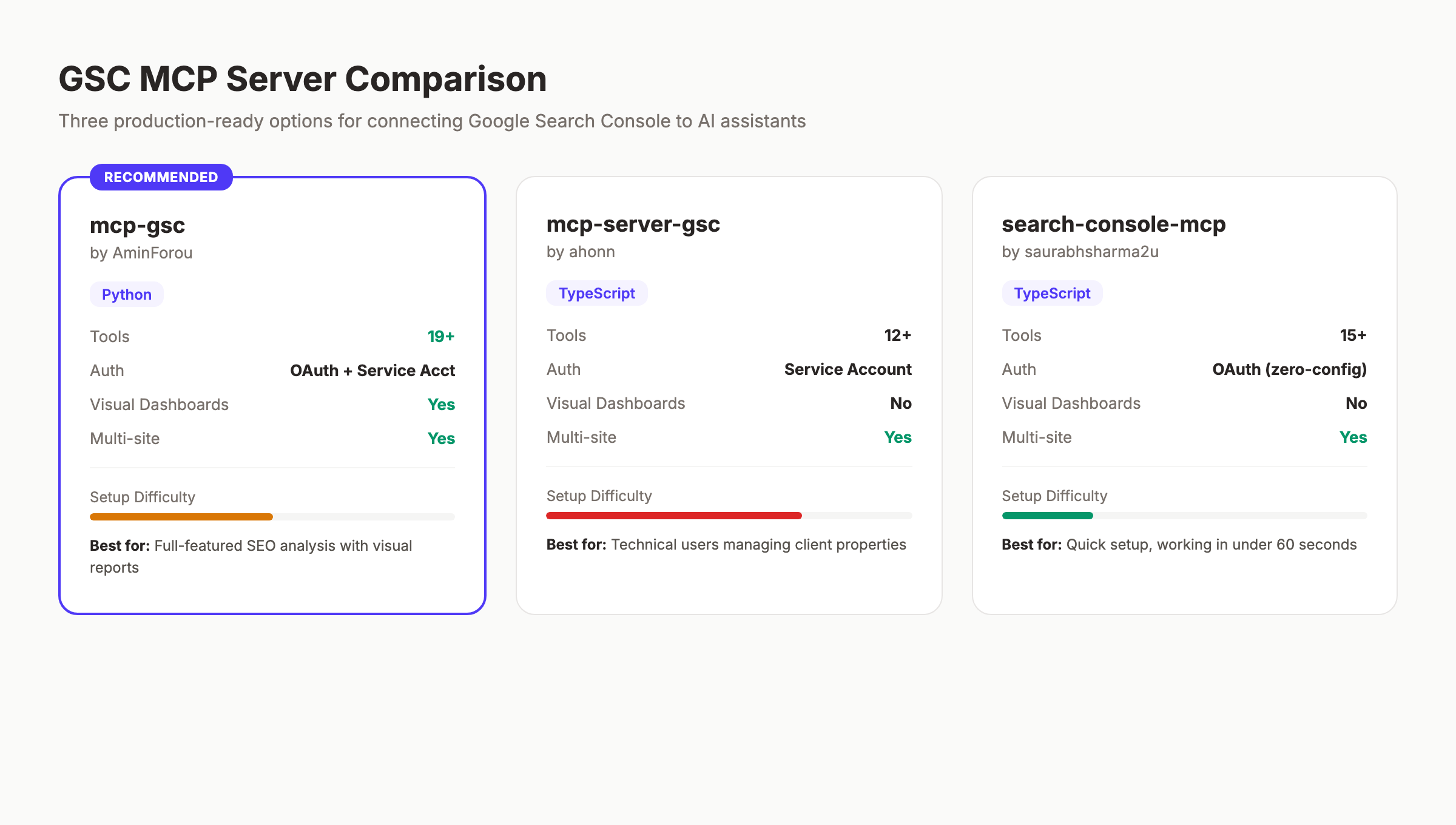
| Feature | mcp-gsc (AminForou) | mcp-server-gsc (ahonn) | search-console-mcp (saurabhsharma2u) |
|---|---|---|---|
| Language | Python | TypeScript | TypeScript |
| Auth Methods | OAuth + Service Account | Service Account | OAuth (zero-config) |
| Tools Available | 19+ | 12+ | 15+ |
| Visual Dashboards | Yes (v2.2) | No | No |
| Multi-site Support | Yes | Yes | Yes |
| Setup Difficulty | Medium | Medium-High | Low |
| Best For | Full-featured SEO analysis | Technical users | Quick setup |
Option 1: mcp-gsc by AminForou (Recommended)
This is the most complete GSC MCP server available. It includes 19+ tools covering search analytics, URL inspection, sitemap management, content gap analysis, and keyword cannibalization detection.
The v2.2 update (April 2026) added visual dashboard rendering inside Claude Desktop. Your analysis results appear as charts and color-coded summary cards, not just text.
Choose this if: You want the most features and do not mind installing Python.
Option 2: mcp-server-gsc by ahonn
A TypeScript-based server with strong search analytics capabilities. It requires service account authentication, which means more setup but better security for team environments.
Choose this if: You manage multiple client properties and prefer service accounts.
Option 3: search-console-mcp by saurabhsharma2u
The fastest to set up. OAuth-only authentication means you sign in with your Google account. No service account creation, no JSON key files. Working in under 60 seconds.
Choose this if: You want the quickest path to querying GSC data.
For this guide, we will use mcp-gsc by AminForou for the primary walkthrough. It offers the widest tool set and supports both OAuth and service account authentication.
Stop spending hours in the GSC dashboard. Stacc publishes 30+ SEO articles per month and monitors performance automatically. Start for $1 →
What You Need Before Starting
Gather these prerequisites before touching any configuration file.
Time required: 15 to 25 minutes Difficulty: Intermediate (command line basics helpful)
Software Requirements
- Python 3.11 or newer (download here)
- Node.js 18 or newer (download here)
- An MCP-compatible AI client (Claude Desktop, Cursor, VS Code with Copilot, or Gemini CLI)
- Git (optional, for cloning repositories)
Account Requirements
- A Google account with access to at least 1 verified GSC property
- Access to Google Cloud Console (free tier works)
Verify Your Python Version
Open your terminal and run:
python3 --versionYou need 3.11 or higher. If you see a lower version, update Python before proceeding.
Why this matters: The MCP server uses Python features introduced in 3.11. Older versions will throw import errors during installation.
Step 1: Create a Google Cloud Project
Every GSC MCP server needs API credentials from Google Cloud. This step creates the project that holds those credentials.
- Go to console.cloud.google.com
- Click the project dropdown at the top of the page
- Click New Project
- Name it something recognizable (example: “GSC MCP Server”)
- Click Create
Wait 10 to 15 seconds for the project to provision. Google redirects you to the project dashboard automatically.
Enable the Search Console API
With your new project selected:
- Go to APIs & Services in the left sidebar
- Click Enable APIs and Services
- Search for “Google Search Console API”
- Click the result and hit Enable
You also need the Indexing API if you plan to submit URLs for indexing through MCP:
- Search for “Web Search Indexing API”
- Click and Enable
Why this step matters: Without the API enabled, every MCP request to GSC returns a 403 error. This is the most common setup failure.
Pro tip: Bookmark your Google Cloud project URL. You will return here if you need to regenerate credentials or enable additional APIs.
Step 2: Set Up Authentication
You have 2 options. OAuth is simpler for personal use. Service accounts are better for teams and automation.
Option A: OAuth Setup (Recommended for Most Users)
OAuth lets you sign in with your personal Google account. No extra permissions needed.
- In your Google Cloud project, go to APIs & Services > Credentials
- Click Create Credentials > OAuth Client ID
- If prompted, configure the OAuth consent screen first:
- Choose External user type
- Fill in app name (“GSC MCP”) and your email
- Skip scopes — add them later
- Add your email as a test user
- Click Save and Continue through all screens
- Return to Credentials > Create Credentials > OAuth Client ID
- Choose Desktop app as the application type
- Name it “GSC MCP Client”
- Click Create
- Download the JSON file
- Rename it to
client_secret.json
Store this file in a secure location. You will reference its path in the MCP configuration.
Option B: Service Account Setup
Service accounts work without browser-based login. Better for automated SEO workflows and server deployments.
- In Google Cloud, go to APIs & Services > Credentials
- Click Create Credentials > Service Account
- Name it “gsc-mcp-reader”
- Grant the role Owner (or at minimum, no role — GSC permissions are managed separately)
- Click Done
- Click the new service account email
- Go to the Keys tab
- Click Add Key > Create new key > JSON
- Download the key file
- Rename it to
service_account_credentials.json
Now add the service account to your GSC property:
- Go to search.google.com/search-console
- Select your property
- Click Settings > Users and permissions
- Click Add user
- Paste the service account email (found in the JSON file under
client_email) - Set permission to Full
- Click Add
Why this step matters: Authentication errors account for 80% of MCP setup failures. Double-check that your credential file path is correct and that the service account has GSC access.
Step 3: Install the MCP Server
Clone the repository and set up the Python environment.
git clone https://github.com/AminForou/mcp-gsc.git
cd mcp-gsc
python3 -m venv .venv
source .venv/bin/activate
pip install -r requirements.txt
On Windows, replace source .venv/bin/activate with:
.venv\Scripts\activateThe installation takes 1 to 2 minutes. You should see no errors in the pip output.
Verify the Installation
Run a quick check:
python3 -c "import mcp; print('MCP installed successfully')"If this prints the success message, your environment is ready.
Why this step matters: A broken Python environment causes cryptic errors when the MCP client tries to start the server. Verify now, not later.
Pro tip: Use the full absolute path to the Python executable in your MCP config. Relative paths break when the AI client launches the server from a different working directory.
Your SEO data, analyzed automatically. Stacc monitors rankings, finds content gaps, and publishes optimized articles every week. Start for $1 →
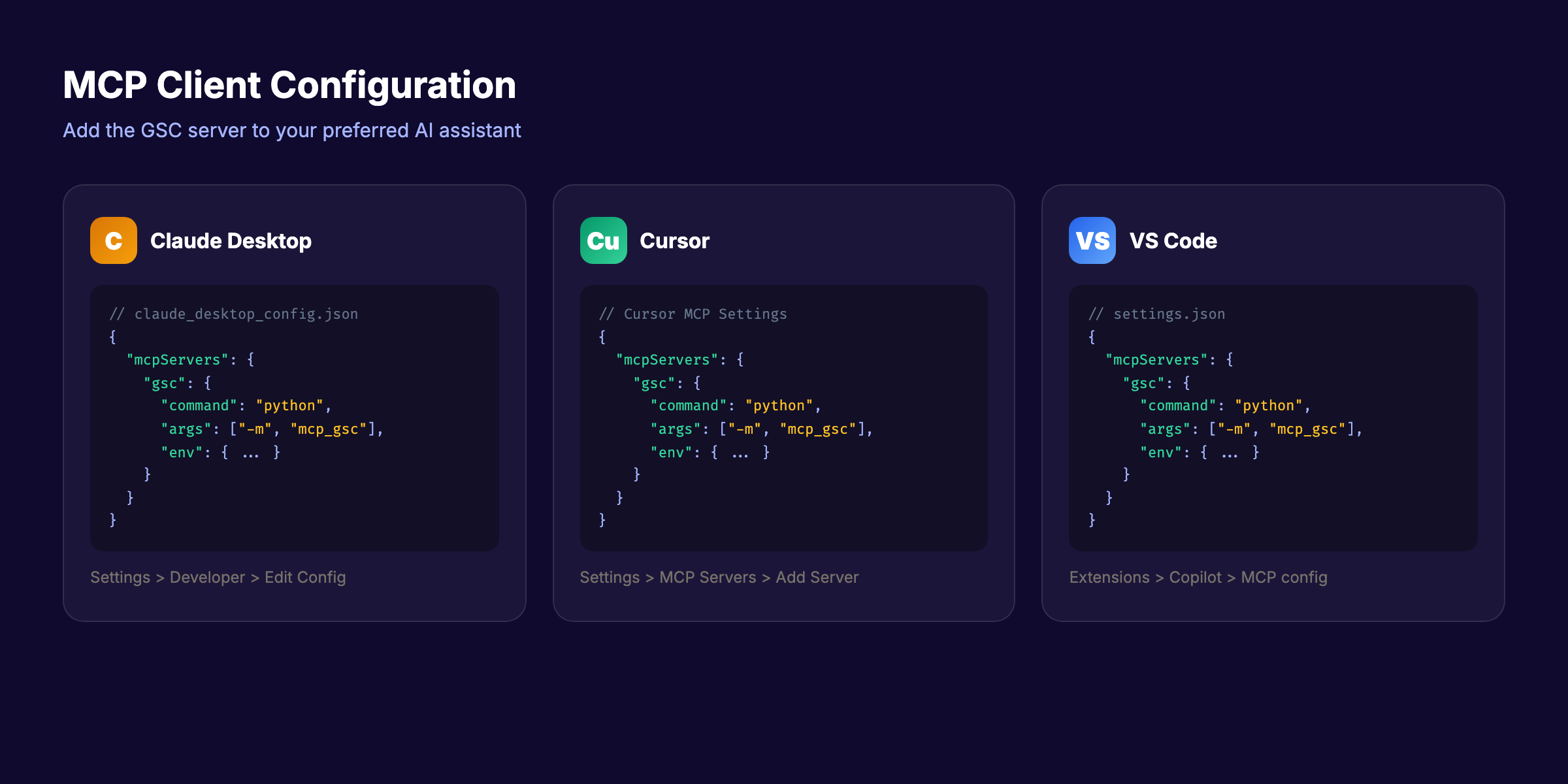
Step 4: Configure Your MCP Client
This step connects your AI assistant to the GSC MCP server. The configuration differs by client.
Claude Desktop Configuration
- Open Claude Desktop
- Go to Settings > Developer > Edit Config
- This opens
claude_desktop_config.json - Add the following to the
mcpServersobject:
For OAuth:
{
  "mcpServers": {
    "gsc": {
      "command": "/full/path/to/mcp-gsc/.venv/bin/python",
      "args": ["-m", "mcp_gsc"],
      "env": {
        "GSC_OAUTH_CLIENT_SECRETS_FILE": "/full/path/to/client_secret.json",
        "GSC_DATA_STATE": "all"
      }
    }
  }
}
For Service Account:
{
  "mcpServers": {
    "gsc": {
      "command": "/full/path/to/mcp-gsc/.venv/bin/python",
      "args": ["-m", "mcp_gsc"],
      "env": {
        "GSC_CREDENTIALS_PATH": "/full/path/to/service_account_credentials.json",
        "GSC_DATA_STATE": "all"
      }
    }
  }
}
Replace /full/path/to/ with actual paths on your machine.
- Save the file
- Restart Claude Desktop completely (quit and reopen)
Cursor Configuration
- Open Cursor Settings
- Navigate to MCP Servers
- Click Add Server
- Use the same command and args as the Claude Desktop config above
- Save and restart Cursor
VS Code with GitHub Copilot
- Open your VS Code
settings.json - Add the MCP server configuration under the appropriate extension key
- Reload VS Code
Why this step matters: A single typo in the JSON config — a missing comma, a wrong path — prevents the server from starting. Use absolute paths for every file reference.
Verify the Connection
After restarting your client, look for the GSC tools in the tool list. In Claude Desktop, you will see a hammer icon indicating available MCP tools. Click it to confirm “gsc” appears with its tool list.
If OAuth: The first time you use a GSC tool, a browser window opens asking you to sign in. Approve access once. The token is cached for future sessions.
Step 5: Run Your First GSC Query
The server is running. Time to test it. Open your AI assistant and try these queries, starting simple and building up.
Basic Queries
List your properties:
Show me all my Google Search Console properties.This confirms the connection works. You should see every GSC property linked to your account.
Get a performance snapshot:
Give me a performance overview for example.com for the last 28 days.This returns total clicks, impressions, average CTR, and average position.
Intermediate Queries
Find quick-win keywords:
Show me keywords where example.com ranks positions 4-10
with more than 100 impressions in the last 28 days.
These are your highest-ROI optimization targets. A small ranking improvement moves them to page 1.
Detect traffic drops:
Compare my search performance this month vs last month
for example.com. Flag any keywords that dropped more
than 20% in clicks.
This replaces 30 minutes of manual date-range comparison in the GSC dashboard.
Check indexing status:
Inspect the URL https://example.com/blog/important-post
and tell me if it is indexed.
Faster than the manual URL Inspection tool, especially when checking multiple URLs.
Advanced Queries
Content cannibalization audit:
Find all keywords where more than one page from example.com
ranks. Show me the competing URLs and their positions.
Keyword cannibalization kills rankings silently. This query surfaces every instance in seconds.
CTR benchmark analysis:
For my top 50 keywords by impressions, show me which ones
have a CTR below the expected benchmark for their position.
Sort by opportunity size.
Full site health report:
Generate a complete SEO health report for example.com
covering: top performing pages, declining pages, indexing
issues, and sitemap status.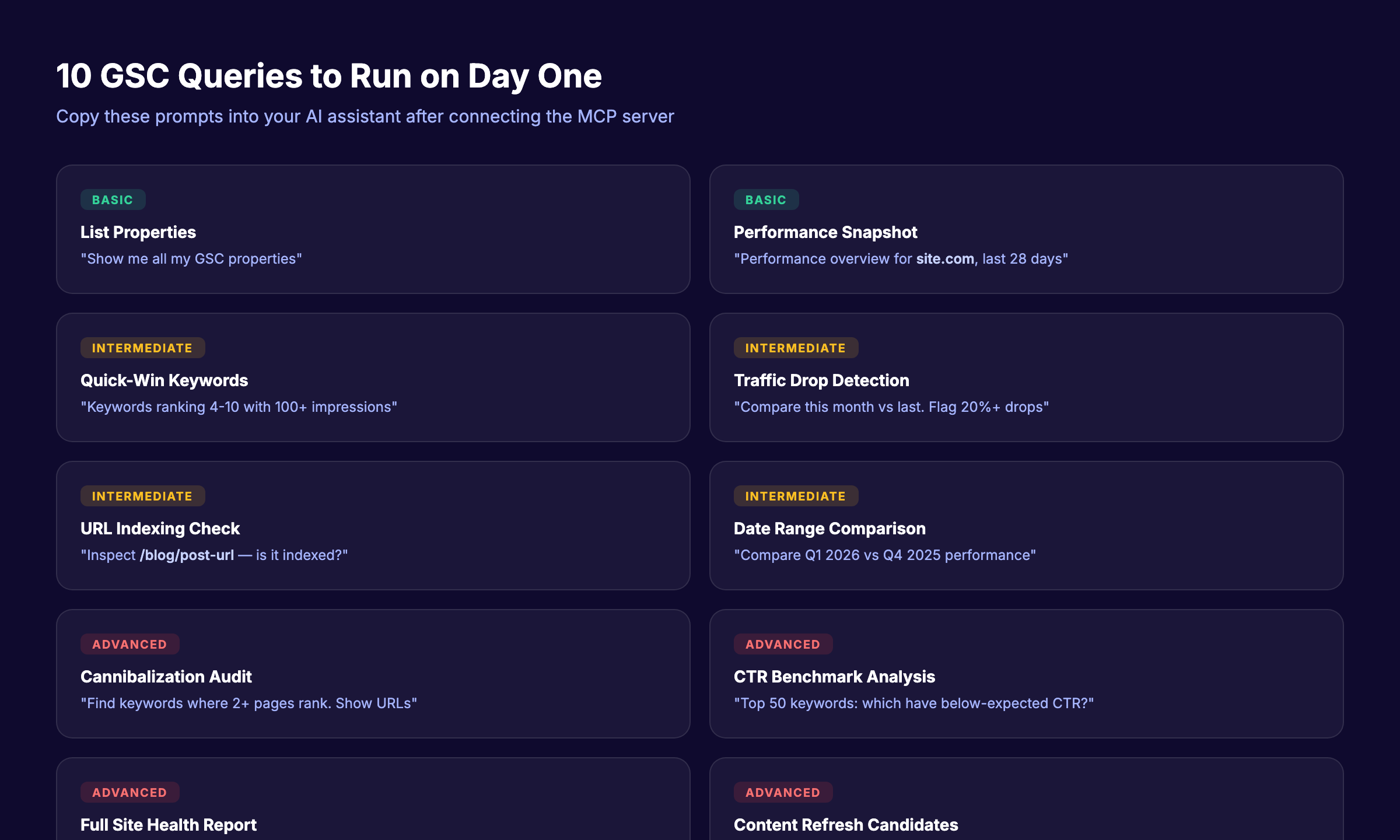
Pro tip: Save your most useful prompts as templates. Build a library of 10 to 15 standard queries you run weekly. This turns MCP into a repeatable SEO audit workflow.
Step 6: Set Up Multi-Site Monitoring (For Agencies)
If you manage multiple client properties, the MCP server handles all of them from a single configuration.
Service Account Method (Recommended for Agencies)
Add the service account email to each client GSC property. Then query any property by name:
Show me the top 20 keywords for clientsite.com in the last 7 days.The server resolves the property automatically. No switching between accounts.
Managing Property Formats
GSC uses 2 property formats. Getting this wrong causes “property not found” errors.
| Format | Example | When Used |
|---|---|---|
| Domain property | sc-domain:example.com | Covers all subdomains and protocols |
| URL prefix | https://www.example.com/ | Covers only the exact prefix |
When referencing a domain property in MCP queries, use the domain name only. The server maps it to the correct format.
Agency Dashboard Workflow
For weekly client reporting, use this query template:
For each of these properties, generate a weekly performance
summary: clienta.com, clientb.com, clientc.com. Include
clicks, impressions, top 5 keywords, and any pages that
dropped more than 10 positions.
One prompt replaces logging into each client GSC property individually. For agencies managing 10 or more properties, this saves 2 to 3 hours per reporting cycle.
This is where MCP connects to the broader shift toward autonomous SEO. The manual work of pulling reports, spotting trends, and flagging issues moves to AI.
Let Stacc handle your content pipeline. We publish SEO-optimized articles to your site every week. You focus on clients. Start for $1 →
Step 7: Automate Recurring SEO Tasks
The real power of a GSC MCP server shows up in recurring workflows. Set up these patterns to replace manual SEO monitoring.
Weekly Performance Check
Every Monday, run:
Compare this week's search performance to last week for
example.com. Highlight: new keywords that appeared, keywords
that improved by 3+ positions, keywords that dropped by 3+
positions, and pages with indexing issues.
This is the AI SEO agent approach to search monitoring. Instead of opening 4 GSC tabs and cross-referencing data, you get a single summary.
Monthly Content Audit
Once per month:
For example.com, find all pages that: had more than 500
impressions last month but CTR below 2%, rank positions
11-20 for their top keyword, or showed a decline in clicks
for 3 consecutive months.
These are your content refresh candidates. Each page represents a ranking recovery opportunity.
New Content Indexing
After publishing new articles:
Submit these URLs for indexing:
https://example.com/blog/new-post-1
https://example.com/blog/new-post-2
The Indexing API integration sends the request directly. No manual URL submission in GSC.
Sitemap Monitoring
Check the sitemap status for example.com. Are there any
submitted URLs that are not indexed? Show me the gap.
This reveals your index coverage ratio — a critical metric for large sites.
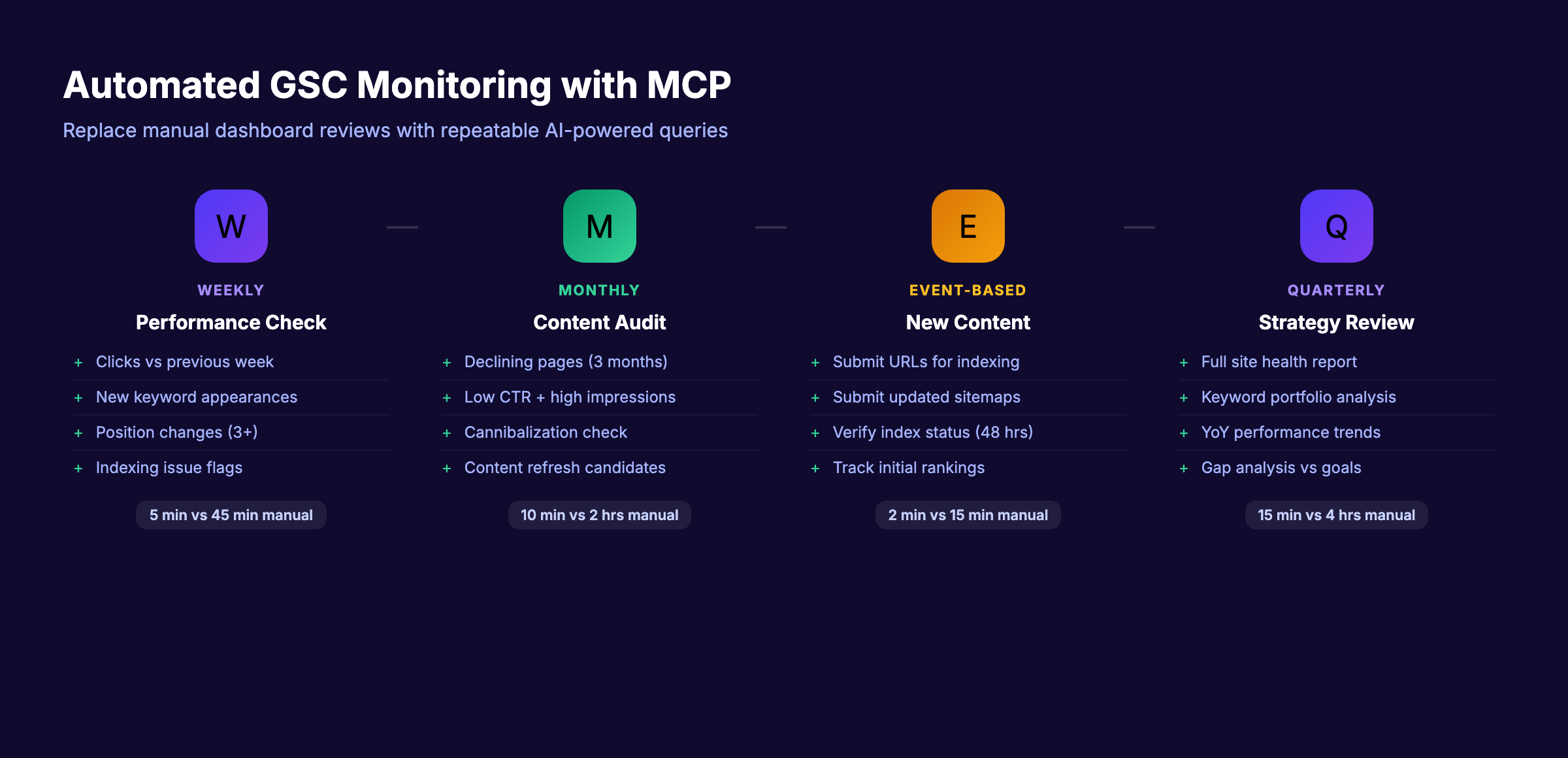
Results: What to Expect
After completing this setup, here is a realistic timeline of outcomes:
- Day 1: Full GSC access through your AI assistant. Basic queries working.
- Week 1: Comfortable running 5 to 10 standard queries. Quick-win keywords identified.
- Week 2-4: Recurring workflows established. Weekly reporting automated. 2 to 4 hours saved per week.
- Month 2+: Compound time savings as you build prompt templates. Content refresh pipeline running on MCP data.
The biggest shift is not speed. It is consistency. Manual GSC reviews happen when you remember. MCP-powered reviews happen every time you open your AI assistant.
Teams report saving 3 to 5 hours per week on GSC-related analysis after adopting MCP workflows. That number scales with the number of properties you manage.
Troubleshooting Common Setup Issues
These are the 5 errors that account for 90% of failed setups.
Problem: “Property not found” error
Cause: You referenced the property in the wrong format.
Fix: List all your properties first with “show me my GSC properties.” Use the exact property name returned. Domain properties use sc-domain:example.com. URL prefix properties use the full URL with trailing slash.
Problem: Server does not start in Claude Desktop
Cause: The Python path in your config is incorrect.
Fix: Run which python3 in your terminal. Use that exact path in the command field. On macOS, it is typically /usr/local/bin/python3 or /opt/homebrew/bin/python3 for Homebrew installs. For virtual environments, use the full path to the venv Python: /path/to/mcp-gsc/.venv/bin/python.
Problem: 403 Forbidden on API calls
Cause: The Search Console API is not enabled, or the service account lacks permissions.
Fix: Go to Google Cloud Console. Verify the Search Console API shows “Enabled.” For service accounts, confirm the email is added as a user in the GSC property settings with Full permission.
Problem: OAuth token expired or revoked
Cause: Google tokens expire after a period of inactivity or if you changed your password.
Fix: Delete the cached token file (usually token.json in the mcp-gsc directory). Restart the MCP server. A new browser window will prompt re-authentication.
Problem: Data returns empty results
Cause: You queried a date range with no data, or the property has no search traffic.
Fix: Start with the last 28 days. GSC data has a 2 to 3 day processing delay. If you query “today,” the data may not exist yet. Also verify the property has verified ownership — unverified properties return empty responses.
MCP for GSC vs. Traditional SEO Tools
You might wonder where MCP fits alongside existing SEO tools. It does not replace them. It fills a different gap.
| Factor | GSC MCP Server | Paid SEO Tool (Ahrefs, Semrush) | Manual GSC Dashboard |
|---|---|---|---|
| Data Source | Your verified GSC data | Third-party crawl estimates | Your verified GSC data |
| Cost | Free (open source) | $99 to $449 per month | Free |
| Analysis Speed | Seconds (AI + MCP) | Minutes (manual filtering) | Minutes to hours |
| Natural Language | Yes | No | No |
| Custom Reports | Unlimited, on demand | Template-based | Limited |
| Historical Data | 16 months (GSC limit) | Years (tool database) | 16 months |
| Competitor Data | No | Yes | No |
The ideal setup combines both. Use AI SEO tools for competitor research and backlink analysis. Use GSC MCP for your own site performance data.
MCP handles the “what is happening on my site” question. Paid tools handle the “what are my competitors doing” question. Neither replaces the other.
This distinction matters for choosing the right SEO stack. Over-relying on third-party data means you miss what Google actually sees. Over-relying on GSC data means you have no competitive context.
Frequently Asked Questions
Is the GSC MCP server free to use?
Yes. All 3 recommended servers are open source and free. The only cost is the Google Cloud project, which stays within the free tier for Search Console API usage. Google provides 1,200 queries per minute at no charge.
Does MCP work with ChatGPT?
Not directly. As of April 2026, MCP is natively supported in Claude Desktop, Cursor, Gemini CLI, and several IDE integrations. ChatGPT uses a different plugin architecture. However, MCP adoption is growing across AI platforms.
Can MCP write to my Google Search Console account?
By default, the recommended MCP servers are read-only. They can query data and submit URLs for indexing but cannot delete properties or remove sitemaps. Destructive operations require an explicit GSC_ALLOW_DESTRUCTIVE=true flag.
How fresh is the data from MCP?
MCP pulls data directly from the GSC API. The data freshness matches what you see in the GSC dashboard — typically 2 to 3 days behind real time. Set GSC_DATA_STATE to “all” for the most recent (unfinalized) data or “final” for confirmed data only.
Do I need to know Python to use a GSC MCP server?
You need Python installed but not Python knowledge. The setup involves running 4 to 5 terminal commands. After that, all interaction happens through natural language in your AI assistant. If you can copy and paste terminal commands, you can set this up.
Is my GSC data sent to a third party?
No. The MCP server runs locally on your machine. Your GSC data travels from Google’s API to your computer to your local AI client. No data passes through third-party servers. For OAuth, Google handles authentication directly with your browser.
Start Querying Your Search Data Today
Setting up MCP for Google Search Console takes 15 to 25 minutes. The time investment pays for itself in the first week.
The biggest wins come from consistency. Manual dashboard reviews are sporadic. MCP queries are instant and repeatable. That shift from periodic checks to continuous monitoring catches ranking drops, indexing issues, and content opportunities weeks earlier.
If the analysis side is covered but you still need content, that is where Stacc fits. We publish 30+ SEO articles per month to your site automatically. You bring the data insights. We handle the publishing.
Your SEO content, published on autopilot. 30 articles per month. 92% average SEO score. No writers to manage. Start for $1 →
Written and published by Stacc. We publish 3,500+ articles per month across 70+ industries. All data verified against public sources as of March 2026.