How to handle SEO on HubSpot CMS: page settings, templates, URL structure, canonicals, redirects, and the technical limits to plan around.
HubSpot CMS ships with one of the most marketer-friendly SEO toolkits on the market, yet a Reddit thread titled "Is HubSpot CMS horrible for SEO?" keeps climbing the SERP. The truth lives in the middle. HubSpot CMS SEO is excellent at the marketing layer, average at the technical layer, and dangerous when you ignore the configuration steps every new instance needs.
This HubSpot CMS SEO guide fixes the misconceptions. We will walk through every HubSpot setting that affects search rankings, every on-page field that needs to be filled, every schema gap that costs you rich results, and the content strategy that compounds organic traffic over the next 12 months.
We publish 3,500+ blog posts across 70+ industries through theStacc platform. We have audited dozens of HubSpot CMS sites for B2B SaaS, agencies, manufacturers, and professional services. The pattern repeats: most HubSpot sites lose rankings to configuration gaps, not platform limits. The fixes are predictable. So is the lift you get when you ship them.
Here is what you will learn:
- The real verdict on HubSpot CMS SEO in 2026, with the data behind it
- The Settings checklist every HubSpot site needs before publishing
- On-page SEO fields you must fill on every page and post
- How to add schema markup HubSpot does not generate by default
- Core Web Vitals tuning inside HubSpot CMS without breaking the design system
- The content engine that scales HubSpot blogs from 10 to 300 posts a year
- The 6 HubSpot CMS SEO mistakes that show up on almost every audit
- How HubSpot CMS compares with WordPress, Webflow, and Shopify for rankings
Chapter 1: Is HubSpot CMS Good for SEO?
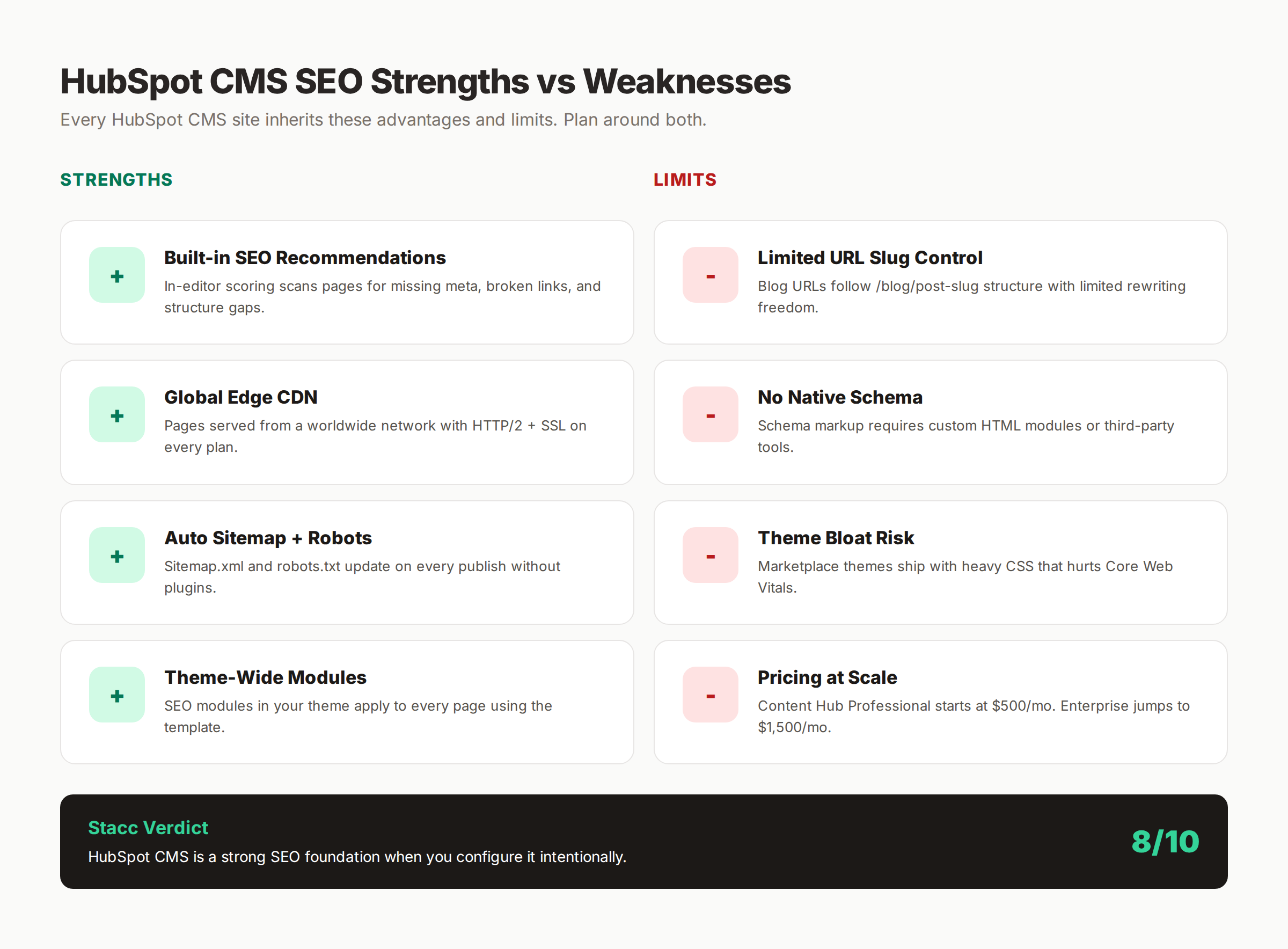
Yes, HubSpot CMS is good for SEO when configured intentionally. The platform produces clean semantic HTML, ships with a global CDN, generates a sitemap automatically, includes a built-in SEO recommendation engine, and gives you control over title tags, meta descriptions, canonical URLs, redirects, and Open Graph fields. The platform does not handle every technical SEO need natively. Schema markup, advanced URL controls, and Core Web Vitals optimization all require manual work inside HubSpot.
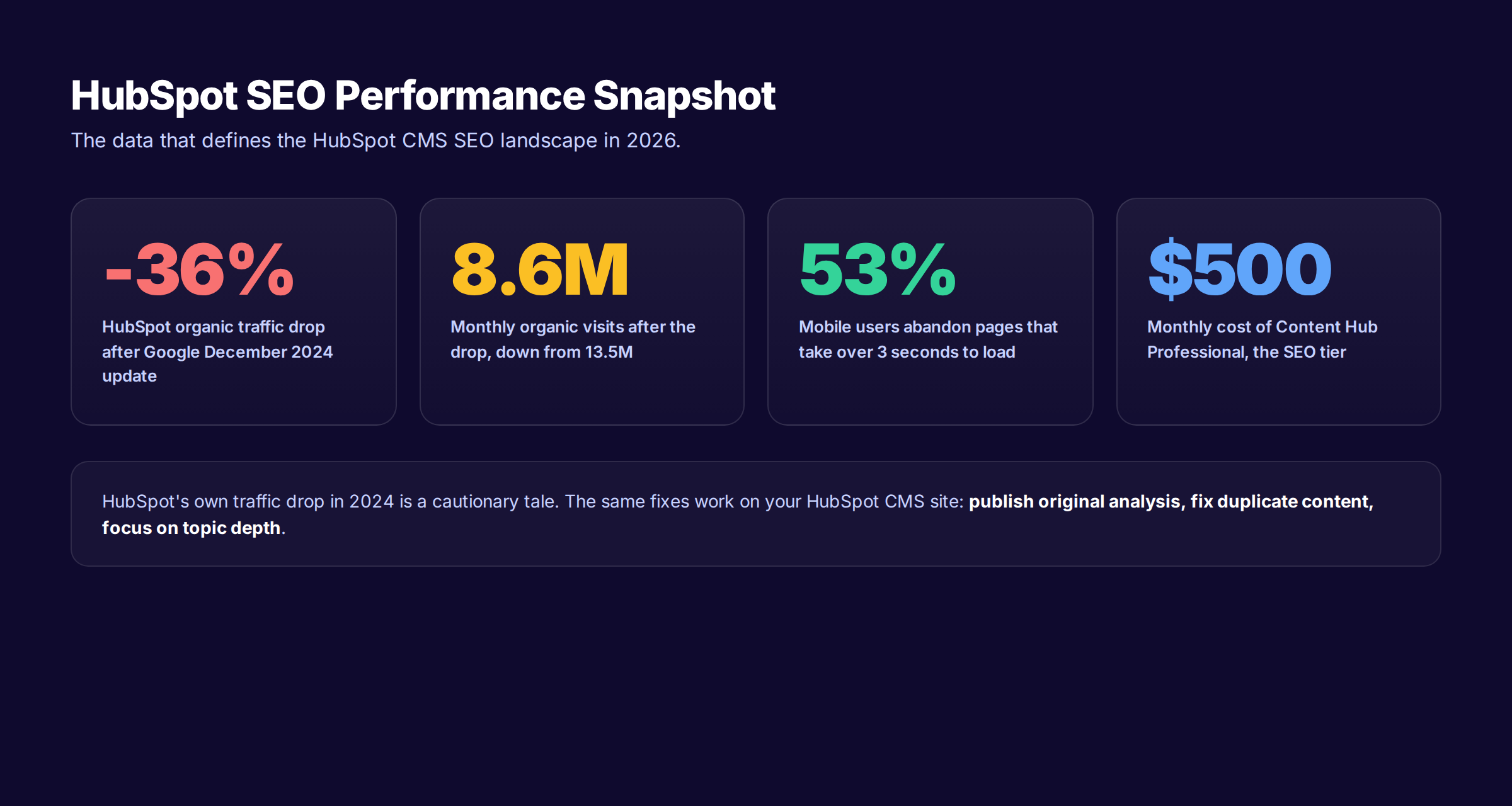
The case for HubSpot CMS SEO rests on five pillars. Speed comes first. HubSpot serves pages from a global edge network with HTTP/2 and SSL on every plan. Most HubSpot pages score above 85 on mobile PageSpeed Insights when themes are not bloated. Page speed remains a confirmed Google ranking factor, and slow sites lose 53% of mobile visitors when load time exceeds 3 seconds.
Built-in SEO tooling is the second pillar. HubSpot's SEO recommendations engine scans every page in your portal and ranks fixes by priority. The Topics tool maps pillar pages and cluster content. The on-page editor scores titles, descriptions, alt text, and link signals as you write.
Control is the third pillar. Every page exposes the SEO fields you need: title, description, slug, Open Graph image, canonical URL, robots indexing rules, and 301 redirect mapping. You do not need a plugin to manage any of this.
CRM integration is the fourth pillar. HubSpot CMS lives inside the same data layer as your contacts, deals, and email lists. Smart content rules let you serve different copy to logged-in customers without breaking the public crawlable version. This is a real competitive advantage for B2B sites built on HubSpot CRM.
Content velocity is the fifth pillar, and the one most teams underuse. HubSpot blog tools let you ship 30+ posts a month without ops overhead, and the blog SEO basics compound across that volume. We will cover the content engine in Chapter 7.
Where HubSpot CMS Falls Short for SEO
Honest pros need honest cons. HubSpot CMS has real limitations that affect SEO at scale.
URL structure freedom is limited. Blog posts inherit /blog/post-slug by default. You cannot easily nest blog URLs under category folders without enabling multi-blog setups. Landing pages cannot live under /blog without manual routing. WordPress and Webflow both win on URL flexibility.
Schema markup is not native. HubSpot does not auto-inject Article, FAQ, Product, or Organization schema. You add it through the Head HTML field on each template, or through third-party tools. We cover the schema fix in Chapter 4.
Theme bloat is a recurring issue. Many marketplace themes ship with 8-12MB of bundled CSS, JavaScript, and font files that hurt Largest Contentful Paint. Lean themes are available. Most teams pick the prettiest one without auditing weight.
Pricing climbs fast. Content Hub Starter starts at $25 per month, but the SEO recommendations tool requires Content Hub Professional at $500 per month. Enterprise sits at $1,500 per month. For teams already paying for HubSpot CRM, this is acceptable. For teams using HubSpot CMS as a standalone publisher, the math is harder.
The 2024 HubSpot Traffic Drop and What It Teaches Us
HubSpot itself lost roughly 36% of its organic traffic between November and December 2024, falling from 13.5 million monthly visits to 8.6 million after Google's December 2024 algorithm update. The drop was widely covered by The Flock and other SEO publications.
The lesson is not that HubSpot CMS is bad for SEO. HubSpot's marketing team got hit because they published thousands of broad, top-of-funnel articles that competed with newer authority signals like original analysis, expert quotes, and product experience. Google's helpful content updates penalize that pattern across every CMS.
The fix is the same on HubSpot CMS as it is on WordPress: publish original analysis, fix duplicate content, focus on topic depth, and tie content to first-hand expertise. Your CMS choice does not determine your ranking. Your content quality and configuration do.
Chapter 2: HubSpot CMS Settings for SEO
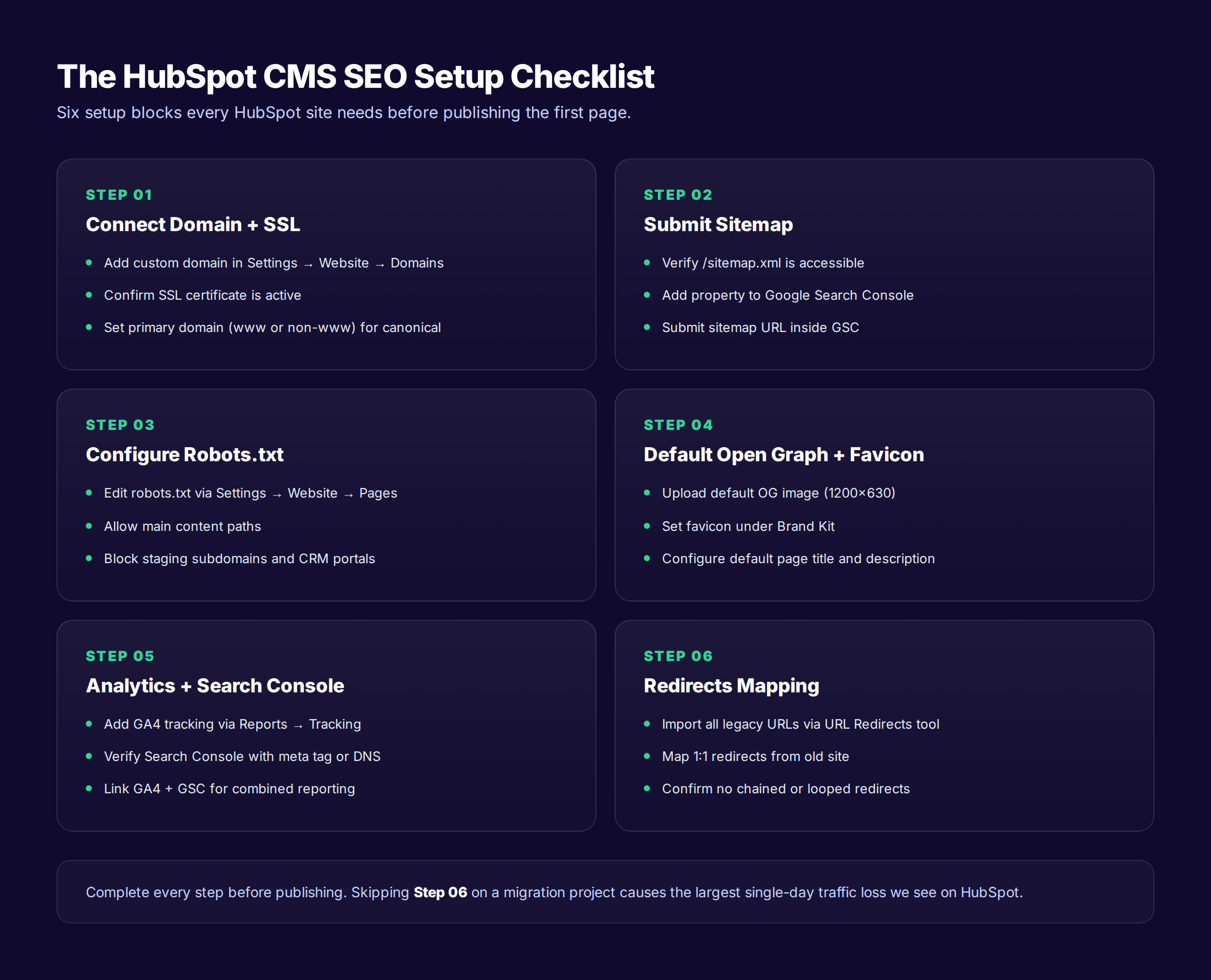
Before you optimize a single page, configure the portal-level settings. These apply portal-wide and form the SEO foundation everything else builds on.
Open your HubSpot portal. Click the gear icon to open Settings. The settings that matter for SEO live across five areas: Domains, Pages, Blog, Tracking, and Account Defaults.
Domains and SSL
Connect your custom domain under Settings then Website then Domains and URLs. HubSpot supports root domains, subdomains, and country-specific TLDs. Pick one variant as the primary. Set redirects from the alternate variant to the primary. Google treats www and non-www as separate sites if you skip this step.
Confirm SSL is active. HubSpot issues SSL certificates automatically through its CDN. Force HTTPS sitewide. Any mixed-content warning becomes a ranking liability inside 90 days. We cover this in our technical SEO guide.
Pages and Blog Defaults
Under Settings then Website then Pages, set your default page template, language, and meta defaults. These inherit to every new page you create. Set a default meta description fallback. Set the default canonical to the page URL. Upload a default Open Graph image at 1200 by 630 pixels.
Under Settings then Website then Blog, set the blog root path. The default is /blog. Some teams override this to /insights, /resources, or /learn. Keep the path under three words. Set the default blog template, post layout, and RSS settings here.
Disable date-stamped URLs unless you have a strong editorial reason. The default HubSpot blog URL is /blog/post-slug, which is the structure you want. Older portals may default to /blog/yyyy/mm/post-slug. Change it before publishing. Date-stamped URLs hurt long-form evergreen content because they signal recency to both readers and crawlers.
Tracking and Search Console
Under Settings then Tracking and Analytics, install GA4 and link Google Search Console. HubSpot provides a Tracking Code field that fires on every page. Avoid pasting the GA4 snippet directly into the Head HTML. The Tracking Code field handles loading order and consent management.
Verify Search Console with a meta tag, DNS verification, or Google Analytics association. Submit your /sitemap.xml URL inside Search Console. HubSpot generates this sitemap automatically on every publish. Confirm the sitemap loads at yoursite.com/sitemap.xml before submitting it.
Robots.txt and Indexing Rules
HubSpot lets you customize robots.txt under Settings then Website then Pages. Open the Advanced Options panel. Add disallow rules for staging subdomains, CRM portals, and admin paths. Allow your main content paths. Do not block /blog, /resources, or /products unless you have a deliberate reason.
Use the Advanced Options on each page to set noindex when needed. Thank-you pages, internal landing pages, and gated assets should be noindexed. Public marketing and blog pages should be indexed. Audit this list quarterly.
Account Defaults Checklist
Before you move on, verify each of these:
- ✓ Primary domain set and SSL active
- ✓ WWW or non-WWW redirect configured
- ✓ Default Open Graph image uploaded (1200×630)
- ✓ Default page template assigned
- ✓ Blog root path confirmed and date-stamps removed
- ✓ Sitemap submitted to Google Search Console
- ✓ GA4 installed via Tracking Code field
- ✓ Robots.txt allows main content paths
- ✓ Search Console verification confirmed
- ✓ Brand kit favicon set
Stop configuring. Start publishing. theStacc handles the SEO setup, the on-page optimization, and the content pipeline for your HubSpot CMS site.
Chapter 3: HubSpot CMS On-Page SEO Fields
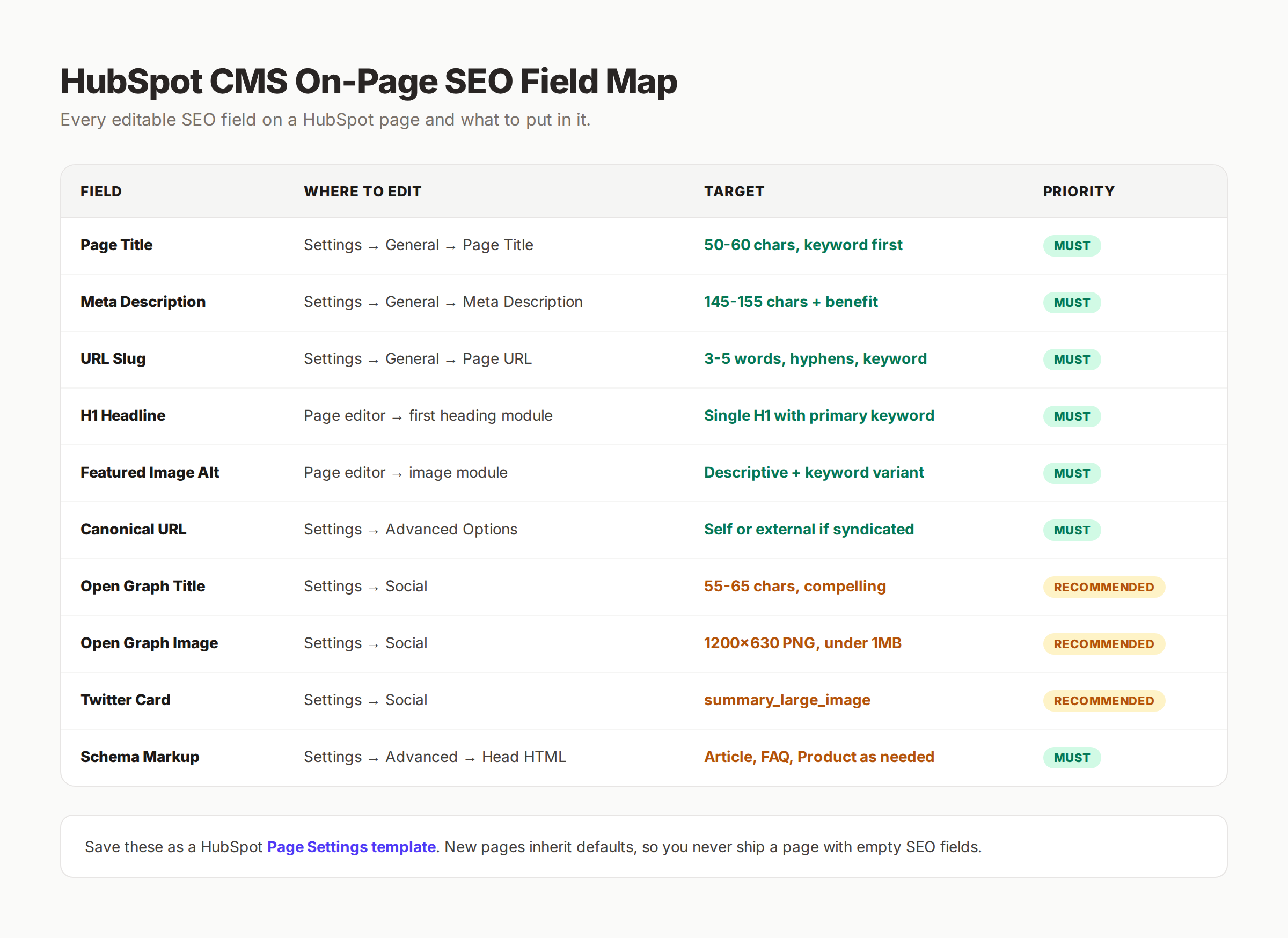
Every HubSpot page exposes the same SEO field set under Settings on the page editor. These fields decide how your content shows up in Google, in social shares, and in AI Overview citations. Treat them as required, not optional.
Page Title Tag
The page title is the most important on-page SEO signal. HubSpot pulls this from the Settings then General then Page Title field. Keep it under 60 characters to avoid truncation. Lead with the primary keyword. Add a brand suffix only if the page is a homepage or major service hub.
Example for a HubSpot landing page targeting "marketing automation software":
| - Bad: "Welcome to our Software | Acme Marketing" |
|---|---|
| - Good: "Marketing Automation Software for Agencies | Acme" |
The H1 on the page should match or closely mirror the title tag. HubSpot does not auto-sync these fields. Update both manually when you change one.
Meta Description
Meta descriptions do not directly affect rankings. They affect click-through rate, which feeds ranking signals. HubSpot's meta description field lives under Settings then General. Write 145 to 155 characters. Lead with the benefit. Include the primary keyword. End with a hook that compels the click.
The HubSpot SEO recommendations tool flags pages with missing or duplicate descriptions. Fix every flagged page within 30 days of launch.
URL Slug
HubSpot's Page URL field controls the slug. Keep it three to five words. Use hyphens. Match the primary keyword closely. Avoid stop words like "the" and "and" unless they improve readability.
Bad: yoursite.com/p/2024/how-to-do-the-thing-you-want-to-do Good: yoursite.com/blog/marketing-automation-guide
For blog posts, HubSpot generates the slug from your post title automatically. Override the auto-slug if the title is long. Set the slug before you hit publish. Changing a slug after publish requires a 301 redirect, which HubSpot can do but adds a redirect hop.
H1 and Heading Structure
Use exactly one H1 per page. Most HubSpot themes assign H1 to the first heading module on the page. Verify this by inspecting the page in your browser. Drop into developer tools and search for h1 in the source. If you find zero or two, fix the template.
Use H2 and H3 in logical order to structure the body. Search crawlers and AI Overview models parse heading hierarchy to understand topic depth. Our blog post structure guide covers the full hierarchy pattern we use across every published article.
Featured Image and Alt Text
Every page needs a featured image. HubSpot uses this for Open Graph sharing, blog list cards, and AI search citations. Upload images at 1200 by 630 pixels for the OG slot and 800 by 450 pixels minimum for the post hero.
Alt text matters for accessibility and image search. Fill it on every image inside the page editor. Describe what the image shows. Include keyword variants where natural. Skip stuffing.
Canonical URL
The canonical URL tells search engines which version of a page is the master. HubSpot defaults the canonical to the page URL. Override only when you publish syndicated content or when multiple URLs serve the same content.
The canonical field lives under Settings then Advanced Options. Common canonical mistakes on HubSpot CMS:
- Setting a canonical to the homepage on every page (kills indexation)
- Forgetting to update canonicals after a URL change
- Using HTTP canonicals on HTTPS pages
Open Graph and Twitter Card
Social previews live under Settings then Social. Set the Open Graph title, description, and image for every page. Use the OG title field to write a compelling click-through line for LinkedIn and Facebook. Twitter pulls the same fields by default if you do not override them.
Set the Twitter Card type to summary_large_image for posts with hero imagery. This widens the social preview and lifts click-through rate.
Schema Markup
This is the gap HubSpot leaves open. The platform does not auto-generate Article, FAQ, Product, or Organization schema. You add it through the Settings then Advanced then Head HTML field on each template or page.
Schema markup powers rich results in Google search, FAQ panels, and AI Overview citations. We cover the full schema setup in Chapter 4.
Chapter 4: Schema Markup on HubSpot CMS
Schema markup is the largest native gap in HubSpot CMS SEO. The platform does not inject structured data automatically. You add it manually through Head HTML fields on the template or page level.
The structured data investment pays off. Pages with valid Article schema earn rich result eligibility, FAQ panel eligibility, and a documented lift in click-through rate. AI Overview citations also lean on structured data to identify quotable content.
Article Schema on Blog Posts
Add Article schema to every blog template. Inside the blog post template Head HTML, paste the following JSON-LD block. Replace the dynamic fields with HubSpot personalization tokens.
<script type="application/ld+json">
{
  "@context": "https://schema.org",
  "@type": "Article",
  "headline": "{{ content.title }}",
  "description": "{{ content.meta_description }}",
  "image": "{{ content.post_summary.featured_image }}",
  "author": {
    "@type": "Person",
    "name": "{{ content.blog_author.full_name }}"
  },
  "publisher": {
    "@type": "Organization",
    "name": "Your Brand",
    "logo": {
      "@type": "ImageObject",
      "url": "https://yoursite.com/logo.png"
    }
  },
  "datePublished": "{{ content.publish_date }}",
  "dateModified": "{{ content.updated }}"
}
</script>
Apply this once at the template level. Every blog post inherits valid Article schema without per-post editing. We cover the full schema pattern in our schema markup for blog posts guide.
FAQ Schema for AI Overview Citations
FAQ schema is the highest-impact schema type for AI search visibility. Pages with valid FAQ markup earn FAQ panel rich results and feed structured data to Google's AI Overview generation engine.
Use HubSpot's FAQ module if your theme includes one. If it does not, paste the FAQ schema inside the page Head HTML. Format every question and answer as a structured FAQPage entity.
<script type="application/ld+json">
{
  "@context": "https://schema.org",
  "@type": "FAQPage",
  "mainEntity": [
    {
      "@type": "Question",
      "name": "Is HubSpot CMS good for SEO?",
      "acceptedAnswer": {
        "@type": "Answer",
        "text": "Yes, when configured correctly..."
      }
    }
  ]
}
</script>
We cover the broader pattern in our Google AI Overview optimization guide and our generative engine optimization guide.
Product and Service Schema
If you sell services or products through HubSpot CMS, add Product schema to the relevant pages. Service businesses should add Service or LocalBusiness schema. Both schemas live in Head HTML, applied at the template level for inheritance.
Test every schema deployment with Google's Rich Results Test. Fix every error before you ship. Invalid schema breaks the rich result entirely. Half-implemented structured data is worse than none.
Organization Schema Sitewide
Add Organization schema in the global Head HTML under Settings then Website then Pages then Site Header HTML. This sets the entity profile for your brand across every page. Include legal name, logo, social profiles, and contact points.
This single block helps Google build a knowledge panel for your brand and helps AI Overview models attribute citations correctly.
Chapter 5: HubSpot Core Web Vitals and Page Speed
Core Web Vitals scoring affects HubSpot CMS sites the same way it affects every other platform. The unique factor is that HubSpot's theme system can hide bloat that you only notice when PageSpeed Insights flags it.
The three metrics that matter:
- Largest Contentful Paint (LCP) — Time to render the main page content. Target under 2.5 seconds.
- Interaction to Next Paint (INP) — Time to respond to the first user interaction. Target under 200 milliseconds.
- Cumulative Layout Shift (CLS) — Sum of all unexpected layout shifts. Target under 0.1.
We cover the metric definitions and benchmarks in our Core Web Vitals guide and the optimization playbook in improve Core Web Vitals.
Audit Your HubSpot Theme First
Marketplace themes are the biggest source of Core Web Vitals failures on HubSpot CMS. Many themes ship with 8 to 12 megabytes of CSS, JavaScript, and font files. Even on HubSpot's fast CDN, that weight pushes LCP past 4 seconds on mobile.
Run PageSpeed Insights against your homepage and your highest-traffic blog post. Note the LCP, INP, and CLS numbers. If LCP exceeds 3 seconds on mobile, your theme is the culprit 80% of the time.
The fix is one of three options:
- Switch to a slimmer theme like the HubSpot CMS Starter theme or a custom build
- Audit your current theme and remove unused modules
- Hire a HubSpot developer to refactor the theme for performance
Image Optimization Inside HubSpot
HubSpot's File Manager handles image optimization automatically. Upload images at the size you display them. Use WebP format when possible. HubSpot serves images through its CDN with automatic resizing and lazy loading.
Set image width and height attributes on every img tag. Missing dimensions cause CLS as the browser reflows the page during load. The HubSpot drag-and-drop editor sets these by default. The Rich Text editor does not. Edit the source HTML if needed.
Use the loading="lazy" attribute on below-fold images. HubSpot adds this for images inserted through the WYSIWYG editor on most modern themes. Confirm in the page source.
JavaScript and CSS Minification
HubSpot minifies CSS and JavaScript automatically in production. Verify under Settings then Website then Pages. The toggles should both be on. Audit custom modules for inline scripts that bypass minification.
Remove unused scripts. Many HubSpot portals carry tracking scripts for tools that were canceled years ago. Audit Site Header HTML and Site Footer HTML quarterly. Every removed script lifts INP.
Font Loading
Custom fonts are a common Core Web Vitals killer. Use font-display: swap on every custom font face. Preload your primary font in the Head HTML. Limit fonts to two families and three weights total.
If your brand uses Google Fonts, host them locally inside HubSpot's File Manager rather than calling Google's CDN. The extra DNS lookup adds 100 to 200 milliseconds to LCP on mobile.
Core Web Vitals Checklist
Before you call your HubSpot theme optimized:
- ✓ LCP under 2.5 seconds on mobile homepage
- ✓ INP under 200 milliseconds across primary CTAs
- ✓ CLS under 0.1 across all key landing pages
- ✓ Featured images sized to display dimensions
- ✓ Lazy loading enabled on below-fold images
- ✓ Custom fonts limited to two families
- ✓ Unused scripts removed from Site Header HTML
- ✓ PageSpeed Insights score above 85 on mobile
Chapter 6: HubSpot CMS vs WordPress, Webflow, and Shopify
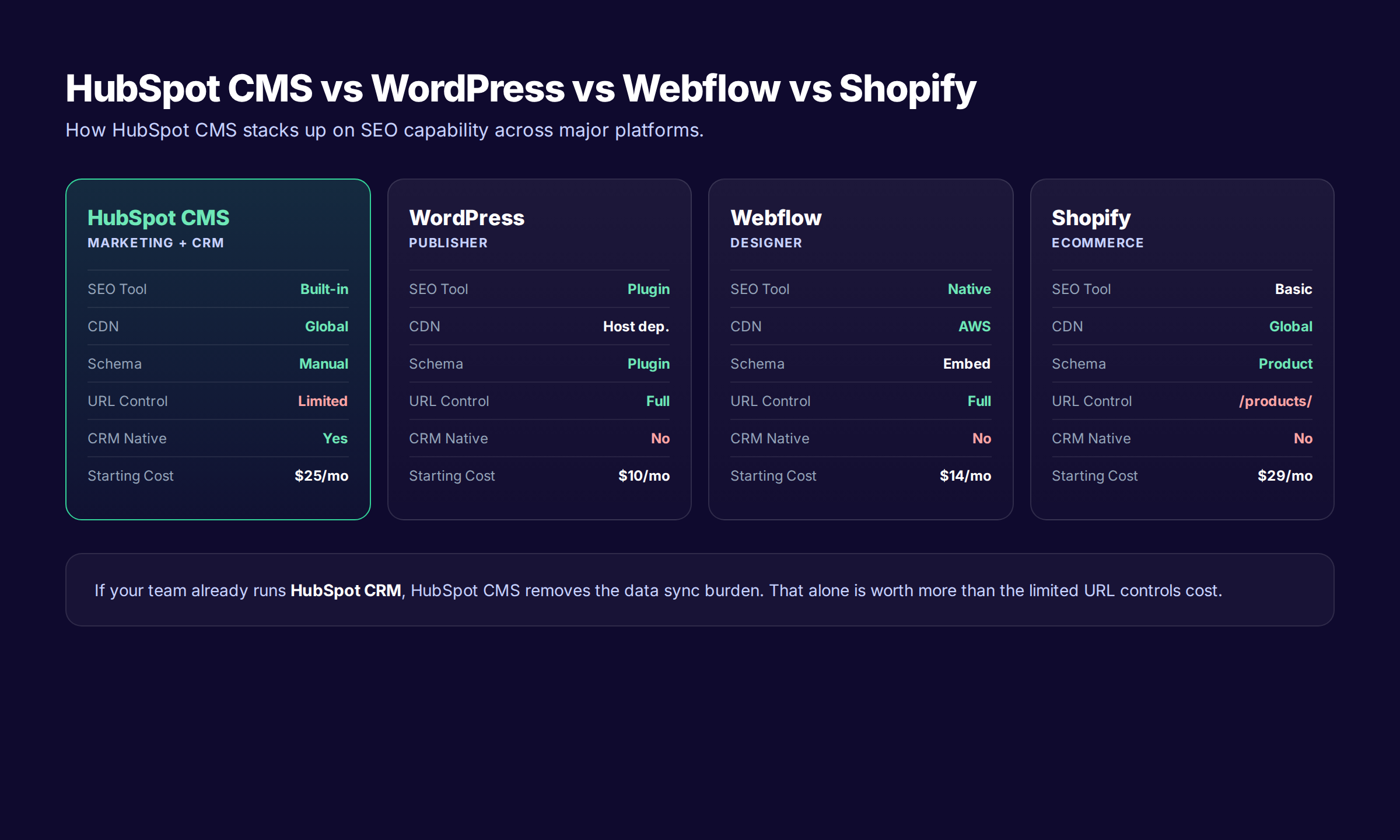
The four dominant marketing CMS platforms each handle SEO differently. The right pick depends on your business model, your team, and the data integration you need.
| Capability | HubSpot CMS | WordPress | Webflow | Shopify |
|---|---|---|---|---|
| Built-in SEO tool | Yes (Content Hub Pro) | Plugin (Yoast, RankMath) | Native fields | Basic native |
| Default semantic HTML | Strong | Theme dependent | Strong | Strong |
| Native sitemap | Auto-generated | Plugin required | Auto-generated | Auto-generated |
| Schema markup | Manual (Head HTML) | Plugin required | Custom code | Product schema only |
| Page speed | Fast (global CDN) | Host dependent | Fast (AWS CDN) | Fast (global CDN) |
| URL structure control | Limited | Full | Full | Limited (/products/) |
| Plugin ecosystem | Limited (App Marketplace) | Massive | Limited | Moderate |
| CMS scalability | Unlimited pages | Unlimited | 10K items (Enterprise: 20K) | Unlimited products |
| CRM integration | Native | Plugin | Plugin | App |
| Starting cost | $25/mo (Pro: $500) | $10/mo | $14/mo | $29/mo |
| Ideal for | B2B SaaS, services, CRM users | Publishers, blogs at scale | Marketing sites, agencies | Ecommerce |
When HubSpot CMS Wins
If your team already runs HubSpot CRM, HubSpot CMS removes the data sync burden between marketing pages and sales pipeline. That alone is worth more than the limited URL controls cost. Marketing operations teams that need lead capture forms, smart content rules, and personalization tied to deal stage will find HubSpot CMS faster than any alternative.
When WordPress Wins
If you publish 1,000+ blog posts a month, WordPress wins on raw scale and editorial workflow. The plugin ecosystem is unmatched. Hosting cost stays low at scale. Schema, redirects, and indexing controls are deeper. Our WordPress SEO tactics and Squarespace SEO guide cover similar patterns for other publishers.
When Webflow Wins
If you run a marketing site, agency, or SaaS landing experience that prioritizes design control, Webflow SEO is the strongest pick. URL structure is more flexible than HubSpot's. The Designer gives you pixel-level control without writing code. The trade-off is no native CRM, no native lead routing, and no native email automation.
When Shopify Wins
If you sell physical or digital products, Shopify SEO wins on product schema and checkout integration. Native Product structured data, automatic XML sitemap segmentation, and a strong global CDN make Shopify the default ecommerce pick. Use HubSpot CMS as a marketing layer alongside Shopify if you need both.
Stop picking platforms. Start picking content velocity. We publish on whichever CMS you run. HubSpot, WordPress, Webflow, Shopify, or custom. See pricing →
Chapter 7: The HubSpot CMS Content Engine
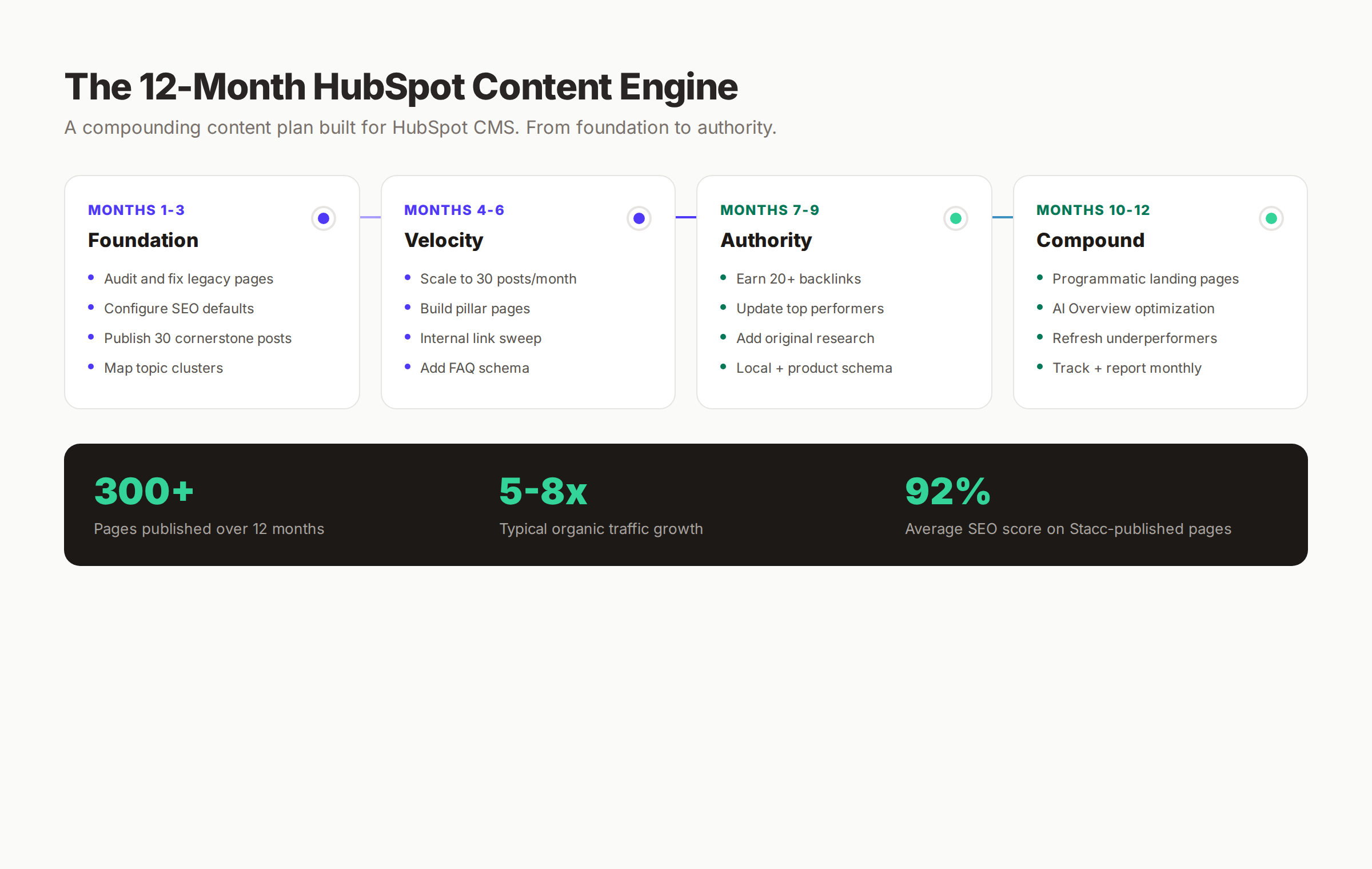
Configuration earns you a foundation. Content earns you rankings. The teams that win on HubSpot CMS treat blogging as a production engine, not a campaign.
Our published data across 3,500 articles shows the same pattern. Sites that ship 30+ posts a month for 12 months grow organic traffic 5 to 8 times. Sites that ship 4 posts a month and call it good plateau inside the first quarter.
The plan below assumes a 12-month horizon and a goal of 300+ ranking pages. Adjust the volume to match your team, but keep the pattern.
Months 1 to 3: Foundation
Phase one is the audit and the configuration sprint. Fix the legacy pages, set the SEO defaults, and publish 30 cornerstone posts that establish topic depth.
- Audit every existing page for empty meta, broken links, missing schema
- Configure the Settings checklist from Chapter 2
- Map 5 to 10 topic clusters from your core service or product lines
- Publish 30 cornerstone posts of 2,000+ words each on cluster topics
- Set up the pillar page architecture for each cluster
- Install GA4 + GSC and confirm tracking
By the end of month 3, you have a clean technical foundation, 30 deep posts, and the topic cluster scaffolding to scale.
Months 4 to 6: Velocity
Phase two is the velocity sprint. Scale to 30 posts a month. Build pillar pages. Run an internal link sweep.
- Increase publish cadence to 30 posts a month
- Build a pillar page for every cluster identified in Phase 1
- Run an internal linking sweep connecting cluster posts to pillars
- Add FAQ schema to every cornerstone post
- Audit the top 10 organic-driven pages and update them quarterly
By month 6, you should see top-10 rankings for cluster keywords with low to medium difficulty.
Months 7 to 9: Authority
Phase three is the authority sprint. The content base exists. Now you earn backlinks and original research signals.
- Pitch 20+ backlinks to industry publications and partner sites
- Update top performers with fresh stats, examples, and quotes
- Run original research surveys and publish the results
- Add LocalBusiness or Product schema to relevant pages
- Optimize for AI Overview citations using FAQ blocks and clear definitions
Month 9 is the inflection point. Sites that hit this phase with all 9 months of consistency typically see 3x to 5x growth in organic traffic by month 9.
Months 10 to 12: Compound
Phase four is the compound sprint. The hard work is done. Now you scale programmatic, refresh underperformers, and report ruthlessly.
- Launch 50 to 100 programmatic landing pages targeting long-tail clusters
- Refresh underperformers with new angles, internal links, and structured data
- Build a custom GSC report tracking impressions, clicks, and position monthly
- Add LLMs.txt for AI search visibility
- Set up monthly content review with cross-functional stakeholders
Content Quality Standards
Volume without quality plateaus. Every post we publish hits these standards:
- 2,000+ words for cornerstone, 1,200+ for supporting
- Original analysis with named sources
- 3 to 5 internal links per 1,000 words
- 2 to 3 external links to authoritative sources
- 1 image per 500 words minimum
- FAQ block with 4 to 6 questions
- Schema markup applied at the template level
- 92% average SEO score on the HubSpot SEO recommendations tool
Chapter 8: 6 HubSpot CMS SEO Mistakes That Kill Rankings
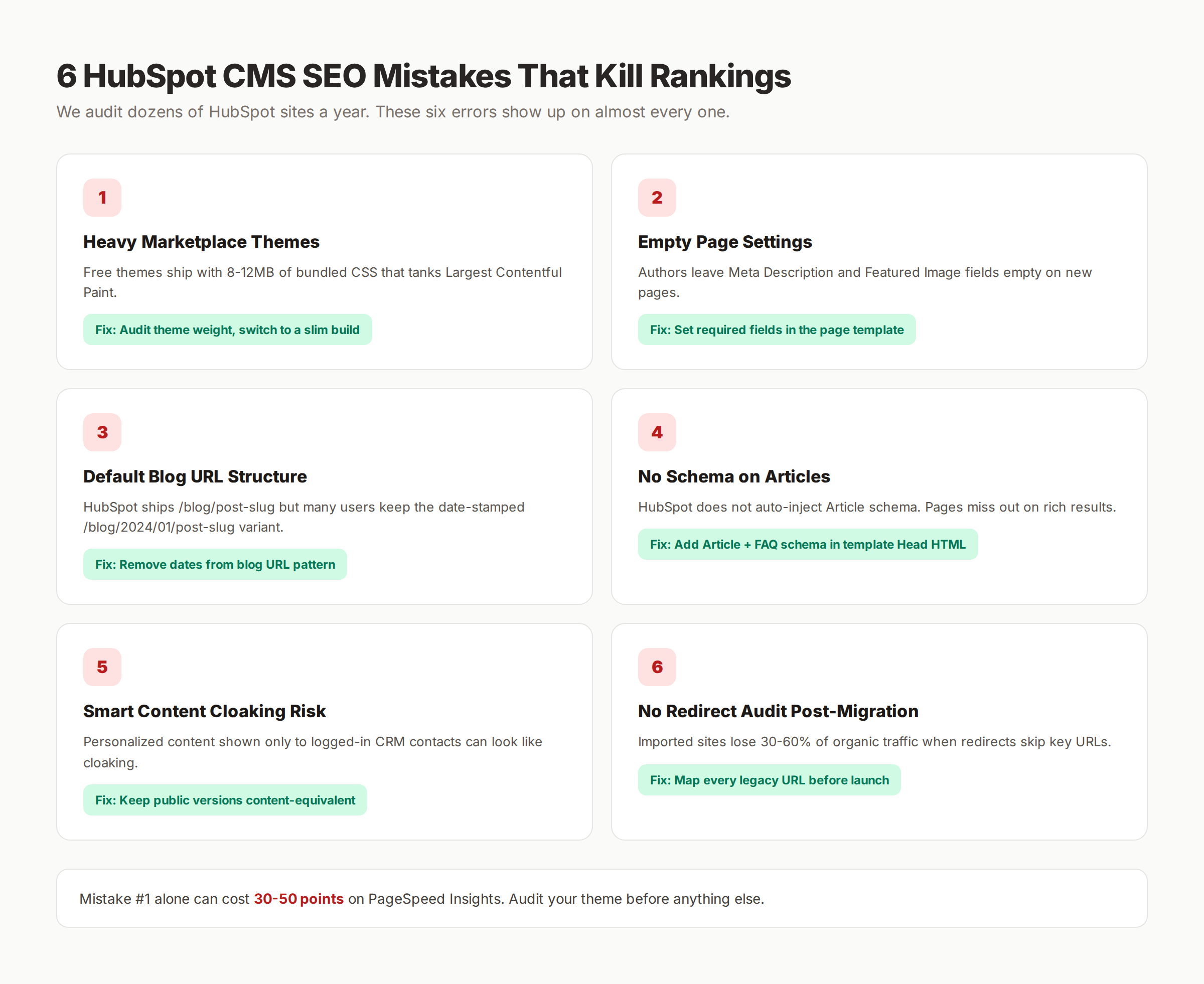
We audit dozens of HubSpot CMS sites a year. The same six errors show up on almost every one. Fix these and you remove the biggest ranking blockers.
Mistake 1: Heavy Marketplace Themes
Free and budget marketplace themes ship with 8 to 12 megabytes of bundled CSS, JavaScript, and font files. Even on HubSpot's fast CDN, that weight pushes Largest Contentful Paint past 4 seconds on mobile. PageSpeed Insights flags it. Google ranks competitors that load faster.
Audit your theme size. Open developer tools, switch to the Network tab, and reload your homepage. Sum the total transfer size. If it exceeds 2.5MB on first load, your theme is the problem. Switch to a slim theme or hire a developer to refactor.
Mistake 2: Empty Page Settings on New Pages
The default HubSpot page editor does not require authors to fill SEO fields. Authors publish pages with empty meta descriptions, missing Open Graph images, and default page titles like "New Page" or "Untitled Landing Page."
The fix is process. Set required fields in your page templates. Create a HubSpot Page Settings template with default meta description prompts and OG image fallback. Train every team member on the SEO checklist. Audit weekly until the habit sticks.
Mistake 3: Date-Stamped Blog URLs
Older HubSpot portals default to /blog/yyyy/mm/post-slug. New portals default to /blog/post-slug. Either way, audit the setting under Settings then Website then Blog. Date-stamped URLs hurt evergreen content because they signal recency to readers and crawlers.
Change the setting before publishing. If you have existing date-stamped posts, the migration requires careful 301 mapping. We cover the redirect pattern in our 301 redirects guide.
Mistake 4: No Schema on Articles
HubSpot does not auto-inject Article schema. Pages miss out on rich results, FAQ panels, and AI Overview citations. The fix is a one-time template edit covered in Chapter 4. Apply it once and every blog post inherits valid Article schema.
Mistake 5: Smart Content Cloaking Risk
HubSpot's Smart Content feature serves personalized copy to logged-in CRM contacts. This is a real competitive feature for B2B sites. The SEO risk is that personalized content shown only to logged-in contacts can look like cloaking if the public crawlable version is empty.
The fix is to keep the public version content-equivalent. Smart Content should layer on top of a complete public version, not replace it. Test with Google's URL Inspection tool in Search Console.
Mistake 6: No Redirect Audit Post-Migration
Sites migrated to HubSpot CMS from WordPress, Webflow, or custom builds lose 30 to 60% of organic traffic in the first 30 days when redirects skip key URLs. The cause is almost always incomplete redirect mapping.
The fix is preparation. Before launch, export the full URL list from the legacy site. Map every URL to its new HubSpot equivalent. Use HubSpot's URL Redirects tool to import the full list. Verify with a crawl after launch. We cover the migration checklist in our technical SEO checklist.
Chapter 9: HubSpot CMS SEO for AI Search
AI search rewires how content gets surfaced. Google AI Overview, ChatGPT browsing, Perplexity, and other LLM-powered search interfaces parse content differently from traditional crawlers. HubSpot CMS sites need to optimize for both layers.
The core shift: AI search engines extract direct answers from your content. They cite the source when the content is structured, attributed, and concise. They skip sites that bury answers under fluff.
Write for Direct Citation
Every section on your HubSpot CMS post should answer one question clearly. Lead with the answer. Support with evidence. Close with the implication. This pattern lifts citation rates inside Google AI Overview and ChatGPT browsing.
Use FAQ blocks aggressively. Pages with 4 to 6 well-structured FAQs earn citations across multiple AI search interfaces. The FAQ schema markup we covered in Chapter 4 amplifies this signal.
Add an LLMs.txt File
LLMs.txt is the emerging standard for telling AI crawlers which content matters most on your site. Add an llms.txt file at the root of your HubSpot domain. List your top 50 pages with one-sentence summaries.
HubSpot does not provide a native LLMs.txt editor. Use the Settings then Website then Pages then Robots.txt panel to confirm the file is accessible, or upload the file via the File Manager and point a redirect at it.
Optimize for the Citation Block
AI Overview citations pull from short, structured paragraphs. Write 40 to 80 word answers under every H2 and H3. Quote named experts when possible. Cite sources inline with linked anchor text. Format these blocks for direct extraction.
Our generative engine optimization guide covers the full AI search optimization pattern.
Track AI Search Visibility
AI search clicks are harder to measure than traditional organic clicks. Use a combination of Google Search Console impressions, branded search volume in GA4, and direct traffic spikes to identify AI Overview pickup. The Topics tool inside HubSpot does not track AI search yet. Use third-party AI search trackers in the interim.
What practitioners are saying on X
AI search advice ages quickly. Here is high-signal public discussion from SEO and growth operators — context for your roadmap, not a substitute for primary data.
- @hridoyreh (Mar 2026): Widely shared SEO skill tree: foundations, research, technical, on-page, content, links, AI SEO/GEO, analytics, UX, brand, programmatic — useful map for stats and how-to posts. See the post on X.
- @jakezward (Feb 2026): 2026 SEO predictions emphasize AI Overview share-of-SERP, schema for LLM token efficiency, brand mentions in AI answers as a KPI, proprietary data as a moat, and content refresh beating net-new AI slop. See the post on X.
- @alexgroberman (Jul 2026): Case narrative: organic value plus multi-engine citations (ChatGPT, Perplexity, Grok) from knowledge-hub pages, category authority links, commercial intent content, and tight internal linking — not thin product copy. See the post on X.
Grok, AI Overviews, and multi-engine visibility
Analytics and SEO setup pages should keep entity names and steps extractable for AI Overviews, ChatGPT, Perplexity, and Grok.
- Google AI Overviews: Use passage-ready answers, tables, and FAQ schema where relevant.
- ChatGPT / Perplexity: Cite named sources next to key claims.
- Grok: Maintain accurate entity facts on-site and in high-signal X posts.
Publish content built for Google and AI citations. theStacc Content SEO ships SEO-scored articles structured for rankings and generative engines.
Frequently Asked Questions
Between November and December 2024, HubSpot's organic traffic dropped from 13.5 million to 8.6 million monthly visits, a roughly 36% decline. Google's December 2024 algorithm update triggered the drop. The decline reflected a broader shift toward original analysis, expert authority, and topic depth over high-volume, broad-coverage content. The same shift affects every CMS, not just HubSpot.
There is no single best CMS for SEO in 2026. WordPress wins on scale and plugin depth. Webflow wins on design control and clean code output. HubSpot CMS wins on CRM integration and marketing operations. Shopify wins on ecommerce. The right pick depends on your business model and team. Configuration matters more than the platform choice.
Yes. HubSpot CMS Hub is a full content management system with hosting, design tools, blog management, page templates, forms, and analytics. The free tier supports a single landing page. Starter at $25 per month supports a full site. Professional at $500 per month adds the SEO recommendations engine. Enterprise at $1,500 per month adds advanced personalization and dynamic content.
Yes. HubSpot CMS Hub Professional and Enterprise include a built-in SEO recommendations engine that scans your portal and prioritizes fixes. The Topics tool maps pillar pages and clusters. The on-page editor scores meta fields, headings, and link structure as you write. For tasks HubSpot does not handle natively, like schema markup and advanced URL controls, you use the Head HTML field on your templates.
Yes, if SEO is a priority. The SEO recommendations engine, Topics tool, and Smart Content rules only ship on Professional and Enterprise tiers. Starter does not include the SEO scoring tool. Most B2B teams that already pay for HubSpot CRM find Professional CMS pays for itself inside six months through saved tooling costs and reduced ops time.
Add schema markup through the Settings then Advanced Options then Head HTML field on a page or template. Use JSON-LD format. Apply Article schema to blog templates, FAQ schema to relevant pages, Organization schema to the global header, and Product schema to product pages. Test every schema deployment with Google's Rich Results Test before publishing.
The HubSpot CMS SEO Verdict
HubSpot CMS is a strong SEO foundation when you configure it intentionally. The platform handles speed, sitemaps, and basic on-page fields well. It leaves schema, URL flexibility, and Core Web Vitals tuning in your hands. Skip those manual steps and you lose to competitors on cleaner platforms. Ship them and you gain a marketing engine that ties content directly to your CRM and sales pipeline.
The teams that win on HubSpot CMS treat configuration as a one-time sprint and content as a recurring engine. Configure once. Publish weekly. Compound monthly. The rankings follow.
If you want the configuration done and the content shipped on autopilot, we publish on HubSpot CMS daily. Start the Try for free and we will ship your first 10 posts inside the first week.
Related Tools & Resources
Free SEO Tools:
Best Lists:
Sources & references

Plan topics, review article drafts, and publish to a connected CMS.
Weekly local SEO teardowns
One practical email a week. Map Pack, GBP, AI Overviews. No fluff. Unsubscribe anytime.