
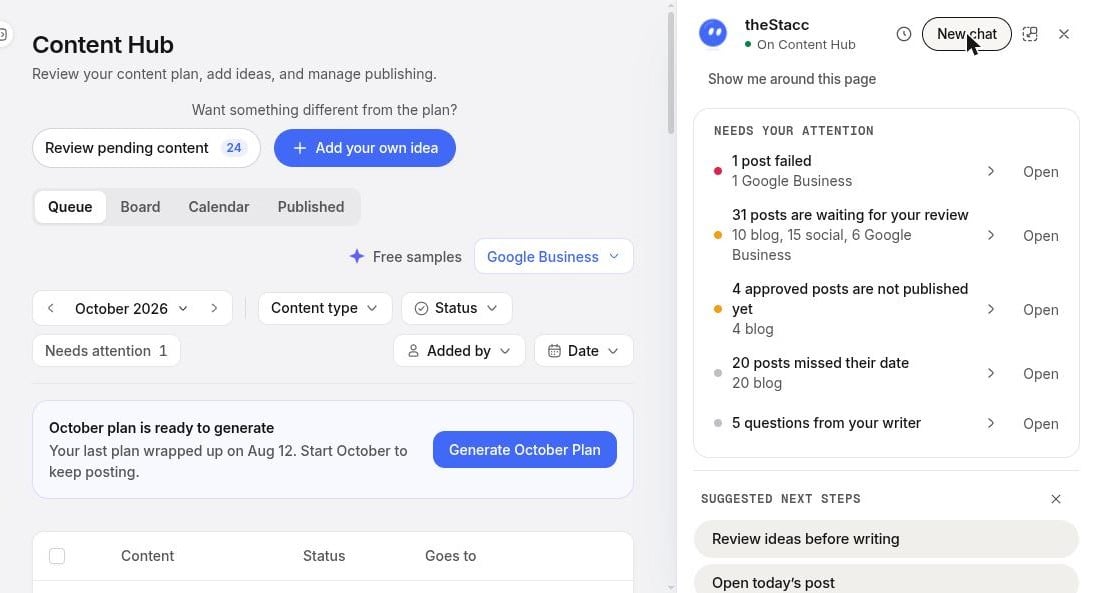
The docked assistant opens beside your page on desktop, so you can keep working while you chat.
Where to find it
- Look for the round Ask theStacc button in the bottom-right corner. It appears only when Assistant is enabled for your selected project.
- A red badge on the button is a cue to open the assistant and check its attention list.
- Click the button. On desktop, the docked panel opens beside your page. A floating panel, including the phone layout, opens over it; close the panel when you want to return to the page.
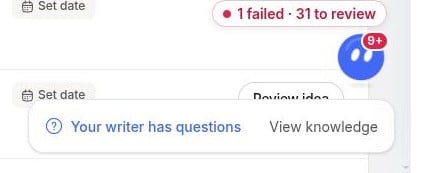
The red badge and status pill draw attention to items to check.
- New chat starts a fresh conversation.
- The history control opens your earlier chats for the project.
- Use Speak, when the microphone control is available, to compose a message. Review the text before sending it.
What it can do
Tell you what needs attention
Open the attention list and choose which item to review next.
Ask for a content edit
Name the post and the change you want. Check the result or the approval card before continuing.
Approve, schedule and fix
Ask about the next step. When an approval card appears, check the post and the action it describes.
Review regulated content
Ask about flagged wording in a project with a compliance profile. Review the facts before using suggested changes.
Help it learn your business
Answer business questions with names, dates and other details you can verify.
Finish your setup
Ask “what’s left to set up?” and check the suggested next step.
The welcome tour
When the welcome tour appears, click Next to step through it, or Skip to close it. On the last slide, Try it now picks a starter question and opens the assistant. On a trial, it fills the message box for you to review and send; otherwise it starts that question. The app normally remembers that it has shown you the tour. To see it again, use What can the assistant do? in an empty chat.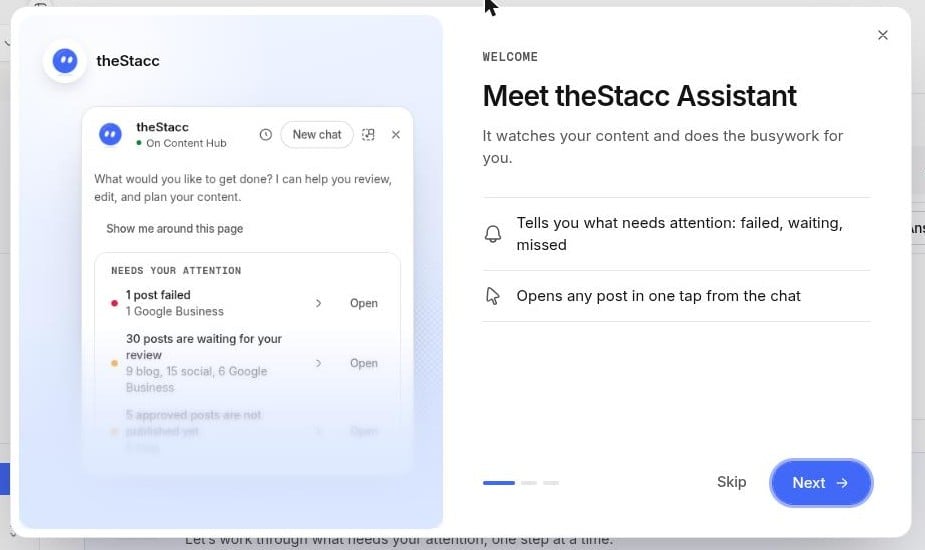
The welcome tour introduces the assistant and gives you starter questions.
You stay in control
- Some requested edits can save directly. Check the result, and use Undo if that control is offered.
- For an action with an approval card, check its target and proposed change, then choose Approve or Cancel. Approving a blog and publishing it are separate actions.
- Check the selected project and post before asking, especially after moving to another page.
- If a reply or target is unclear, name the post and the action you want. When the assistant asks a clarification question, answer it before continuing.