
See what needs your attention
When you open the assistant, it lists what needs you under Needs your attention:- Failed: posts that did not go out.
- Waiting for your review: drafts ready for you to check, split by blog, social and Google Business.
- Missed their date: posts whose scheduled date has passed.
- Approved but not published yet: posts you approved that have not gone out.
- Questions from your writer: things your writer needs to know about your business.
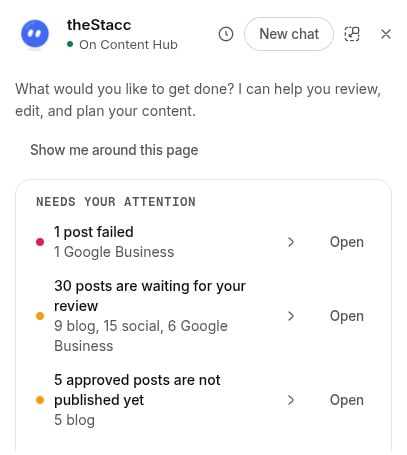
Needs your attention groups your posts by what they need from you.
Change any post by asking
The assistant can edit blog posts, social posts and Google Business posts, both the words and the images. Open the post, or name it, and say what you want. Text:- “Make this shorter”
- “Make it sound less salesy”
- “The title is too long”
- “Make the caption shorter” or “add a few emojis”
- Say “make the image better”, “the picture is too dark” or “change the photo”.
- If the post has more than one image, the assistant shows them and asks which one. Tap the image you mean.
- It makes a new version. Making an image takes about a minute.
- Compare the current image and the new one side by side.
- Choose Use this, Keep the old one, or Try again.
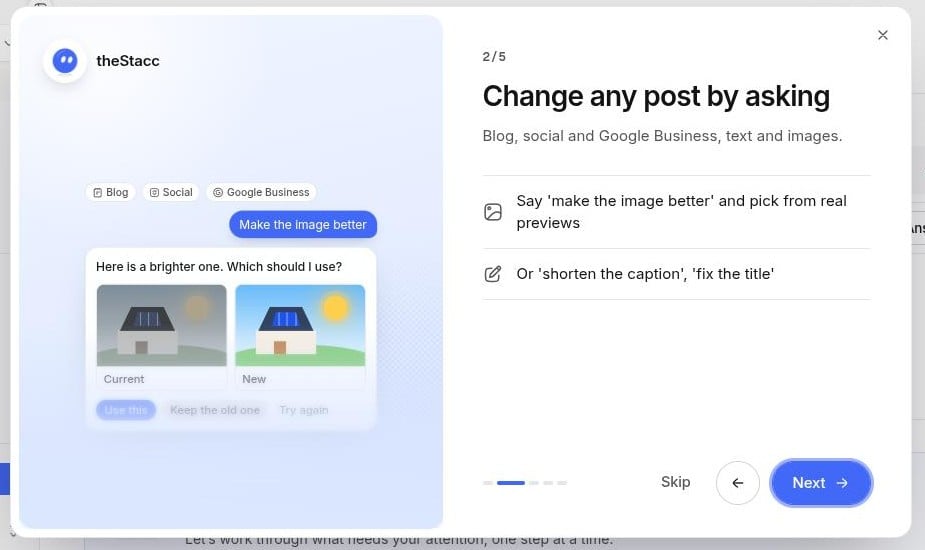
Pick between the current image and the new one. Nothing changes until you choose.
Nothing in your post changes until you approve it. If you do not like a result, ask again or keep what you had.
Approve, schedule and fix from the chat
Ask the assistant to approve or move a post, for example “approve the Sprint Planning post” or “move it to Friday”. It shows an approval card that lists exactly what will change, such as the old and new date or the status. Tap Approve to save it, or Cancel to leave everything as it is.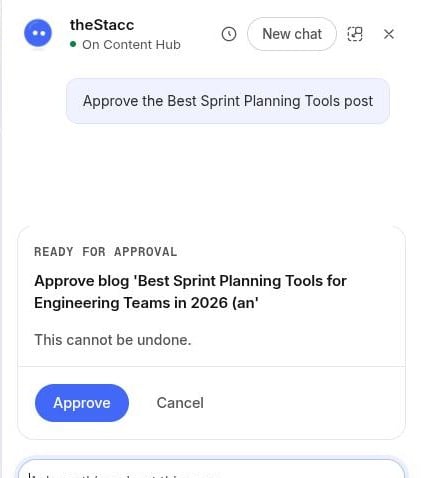
An approval card shows the change. Tap Approve to save it.
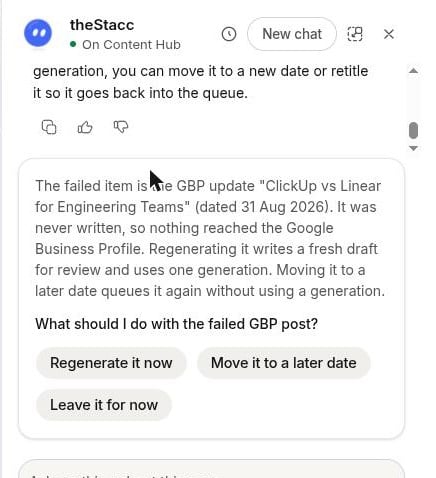
Ask why a post failed and pick what to do next.
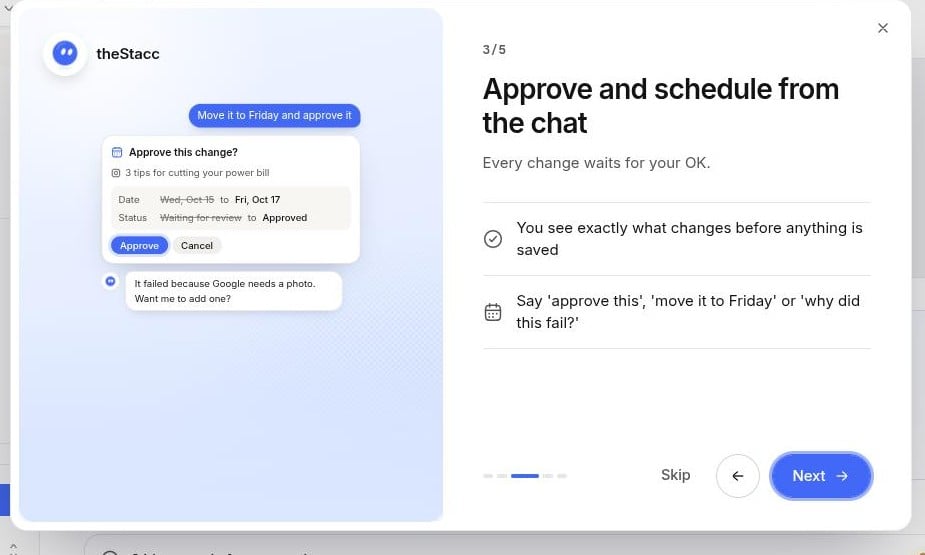
Approve and schedule from the chat. Every change waits for your OK.
Help for regulated businesses
If you run a law, health or finance business and your project has a compliance profile turned on, the assistant can help keep your posts within the rules.- Ask “why was this line flagged?” and it explains the problem in plain words.
- Ask it to fix the flagged lines. It rewrites them, and you approve all the changes at once.
- When a fix needs something only you can give, such as a licence number or proof for a claim, it asks you for it instead of making it up.
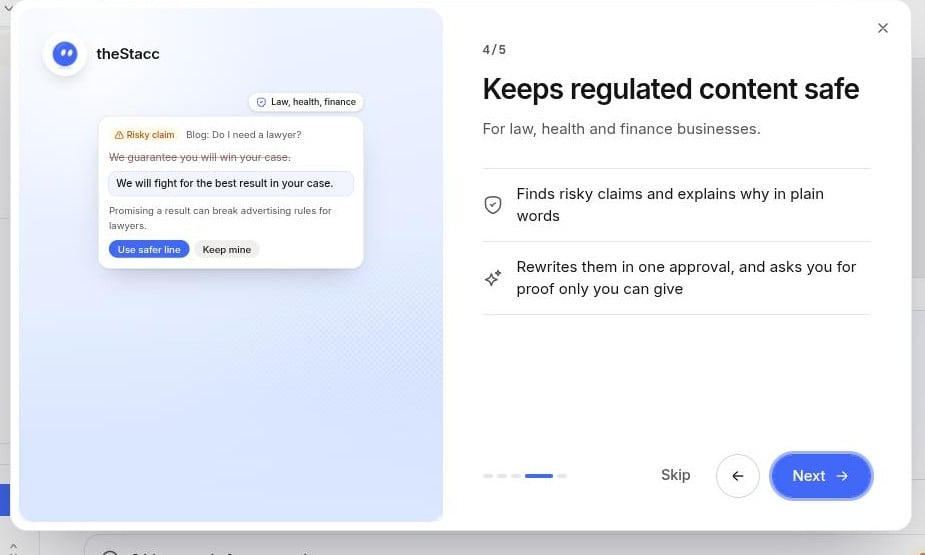
Risky claims are explained and rewritten. You approve the new wording.
Help it learn your business
Your writer sometimes has questions it cannot answer from your website, such as which areas you serve or results you have measured. Say “ask me my writer’s questions”. The assistant asks them one at a time. Tap an answer, type your own, or skip any question. Your answers are saved to Business Info and used in every new post.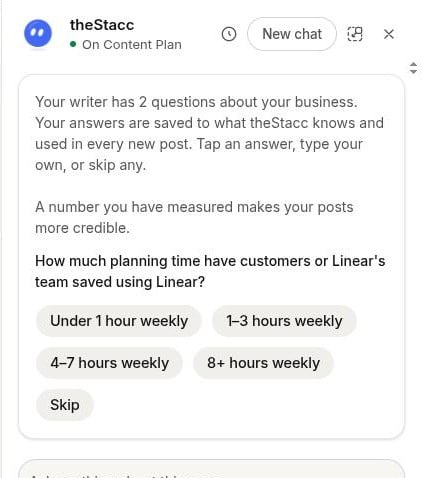
Answer your writer's questions with a tap. Answers go into every new post.
Finish setting up your project
Ask “what’s left to set up?”. The assistant shows the steps still open for your project, such as connecting your website or Google Business Profile, approving your first post, or answering your writer’s questions, and helps you finish them one by one.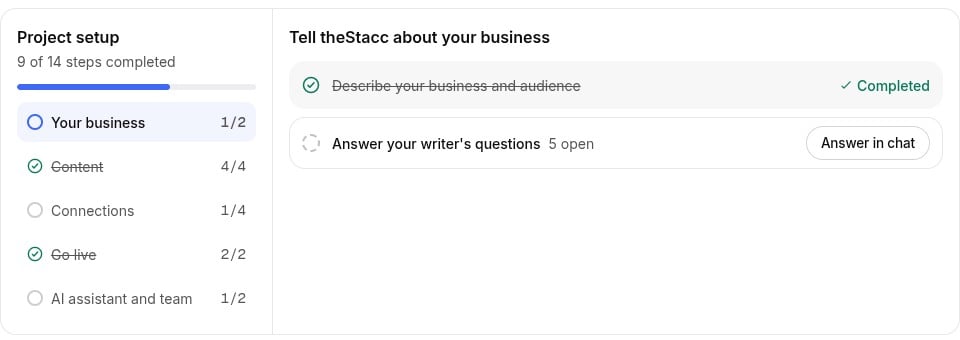
Project setup on Home shows the same steps. Answer in chat opens the assistant.