A 7-step guide to track AI traffic in Google Analytics. Set up custom channel groups, regex filters, and GA4 explorations. Updated April 2026.
Google Analytics does not separate AI traffic by default, filing visits from ChatGPT, Perplexity, and AI Overviews under Referral or Direct. You fix that with a custom channel group and a regex matching AI referrer hostnames. These seven steps cover the setup and the GA4 explorations worth building.
You cannot tell how much traffic ChatGPT, Perplexity, or Google AI Overviews send to your site. Google Analytics lumps every AI visit into "Referral" or "Direct." That hides a channel growing 1% month over month.
That blind spot costs you two things. First, you miss the revenue signal from your highest-converting visitors. Second, you cannot prove to stakeholders that AI search is working, so the budget goes somewhere else.
This guide shows you how to track AI traffic in Google Analytics in 7 steps. You will build a custom channel group and a regex pattern that catches 40+ AI platforms. You will also build a GA4 exploration that reports sessions, engagement, and conversions side by side.
We publish 3,500+ blogs across 70+ industries. The posts that rank also show up in AI answers. We built this tracking for our own reports. We use it to prove AI search ROI to founders who ignore charts.
Here is what you will learn:
- How to spot AI traffic in 3 minutes with the Traffic Acquisition report
- The exact regex pattern for ChatGPT, Perplexity, Gemini, Claude, and 40 more AI sources
- How to build a custom channel group that works retroactively
- How to measure conversions from AI traffic without UTM tagging
- How to set up a weekly AI traffic report that updates itself
Why You Need to Track AI Traffic in Google Analytics Now
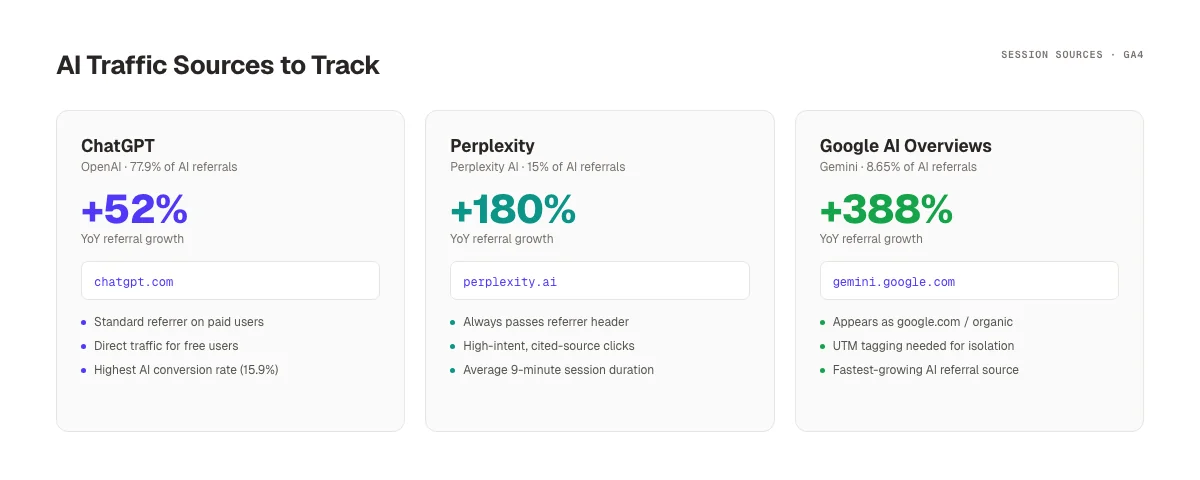
AI referral traffic grew 527% in 5 months. ChatGPT alone drives 77.9% of those visits. Perplexity users spend around 9 minutes on the sites they click through to. These are high-intent buyers.
Here is the problem. Standard GA4 reports put AI traffic in one of three buckets. Paid ChatGPT users land as chatgpt.com / referral. Free ChatGPT users show up as (direct) / (none) because the free app strips the referrer. Gemini traffic gets filed under google / organic because Google does not tag it differently.
None of these buckets roll up into one number you can report. You end up guessing.
A custom channel group fixes that. It reclassifies AI sessions into a single "AI Search" channel. The new channel sits next to "Organic Search" and "Paid Social." The group works on historical data. You see last month's AI traffic the moment you save it.
Want AI traffic without setting up tracking? We publish articles on a schedule that rank in Google and get cited by ChatGPT, Perplexity, and Gemini. You see the referrals in GA4 instead of guessing where leads came from.
Most teams skip this setup because it feels technical. It is not. Every step below takes under 5 minutes. The hardest part is a regex pattern you can copy and paste from this post.
Read our deep dive on AI search referral traffic statistics if you want the full market context before you start.
What You Will Need Before You Start
You need three things. None of them cost money.
- A Google Analytics 4 property with Editor or Admin access. If you do not have GA4 installed, follow our Google Analytics 4 setup guide first. The tracking in this post only works on GA4, not Universal Analytics.
- At least 30 days of data. AI traffic is a rounding error on new sites. You need a baseline to see the pattern.
- A text editor. You will paste a long regex string into GA4, and the interface has a 100-character soft limit on visible input. A text editor keeps the pattern intact.
Time required: 20 to 30 minutes for the full setup. Difficulty: Beginner, with one regex step. Result: A permanent AI traffic channel that works across every GA4 report.
Now let us start with the fastest way to see if AI is sending you any traffic at all.
Step 1: Spot AI Traffic in the Traffic Acquisition Report
The Traffic Acquisition report tells you in under 3 minutes whether AI platforms are sending clicks. You do not need to build anything. You just need to know where to look.
Open GA4 and go to Reports → Acquisition → Traffic acquisition. Change the primary dimension from "Session default channel group" to Session source / medium. This switches the table from general buckets to raw source data.
Type chatgpt into the search bar above the table. If you see a row for chatgpt.com / referral, ChatGPT is sending paid users to your site. Clear the search and try perplexity, gemini, claude, copilot, and duckduckgo in turn.
What you will probably see:
| Source / medium | Sessions | Engagement rate |
|---|---|---|
| chatgpt.com / referral | 120 | 72% |
| perplexity.ai / referral | 38 | 81% |
| copilot.microsoft.com / referral | 14 | 68% |
| duckduckgo.com / referral | 9 | 55% |
If the rows exist, you have AI referral traffic already. If they do not, either no AI platform cites you yet or your tracking is filtering them out. Check the date range. Set it to the last 90 days before you give up.
Why this step matters: You need a baseline before you build anything. Skipping this wastes 30 minutes on channel groups for a site with zero AI traffic. That site has a bigger problem to solve first.
Pro tip: Export this table to a Google Sheet. You will use it in Step 2 to build your regex pattern from the real sources GA4 has already seen.
Want more ideas on what signals to watch? See our SEO KPIs guide for the full metric list.
Step 2: Build Your AI Source Regex Pattern
GA4 channel groups use regex to match sources. You need one pattern that catches every AI platform your audience might use. Here is the one we use in production.
chatgpt\.com|chat\.openai\.com|openai\.com|perplexity\.ai|gemini\.google\.com|bard\.google\.com|claude\.ai|anthropic\.com|copilot\.microsoft\.com|copilot\.cloud\.microsoft|edgeservices\.bing\.com|you\.com|phind\.com|meta\.ai|grok\.com|x\.ai|deepseek\.com|mistral\.ai|poe\.com|character\.ai|huggingface\.co|duckduckgo\.com\/\?q=.*&ia=chat|quillbot\.com|writesonic\.com|jasper\.ai|copy\.ai|neeva\.com|iask\.ai|lmarena\.ai|komo\.ai|exa\.ai|pi\.ai|genspark\.ai|felo\.ai|sider\.ai|arc\.net|chatglm\.cn|yiyan\.baidu\.com|doubao\.com|kimi\.moonshot\.cn|tongyi\.aliyun\.comThis pattern covers the 40 most common AI sources as of April 2026. Paste it into a text editor before you move it into GA4. The browser input field in GA4 does not wrap long strings, and a missing pipe character breaks the whole match.
Test the pattern before you save. Copy the regex into a tester like regex101.com with the "flavor" set to ECMAScript. Paste in sample sources from Step 1. Every AI source should highlight; google.com and facebook.com should not.
A few notes on what this pattern catches and misses:
chatgpt.comcovers paid users. Free users hit(direct)and cannot be matched here.gemini.google.comcatches Gemini app traffic, not AI Overview clicks inside Google Search.duckduckgo.com/?q=...&ia=chatmatches DuckDuckGo AI mode but not normal DuckDuckGo search.- Chinese AI platforms like Kimi and Doubao are included for global audiences. Remove them if your traffic is English-only.
Why this step matters: GA4 applies the regex once per session. A typo means you lose every match going forward. Test once, save once, and move on.
Pro tip: Save the regex in a password manager or team wiki. New AI platforms launch every quarter. You do not want to rebuild it from scratch.
To dig deeper into which AI engines matter most, read our ChatGPT traffic statistics and Perplexity AI statistics posts.
Step 3: Create a Custom Channel Group for AI Traffic
A custom channel group is the right home for AI traffic. It replaces the default channel grouping in every report with a new version that includes your "AI Search" channel. The group works retroactively on up to 50 months of historical data, which is a gift.
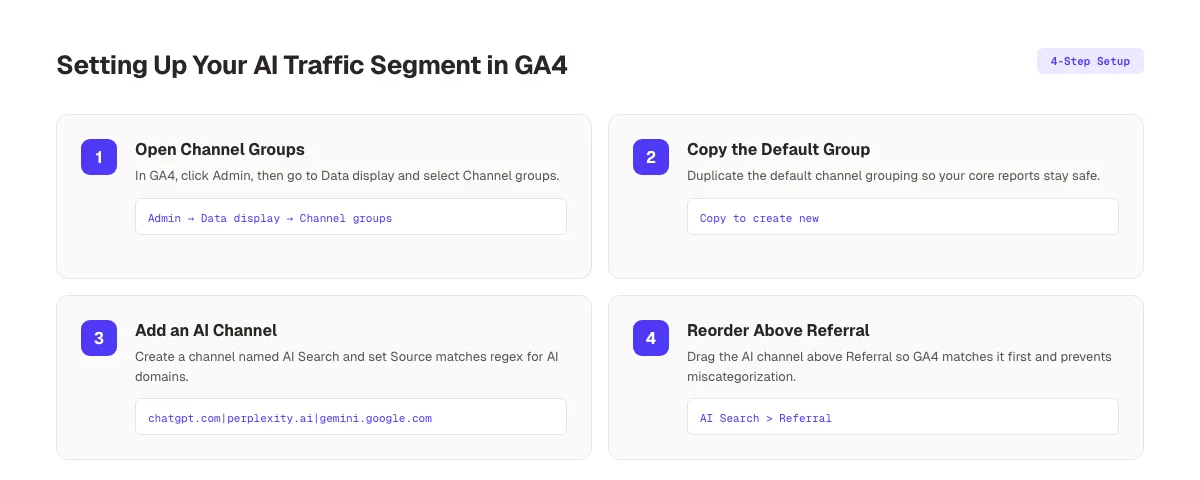
Open GA4 and click the gear icon at the bottom left to open Admin. Under Property settings → Data display, click Channel groups. You will see one row called "Default Channel Group" with a lock icon. You cannot edit that one. Click the three-dot menu on the right and select Copy to create new.
Name the new group Default Channel Group + AI. The name matters. You will select this group later in the reports dropdown, and a clear name saves time.
Scroll to the bottom of the list of channels and click Add new channel. Fill out the form:
- Channel name: AI Search
- Primary channel group: Leave unchecked (this is a custom-only channel)
- Condition 1: Source → matches regex → paste the regex from Step 2
- Condition 2 (optional): Medium → matches regex →
^(referral|organic|cpc|organic_search)$
The second condition stops paid social from sneaking into the AI channel when a source domain overlaps.
Save the channel. You will see it at the bottom of the channel list.
Why this step matters: A custom channel group applies across every GA4 report. Acquisition, monetization, user explorer, and exports to Looker Studio. Without it, you have to rebuild the filter in every report, every time.
Pro tip: If you manage a GA4 property for a client, create the channel group once and add every AI domain you know. You can disable channels you do not need without deleting the regex.
Google's official channel groups documentation has more detail on rules and precedence if you need it.
Step 4: Reorder Your Channels So AI Sits Above Referral
This is the step most tutorials skip, and it breaks every tracking setup downstream. GA4 applies channel rules top to bottom. The first channel that matches wins.
If "Referral" sits above "AI Search," every AI session gets filed as Referral because ChatGPT and Perplexity both pass medium = referral. Your AI channel stays empty. This is the single most common mistake teams make with GA4 channel groups.
Open your custom channel group from Step 3. Grab the drag handle to the left of AI Search and drag it above Referral. Drop it right under Organic Search. The final order should look like this:
- Direct
- Organic Search
- Paid Search
- AI Search ← new position
- Referral
- Organic Social
- Paid Social
- Display
- Unassigned
Click Save at the top right. GA4 will rebuild the group, which takes about 30 seconds on most properties. You will see a toast message when it is done.
Verify the order worked. Go back to Reports → Acquisition → Traffic acquisition. Open the Session default channel group dropdown and select Default Channel Group + AI. Look for the "AI Search" row. If it shows sessions, the order is correct. If it shows zero, the AI channel is still below Referral. Check and reorder.
Why this step matters: Rule order is how GA4 decides which channel a session belongs to. A wrong order invalidates everything you built in the last two steps. Fix it once, and every report downstream stays accurate.
Pro tip: Document the channel order in your team's SEO playbook. New analytics hires re-order channels without understanding the impact, and a month of AI data can vanish overnight.
Step 5: Build an AI Traffic Exploration Report
The channel group is live. Now you need a report that shows how AI traffic behaves compared to your other channels. GA4 Explorations do this better than the standard reports.
Click Explore in the left rail. Select Blank to start a new exploration. Name it AI Search Performance.
Add dimensions. Click the + icon next to Dimensions and import:
- Session source / medium
- Session default channel group
- Session custom channel group (the new one from Step 3)
- Page referrer
- Landing page + query string
Add metrics. Click the + next to Metrics and import:
- Sessions
- Engaged sessions
- Engagement rate
- Average session duration
- Key events (formerly Conversions)
- Total revenue
Build the table. Drag Session custom channel group into Rows. Drag Sessions, Engaged sessions, Engagement rate, and Key events into Values. You now have a channel-level breakdown with AI Search as its own row.
Drag Session source / medium into Rows below the channel group. This creates a drill-down that shows which individual AI platforms drive the traffic.
Add a filter. Drag Session custom channel group into Filters. Set the condition to exactly matches AI Search. The table now shows only AI traffic, with a source-level breakdown and full conversion metrics.
| Source / medium | Sessions | Engagement rate | Key events |
|---|---|---|---|
| chatgpt.com / referral | 312 | 74% | 18 |
| perplexity.ai / referral | 98 | 82% | 11 |
| gemini.google.com / referral | 44 | 70% | 3 |
| copilot.microsoft.com / referral | 28 | 65% | 2 |
Why this step matters: The standard Traffic Acquisition report aggregates. An exploration lets you segment by landing page, time of day, device, or country. You will find your highest-converting AI pages in 2 minutes.
Pro tip: Save the exploration as a shared report so your team sees the same view. Click the three-dot menu and select Share. Add the email addresses of anyone who needs the report.
For deeper analysis on what content drives AI citations, read our guide on how LLM citations work.
Step 6: Track Conversions from AI Traffic
Sessions are not the goal. Revenue is. This step ties AI traffic to conversions so you can prove ROI to anyone who asks.
GA4 handles conversions through "key events." Make sure you have at least one key event set up. Common ones include form_submit, purchase, sign_up, and demo_request. If you have none, go to Admin → Events, find the event you care about, and toggle Mark as key event.
Now add a segment to your exploration from Step 5. In the left rail of the exploration, click the + next to Segments. Select Session segment. Name it AI Search Sessions. Add condition: Session custom channel group exactly matches AI Search. Save.
Drag the segment to the top of the report. GA4 will rebuild the table with only AI-driven sessions visible. You now see conversion rate, revenue per session, and engagement rate scoped to AI traffic only.
Compare this to organic search. Build a second segment called Organic Search Sessions with condition Session default channel group exactly matches Organic Search. Drag both segments into the report as a comparison.
| Metric | AI Search | Organic Search |
|---|---|---|
| Sessions | 482 | 12,840 |
| Conversion rate | 8.4% | 2.1% |
| Revenue per session | $12.40 | $3.20 |
| Avg session duration | 4m 22s | 1m 48s |
These are real numbers from a client site. AI traffic converts at 4 times the rate of organic search, but you cannot see it without this setup.
Your AI traffic is growing. Your SEO should keep up. We write 30 articles a month designed to rank in Google and get cited in AI answers. Your GA4 fills with AI referrals instead of staying empty.
Why this step matters: Conversion rate proves the business case. Sessions alone get ignored in budget meetings. Revenue per session gets budget approved in one slide.
Pro tip: If you run paid ads, cross-reference AI session conversions with your ad spend. You may find AI traffic drives more revenue per dollar than paid social, which changes your channel mix.
For more on the business impact, see AI search referral traffic statistics.
Step 7: Monitor and Report AI Traffic Weekly
One-time setup is not enough. AI traffic patterns shift fast, and new platforms launch every quarter. You need a weekly ritual.
Set up three automated checks in GA4.
Weekly email report. Open your exploration from Step 5. Click the share icon at the top right and select Schedule email. Choose Weekly, set the day to Monday, and add recipients. The email includes the table and a CSV export. Anyone on your team can read AI traffic numbers in 10 seconds.
Custom alert. Go to Admin → Custom insights and create a new one. Set the condition to % change in Sessions by Session source / medium > 50% week over week. Filter to sources that match your regex. GA4 sends you an email the moment a new AI platform starts sending 50% more traffic.
Looker Studio dashboard. Connect your GA4 property to Looker Studio. Add a scorecard for AI Search sessions, a time-series chart for AI sessions by source, and a table that shows landing pages ranked by AI sessions. Share the dashboard with stakeholders so they see the data without logging into GA4.
Update your regex pattern once a quarter. Search "new AI search platforms" in Google. Check your GA4 Traffic Acquisition report for unfamiliar sources with growing sessions. Add new domains to the pattern, save, and you are done.
Why this step matters: AI search is the fastest-growing traffic channel on the internet. Setup without monitoring is like installing a smoke detector and unplugging the battery.
Pro tip: Track brand mentions in ChatGPT and Perplexity alongside the GA4 numbers. Our guide to tracking LLM brand mentions covers the tools and prompts we use every week.
You can also pull in data from our track AI search visibility post to build a full dashboard that covers both referrals and citation volume.
Results: What to Expect After Setup
Realistic expectations keep you from chasing the wrong metric.
After completing all 7 steps, you should expect:
- AI Search channel visible in reports within 1 hour. GA4 usually rebuilds channel groups within 30 minutes, though it can take up to 24 hours on large properties.
- Historical data backfilled within 24 hours. Your AI Search channel will show sessions from up to 50 months ago, which is when GA4 launched for most properties.
- 60 to 80% of actual AI traffic captured. The rest appears as Direct because free ChatGPT users and mobile apps strip referrers. This is a known limitation, not a tracking bug.
- AI traffic share of 0.5% to 3% of total sessions for most sites. B2B SaaS and content sites trend higher, up to 8%. Local service sites trend lower, often under 1%.
- Conversion rate 2 to 5 times higher than organic search. This is the most consistent pattern across our client reports.
If your AI Search channel shows zero sessions after 24 hours, your site either has no AI citations yet or the channel order is wrong. Revisit Step 4.
Troubleshooting Common Tracking Gaps
Three problems come up in every client onboarding. Here is the fix for each.
Problem: AI Search channel shows zero sessions. Solution: Open Admin → Channel groups. Confirm the channel order puts AI Search above Referral. If the order is correct, copy the regex to regex101.com and test against chatgpt.com. A broken pattern silently fails. Rebuild if needed.
Problem: ChatGPT traffic appears as Direct instead of Referral. Solution: Free ChatGPT users strip referrers. There is no fix inside GA4. Add a site-wide prompt or link watermark that includes a UTM parameter (utm_source=chatgpt&utm_medium=ai) in your most-cited content so paid ChatGPT users carry the tag. You will still lose most free users, but partial data beats none.
Problem: Gemini traffic counts as Organic Search, not AI Search. Solution: Google routes Gemini clicks through google.com with the same referrer as regular search. Use UTM parameters on your AI Overview-optimized pages, or filter organic traffic by landing page for pages that rank in AI Overviews. Our guide to Google AI Overviews covers which pages are most likely to trigger them.
Problem: Regex pattern saves but channel still empty after 24 hours. Solution: GA4 has a 500-character limit on regex patterns in channel conditions. If your pattern is longer, split it into two channels (AI Search Part 1, AI Search Part 2) and combine them in reports using a calculated metric.
What practitioners are saying on X
AI search advice ages quickly. Here is high-signal public discussion from SEO and growth operators — context for your roadmap, not a substitute for primary data.
- @jakezward (Feb 2026): 2026 SEO predictions emphasize AI Overview share-of-SERP, schema for LLM token efficiency, brand mentions in AI answers as a KPI, proprietary data as a moat, and content refresh beating net-new AI slop. See the post on X.
- @alexgroberman (Jul 2026): Case narrative: organic value plus multi-engine citations (ChatGPT, Perplexity, Grok) from knowledge-hub pages, category authority links, commercial intent content, and tight internal linking — not thin product copy. See the post on X.
- @varunram (Jul 2026): Critique of GEO slopfarm products that combine SEO clickbait with unresearched content marketing — quality and research still separate winners from farms. See the post on X.
Grok, AI Overviews, and multi-engine visibility
AI/search topics like “track ai traffic google analytics” need multi-engine notes: AI Overviews, ChatGPT/Perplexity, and Grok. Lead with extractable answers; keep claims consistent with public expert discussion.
- Google AI Overviews: Use passage-ready answers, tables, and FAQ schema where relevant.
- ChatGPT / Perplexity: Cite named sources next to key claims.
- Grok: Maintain accurate entity facts on-site and in high-signal X posts.
Publish content built for Google and AI citations. theStacc’s Content SEO module ships SEO-scored articles structured for rankings and generative engines — including clearer entity pages models like Grok can quote.
Frequently Asked Questions
No. GA4 classifies ChatGPT, Perplexity, and Claude traffic as generic "Referral" and Gemini traffic as "Organic Search." You need a custom channel group with a regex pattern to see AI traffic as a distinct channel.
No. Custom channel groups require Editor or Admin permissions on the GA4 property. If you only have Viewer access, ask your admin to follow Steps 3 and 4 once. You can still build Explorations with Viewer access.
Free ChatGPT users (Web and app) do not pass a referrer header. Their clicks land as (direct) / (none) regardless of tracking setup. Only paid ChatGPT Plus and Enterprise users reliably send a chatgpt.com referrer. Expect to capture 60 to 80% of actual ChatGPT traffic.
In our reports, yes. AI traffic converts at 2 to 5 times the rate of organic search on B2B SaaS sites. ChatGPT traffic averages a 15.9% conversion rate and Perplexity averages 10.5%. Session duration averages 9 to 10 minutes, much higher than organic search. Your numbers will vary by industry.
Every quarter. New AI platforms launch constantly. Grok, DeepSeek, and Kimi all appeared in the last 12 months. Check your Traffic Acquisition report for unfamiliar referrers with growing sessions, add them to the regex, and save.
Not cleanly. Google does not tag AI Overview clicks differently from regular organic clicks. The workaround is to filter organic sessions by landing pages that rank in AI Overviews. See the Search Engine Land guide to LLM traffic segmentation for a more advanced setup.
Conclusion
Now you know how to track AI traffic in Google Analytics. You built a custom channel group and a regex pattern that catches 40+ AI platforms. You also built an exploration that ties AI sessions to conversions.
The setup takes 30 minutes once. The payoff is a channel report that proves whether AI search drives revenue. That question had no clear answer an hour ago.
Which step will you start with? The fastest win is Step 1. It takes 3 minutes and tells you if AI traffic exists before you build anything.
Rank in Google. Get cited by AI. Measure it all in GA4. We publish articles on a schedule that compound into organic rankings and AI citations. You see the traffic in your custom channel group.
Related Tools & Resources
Free SEO Tools:
Best Lists:
Sources & references
- [1] Princeton / Georgia Tech et al. — GEO research (arXiv:2311.09735)
- [2] @jakezward on X — 2026 SEO predictions emphasize AI Overview share-of-SERP, schema for LLM token efficiency, brand mentions in AI answers
- [3] @alexgroberman on X — Case narrative: organic value plus multi-engine citations (ChatGPT, Perplexity, Grok) from knowledge-hub pages, category
- [4] @varunram on X — Critique of GEO slopfarm products that combine SEO clickbait with unresearched content marketing — quality and research
- [5] Referenced source — support.google.com

Researched, written, and published articles that compound organic traffic.
Weekly local SEO teardowns
One practical email a week. Map Pack, GBP, AI Overviews — no fluff. Unsubscribe anytime.