Learn what Google StoreBot crawler does, how to verify it, and how to optimize your store. Covers user agents, robots.txt, verification, and common issues.
Google StoreBot is a specialized crawler that simulates a shopper's journey through your product pages, cart, and checkout. It does not buy anything. It collects pricing, shipping, stock status, and payment data to verify what you submitted in Google Merchant Center. If StoreBot cannot reach your pages, your products disappear from Google Shopping, the Shopping tab, and AI-driven shopping answers.
Most merchants have never heard of StoreBot until a Search Console warning arrives. By that point, product listings have already dropped out of Shopping surfaces. The fix is not complicated, but it requires knowing what the bot does, where it goes, and how to keep it out of your firewall without blocking it entirely.
We audit hundreds of e-commerce sites every month. StoreBot access issues are among the top five reasons product feeds stop appearing in Google Shopping. This guide covers everything you need to know about the Google StoreBot crawler, from user agent strings to verification steps to robots.txt rules.
Here is what you will learn:
- What Google StoreBot does and why it matters for your store
- How to identify StoreBot in your server logs using its user agent
- How to verify that a StoreBot request is authentic and not a fake
- How to allow or block StoreBot using robots.txt without affecting Googlebot
- How StoreBot differs from Googlebot and why the distinction matters
- Common StoreBot issues and how to fix them
- A readiness checklist to make sure your store is fully prepared
Table of Contents
- What Is Google StoreBot and Why Should You Care
- How StoreBot Identifies Itself: User Agent Strings
- What Data StoreBot Collects From Your Store
- How to Verify Authentic StoreBot Requests
- StoreBot vs Googlebot: What Makes Them Different
- How to Allow or Block StoreBot With Robots.txt
- Common StoreBot Issues and How to Fix Them
- StoreBot Readiness Checklist
- Frequently Asked Questions
What Is Google StoreBot and Why Should You Care
Google StoreBot is a dedicated crawler operated by Google to verify product data across e-commerce websites. Unlike Googlebot, which indexes pages for general search results, StoreBot move throughs product detail pages, shopping carts, and checkout flows to confirm that the information you submitted to Google Merchant Center matches what shoppers actually see on your site.
The bot uses machine learning to interact with forms, simulate shipping address entry, and progress through checkout without completing a purchase. It fills the first name field with "Google" and the last name field with "StoreBot" during these test transactions. This behavior has confused many merchants who see test orders in their system and assume they are spam.
Google launched StoreBot to solve a persistent problem in online shopping: merchants submitting inaccurate or outdated product data to Merchant Center. Before StoreBot, Google had no automated way to verify that a $49.99 price in a feed matched the $59.99 price on the live site. The result was frustrated shoppers who clicked a Google Shopping ad and found a different price, or worse, an out-of-stock item.
According to Google's official Merchant Center documentation, StoreBot gathers data about product prices, shipping costs, delivery times, stock availability, coupon validity, payment methods, return policies, and merchant contact information. This data feeds directly into Google Shopping, the Shopping tab in Google Search, and AI-generated shopping answers in Google AI Overviews.
If StoreBot cannot access your site, Google cannot verify your product data. Unverified products lose eligibility for Shopping surfaces. That means fewer impressions, fewer clicks, and fewer sales from one of the highest-intent traffic sources available to e-commerce businesses.
Keep your products visible in Google Shopping. StoreBot verification is the gate between your Merchant Center feed and actual Shopping traffic. If the bot cannot reach your pages, your listings vanish. We audit e-commerce sites every month and fix StoreBot access issues before they cost you sales. Run a free technical SEO audit
How StoreBot Identifies Itself: User Agent Strings
Every crawler that visits your site sends a user agent string in the HTTP request header. This string tells your server who is asking for the page. Google StoreBot uses a distinct user agent that separates it from Googlebot, Googlebot-Image, and every other Google crawler.
The StoreBot user agent contains the token "Storebot-Google" and follows the same pattern as other Google crawlers: a Mozilla-compatible prefix, operating system details, the crawler name, and a Chrome browser rendering engine identifier.
Google publishes two variants of the StoreBot user agent. One simulates a desktop shopper. The other simulates a mobile shopper. Both use the same core token, so you can target them with a single robots.txt rule.
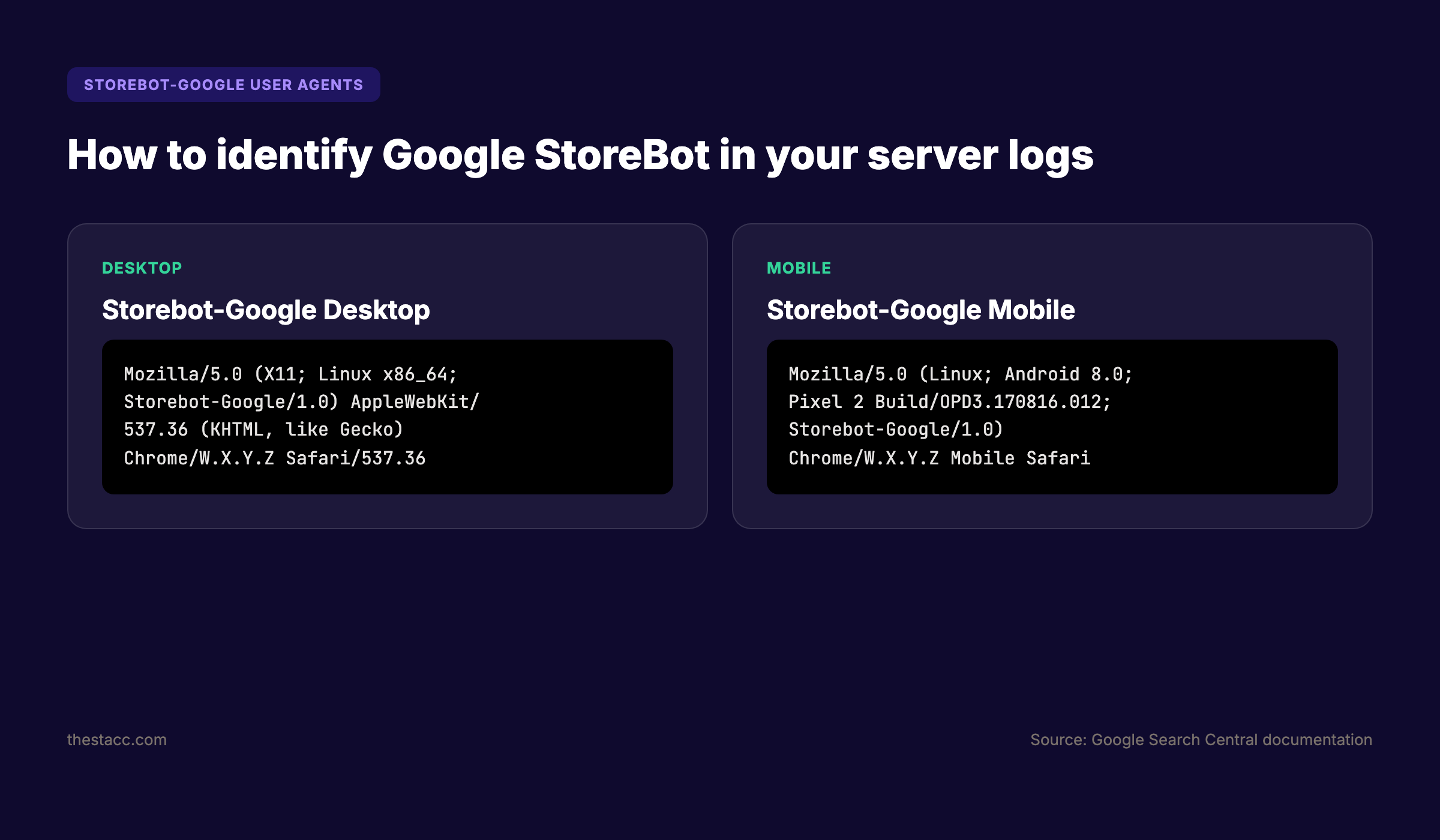
The desktop user agent reads: Mozilla/5.0 (X11; Linux x86_64; Storebot-Google/1.0) AppleWebKit/537.36 (KHTML, like Gecko) Chrome/W.X.Y.Z Safari/537.36. The mobile user agent reads: Mozilla/5.0 (Linux; Android 8.0; Pixel 2 Build/OPD3.170816.012; Storebot-Google/1.0) AppleWebKit/537.36 (KHTML, like Gecko) Chrome/W.X.Y.Z Mobile Safari/537.36.
The "W.X.Y.Z" placeholder represents the Chrome version number. Google updates this dynamically to match the latest Chromium release, so you should never hardcode a specific version when filtering logs or writing firewall rules. Always match on the "Storebot-Google" token instead.
Google also publishes the IP ranges used by its common crawlers in a JSON file at developers.google.com/static/search/apis/ipranges/googlebot.json. Gary Illyes from Google announced in 2025 that this file updates daily instead of weekly, making IP-based verification more reliable for large network operators.
To find StoreBot in your server logs, run a simple grep command: grep "Storebot-Google" access.log. This will surface every request from the crawler, including the timestamp, requested URL, HTTP status code, and response size. If you see zero results, either StoreBot has not visited your site yet or your log format does not include the user agent field.
What Data StoreBot Collects From Your Store
StoreBot does not randomly browse your site. It follows a structured data collection path designed to verify every piece of information you submitted to Google Merchant Center. Understanding what the bot collects helps you prepare your pages so verification happens smoothly.
Google's official documentation lists eight primary data categories that StoreBot extracts during its crawl. These cover the entire shopper journey from product discovery to checkout completion.
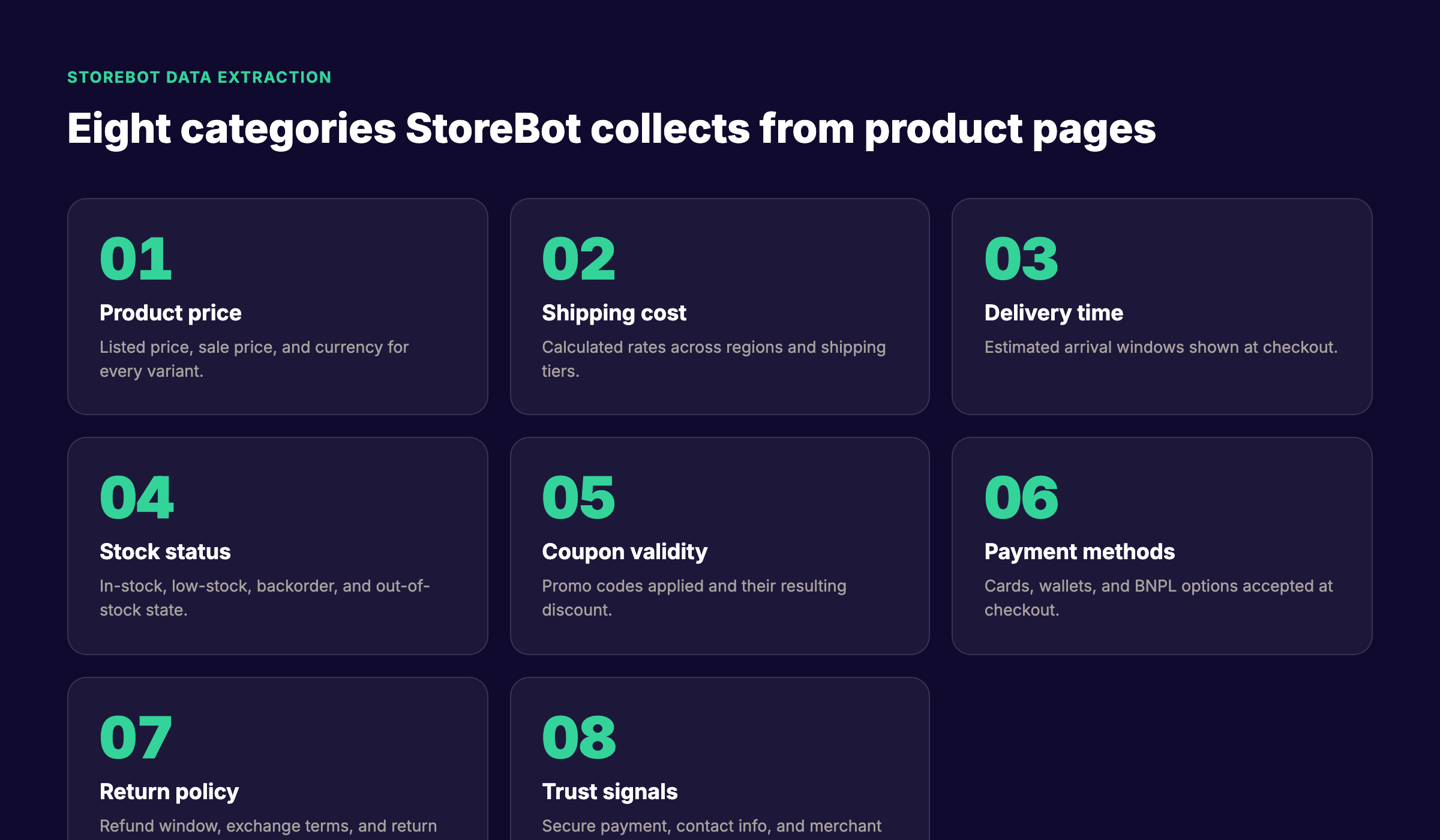
The first category is product price. StoreBot reads the listed price, any sale price, and the currency for every product variant. If your page shows $49.99 but your feed says $39.99, Google flags a mismatch. The second category is shipping cost. The bot calculates rates across regions and shipping tiers by simulating address entry at checkout.
The third category is delivery time. StoreBot records estimated arrival windows shown at checkout. The fourth is stock status, including in-stock, low-stock, backorder, and out-of-stock states. The fifth is coupon validity. The bot tests promo codes and records the resulting discount.
The sixth category is payment methods. StoreBot identifies which cards, digital wallets, and buy-now-pay-later options your checkout accepts. The seventh is return policy, including refund windows, exchange terms, and return shipping costs. The eighth is trust signals: secure payment badges, merchant contact information, and business identity verification.
Google states that structured data markup on your pages takes precedence over what StoreBot extracts directly. This means a properly implemented Product schema with accurate price, availability, and shipping details will override any discrepancy the bot finds during crawling. If you have not added structured data to your product pages, StoreBot's direct extraction becomes the authoritative source, which introduces more room for error.
The bot also records shopping framework information and affiliate domain data. This helps Google understand whether your store runs on Shopify, WooCommerce, Magento, or a custom platform. Framework detection is not used for ranking, but it helps Google diagnose platform-specific issues when merchants report problems.
How to Verify Authentic StoreBot Requests
Not every request claiming to be Storebot-Google is legitimate. Spoofed user agents are common in bot traffic, and malicious actors sometimes impersonate Google crawlers to bypass security filters. Verifying that a request truly comes from Google is a critical step in any technical SEO audit.
Google provides a two-step verification process: reverse DNS lookup followed by forward DNS lookup. This process confirms that the IP address making the request belongs to Google's infrastructure and that the hostname associated with that IP resolves back to the same address.
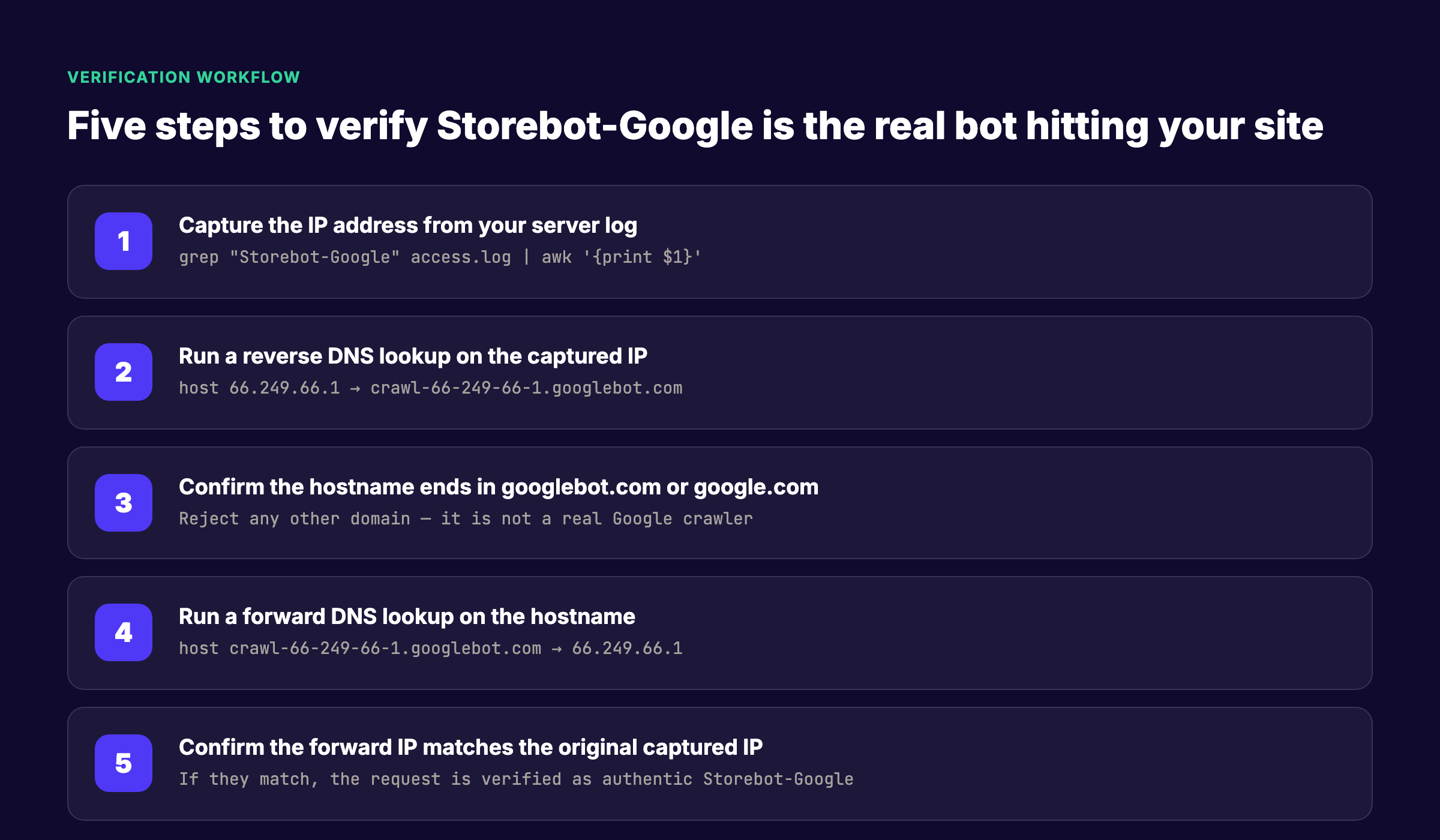
Step one is to capture the IP address from your server log. Run: grep "Storebot-Google" access.log | awk '{print $1}'. This isolates the IP for every StoreBot request. Step two is to run a reverse DNS lookup on that IP using the host command: host 66.249.66.1. A legitimate Google crawler will return a hostname ending in googlebot.com or google.com.
Step three is to confirm the hostname ends in the correct domain. If the reverse lookup returns anything else, reject the request. It is not a real Google crawler. Step four is to run a forward DNS lookup on the hostname: host crawl-66-249-66-1.googlebot.com. This resolves the hostname back to an IP address.
Step five is the final confirmation. Compare the IP from step four with the original IP from step one. If they match, the request is verified as authentic Storebot-Google. If they do not match, the request is spoofed and should be blocked at the server or firewall level.
Cloudflare Radar data shows that Googlebot crawling activity grew 96% year-over-year in 2025. With that growth comes increased impersonation attempts. Server-level verification is no longer optional for high-traffic e-commerce sites.
Google also recommends using the common-crawlers.json file for automated verification at scale. Large network operators can script this check to run against every new IP that claims to be a Google crawler. The daily update frequency announced by Gary Illyes means your allow-list stays current without manual intervention.
StoreBot vs Googlebot: What Makes Them Different
StoreBot and Googlebot are both operated by Google, but they serve entirely different purposes. Confusing the two leads to misconfigured robots.txt files, blocked Shopping traffic, and wasted crawl budget. Understanding the distinction is essential for any e-commerce technical SEO strategy.
Googlebot is the primary crawler for Google Search. It discovers, fetches, and indexes web pages to build the search index that powers organic results. StoreBot is a specialized crawler for Google Shopping. It verifies product data by navigating product pages, carts, and checkout flows.
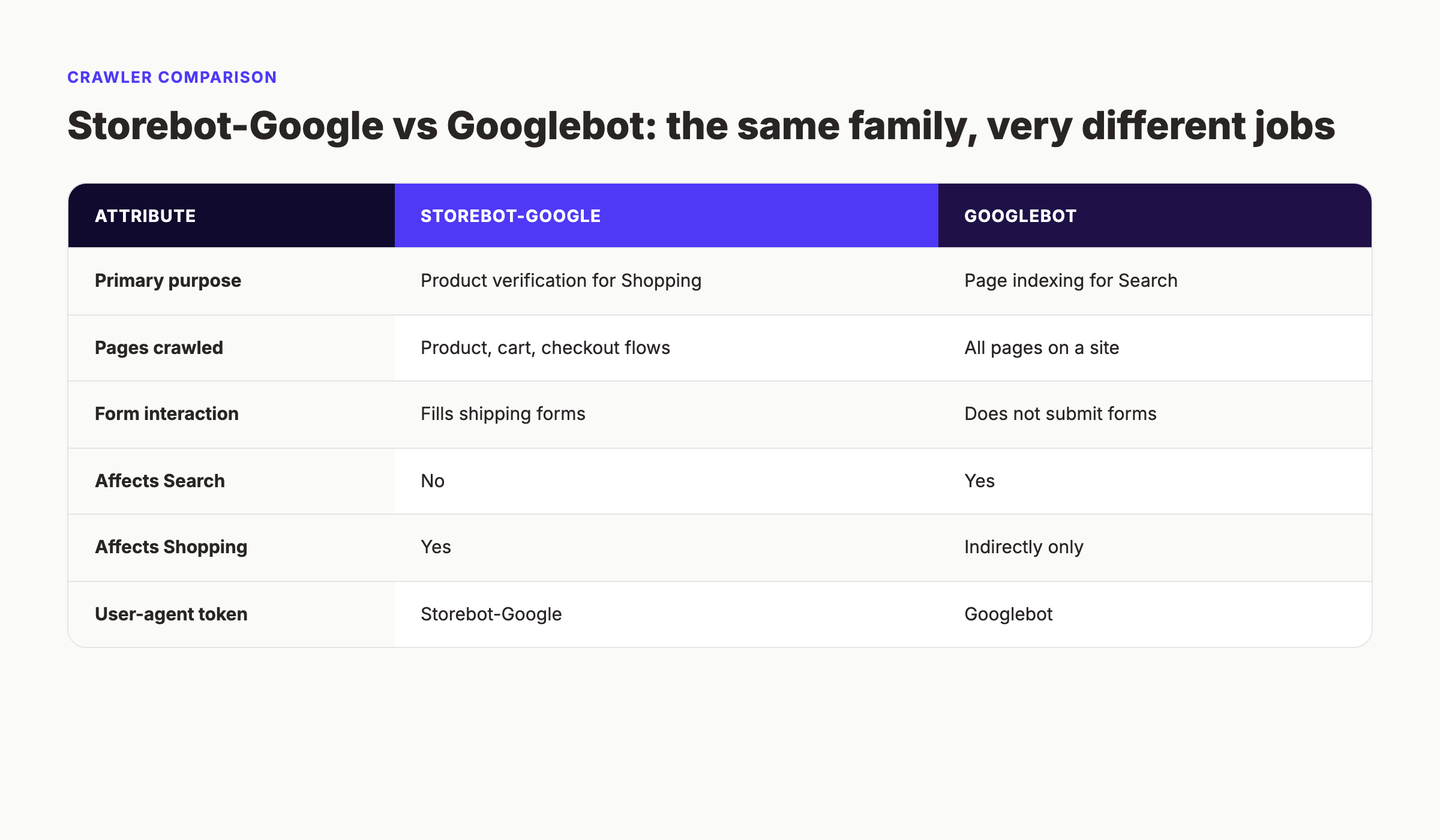
The most important difference is what each bot does with the pages it crawls. Googlebot stores pages in the search index. StoreBot does not index pages for search. It extracts data and sends it to Merchant Center for verification. A page blocked from Googlebot will not appear in Google Search. A page blocked from StoreBot will not appear in Google Shopping. The two are independent.
Another key difference is form interaction. Googlebot does not submit forms. It follows links and reads page content. StoreBot actively fills checkout forms with test data, including the name "Google StoreBot," to simulate a complete purchase flow. This behavior has caused confusion among merchants who see incomplete orders in their admin panel.
The user-agent tokens are also distinct. Googlebot uses "Googlebot" as its token. StoreBot uses "Storebot-Google." This separation allows you to control Shopping crawling independently from Search crawling in your robots.txt file. You can allow Googlebot while disallowing StoreBot, or vice versa, depending on your business needs.
Googlebot crawls from a broad set of IP ranges and supports caching when re-crawling URLs. StoreBot supports caching only under certain conditions, according to Google's crawler documentation. This means StoreBot may request the same page more frequently than Googlebot if product data changes often.
The practical implication is simple: if you run an e-commerce store and want products in Google Shopping, you need both crawlers. Block Googlebot and you lose search visibility. Block StoreBot and you lose Shopping visibility. Neither replaces the other.
How to Allow or Block StoreBot With Robots.txt
Your robots.txt file is the primary mechanism for controlling crawler access to your site. Because StoreBot uses a separate user-agent token from Googlebot, you can manage its access without affecting your search indexing.
The recommended configuration for most e-commerce sites is to allow both crawlers. This ensures your products remain eligible for both organic search results and Google Shopping surfaces. If you have a specific reason to opt out of Shopping, you can disallow StoreBot while keeping Googlebot active.
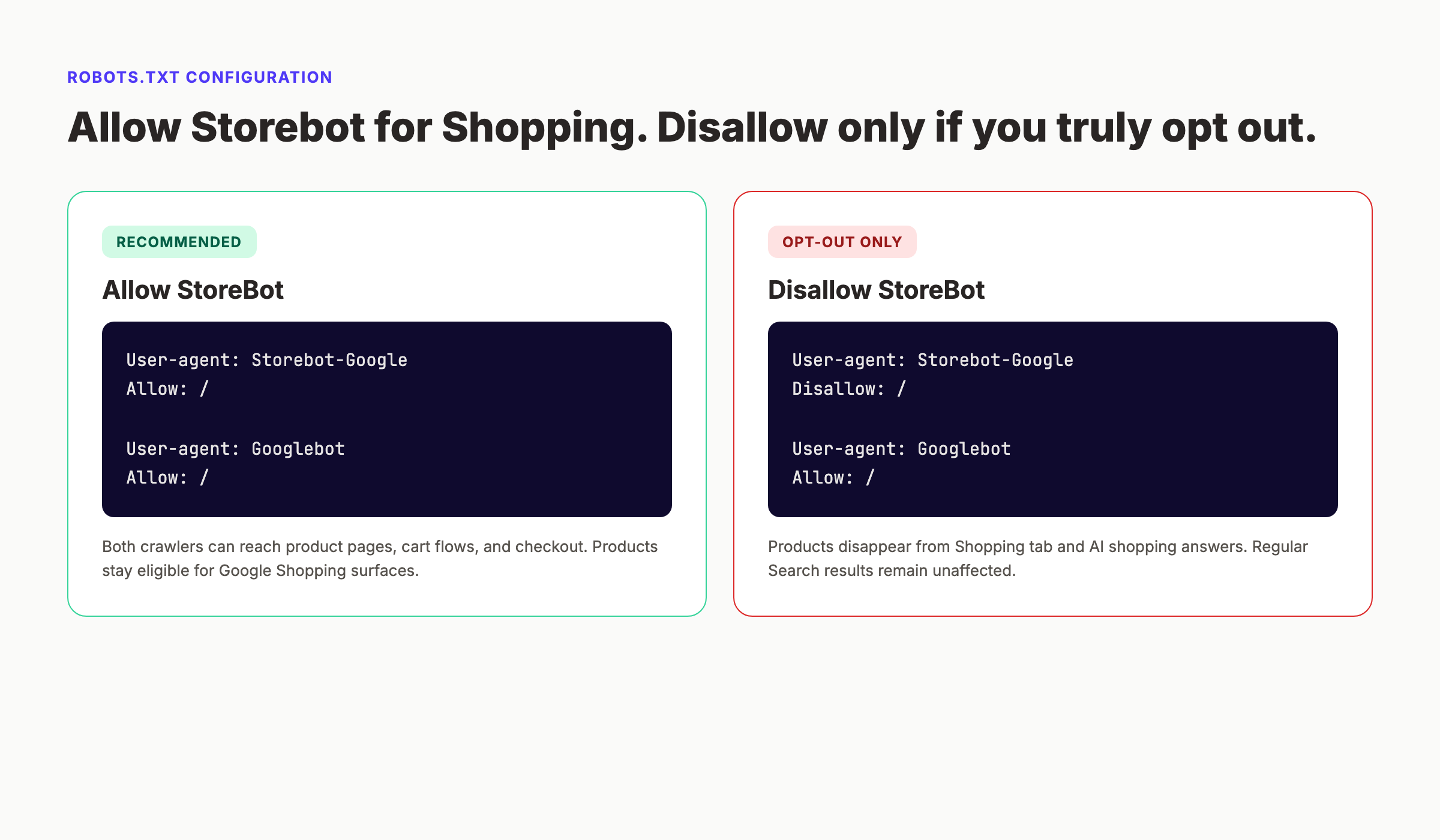
To allow StoreBot, add the following to your robots.txt file:
User-agent: Storebot-Google Allow: /
User-agent: Googlebot Allow: /
This configuration lets both crawlers reach every page on your site, including product detail pages, cart flows, and checkout. Your products stay eligible for Google Shopping, and your pages remain indexed for Google Search.
To opt out of Shopping indexing while preserving Search indexing, use this configuration:
User-agent: Storebot-Google Disallow: /
User-agent: Googlebot Allow: /
With this setup, StoreBot cannot access any page on your site. Your products will not appear in the Shopping tab, Google Shopping, or AI shopping answers. Your organic search rankings remain unaffected.
Google's official documentation states that crawling preferences addressed to the Storebot-Google user agent affect all surfaces of Google Shopping. This includes the Shopping tab in Google Search, Google Shopping results, and any AI-generated shopping responses. There is no way to selectively allow StoreBot for one Shopping surface while blocking it from another.
If you use a Web Application Firewall or CDN like Cloudflare, your robots.txt rules may not be the only factor. Firewall rules, rate limiting, and bot detection can all block StoreBot before it ever reads your robots.txt. Check your WAF logs for blocked requests from Google IP ranges. Whitelist verified Google crawler IPs if your security settings are aggressive.
For a deeper guide on robots.txt optimization, see our article on how to optimize your robots.txt file. It covers crawl budget management, AI bot handling, and testing procedures that apply to StoreBot as well as Googlebot.
Common StoreBot Issues and How to Fix Them
StoreBot issues typically surface in Google Search Console or Merchant Center as warnings, suspensions, or price mismatch alerts. Most problems fall into one of six categories, and each has a straightforward fix once you identify the root cause.
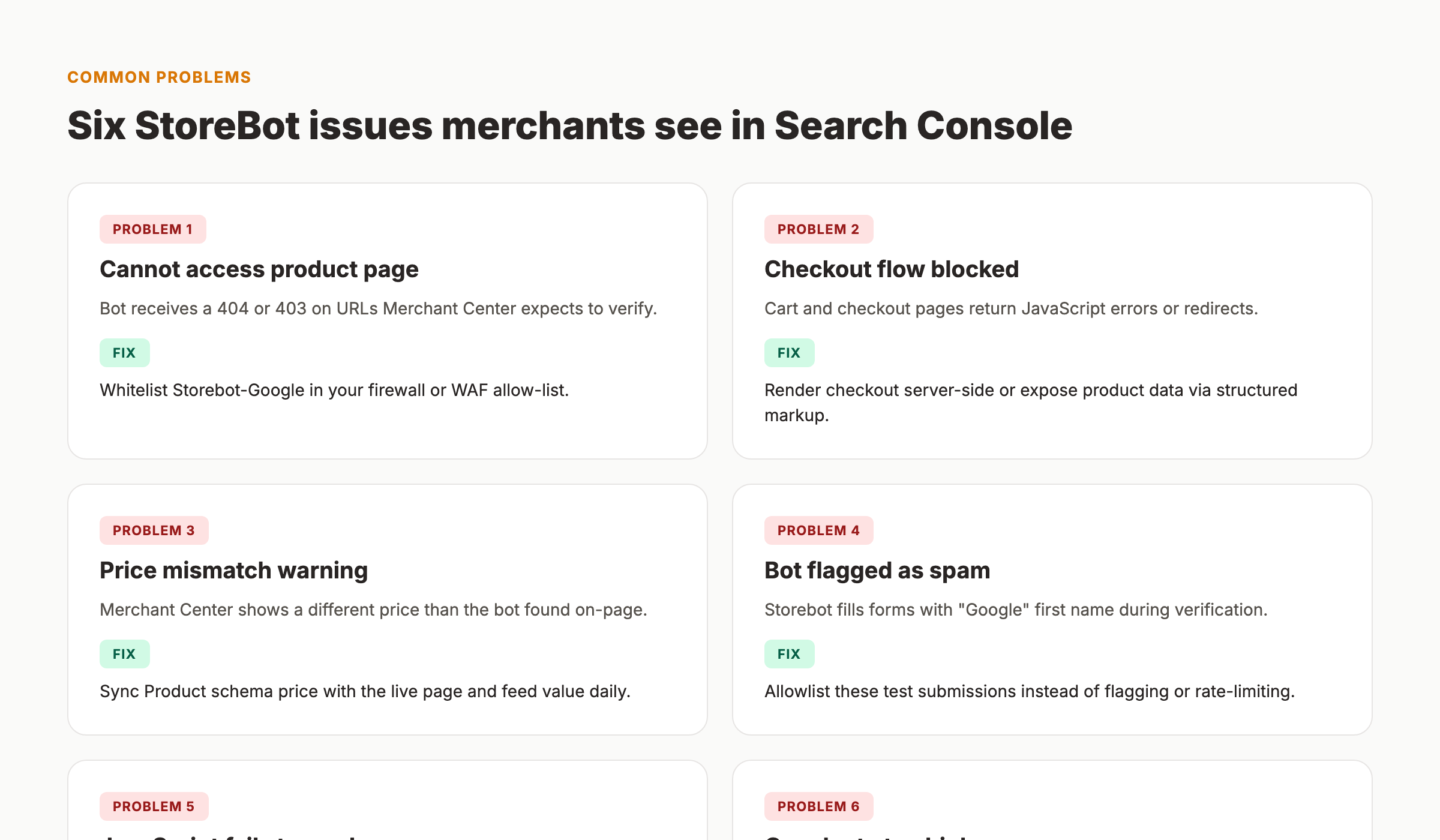
The first and most common issue is "StoreBot cannot access your product page." This happens when the bot receives a 404, 403, or 500 HTTP status code on URLs that Merchant Center expects to verify. The fix is to whitelist Storebot-Google in your firewall, WAF, or CDN allow-list. Check that your robots.txt does not contain a Disallow rule for the affected paths.
The second issue is a blocked checkout flow. StoreBot needs to reach your cart and checkout pages to verify shipping costs and delivery times. If these pages require login, redirect to a sign-in page, or return JavaScript errors, the bot cannot complete verification. The fix is to render checkout data server-side or expose product and shipping information via structured data markup so the bot does not need to interact with JavaScript-heavy checkout flows.
The third issue is a price mismatch warning. Merchant Center shows a different price than StoreBot found on your live page. This usually happens when feed data is stale, sale prices change frequently, or dynamic pricing updates the page after the feed was submitted. The fix is to sync your Product schema price with your feed values daily. Use automated feed updates if your platform supports them.
The fourth issue is StoreBot being flagged as spam. The bot fills checkout forms with "Google" as the first name and "StoreBot" as the last name. Some e-commerce platforms or fraud detection systems flag these as fake orders. The fix is to allowlist these test submissions. Do not rate-limit, block, or flag requests from verified Google IPs.
The fifth issue is JavaScript rendering failure. Single-page applications and client-side rendered stores often hide product data behind JavaScript hydration. StoreBot may not execute JavaScript the same way a browser does, leaving critical data invisible. The fix is to use server-side rendering for product pages or to include complete Product schema markup in the initial HTML response.
The sixth issue is excessive crawl rate. StoreBot can generate thousands of requests per hour on large catalogs, especially if product data changes frequently. The fix is to request a temporary crawl-rate reduction through Google Search Console settings. Go to Settings > Crawl rate and select "Limit Google's maximum crawl rate." This affects all Google crawlers, not just StoreBot, so use it sparingly.
If you are seeing multiple StoreBot issues at once, start with the robots.txt and firewall audit. Most problems trace back to a single blocked path or an overly aggressive security rule. Fix the access issue first, then address data accuracy.
StoreBot Readiness Checklist
Before you launch a new product catalog or submit a fresh feed to Merchant Center, run through this checklist. Each item reduces the chance of a StoreBot verification failure and keeps your products eligible for Google Shopping.
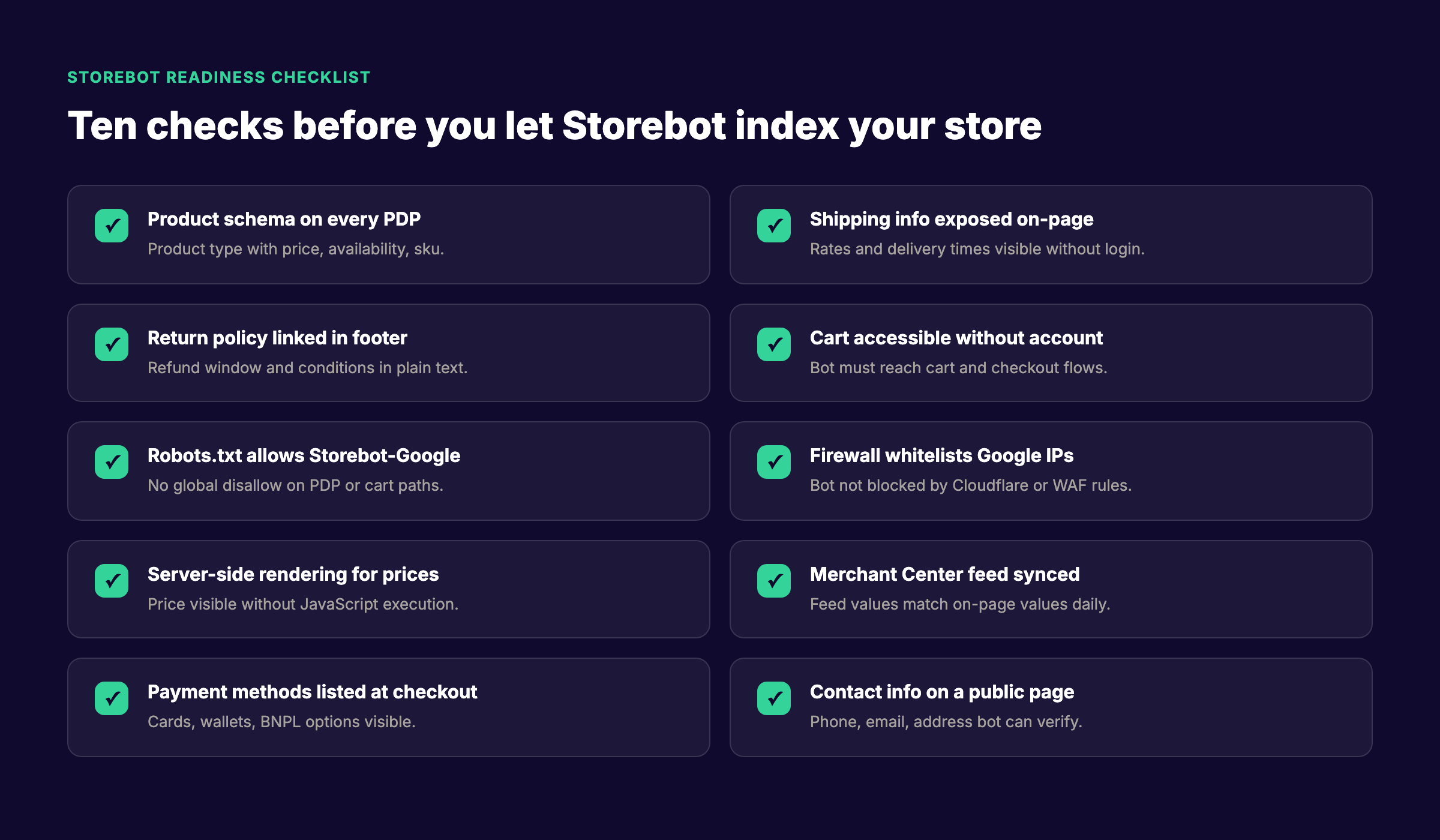
- ✓ Product schema on every product detail page. Use Schema.org Product type with price, availability, SKU, and brand properties.
- ✓ Shipping information exposed on-page. Rates and delivery times must be visible without login or account creation.
- ✓ Return policy linked in the footer. Refund window and conditions in plain text, not hidden behind a modal or JavaScript toggle.
- ✓ Cart accessible without an account. StoreBot must reach cart and checkout flows without authentication.
- ✓ Robots.txt allows Storebot-Google. No global Disallow on product, cart, or checkout paths.
- ✓ Firewall whitelists Google crawler IPs. Bot is not blocked by Cloudflare, AWS WAF, or custom rate-limiting rules.
- ✓ Server-side rendering for prices. Price is visible in the initial HTML without requiring JavaScript execution.
- ✓ Merchant Center feed synced daily. Feed values match on-page values at all times.
- ✓ Payment methods listed at checkout. Cards, digital wallets, and BNPL options are visible to the bot.
- ✓ Contact information on a public page. Phone, email, and business address are accessible for merchant verification.
If you check every box, StoreBot will crawl your store without issue. If you miss even one, you risk a verification failure that removes products from Shopping surfaces.
Get your store ready for Google Shopping verification. StoreBot issues are preventable with the right technical setup. Our technical SEO checklist covers crawl access, structured data, and feed hygiene in one audit. Run a free SEO audit
What practitioners are saying on X
AI search advice ages quickly. Here is high-signal public discussion from SEO and growth operators — context for your roadmap, not a substitute for primary data.
- @hridoyreh (Mar 2026): Widely shared SEO skill tree: foundations, research, technical, on-page, content, links, AI SEO/GEO, analytics, UX, brand, programmatic — useful map for stats and how-to posts. See the post on X.
- @jakezward (Feb 2026): 2026 SEO predictions emphasize AI Overview share-of-SERP, schema for LLM token efficiency, brand mentions in AI answers as a KPI, proprietary data as a moat, and content refresh beating net-new AI slop. See the post on X.
- @alexgroberman (Jul 2026): Case narrative: organic value plus multi-engine citations (ChatGPT, Perplexity, Grok) from knowledge-hub pages, category authority links, commercial intent content, and tight internal linking — not thin product copy. See the post on X.
Grok, AI Overviews, and multi-engine visibility
Analytics and SEO setup pages should keep entity names and steps extractable for AI Overviews, ChatGPT, Perplexity, and Grok.
- Google AI Overviews: Use passage-ready answers, tables, and FAQ schema where relevant.
- ChatGPT / Perplexity: Cite named sources next to key claims.
- Grok: Maintain accurate entity facts on-site and in high-signal X posts.
Publish content built for Google and AI citations. theStacc Content SEO ships SEO-scored articles structured for rankings and generative engines.
Frequently Asked Questions
Google StoreBot is a specialized web crawler operated by Google to verify product data on e-commerce websites. It move throughs product pages, shopping carts, and checkout flows to confirm that the information submitted to Google Merchant Center matches what shoppers see on the live site. The bot uses machine learning to fill forms and simulate purchase journeys without completing actual transactions.
Look for the user agent string containing "Storebot-Google." The full string includes a Mozilla-compatible prefix, Linux operating system details, and a Chrome rendering engine identifier. Run grep "Storebot-Google" access.log in your server terminal to isolate all StoreBot requests. The bot uses both desktop and mobile user agent variants.
Blocking StoreBot removes your products from Google Shopping, the Shopping tab in Google Search, and AI-generated shopping answers. It does not affect your organic search rankings. Only block StoreBot if you have a specific reason to opt out of Shopping indexing. For most e-commerce sites, allowing StoreBot is the correct choice.
Googlebot indexes pages for Google Search. StoreBot verifies product data for Google Shopping. Googlebot does not submit forms. StoreBot fills checkout forms with test data. They use different user-agent tokens, crawl different pages, and serve different Google products. One does not replace the other.
Use Google's two-step DNS verification. First, run a reverse DNS lookup on the requesting IP. A real Google crawler returns a hostname ending in googlebot.com or google.com. Second, run a forward DNS lookup on that hostname. If the resolved IP matches the original IP, the request is verified as authentic.
StoreBot simulates a complete shopper journey to verify shipping costs, delivery times, and payment methods. It fills the first name field with "Google" and the last name field with "StoreBot" during these test transactions. These are not real orders. Allowlist these submissions in your fraud detection system.
If StoreBot cannot reach your pages, Google cannot verify your product data. Unverified products lose eligibility for Google Shopping surfaces. You will see warnings in Merchant Center and Search Console. The fix is to check your robots.txt, firewall rules, and page accessibility.
Yes. StoreBot uses the user-agent token "Storebot-Google," which is separate from "Googlebot." You can allow or disallow each crawler independently in your robots.txt file. This lets you opt out of Shopping indexing while preserving Search indexing, or vice versa.
Conclusion
Google StoreBot is not a threat to your e-commerce site. It is a verification system that keeps your product listings accurate and your shoppers happy. The bot collects pricing, shipping, stock status, and payment data to confirm that what you submitted to Merchant Center matches the live experience on your store.
The key takeaways from this guide:
- StoreBot uses the user-agent token "Storebot-Google" and follows a distinct crawling path from Googlebot
- You can verify authentic StoreBot requests using reverse and forward DNS lookups
- Your robots.txt can allow or block StoreBot independently from Googlebot
- Most StoreBot issues trace back to firewall blocks, JavaScript rendering failures, or stale feed data
- A ten-item readiness checklist prevents verification failures before they happen
If you run an e-commerce store and want products in Google Shopping, StoreBot access is non-negotiable. The bot needs to reach your product pages, cart, and checkout without hitting a firewall wall or a JavaScript barrier. Fix the access issue, sync your data, and let the verification happen automatically.
Make sure StoreBot can verify your store. A single blocked path can remove your entire catalog from Google Shopping. Our technical SEO audit checks crawler access, structured data, and feed accuracy in one report. Start your audit
Sources & references

Researched, written, and published articles that compound organic traffic.
Weekly local SEO teardowns
One practical email a week. Map Pack, GBP, AI Overviews — no fluff. Unsubscribe anytime.