
WordPress SEO: How to Optimize Your Site in 10 Steps
A step-by-step WordPress SEO guide. 10 proven steps for plugins, speed, schema, and internal linking. Used across 3,500+ sites. Updated March 2026.
WordPress powers 43% of all websites on the internet. That is roughly 470 million sites. Yet the vast majority of those sites never appear on page 1 of Google.
The reason is simple. WordPress out of the box is not optimized for search. Default permalink structures use random numbers. No XML sitemap exists. Most themes load bloated CSS and JavaScript that tanks page speed. Without deliberate configuration, WordPress actively works against your rankings.
That costs real money. Every month you publish content that does not rank is a month of wasted effort. For businesses spending 10 to 20 hours per month on blog content, that adds up to 120 to 240 hours of invisible work per year.
This guide fixes that. We walk through the 10 steps that turn a default WordPress installation into an SEO-optimized publishing machine. These are the same steps we follow when publishing 3,500+ blog posts per month across 70+ industries. Every one of these steps is proven, practical, and beginner-friendly.
Here is what you will learn:
- Which SEO plugin to install and how to configure it correctly
- The permalink structure Google prefers (and how to set it)
- How to create, submit, and verify your XML sitemap
- Title tag and meta description formulas that increase clicks
- 5 speed optimizations that directly impact rankings
- How to add schema markup without writing code
- The internal linking structure that builds topical authority
- Image optimization rules most WordPress sites ignore
- Why HTTPS and security updates affect your search visibility
- How to set up Google Search Console and track progress monthly
Overview
Time required: 2 to 3 hours for initial setup
Difficulty: Beginner
What you will need: A WordPress site with admin access, a Google account, and a text editor for notes
Step 1: Install and Configure an SEO Plugin
WordPress does not include built-in SEO features. You need a plugin to handle title tags, meta descriptions, sitemaps, schema markup, and crawl directives.
Three plugins dominate the market:
| Plugin | Active Installs | Free Tier | Best For |
|---|---|---|---|
| Yoast SEO | 13 million+ | Strong | Beginners who want guided setup |
| Rank Math | 3 million+ | Feature-rich | Users who want schema and analytics built in |
| AIOSEO | 3 million+ | Solid | WooCommerce stores and agencies |
Rank Math offers the best free tier as of 2026. It includes schema markup, redirect management, 404 monitoring, and Google Search Console integration at no cost. Yoast locks most of these behind a $99/year premium plan.
To set up Rank Math:
- Install from Plugins > Add New > search “Rank Math”
- Run the setup wizard and select “Advanced” mode
- Connect your Google Search Console account
- Enable the modules you need: SEO Analysis, Sitemap, Schema, Redirections, and 404 Monitor
Do not install multiple SEO plugins at the same time. They conflict with each other and generate duplicate meta tags that confuse search engines.
Why this step matters: Without an SEO plugin, you have no control over how Google reads your pages. Title tags default to your WordPress theme settings. No sitemap gets generated. No schema markup gets added. The plugin is the foundation every other step builds on.
Pro tip: After installation, run the built-in SEO audit. Rank Math scores your site out of 100 and flags specific issues to fix. Address every item before moving to Step 2.
Step 2: Set Up SEO-Friendly Permalinks
The default WordPress URL structure uses query parameters like /?p=123. Google cannot extract topic signals from a number string. Neither can users.
Go to Settings > Permalinks and select “Post name.” This changes your URLs from yoursite.com/?p=123 to yoursite.com/your-post-title.
Permalink rules:
- Use lowercase letters only
- Separate words with hyphens (not underscores)
- Keep slugs under 5 words when possible
- Remove stop words like “a,” “the,” “and,” “of”
- Include your target keyword in the slug
A post targeting “wordpress seo tips” should use the slug /wordpress-seo-tips. Not /10-amazing-tips-for-optimizing-your-wordpress-website-for-seo-in-2026.
If your site already has published content, changing the permalink structure breaks all existing URLs. Rank Math and Yoast both offer redirect modules. Enable automatic redirects from old URLs to new ones before you make the switch.
Why this step matters: Google uses URL structure as a ranking signal. Clean, keyword-rich URLs improve click-through rates in search results by up to 25%. Users trust short, readable URLs more than cryptic parameter strings.
Step 3: Create and Submit an XML Sitemap
An XML sitemap tells Google which pages exist on your site and when they were last updated. Without one, Google discovers pages only through links. That process is slower and less complete.
Both Rank Math and Yoast generate XML sitemaps automatically. No extra plugin needed.
To verify your sitemap:
- Visit
yoursite.com/sitemap_index.xml - Confirm it lists your pages, posts, categories, and images
- Check that no draft, private, or thin pages are included
Next, submit the sitemap to Google Search Console:
- Open Google Search Console
- Go to Indexing > Sitemaps
- Enter
sitemap_index.xmlin the URL field - Click Submit
Your SEO plugin should also generate a robots.txt file. Review it at yoursite.com/robots.txt and confirm it does not block important pages. Read our full guide on robots.txt optimization if you see unexpected directives.
Why this step matters: Sites with submitted sitemaps get indexed faster. According to Google’s documentation on sitemaps, a sitemap helps Google discover pages that might be isolated or new. For sites with more than 50 pages, a sitemap is essential for crawl budget efficiency.
Step 4: Optimize Title Tags and Meta Descriptions
Title tags and meta descriptions control how your pages appear in search results. They directly influence click-through rates and indirectly influence rankings.
Title tag formula:
[Primary Keyword]: [Benefit or Hook] ([Year])Examples:
- “WordPress SEO: How to Optimize Your Site in 10 Steps (2026)”
- “Blog SEO: The Complete Guide for More Organic Traffic”
Keep title tags under 60 characters. Google truncates anything longer.
Meta description formula:
[What the page covers]. [Specific benefit]. [Freshness signal].Example: “A step-by-step WordPress SEO guide. 10 proven steps for plugins, speed, and schema. Updated March 2026.”
Keep meta descriptions between 145 and 155 characters. Include the primary keyword once.
Your SEO plugin lets you set custom title tags and meta descriptions for every page and post. Use this on every single piece of content. The defaults that WordPress generates are almost never optimized.
For deeper on-page SEO techniques, cover heading hierarchy (H1 through H4), keyword placement in the first 100 words, and image alt text optimization.
Why this step matters: A page ranking in position 5 with a compelling title tag can outperform a position 3 result with a generic one. Title tags are the first thing users see in search results. Optimized descriptions increase click-through rates by 5 to 10% on average.
Stop writing. Start ranking. Stacc publishes 30 optimized articles per month for your WordPress site. Every title tag, meta description, and heading is optimized before it goes live. Start for $1 →
Step 5: Speed Up Your WordPress Site
Page speed is a confirmed Google ranking factor. Sites that load in 1 second convert at 5 times the rate of sites that load in 5 seconds. WordPress sites are especially vulnerable to bloat from plugins, unoptimized themes, and oversized images.
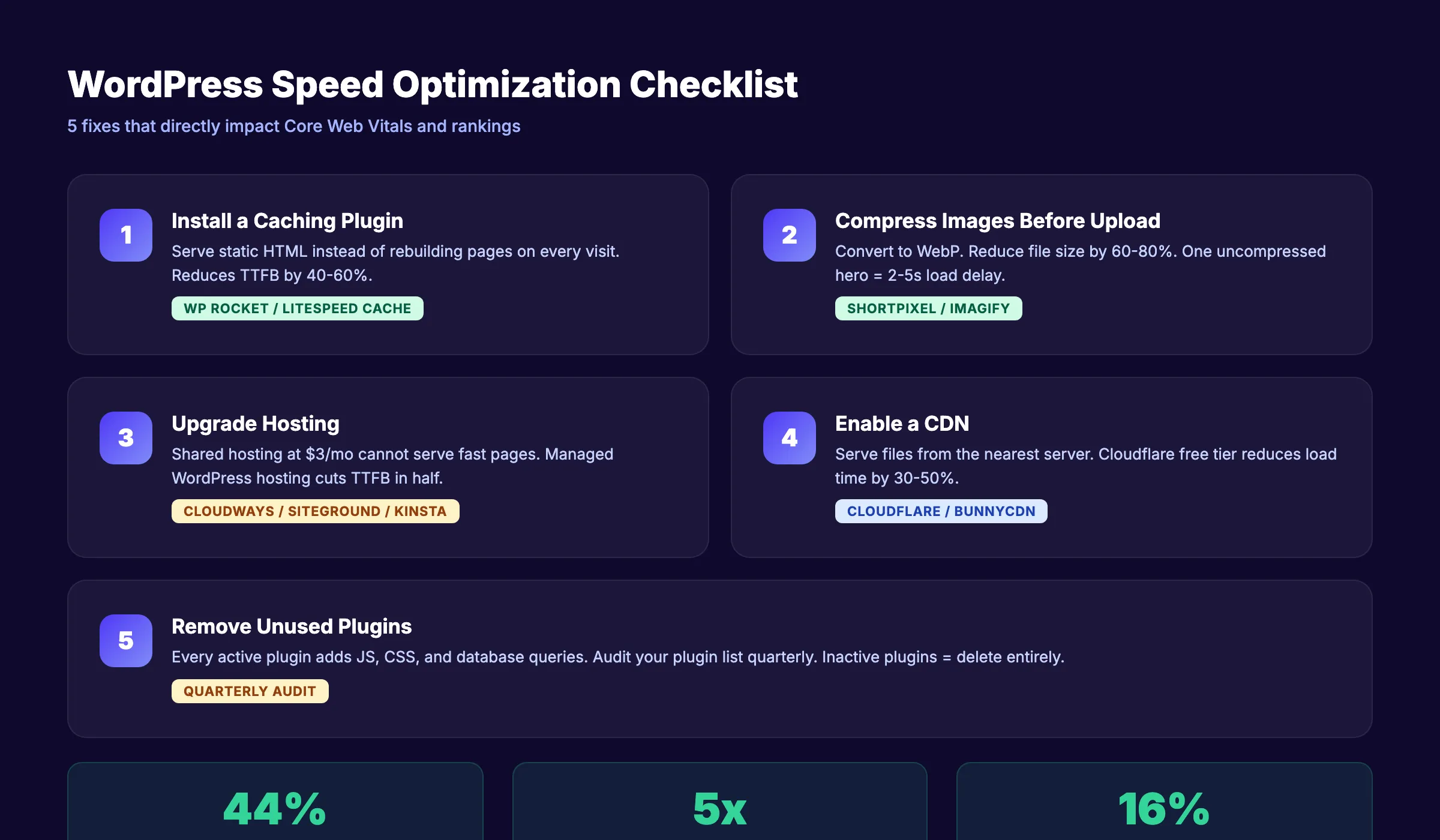
5 speed fixes for WordPress:
-
Install a caching plugin. WP Rocket, LiteSpeed Cache, or W3 Total Cache. Caching serves static HTML instead of generating pages from the database on every visit.
-
Compress images before upload. Use ShortPixel or Imagify. Convert all images to WebP format. A single uncompressed hero image can add 2 to 5 seconds to load time.
-
Choose quality hosting. Shared hosting at $3 per month cannot serve fast pages under traffic. Upgrade to managed WordPress hosting from Cloudways, SiteGround, or Kinsta. Hosting directly affects Time to First Byte.
-
Enable a CDN. A content delivery network serves your files from servers closest to each visitor. Cloudflare offers a free tier that reduces load time by 30 to 50% for global audiences.
-
Remove unused plugins. Every active plugin adds JavaScript, CSS, and database queries. Audit your plugin list quarterly. If a plugin is inactive, delete it entirely.
Test your site speed at PageSpeed Insights. Focus on Core Web Vitals: Largest Contentful Paint under 2.5 seconds, Interaction to Next Paint under 200 milliseconds, and Cumulative Layout Shift under 0.1.
Only 44% of WordPress sites on mobile pass all 3 Core Web Vitals thresholds. Fixing speed puts you ahead of more than half your competition.
Why this step matters: A 1-second delay in page load reduces customer satisfaction by 16% and increases bounce rate by 32%. Google uses Core Web Vitals as a ranking signal. Fast sites also get crawled more frequently, which accelerates indexing of new content.
Step 6: Add Schema Markup
Schema markup is structured data that helps Google understand what your pages are about. It powers rich results like star ratings, FAQ dropdowns, how-to steps, and article dates in search results.
WordPress does not add schema markup by default. Your SEO plugin handles the basics (Article, Organization, BreadcrumbList). For advanced schema, use a dedicated approach.
Essential schema types for WordPress:
| Schema Type | Use Case | Rich Result |
|---|---|---|
| Article | Blog posts | Date, author, headline in SERP |
| FAQPage | FAQ sections | Expandable Q&A in SERP |
| HowTo | Step-by-step guides | Numbered steps in SERP |
| LocalBusiness | Local service pages | Business info panel |
| Product | WooCommerce products | Price, availability, reviews |
| BreadcrumbList | All pages | Breadcrumb trail in SERP |
Rank Math includes a schema markup builder in its free version. Select the schema type when editing any post or page. For custom implementations, use our schema markup generator.
Validate your markup with Google’s Rich Results Test. Fix every error and warning before publishing.
Why this step matters: Pages with schema markup earn 40 to 50% higher click-through rates from rich results. Schema also improves your visibility in AI search engines. ChatGPT, Perplexity, and Google AI Overviews prioritize structured data when selecting content to cite.
Step 7: Build Your Internal Linking Structure
Internal links distribute ranking authority across your site. They also help Google understand topic relationships between pages. Most WordPress sites have weak or random internal linking.
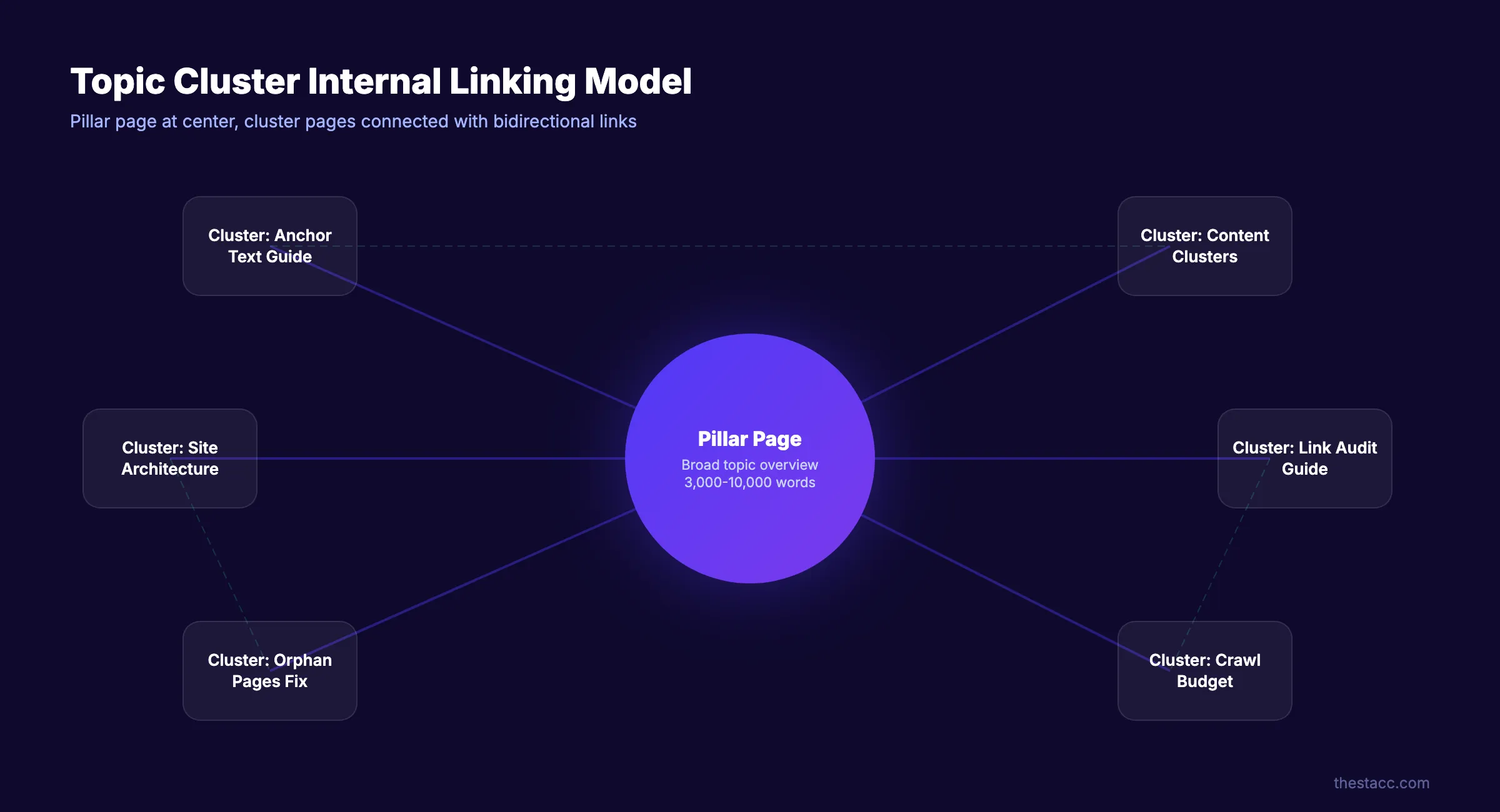
How to build a strong internal linking structure:
-
Create topic clusters. Group related content around a pillar page. A pillar post on “blog SEO” links to supporting posts on keyword research, blog post structure, and SEO content writing.
-
Link contextually. Place links within body text using descriptive anchor text. “Read our internal linking guide” is better than “click here.”
-
Aim for 3 to 5 internal links per 1,000 words. Every blog post should link to at least 3 other posts on your site. Every page should receive links from at least 2 other pages.
-
Link from high-authority pages to new pages. Your most-visited posts carry the most link equity. Add links from those posts to newer content that needs ranking support.
-
Audit quarterly. Use Screaming Frog or Ahrefs Site Audit to find orphan pages (pages with zero internal links pointing to them). Fix every orphan.
Why this step matters: A study by Ahrefs found that internal links are among the top 5 on-page SEO factors. Google uses internal link structure to determine which pages matter most. Without intentional internal linking, your best content stays buried.
Your SEO team. $99 per month. 30 optimized articles, each with internal links mapped to your existing content. Published automatically to your WordPress site. Start for $1 →
Step 8: Optimize Every Image
Images make content engaging. Unoptimized images make sites slow. WordPress does not compress or convert images on upload. Every image you add is served at its original file size.
Image optimization rules for WordPress:
-
Compress before upload. Reduce file size by 60 to 80% using ShortPixel, TinyPNG, or Squoosh. A 2 MB hero image should compress to 200 to 400 KB.
-
Use WebP format. WebP files are 25 to 35% smaller than JPEG at the same quality. Most modern browsers support WebP. Use the WebP Express or ShortPixel plugin for automatic conversion.
-
Write descriptive alt text. Every image needs alt text that describes what the image shows. Include your target keyword naturally when it fits. “WordPress SEO plugin comparison table” is good. “SEO” alone is not.
-
Set image dimensions. Specify width and height attributes to prevent Cumulative Layout Shift. Your theme or editor should handle this automatically.
-
Enable lazy loading. WordPress 5.5+ adds lazy loading by default. Confirm it is active. Lazy loading defers offscreen images until the user scrolls to them, reducing initial page load.
For a complete walkthrough, read our blog image optimization guide.
Why this step matters: Images account for 40 to 60% of total page weight on most WordPress sites. One unoptimized image can push your Largest Contentful Paint above 2.5 seconds and fail Core Web Vitals. Google Image Search also drives 20 to 30% of total organic clicks for many niches.
Step 9: Secure Your Site with HTTPS and Regular Updates
Google confirmed HTTPS as a ranking signal in 2014. Every page on your WordPress site must load over HTTPS. This is non-negotiable.
HTTPS setup:
- Most hosts offer free SSL certificates through Let’s Encrypt. Enable it from your hosting control panel.
- Install the Really Simple SSL plugin to force all traffic through HTTPS.
- Check for mixed content warnings (HTTP resources loading on HTTPS pages). Fix every one.
For a deeper breakdown, read our guide on SSL and SEO.
Security updates matter for SEO:
In 2025, researchers discovered 11,334 new vulnerabilities in the WordPress ecosystem. A 42% increase from the previous year. 91% of those vulnerabilities came from plugins. Roughly 13,000 WordPress sites get hacked every day, according to Patchstack’s security report.
A hacked site gets deindexed. Japanese keyword spam, malicious redirects, and injected phishing pages destroy rankings instantly.
Maintenance checklist:
- Update WordPress core, themes, and plugins weekly
- Delete all unused themes and inactive plugins
- Use a security plugin like Wordfence or Sucuri
- Enable two-factor authentication for all admin accounts
- Back up your site daily (UpdraftPlus or your host’s backup system)
Why this step matters: A single security breach can erase months of SEO progress. Google flags compromised sites with “This site may be hacked” warnings. Recovery takes weeks. Prevention takes minutes.
Step 10: Connect Google Search Console and Monitor Rankings
Google Search Console is free. It shows you exactly how Google sees your site. Without it, you are optimizing blind.
Setup:
- Go to Google Search Console
- Add your property using the domain or URL prefix method
- Verify ownership via DNS record, HTML tag, or your SEO plugin
- Submit your sitemap (from Step 3)
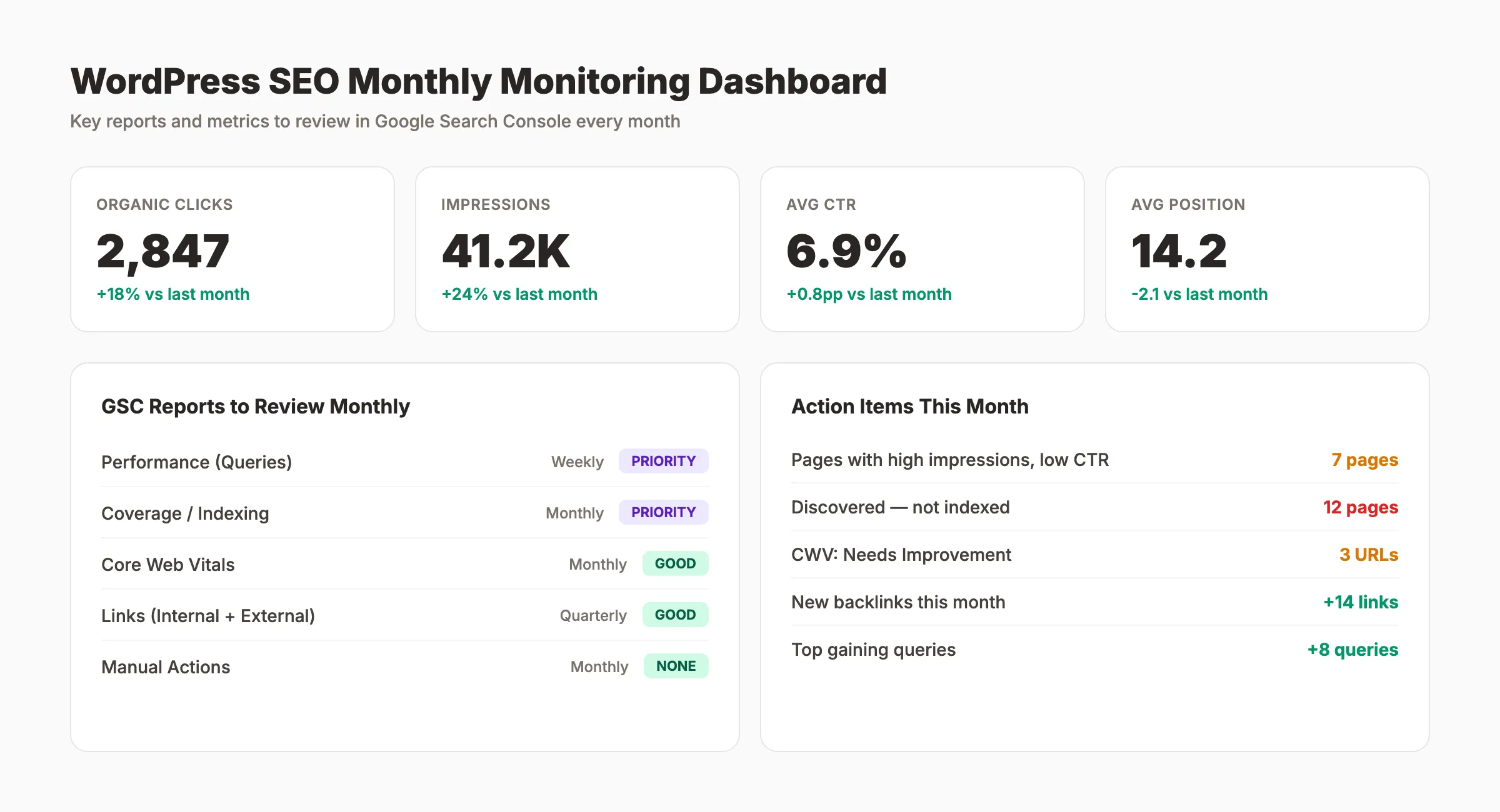
Key reports to review monthly:
-
Performance: Clicks, impressions, CTR, and average position by query. Identify pages with high impressions but low CTR. These need better title tags and meta descriptions.
-
Coverage/Indexing: Find pages with errors, warnings, or “Discovered. Currently not indexed” status. Fix crawl errors promptly.
-
Core Web Vitals: Track your speed metrics over time. Address any URLs flagged as “Poor” or “Needs Improvement.”
-
Links: See which pages earn the most internal and external links. Strengthen pages with few links.
Build a monthly review habit. Block 30 minutes on the first Monday of each month. Review Search Console data, identify your top 10 gaining and declining pages, and take action. Our full Google Search Console guide covers every report in detail.
For a complete site review, run a full SEO audit every quarter. Use our free website SEO audit tool to get a score and prioritized fix list.
Why this step matters: Search Console data drives every optimization decision. Without it, you cannot know which keywords drive traffic, which pages underperform, or whether Google can even crawl your site properly.
Results: What to Expect
After completing all 10 steps, you should see:
- Week 1: Google Search Console shows your sitemap processed and pages indexed
- Month 1 to 2: Improved crawl stats, faster page speed scores, and schema-powered rich results appearing
- Month 3 to 6: Ranking improvements for target keywords, increased organic traffic, and higher click-through rates
- Month 6+: Compounding results as new content builds on the optimized foundation
WordPress SEO is not a one-time project. It is an ongoing system. The sites that rank highest publish consistently, update old content regularly, and monitor Search Console data monthly. Publishing 20 to 30 optimized articles per month consistently outperforms publishing 2 to 4 articles with perfect on-page scores.
3,500+ blogs published. 92% average SEO score. See what Stacc can do for your WordPress site. 30 articles per month, published automatically. Start for $1 →
Troubleshooting
Problem: Google says “Discovered. Currently not indexed” for many pages. Fix: Check for thin content, duplicate content, or crawl budget waste. Improve the quality of affected pages. Add internal links from high-authority pages. Resubmit the sitemap after making changes.
Problem: Core Web Vitals scores are still failing after speed optimization. Fix: Run a technical SEO checklist audit. Check for render-blocking JavaScript, unoptimized third-party scripts (chat widgets, analytics), and oversized fonts. Consider switching to a lightweight theme like GeneratePress or Kadence.
Problem: Rankings dropped after changing permalink structure. Fix: Verify that 301 redirects are active from old URLs to new URLs. Check for redirect chains (old URL > intermediate URL > final URL). Use Screaming Frog to crawl the site and confirm every old URL resolves to the correct new URL with a single redirect hop.
FAQ
Is WordPress good for SEO?
Yes. WordPress provides the technical foundation for SEO through clean HTML output, customizable URL structures, and a plugin ecosystem that covers every optimization need. W3Techs reports that WordPress powers 43% of all websites because of this flexibility. The platform itself is SEO-capable. The gap is in configuration and ongoing optimization.
Which WordPress SEO plugin is best: Yoast, Rank Math, or AIOSEO?
Rank Math offers the most features in its free version. It includes schema markup, redirect management, keyword tracking, and Google Search Console integration without a paid upgrade. Yoast is the most widely used and best for absolute beginners who want hand-holding. AIOSEO is strongest for WooCommerce stores and agencies managing multiple sites.
Do I need to pay for an SEO plugin?
No. The free versions of Rank Math and Yoast cover everything most sites need. Premium versions add features like advanced schema types, local SEO modules, and content AI suggestions. Start with the free tier. Upgrade only when you hit a specific limitation.
How long does WordPress SEO take to show results?
Most sites see initial indexing improvements within 2 to 4 weeks. Meaningful ranking gains typically appear in 3 to 6 months. The timeline depends on your domain age, competition level, content quality, and publishing frequency. Consistent weekly publishing accelerates results. Read our breakdown of how long SEO takes for detailed timelines by industry.
Can Stacc publish SEO content directly to my WordPress site?
Yes. Stacc integrates with both WordPress.com (via OAuth 2.0) and self-hosted WordPress.org (via App Password). Every article is optimized for on-page SEO, includes internal links, and publishes automatically to your site. Explore our AI blog writers for WordPress comparison to see how Stacc stacks up.
WordPress SEO is a system, not a single task. These 10 steps build the foundation. Consistent publishing, regular audits, and monthly Search Console reviews turn that foundation into compounding organic traffic. Start with Step 1 today. The sooner your site is optimized, the sooner Google starts sending traffic your way.
Related Tools & Resources
Free SEO Tools:
Best Lists:

Written by
Siddharth GangalSiddharth is the founder of theStacc and Arka360, and a graduate of IIT Mandi. He spent years watching great businesses lose organic traffic to competitors who simply published more. So he built a system to fix that. He writes about SEO, content at scale, and the tactics that actually move rankings.
30 SEO blog articles published every month
Keyword-optimized, scheduled, and live on your site. Automatically.
30-day trial · Cancel anytime
theStacc
Stop writing SEO content manually
30 blog articles, 30 GBP posts, and social media content. Published every month. Automatically.
Try for free$1 for 3 days · Cancel anytime